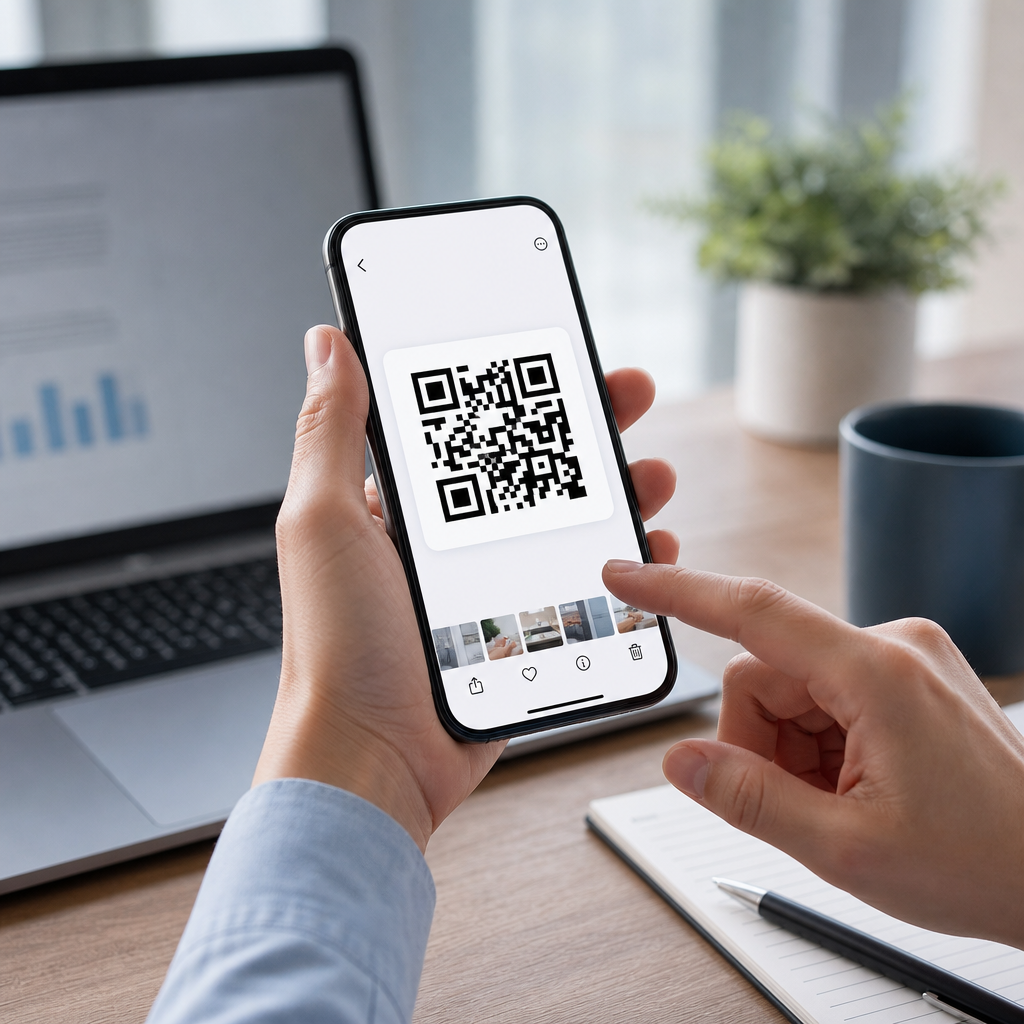
Yes, you can scan a QR code from a screenshot, and on most modern phones the process takes only a few taps. A QR code is a two-dimensional barcode that stores information such as a website URL, Wi-Fi login, payment address, contact card, app deep link, or authentication token. Instead of pointing your camera at a printed code, you use an image already saved on your device, usually a screenshot from a website, text message, email, social post, or PDF. This matters because many people receive QR codes digitally now, not on paper, and they want a reliable way to open the link without using a second device.
In day-to-day support work, this is one of the most common mobile-specific questions I handle. People save a boarding pass, event ticket, restaurant menu, WhatsApp Web login, or promo offer, then get stuck because the code is on the same phone they need to use. The good news is that both iPhone and Android increasingly recognize QR codes inside images. The less obvious part is that success depends on image quality, the app you use, and the type of QR code itself. A static code usually opens immediately; a damaged screenshot, cropped image, or expired dynamic code may not.
This guide explains exactly how to scan a QR code from a screenshot on iPhone and Android, why some screenshots fail, which apps and built-in tools work best, and when you should be careful. Because this page sits within a broader mobile troubleshooting area, it also serves as a hub for related issues such as camera-based scanning not working, links not opening after a scan, and QR codes that lead to app downloads, Wi-Fi setup, payments, or login flows. If you need a direct answer first: open the screenshot in your Photos or Gallery app, tap the QR detection option if it appears, or use Google Lens on Android or Live Text-style recognition on iPhone.
How to scan a QR code from a screenshot on iPhone and Android
On iPhone, the simplest method is to open the screenshot in the Photos app and press on the QR code or tap the small detection icon that appears when iOS recognizes actionable content. On recent versions of iOS, Visual Look Up and Live Text-related image analysis can identify QR codes inside saved images. If the code is recognized, iPhone will show the embedded link or action, such as opening Safari, joining a Wi-Fi network, adding a contact, or launching an app. If nothing appears, zooming out slightly or reopening the image sometimes helps because the detector needs the full code in frame with clear contrast.
On Android, Google Photos and Google Lens are the most dependable tools. Open the screenshot in Google Photos, tap the Lens icon, and Lens will analyze the image for QR content. Many Android phone makers also build this into the Gallery app. Samsung Gallery, for example, may detect QR content directly or hand it off to Bixby Vision or Lens depending on device settings. Pixel phones usually handle screenshots especially well because Lens is tightly integrated across the system. If your default gallery does not detect the code, try opening the image in Chrome, Google Photos, or the standalone Google app and running Lens there.
Not every phone behaves the same way, so this quick comparison helps.
| Device or app | Built-in method | Typical result | Common issue |
|---|---|---|---|
| iPhone with recent iOS | Photos app recognition | Tap code or detected link | No prompt if screenshot is cropped too tightly |
| Google Pixel | Google Photos plus Lens | Fast QR detection and link preview | Low-resolution screenshots reduce accuracy |
| Samsung Galaxy | Gallery, Lens, or Bixby Vision | Usually opens URL or action menu | Feature location varies by One UI version |
| WhatsApp or social media image | Share to Photos or save locally | Scans after saving in many cases | In-app viewers may block detection tools |
If built-in methods fail, you still have options. You can upload the screenshot to a reputable QR reader app, use a desktop browser extension, or open the image on another device and scan it conventionally with your phone camera. In support environments, I usually recommend exhausting built-in tools first because they are faster and safer. Third-party scanner apps vary widely in quality. Some are excellent, but many are ad-heavy, request unnecessary permissions, or intercept links. For most users, Apple Photos, Google Photos, and Google Lens are the safest starting points.
Why a QR code screenshot may not scan
The biggest reason a screenshot does not scan is image quality. QR codes rely on high contrast and clean edges so the scanner can identify finder patterns, alignment patterns, and the data modules in the grid. If the screenshot is blurry, compressed by a messaging platform, darkened by a screen filter, or cropped so tightly that the quiet zone around the code is missing, recognition can fail. The quiet zone is the blank margin around the QR code, and ISO/IEC 18004 guidance treats that border as essential for reliable decoding. Many users accidentally remove it when cropping for convenience.
Another common problem is that the code is valid visually but no longer valid operationally. Dynamic QR codes often redirect through a short URL or management platform. If the destination has expired, been disabled, or been changed by the issuer, scanning the screenshot may produce an error even though the decoder reads it correctly. This happens with event tickets, one-time sign-in links, restaurant ordering systems, and marketing campaigns. In those cases, the screenshot is not the issue; the QR destination is. A fresh code from the original sender is the fix.
Screen overlays can interfere too. I have seen failures caused by cracked-screen lines crossing the code, dark mode inversions in certain apps, low brightness that affects screenshots from DRM-restricted apps, and even notification banners that partially cover the image. Some QR codes also embed actions that require app support. A payment QR built for one wallet may scan successfully but do nothing useful unless the correct payment app is installed. The same is true for transit apps, loyalty programs, and secure enterprise logins. Decoding and completing the action are separate steps.
Best practices for scanning QR codes from screenshots safely
Scanning a QR code from a screenshot is convenient, but convenience should not override caution. A QR code hides its destination until your phone decodes it, which makes it useful for phishing. Before opening a scanned link, check whether your phone shows a preview URL. On iPhone and in Google Lens, you can often see the domain before visiting it. That matters. A legitimate company domain and a lookalike domain are not the same. I advise users to pause if the URL uses random characters, suspicious subdomains, or unfamiliar shortening services, especially for banking, password resets, package delivery notices, and account verification prompts.
Be careful with screenshots of login QR codes. WhatsApp Web, device pairing systems, two-factor authentication setup pages, and corporate single sign-on platforms may show QR codes that are intended for a different device or limited time window. Saving and sharing those screenshots can expose sensitive access. In my own workflow, I treat account-related QR images like temporary credentials: use them quickly, avoid forwarding them, and delete them when done. If a service labels a QR code as one-time or time-sensitive, believe it. Screenshots create persistence that the original design may not have intended.
Use trustworthy tools. Built-in scanning features from Apple, Google, Samsung, and Microsoft are generally preferable to unknown scanner apps. If you do need a third-party reader, review permissions closely. A QR reader does not need access to your contacts, call logs, or precise location to decode an image. It may need camera or photo access, but that is usually all. Also keep your phone updated. Security protections in Safari, Chrome, Play Protect, and iOS system services reduce risk from malicious destinations, but only if the operating system and browser are current.
Mobile troubleshooting scenarios and related FAQ paths
Because this page serves as a hub for mobile-specific QR questions, it helps to map the most common scenarios. If your phone camera will not recognize a printed code, the problem is usually different from scanning a screenshot; camera focus, lens smudges, and disabled QR settings are the first things to check. If the screenshot scans but the link will not open, troubleshoot your browser, default app associations, pop-up restrictions, or the network connection. If the QR code should join Wi-Fi automatically but does not, verify that the code format matches the standard network string and that the password has not changed.
Payment and ticketing questions deserve special mention. Airline boarding passes, mobile concert tickets, and venue entry codes are often meant to be displayed, not re-scanned from the same phone. In that case, scanning the screenshot is unnecessary; the barcode or QR itself is what staff scan at the gate. For peer-to-peer payments, however, users often save another person’s payment QR and scan it later from a screenshot. That usually works, but you should still verify the recipient name inside the payment app before sending funds. A readable code is not proof that the destination is the right one.
For next steps, explore the related troubleshooting articles in the FAQs & Troubleshooting Hub: phone camera QR scanner not working, Google Lens not detecting codes, iPhone Photos not showing QR actions, QR code opens the wrong app, Wi-Fi QR code failed to join network, QR code from PDF will not scan, and is it safe to scan a QR code from text or email. Together, these pages cover the full mobile journey from detection to action. If you are solving a problem right now, start with your built-in Photos or Gallery app, confirm image quality, preview the destination, and only then open the link or action.
The short answer to “Can I scan a QR code from a screenshot?” is yes, and for most current smartphones it is routine. Open the saved image in Photos, Gallery, or Google Photos, use the built-in QR recognition option or Lens, and the phone will usually extract the link or action immediately. When it does not, the cause is usually practical rather than mysterious: low image quality, missing borders, expired dynamic content, unsupported app actions, or a viewer that does not expose recognition tools. Once you know those patterns, troubleshooting becomes much faster.
The bigger takeaway is that mobile QR scanning is no longer limited to the camera viewfinder. Screenshots, saved images, PDFs, and messages are all part of how people interact with QR codes now, so understanding screenshot scanning saves time and avoids unnecessary workarounds. It also improves security because you can inspect a destination before opening it, use trusted system tools, and avoid risky scanner apps. That matters whether you are joining Wi-Fi, opening a menu, paying a bill, or signing in to a service.
If you need help beyond this page, continue through the mobile-specific articles in the FAQs & Troubleshooting Hub and match your exact symptom to the right fix. Start with your phone’s native photo app, try Google Lens if available, and verify the code’s source before tapping through. That simple process resolves most QR screenshot problems quickly.
Frequently Asked Questions
Can I really scan a QR code from a screenshot instead of using my camera?
Yes, in most cases you can scan a QR code directly from a screenshot or any saved image on your phone, tablet, or computer. Modern devices and apps are designed to recognize QR codes not only through the live camera view but also from photos already stored in your gallery. That means if someone sends you a QR code in a text message, email, social media post, PDF, or webpage, you usually do not need a second device to open it. You can simply save the image or take a screenshot and use a built-in photo app, QR scanner, browser feature, or image recognition tool to read it.
This works because a QR code is just a visual data pattern. As long as the code is clear enough in the image, software can decode the information the same way it would if the camera were pointed at a printed version. The code might contain a website URL, Wi-Fi credentials, payment link, digital business card, app deep link, event check-in, or even an authentication token. For everyday users, this makes QR codes much more convenient, especially when the code appears on the same screen as the device you are using.
How do I scan a QR code from a screenshot on iPhone or Android?
On an iPhone, the easiest method is often to open the screenshot in the Photos app and press and hold on the QR code if iOS recognizes it, or tap any link-detection prompt that appears. Some versions of iOS also work well with Live Text and visual lookup features, which can identify QR codes and present the associated action, such as opening a website or joining a Wi-Fi network. If that does not appear automatically, you can try using Google Photos, the Google app, or another QR scanner that supports importing images from your camera roll.
On Android, the exact steps depend on the phone brand and software version, but the process is usually just as simple. Open the screenshot in Google Photos, Samsung Gallery, or your device’s default gallery app, then look for an option like Lens, Scan QR Code, Bixby Vision, or More actions. Google Lens is especially common and can decode QR codes from screenshots very reliably. Once recognized, the phone will show the embedded content and let you choose what to do next, such as open a link, copy text, save contact details, or connect to a network. If your built-in apps do not detect the code, a trusted third-party QR scanner with photo import support is typically the fastest backup option.
Why won’t my phone recognize a QR code in a screenshot?
If a QR code from a screenshot will not scan, the most common reason is image quality. The code may be too small, blurry, cropped, compressed, or partially covered by interface elements like icons or notifications. QR readers need enough sharp contrast between the dark and light squares to interpret the data accurately. If the screenshot came from a low-resolution image, a heavily compressed social media upload, or a zoomed-out PDF preview, the scanner may not have enough detail to work with.
There are also cases where the app you are using simply does not support reading QR codes from saved images, even though it scans fine with the camera. In that situation, switching to a different app often solves the problem immediately. Another issue can be screen glare or odd color inversion if the screenshot was edited or captured with filters applied. To improve your chances, crop the image so the QR code fills more of the frame, retake the screenshot at higher resolution if possible, avoid adding edits, and try scanning it with Google Lens, Apple Photos features, or another reputable tool. If the code still fails, the original source may be damaged or incomplete.
Is it safe to scan a QR code from a screenshot?
Scanning a QR code from a screenshot is generally safe in itself, but what matters most is where the QR code leads. A screenshot is just another way of storing the same code, and the risk comes from the destination encoded inside it. Some QR codes open legitimate websites, payment pages, contact cards, or Wi-Fi login prompts, while others may direct users to phishing pages, malicious downloads, fake login forms, or misleading app links. That is why it is important to preview the result before tapping through whenever your device gives you that option.
A good rule is to treat QR codes the same way you treat links in emails or text messages. If the screenshot came from an unknown sender, an untrusted social post, or a suspicious website, be cautious. Look closely at the web address before opening it, avoid entering passwords on pages you did not expect, and be careful with QR codes that trigger payments or app installations. If the code is supposed to connect you to Wi-Fi or reveal sensitive account information, make sure it comes from a source you trust. Built-in scanners from Apple, Google, and major phone makers are usually safer than random scanner apps because they are less likely to add unnecessary ads, tracking, or risky permissions.
What types of information can a QR code in a screenshot contain?
A QR code in a screenshot can contain many different kinds of information, not just a website link. One of the most common uses is opening a URL, but QR codes are also widely used for Wi-Fi network setup, payment requests, digital tickets, restaurant menus, product pages, contact cards, map locations, app download links, two-factor authentication setup, and event registration. In business and customer service settings, they may link to support portals, forms, or promotional landing pages. In everyday communication, someone might send you a screenshot of a QR code for joining a group, adding a contact, or accessing a document.
Because QR codes can trigger different actions depending on the data format, your phone may respond in different ways after scanning. For example, it might open a browser, offer to join a wireless network, create a new contact, launch a payment app, or copy raw text. This flexibility is exactly why scanning from a screenshot is so useful. People often receive QR codes digitally rather than on paper, and being able to decode them from an image makes the process faster and more practical. As always, it helps to verify what kind of data the code contains before taking action, especially if it involves money, logins, or private account access.