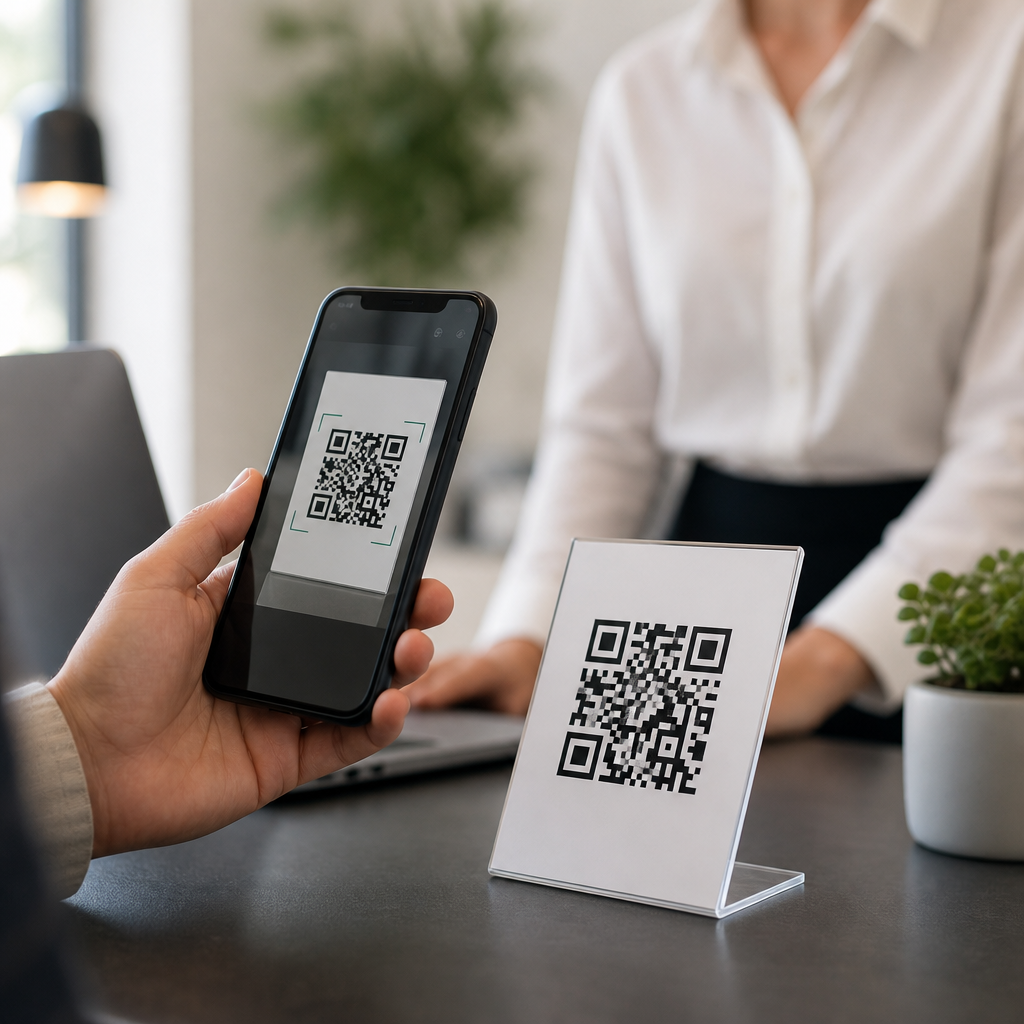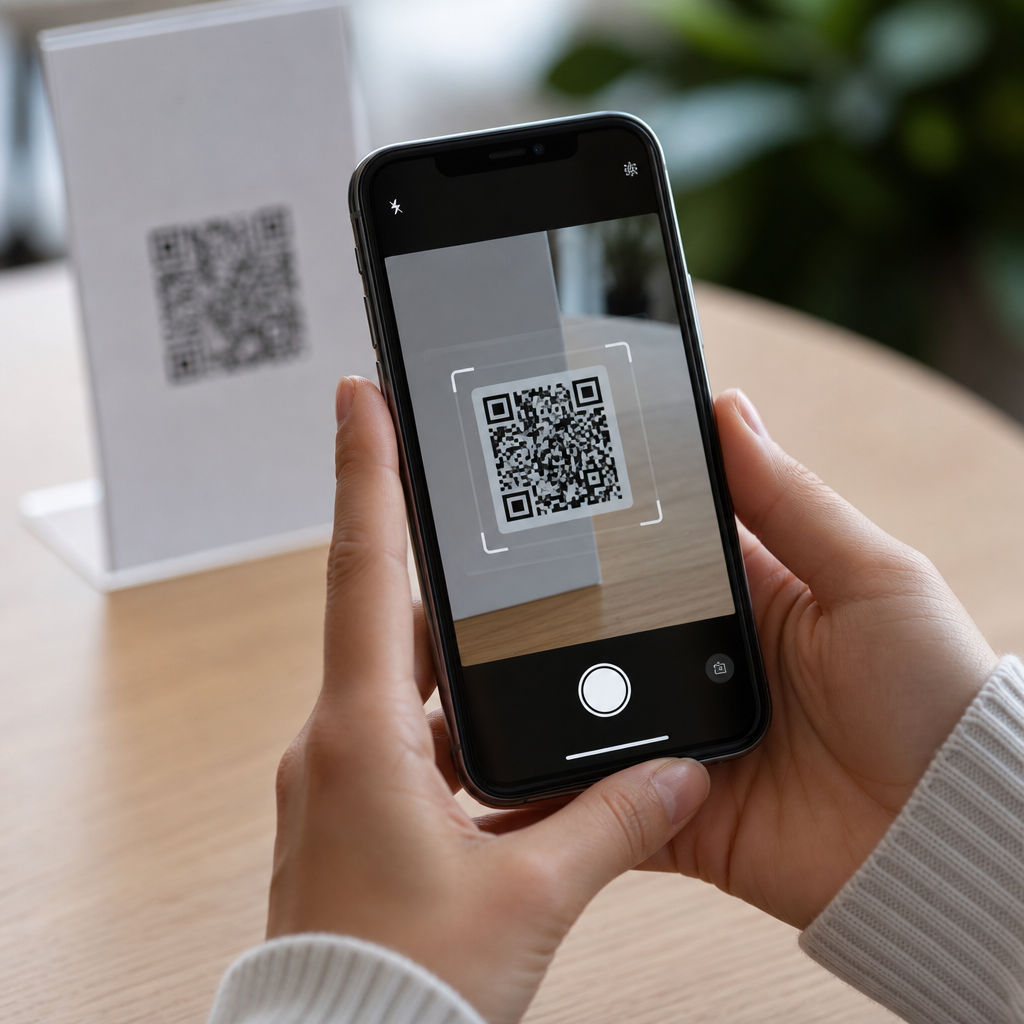
Where is the QR code scanner on my phone? On most modern phones, the scanner is built directly into the Camera app, the Control Center or Quick Settings panel, or a utility app such as Google Lens. A QR code scanner reads the square barcode pattern and opens a link, contact card, Wi-Fi setup, payment screen, app prompt, or other action encoded inside it. This matters because people now encounter QR codes everywhere: restaurant menus, package tracking labels, event tickets, two-factor authentication setup pages, and smart-device pairing screens. I help users solve this constantly, and the same confusion appears across iPhone, Samsung Galaxy, Pixel, Motorola, and budget Android devices: the scanner exists, but it is hidden behind a different app name, setting, or swipe gesture. This hub explains exactly where to look, what to do if scanning does not work, and which phone-specific paths solve the issue fastest.
For most users, the shortest answer is simple. On iPhone, open Camera and point it at the code; if nothing happens, enable Code Scanner in Control Center or check Camera settings. On Android, open Camera, then look for Lens, Scan, Bixby Vision, or a QR toggle depending on the brand. If the stock camera cannot read the code, Quick Settings may include a Scan QR shortcut, or Google Lens can do it. Older phones may require an app update or a separate scanner app, but that is increasingly uncommon. Because this page is a hub for mobile-specific FAQs, it also helps you understand why one phone scans instantly while another needs a setting changed, stronger lighting, better focus, or a system update. Once you know the usual locations, finding the QR code scanner becomes a one-minute task instead of a frustrating search.
Where the QR code scanner is on iPhone
On iPhone, the QR code scanner is usually in the Camera app. Apple added native QR recognition years ago, so any reasonably current iPhone running a modern iOS version can scan without a separate download. Open Camera, point it steadily at the code, and wait for the banner notification at the top of the screen. Tap that banner to open the encoded content. If the code does not scan, go to Settings, then Camera, and confirm that Scan QR Codes is enabled. I have seen this setting turned off after device resets, managed-device policies, or accidental changes.
There is also a dedicated Code Scanner shortcut on iPhone. You can add it through Settings, Control Center, then include Code Scanner. This tool opens a simplified scanner that locks onto codes quickly and is helpful when the standard Camera app is busy trying to focus on background objects. On iPhones with newer iOS releases, you can also pull down from the Home Screen and search for Code Scanner directly. If you are scanning a QR code shown on your own screen, such as from an email or website, take a screenshot or long-press the image in Photos or Safari to detect the code. Live Text and visual lookup features often help when the code is embedded in an image rather than viewed through the camera.
Where the QR code scanner is on Android phones
Android is less uniform because each manufacturer customizes the interface, but the scanner is still usually easy to find. On Google Pixel phones, open the Camera app and either point at the QR code directly or tap the Lens option. On many Samsung Galaxy phones, open Camera and enable Scan QR codes in Camera settings if needed; some models also expose scanning through Bixby Vision or Samsung Internet. Motorola, OnePlus, Xiaomi, Oppo, and other brands often place QR recognition inside the stock camera, sometimes under Modes, More, or an AI/Lens icon.
If the camera app does not recognize the code, swipe down to open Quick Settings and look for tiles named Scan QR code, QR scanner, Lens, or Scan. Some Android phones ship with Google Lens integrated into the Google app, Google Photos, or the home-screen search bar. Lens can scan live through the camera or interpret a saved image. In support sessions, I often find that users do have a scanner on Android, but they are looking for an app literally named QR Scanner. The actual feature is often branded differently by the device maker, so checking Camera, Quick Settings, and Google Lens solves most cases.
Fast ways to find the scanner on any phone
If you do not know your exact model, use a simple sequence. First, open the Camera app and point it at the code for two to three seconds. Second, search your phone for terms like QR, scan, scanner, Lens, or code. Third, open the top swipe-down panel or Control Center and look for a scanning shortcut. Fourth, check camera settings for an option that explicitly enables QR recognition. Fifth, update the operating system and camera-related apps, because QR support is sometimes tied to a newer camera build rather than hardware.
| Phone type | Primary scanner location | Backup location | Common fix if missing |
|---|---|---|---|
| iPhone | Camera app | Control Center Code Scanner | Enable Scan QR Codes in Settings > Camera |
| Google Pixel | Camera app or Lens | Google app / Photos Lens | Update Camera and Google apps |
| Samsung Galaxy | Camera app | Quick Settings or Bixby Vision | Turn on Scan QR codes in Camera settings |
| Other Android phones | Camera app | Quick Settings or Google Lens | Search settings for QR or install updates |
This process works because native scanning now relies more on software than on special hardware. Any phone with autofocus, a reasonably current operating system, and a supported camera app can usually scan standard QR formats. The differences are interface differences, not fundamental capability gaps. That is why a direct search inside Settings or the app drawer often finds the feature quickly, even when the manufacturer buried it under another label.
Why the QR code scanner is not working
When scanning fails, the problem is usually not the QR code scanner itself. The most common causes are poor lighting, glare, camera shake, the code being too small in frame, or the phone focusing on the wrong object. Try moving closer, then slightly farther away, because cameras need the code to fill enough of the frame while still remaining sharp. Clean the lens. Increase screen brightness if the code is displayed on another device. If the QR code is printed on glossy packaging, tilt the phone to reduce reflection. In real troubleshooting, these basic steps fix more failures than settings changes do.
Software settings are the next layer. If the camera opens but does nothing, make sure QR recognition is enabled in the camera settings. Restart the device. Update iOS or Android, then update camera, Google, or manufacturer apps through the App Store or Google Play. Check whether Screen Time, parental controls, or mobile-device-management policies restrict camera use. Also remember that some QR codes point to actions your phone may block, such as opening unsupported app links, joining managed Wi-Fi networks, or launching region-specific payment apps. In those cases, the scanner worked; the destination failed.
How to scan a QR code from a photo or screenshot
Many users are not trying to scan a physical code. They have a QR code in an email, text message, document, or screenshot and want to scan it without using a second device. On iPhone, open the image in Photos, then long-press the QR code or use any detected link that appears. On Android, open the image in Google Photos and tap Lens. Samsung Gallery can also detect codes on some models. This is especially useful for Wi-Fi setup codes, account login links, event passes, and authentication enrollment screens sent digitally.
If your phone does not recognize the code in a saved image, crop the picture tightly so the QR code fills more of the frame. Blurry screenshots, compressed messaging attachments, and PDFs rendered at low resolution often fail detection because the finder patterns in the corners are no longer sharp enough. In work settings, I often advise users to open the original attachment instead of a forwarded preview. The original file preserves more image detail, which raises recognition accuracy significantly.
Security and privacy when using a phone QR code scanner
A phone QR code scanner is convenient, but it should not be treated as risk-free. A QR code can lead to a phishing page, trigger an app install prompt, or prefill a message or payment request. The scanner itself usually just reads encoded text; the real risk is what happens after you tap. Before opening a code, look for context clues. Is the code printed cleanly by a known brand, or is a sticker pasted over another label? Does the destination domain match the organization? On iPhone and Android, preview banners usually show enough information to make a quick judgment.
Use built-in scanners when possible, because they are maintained through Apple, Google, or the device manufacturer and generally request fewer permissions than random third-party scanner apps. If you must install an app, choose one with a long update history, clear privacy disclosures, and no unnecessary requests for contacts, microphone, or location. For business users, mobile threat defense tools and secure web gateways add another layer of protection, but ordinary users still gain meaningful safety simply by checking the destination before tapping.
Related mobile-specific FAQs this hub should answer next
This page is the central starting point for mobile-specific QR scanning questions, and it should connect to deeper troubleshooting articles for each common scenario. The most useful follow-up topics are: how to scan a QR code on iPhone, how to scan a QR code on Android, why my camera will not scan QR codes, how to scan a QR code from a screenshot, how to use Google Lens for QR codes, how to add Code Scanner to iPhone Control Center, and whether I need a separate QR scanner app. Users also frequently ask about scanning Wi-Fi QR codes, ticket codes, WhatsApp Web login codes, eSIM activation codes, and two-factor authentication setup codes.
The key takeaway is straightforward: the QR code scanner on your phone is usually already installed. Start with the Camera app, then check Control Center, Quick Settings, or Google Lens if needed. If scanning fails, fix the basics first: lighting, focus, distance, lens cleanliness, and software updates. For codes saved in photos or screenshots, use Photos, Lens, or your gallery app instead of pointing the camera at another screen. And because QR codes can open risky links, pause long enough to verify where the code leads before you tap. If you are building out your own troubleshooting path, use this hub as the entry page and continue to the phone-specific guides that match your device and issue.
Frequently Asked Questions
Where is the QR code scanner on most phones?
On most modern smartphones, the QR code scanner is built into the default Camera app, so you usually do not need to download anything extra. On iPhones, open the Camera and point it at the QR code for a few seconds. If QR scanning is enabled, a notification banner should appear at the top of the screen with the link or action stored in the code. On Android phones, the process is often similar, although the exact location can vary by brand. Many Android devices scan QR codes directly through the Camera app, while others also provide access through Google Lens, which may appear as a camera mode, an icon in the search bar, or a separate app. Some phones also place a dedicated scanner in Quick Settings or Control Center, giving you another fast way to launch it. If your phone does not react when you open the Camera, check your camera settings, search your phone for “QR scanner” or “Lens,” or look in the quick-access menu that appears when you swipe down from the top of the screen.
How do I scan a QR code with my iPhone or Android phone?
The simplest method is to open your phone’s Camera app and aim it steadily at the QR code so the full square pattern is visible on the screen. Good lighting helps, and you usually do not need to press the shutter button. If the code is recognized, your phone will display a prompt, banner, or pop-up showing what the code contains, such as a website, contact card, login prompt, event ticket, app download page, payment request, or Wi-Fi setup. Tap that prompt to continue. If nothing happens, move the phone slightly closer or farther away and make sure the code is not blurry, damaged, or cut off. On Android, you may also need to tap the Google Lens icon first, depending on the device. On iPhone, if scanning does not work through the Camera, go to Settings, then Camera, and make sure the QR code scanning option is turned on. In either case, once the code is detected, always read the prompt before tapping so you understand what action your phone is about to take.
Why is my phone not detecting or opening a QR code?
There are several common reasons a phone may not scan a QR code properly. The most frequent issue is that the code is too small, blurry, poorly lit, damaged, or displayed at an awkward angle. Try cleaning your camera lens, increasing the brightness if the code is on another screen, and holding the phone steady for a moment. Another possibility is that the built-in scanner is turned off, especially on some iPhones where the Camera settings include a specific QR scanning toggle. On Android phones, the Camera app may support scanning only in certain modes, or the device may rely on Google Lens instead of automatic detection. Outdated system software can also cause problems, so it helps to install the latest iOS or Android updates. In some situations, the code itself may be valid but linked to a page or action your phone cannot complete, such as an expired ticket, broken website, unsupported app command, or restricted login flow. If the Camera app still does not work, try scanning through Google Lens, a Control Center or Quick Settings scanner, or a trusted third-party QR reader from a reputable developer.
Can I scan a QR code that is already on my phone screen or in a saved photo?
Yes, in many cases you can scan a QR code from an image that is already saved on your phone, although the steps depend on your device. On many Android phones, Google Photos and Google Lens make this easy. Open the photo containing the QR code, tap the Lens icon, and your phone will analyze the image and show any encoded link or action. On iPhones, you can often press and hold on the QR code in a photo if the system recognizes it, or use Live Text and photo analysis features available in newer versions of iOS. Some devices also support scanning screenshots directly through the Photos app. This is especially useful when someone sends you a QR code by text, email, or social media and you cannot point the camera at your own screen. If your phone does not recognize the image automatically, you can open a built-in scanner or Google Lens and import the picture manually. As always, review the destination before opening it, because a QR code stored in an image can still lead to a suspicious website or trigger an action you did not intend to take.
Is it safe to use the QR code scanner on my phone?
Using your phone’s built-in QR code scanner is generally safe, but it is important to stay cautious because a QR code is simply a shortcut to content you cannot fully see until your phone reads it. A code may open a legitimate restaurant menu, package tracking page, payment screen, event ticket, or two-factor authentication setup, but it could also lead to a fake website, a phishing login page, or a malicious download. The safest approach is to use the scanner built into your phone’s Camera app, Google Lens, or system quick-access tools instead of relying on random scanner apps. Before tapping, read the preview or notification carefully and look at the web address if one appears. Be especially careful with QR codes posted in public places, printed on stickers placed over other labels, or sent unexpectedly in messages. Never enter passwords, payment details, or personal information unless you are sure the destination is legitimate. In short, the scanner itself is not usually the problem; the real risk is where the QR code leads. Treat QR codes the same way you would treat any unfamiliar link.