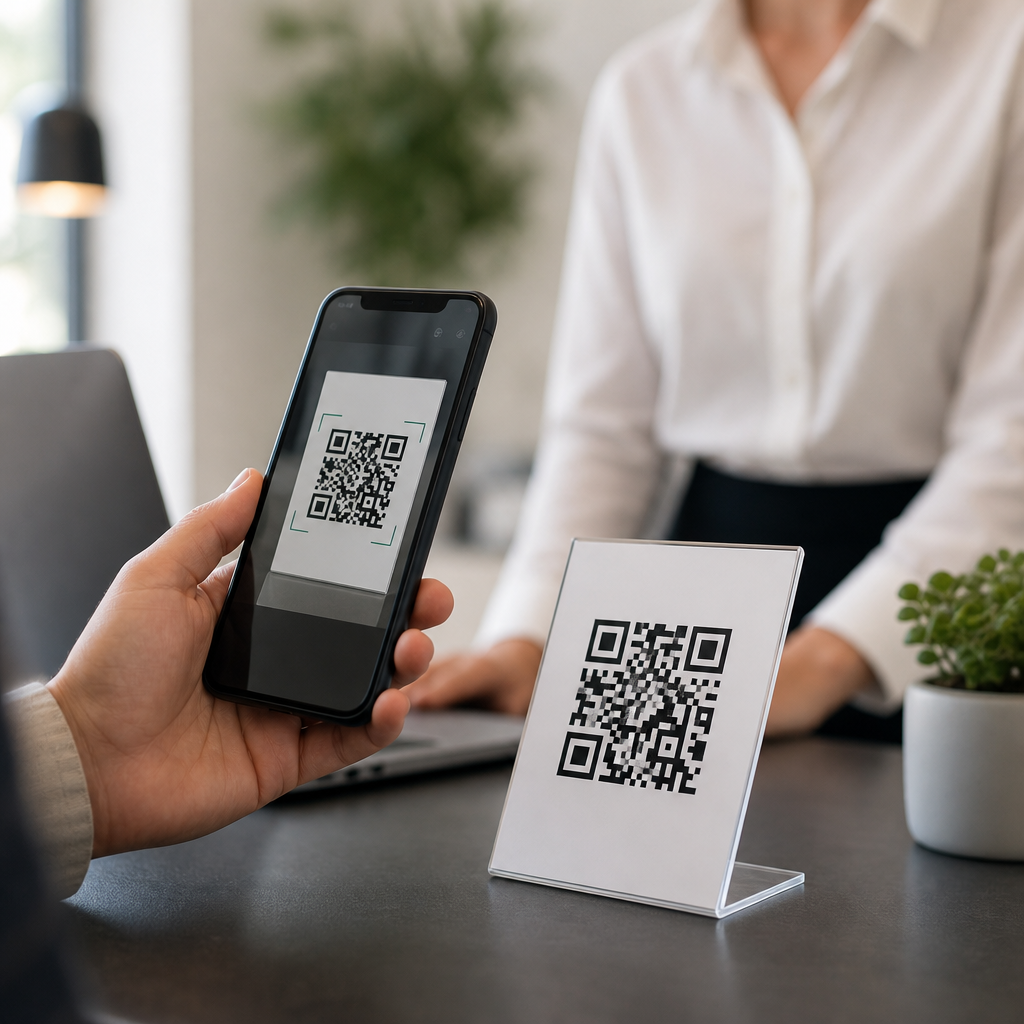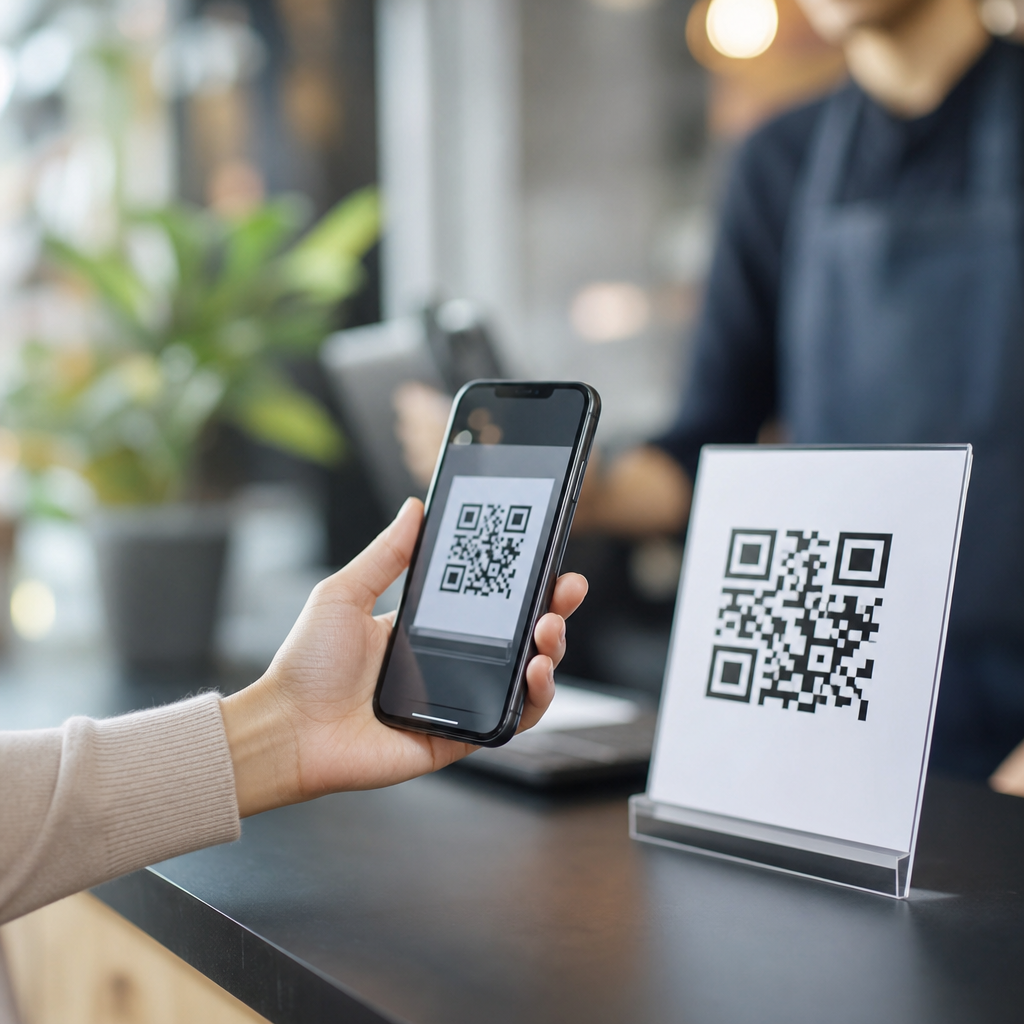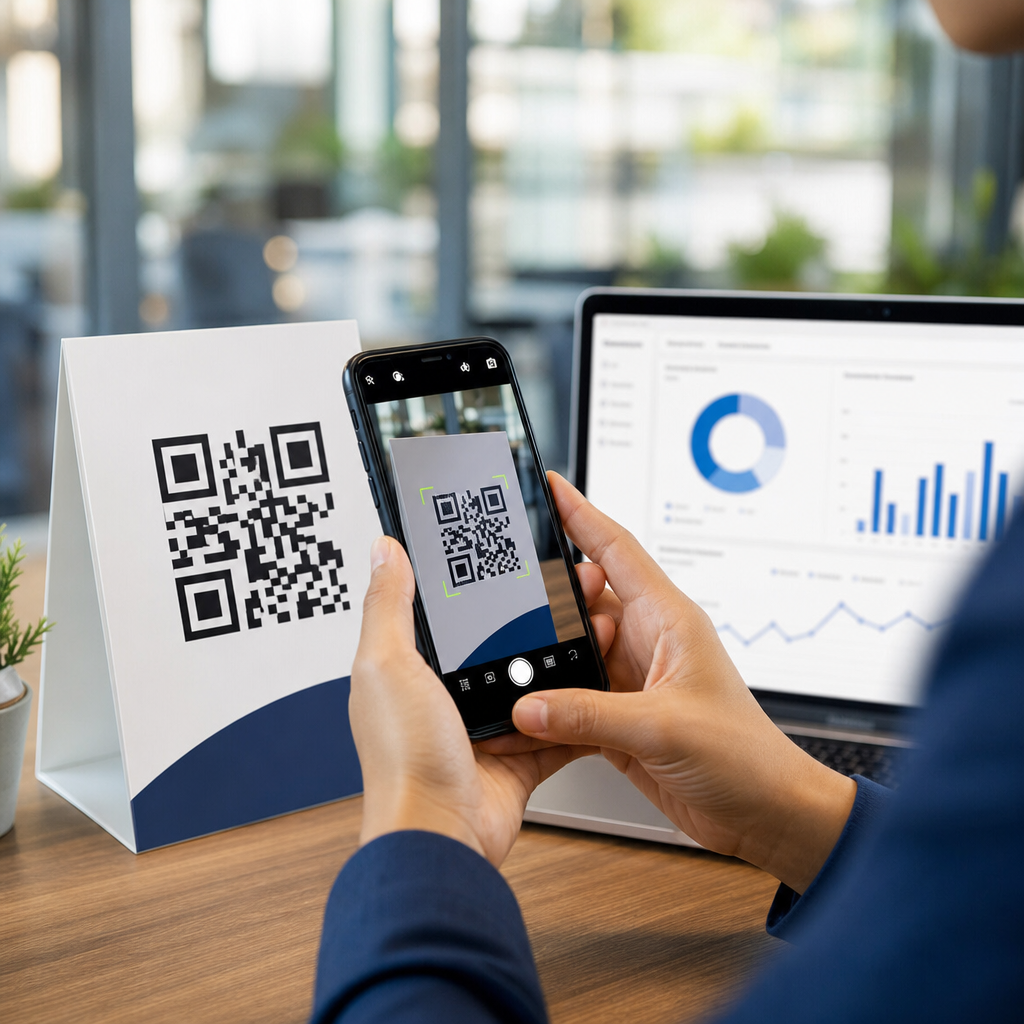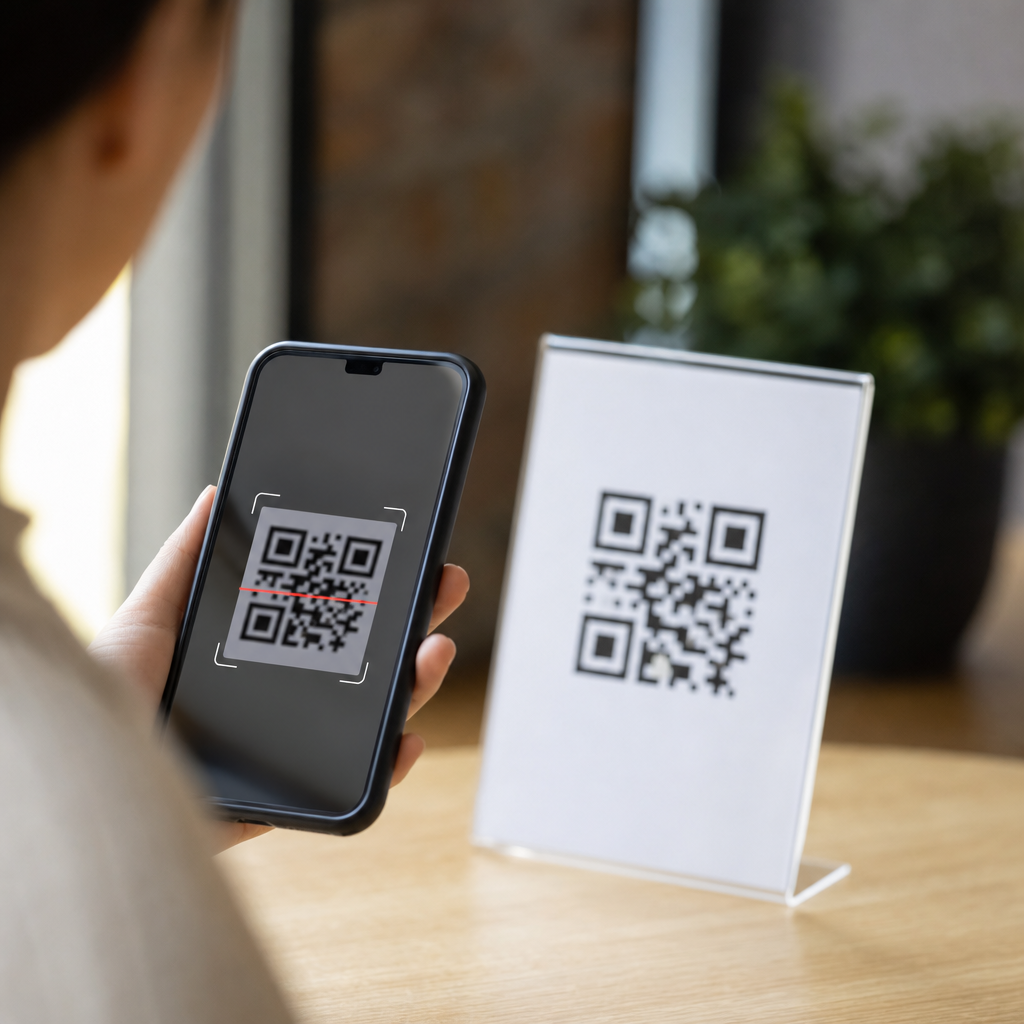
QR codes should be simple: open the camera, point, tap, and go. Yet when a phone refuses to scan a QR code, the problem usually sits at the intersection of camera hardware, software permissions, display conditions, and the code itself. In mobile support work, I have seen the same failures repeat across iPhone and Android devices, from outdated camera apps to cracked lenses and low-contrast restaurant menus. This guide explains why your phone will not scan a QR code, what a QR code scanner actually needs to work, and how to troubleshoot the issue systematically. It also serves as a practical hub for mobile-specific FAQs, so readers can understand the most common scanning problems, compare likely causes, and identify the next fix quickly instead of testing random settings.
A QR code, short for Quick Response code, is a two-dimensional barcode that stores text, links, contact details, Wi-Fi credentials, payment requests, and app actions. Modern phones scan them using the camera sensor plus image-recognition software built into iOS, Android, Google Lens, Samsung Camera, or third-party scanner apps. For a successful scan, the phone must capture a sharp image, detect the finder patterns in three corners, correct perspective distortion, and then interpret the encoded data. If any step fails, the code may appear unreadable even when it works on another device. That is why troubleshooting matters: the issue could be your phone, the camera app, the operating system, the lighting, the code design, or the destination behind the code.
This matters because QR codes now handle routine tasks such as payments, ticketing, two-factor setup, restaurant ordering, parcel tracking, and Wi-Fi onboarding. A failed scan can block a purchase, delay check-in, or expose users to malicious links when they start installing random scanner apps out of frustration. Understanding the exact failure point helps you restore scanning safely and faster. It also helps you know when the code is the real problem, not your phone.
Common reasons a phone will not scan a QR code
The most common reason is poor image capture. Smartphone QR detection depends on contrast, focus, and framing. If the camera cannot lock focus because the code is too close, too far away, moving, or photographed in dim light, the decoding layer never receives a clean enough image. Smudged lenses are a major cause. I regularly fix “broken scanner” reports simply by wiping the rear lens with a microfiber cloth and increasing ambient light. Screen glare also matters when scanning a code displayed on another phone or laptop, because reflections flatten contrast and hide the code’s square patterns.
Software settings are the next major category. On iPhone, QR scanning relies on the Camera app and, in some cases, Code Scanner in Control Center. On Android, it may rely on the default camera, Google Lens, or a manufacturer-specific implementation. If camera access is disabled, if the camera app is outdated, or if a battery saver mode restricts background recognition features, scanning can fail. Some users also turn off mobile data or Wi-Fi and then assume the scan failed, when the camera actually detected the code but could not open the destination URL. In that case, the issue is connectivity, not recognition.
The code itself may also be unreadable. QR codes fail when printed too small, stretched out of proportion, covered by logos, cropped at the edges, or rendered in low-contrast colors such as light gray on white. ISO/IEC 18004 defines the core QR code specification, and while error correction helps, it does not rescue severely damaged designs. Real-world examples include shipping labels blurred by thermal printers, event tickets folded across the code, and social media posts that compress images until the modules bleed together.
How to troubleshoot scanning problems step by step
Start with the easiest hardware checks. Clean the camera lens, remove thick or dirty lens protectors, and test the rear camera in normal photo mode. If pictures look blurry across all subjects, your issue may be autofocus failure rather than QR detection. Next, increase light or move to indirect daylight. Hold the phone steady about 6 to 12 inches away, then slowly adjust distance until the code fills a moderate portion of the frame without touching the edges. Avoid zooming digitally, because digital zoom reduces detail.
Then check software. Open the default camera app first; on many devices it is more reliable than third-party tools because it has deeper system integration. On iPhone, confirm the Camera setting for QR scanning is enabled and try adding Code Scanner from Control Center. On Android, update the Camera app, Google app, and Google Play Services, then test Google Lens directly. Restart the phone if scanning recently stopped after an update. In support environments, a reboot still solves temporary camera service conflicts surprisingly often.
If the code is on a screen, raise that screen’s brightness, disable dark mode inversion if it affects the image, and enlarge the code so the camera sees clear edges. If the code is printed, flatten the page and avoid shadows crossing the pattern. Finally, test a known-good QR code, such as a reputable website link generated by a trusted source. If your phone scans one code but not another, your phone is likely fine and the original code is defective or points to content your device cannot open.
| Symptom | Likely cause | Best fix |
|---|---|---|
| Camera sees code but no prompt appears | QR detection disabled, outdated camera app, poor focus | Enable scanning, update apps, clean lens, improve light |
| Prompt appears but link will not open | No internet, blocked browser, invalid destination | Check connection, try another browser, verify URL |
| Only one specific code fails | Damaged, low-contrast, distorted, or expired code | Request a new code or clearer image |
| Phone scans printed codes but not screen codes | Glare, low screen brightness, refresh flicker | Increase brightness, reduce reflections, enlarge code |
iPhone and Android issues that affect QR scanning
iPhone users usually encounter one of four issues: QR scanning disabled in Camera settings, an old iOS version with a camera bug, damaged rear-camera focus, or confusion between scanning and opening the result. Newer iPhones detect QR codes natively in the Camera app, but if Live Text, Camera, or Screen Time restrictions interfere with app behavior, testing with Code Scanner helps isolate the issue. If front and rear cameras both behave oddly, install pending iOS updates and reset settings only after basic checks fail. A full reset is rarely the first answer.
Android is more fragmented because manufacturers customize the camera stack. Pixel phones often use Google Lens seamlessly, while Samsung devices may surface Bixby Vision, Lens, or a built-in scan toggle depending on model and One UI version. Budget phones can struggle more with autofocus speed and low-light capture, making QR scans feel inconsistent. I have also seen aggressive battery optimization suspend camera-related components until the app is reopened. On Android, updating the manufacturer camera app, Google Lens, and system security patches often restores normal scanning behavior without deeper repair.
Older phones deserve special mention. Legacy devices may lack native QR support in the camera app, especially if they stopped receiving operating system updates years ago. In those cases, a reputable scanner such as Google Lens can help, but avoid unknown apps that demand excessive permissions or display intrusive ads. If an old phone cannot focus sharply enough or crashes when invoking the camera, the practical solution may be using another device rather than forcing unsupported hardware to perform modern visual recognition tasks.
When the problem is the QR code, not the phone
Not every failed scan is your fault. A valid QR code needs sufficient size, quiet zone spacing around the edges, strong contrast, and accurate data encoding. Designers often break these rules. They place logos over the center without adjusting error correction, print codes on curved bottles, or use brand colors that look attractive but decode poorly. Even a technically valid code can fail in context. A poster hung behind reflective glass, for example, may be impossible to scan from the angle customers naturally stand.
Dynamic QR codes add another layer. These codes often redirect through a management platform so the destination can change over time. If the service subscription lapses, the link can stop resolving even though the code still scans. I have also seen corporate Wi-Fi QR codes fail because the network credentials changed while old laminated codes stayed in place. In those cases, the camera works, the scan succeeds, but the action after scanning fails. Users interpret that as “my phone won’t scan,” though the true issue is expired or incorrect encoded content.
If you manage QR codes yourself, test them across multiple devices, print sizes, and lighting conditions before publication. Use high contrast, preserve the quiet zone, and verify that landing pages load quickly on mobile browsers. A QR code is only as reliable as both its image quality and its destination.
Mobile-specific FAQs and where to go next
The most frequent mobile-specific questions follow a pattern: Why does my phone camera not recognize a QR code? Why does it scan some codes but not others? Do I need an app? Can a cracked camera lens stop scanning? Why will a scanned link not open? Is it safe to use a third-party QR scanner? The short answers are yes, inconsistent code quality is common, most modern phones do not need another app, physical lens damage absolutely matters, blocked links usually point to network or browser issues, and third-party scanner apps should be used sparingly and only from trusted developers.
As a hub page, this topic connects naturally to deeper troubleshooting articles on camera permissions, blurry phone cameras, Google Lens not working, iPhone Camera QR settings, Samsung QR scanner issues, scanning codes from screens, and identifying fake or malicious QR links. Those subtopics matter because successful scanning depends on the whole mobile environment, not just one feature toggle. The fastest path to a fix is to isolate the failure: capture, detection, decoding, or opening the result.
If your phone will not scan a QR code, begin with lens cleaning, lighting, distance, and a known-good test code. Then confirm camera permissions, app updates, and internet access. If one code still fails, suspect the code. If every code fails on one device, suspect the phone. Work through those checks in order, and you will solve most QR scanning problems without guesswork. For the next step, explore the related mobile troubleshooting articles in this hub and match your exact symptom to a dedicated fix.
Frequently Asked Questions
Why won’t my phone camera recognize a QR code at all?
If your phone does not react to a QR code, the most common causes are camera settings, poor image quality, or a problem with the code itself. On many iPhones and Android phones, QR scanning is built into the default camera app, but that feature can be disabled, blocked by permissions, or affected by outdated software. Start by opening the stock camera app rather than a social media camera or third-party app, then make sure the lens is clean and free of fingerprints, dust, or cracks. Even a light smudge can soften the image enough to prevent the camera from detecting the code pattern correctly.
Distance and framing also matter. A QR code that is too close can appear blurry, while one that is too far away may not fill enough of the frame for the phone to read it. Good lighting helps the camera detect the sharp contrast between the black and white modules in the code. If the code is printed on a glossy sign, screen glare can interfere with recognition, so changing your angle often helps. Finally, not every QR code is valid. If the code is damaged, low-resolution, stretched, poorly printed, or designed with weak contrast, your phone may not be able to interpret it no matter how many times you try.
Do I need a separate QR code scanner app, or should my camera already do it?
In most cases, you do not need a separate QR code scanner app. Modern iPhones and most current Android phones can scan QR codes directly through the built-in camera app. On iPhone, native QR scanning has been available for years, and on Android it is commonly included through the camera app or Google Lens. That means the best first step is usually to test the phone’s default camera before downloading anything else.
A dedicated QR code scanner app can still be useful in a few situations. Some older devices do not support native scanning, some manufacturer camera apps are inconsistent, and some phones detect QR codes more reliably through Google Lens than through the regular camera interface. If you do install a scanner app, choose one from a reputable developer and avoid apps that ask for unnecessary permissions, flood you with ads, or claim to “clean” or “optimize” your phone. For most users, though, a separate app is not the real solution. If your phone will not scan a QR code, it is usually better to check camera permissions, update the operating system, clean the lens, and verify the code quality before assuming you need another app.
Why does my phone focus on the QR code but still not open the link?
If the camera appears to see the QR code but never shows a banner, link, or action prompt, the issue may be happening after detection rather than during scanning. In other words, the phone may visually recognize that a code is present but fail to process the data correctly. This can happen when the QR code contains a broken URL, unsupported data format, or a destination blocked by network restrictions. For example, a QR code might point to a website that no longer exists, a Wi-Fi setup command your device does not support, or an app-specific action that requires software your phone does not have installed.
There are also cases where software settings get in the way. If your phone’s camera permissions are limited, if notifications from the camera app are suppressed, or if digital wellbeing and security tools interfere with pop-ups, you may not see the usual scan result prompt. On Android, Google Lens often handles QR interpretation, so if Lens is disabled or outdated, scanning can seem partially functional but incomplete. On iPhone, checking the Camera settings and making sure “Scan QR Codes” is enabled can resolve the issue quickly. If the code is opening but not loading the page, test your internet connection as well. A phone can successfully scan a QR code and still fail at the next step if cellular data, Wi-Fi, DNS filtering, or browser security settings prevent the destination from opening.
Can a damaged phone camera or screen really stop QR code scanning?
Yes, hardware problems can absolutely interfere with QR code scanning, and this is often overlooked. A cracked camera lens, scratched lens cover, fogging inside the lens, autofocus failure, or a weak camera sensor can make QR codes hard to read even when ordinary photos still look acceptable. QR scanning depends on the camera clearly resolving small square patterns with strong edge definition. If the image is even slightly soft, hazy, or distorted, the phone may fail to lock onto the code. This is especially common on older phones that have taken a lot of wear or on devices with aftermarket camera repairs that affected image quality.
The display of the code matters too. If you are scanning from another phone, tablet, laptop, or restaurant ordering screen, a cracked display, low brightness, heavy reflections, pixel damage, or aggressive screen dimming can reduce contrast and sharpness. Some OLED screens at low brightness or with dark mode styling can make a QR code harder to read than expected. Try increasing the screen brightness, zooming in slightly without cropping the code edges, and holding both devices steady. If your own phone has trouble focusing on text, barcodes, or distant objects in general, the issue is likely broader than QR scanning and may point to a camera hardware problem rather than a software setting.
What is the fastest way to troubleshoot a phone that won’t scan a QR code?
The quickest troubleshooting approach is to work from the simplest variables outward. First, use the default camera app and make sure the lens is clean. Hold the phone steady, give it a moment to focus, and try scanning in bright, even light. Move slightly closer or farther away until the QR code appears sharp on screen. If the code is on another display, turn that screen’s brightness up and reduce glare by changing the angle. Then test a different QR code that you know is valid, such as one from a trusted website or payment service. This helps you determine whether the problem is your phone or that specific code.
If it still does not work, check your settings. On iPhone, confirm that QR code scanning is enabled in Camera settings. On Android, update the Camera app, Google app, and Google Lens if your device uses Lens for scanning. Make sure camera permissions are allowed and restart the phone to clear temporary software glitches. If the issue continues, install pending operating system updates and test whether the camera can focus properly on other detailed objects like printed text. If it cannot, hardware may be the root cause. If it can, but only certain QR codes fail, the likely culprit is poor code design, damage, low contrast, or an expired or broken destination link. In practice, the fastest fix usually comes from identifying whether the failure is caused by the phone, the environment, or the QR code itself.