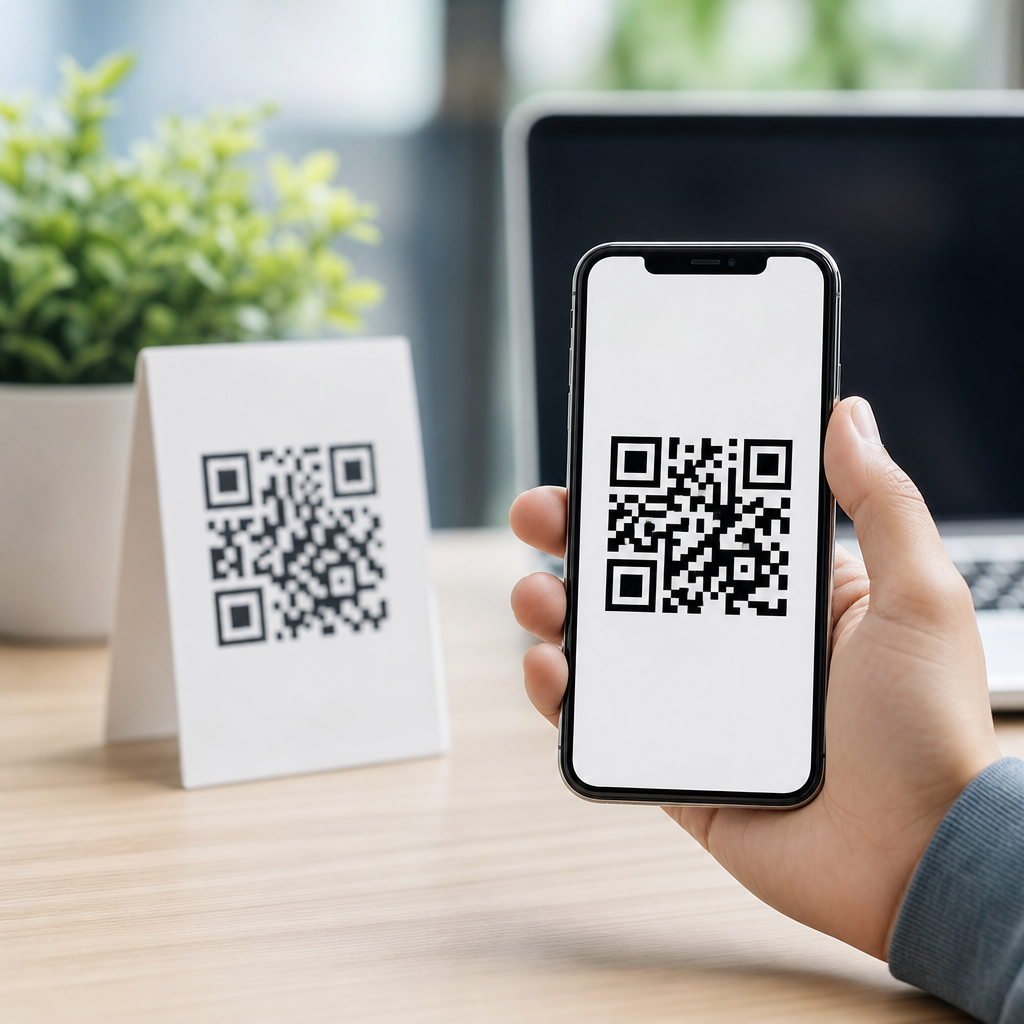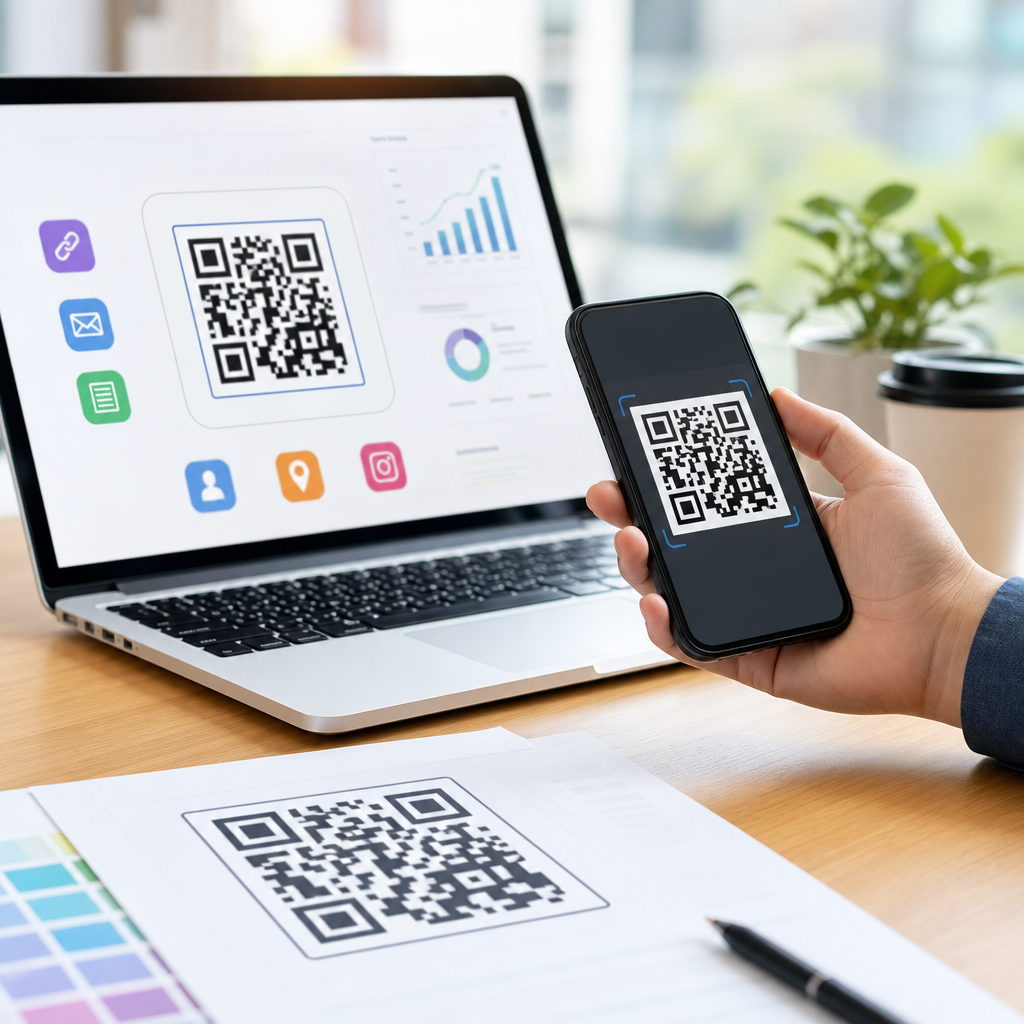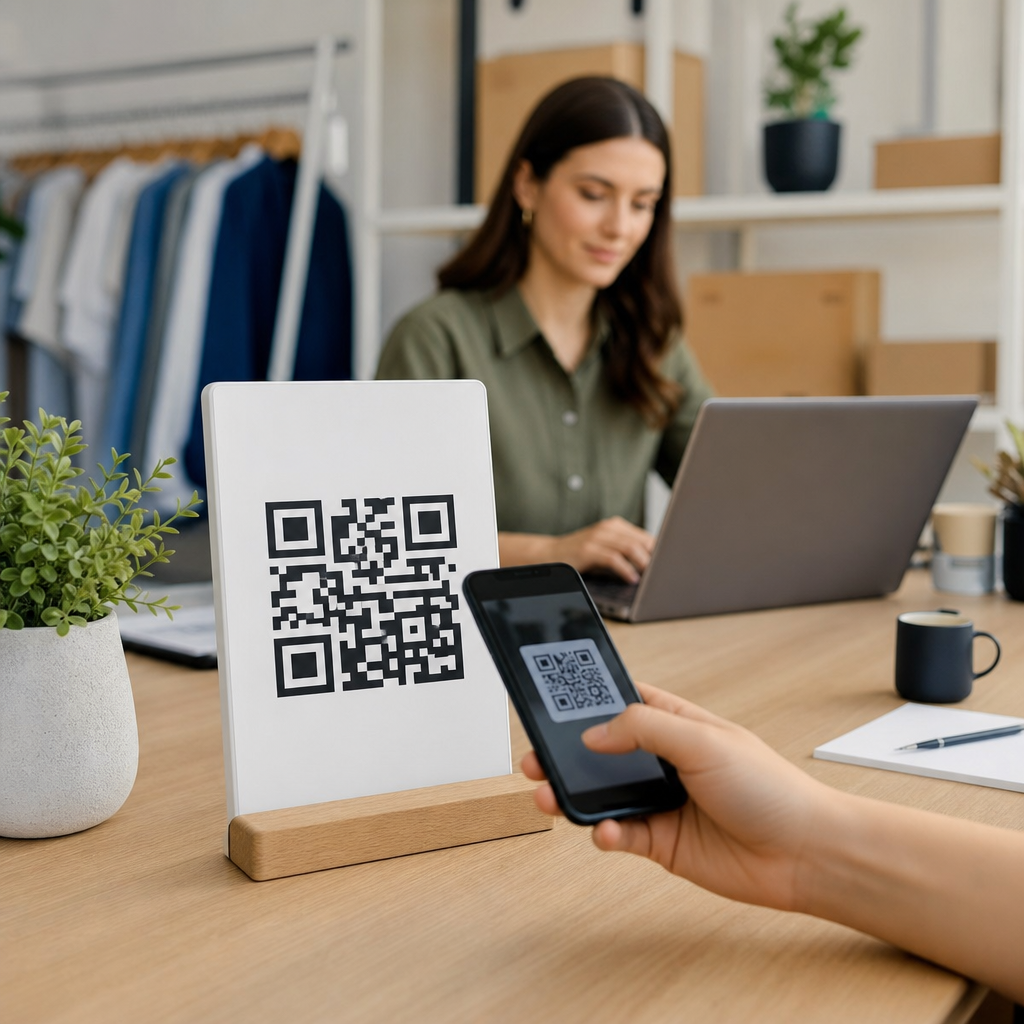
Knowing how to generate a QR code for any URL on mobile is now a practical skill for marketers, small businesses, teachers, event organizers, and anyone who shares links in the real world. A QR code is a two-dimensional barcode that stores data such as a website address, and a smartphone camera can read it instantly. In this context, a mobile QR code means either creating the code on a phone or creating a code meant to be scanned by phones. I have set up QR-based campaigns for menus, flyers, product packaging, and app downloads, and the difference between a code that works and one that gets ignored usually comes down to setup details. The topic matters because mobile browsing dominates web traffic, and QR codes remove friction between offline attention and online action. Instead of asking someone to type a long URL, you let them scan and land directly on the page you want. For a sub-pillar topic like creating mobile QR codes, this guide serves as the central reference: what tools to use, what settings matter, how to test the result, and when to choose static or dynamic codes.
At a basic level, every QR code for a URL contains encoded text, usually an HTTPS web address. The scanner reads the pattern, decodes the string, and opens the destination in a browser. That sounds simple, but mobile creation adds extra considerations. Screen size affects design choices. Camera quality affects testing. Some mobile browsers offer built-in sharing shortcuts, while some apps add tracking, redirects, or watermarks. If you are creating a QR code on iPhone or Android, the best method depends on whether you need speed, branding, analytics, editability, or print readiness. Understanding those tradeoffs helps you create a code once and avoid replacing posters, cards, labels, or signage later.
What you need before creating a mobile QR code
Before you generate the code, prepare the destination URL correctly. Use the final canonical page, not a temporary link from a social app or a URL with unnecessary tracking clutter. If the page redirects multiple times, scanning will feel slower and can reduce trust. I usually test the link in a private browser tab on both Wi-Fi and mobile data before turning it into a QR code. If the page is not mobile-friendly, the QR code may scan perfectly but still fail in practice because the landing experience is poor. Compress images, check Core Web Vitals, and make sure the call-to-action is obvious above the fold.
You also need to choose between a static QR code and a dynamic QR code. A static code permanently encodes the exact URL; once printed, it cannot be changed. A dynamic code points to a short redirect URL managed by a QR platform, so you can update the final destination later without changing the printed code. Dynamic codes are ideal for restaurant menus, seasonal promotions, and real estate signs where the destination may change. Static codes are better when you want zero platform dependency and no recurring subscription. For basic personal use, a static code is often enough. For business use, dynamic is usually worth it because analytics, destination editing, and campaign control save time and reprint costs.
How to generate a QR code for a URL on iPhone or Android
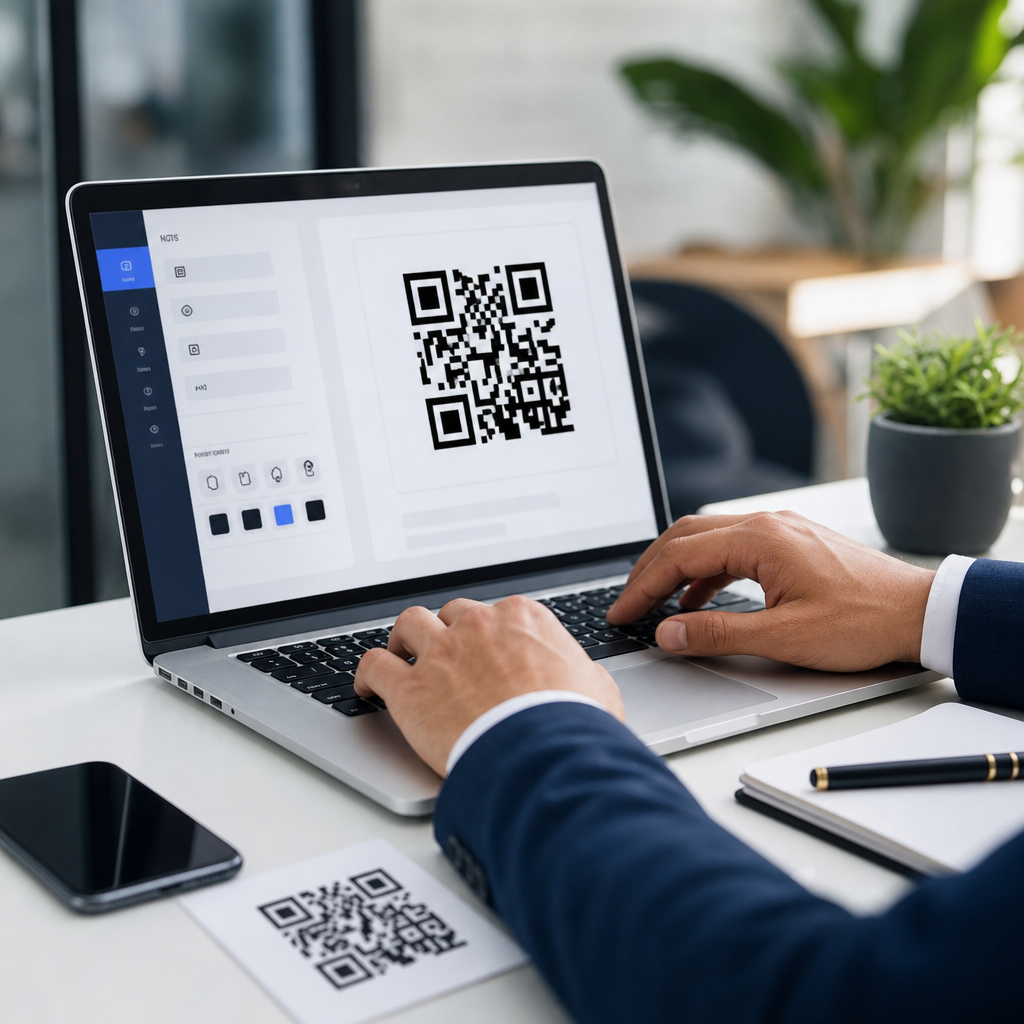
The fastest way to create a mobile QR code is through a browser-based generator on your phone. Open Safari or Chrome, choose a reputable QR platform, paste the full URL, and select the URL website type if the tool asks. Good generators immediately render a preview. At that stage, verify the domain spelling character by character. A single typo creates a useless code. Next, pick the file format. PNG works well for digital sharing, while SVG is usually better for print because it scales without losing sharpness. Many free mobile generators provide PNG only; that is acceptable for small prints, but for packaging, banners, or window decals, export SVG or high-resolution PDF if available.
Some phones also offer native shortcuts. On newer Android devices, Chrome can create a QR code from the Share menu for the page you are viewing. On iPhone, the Shortcuts app can generate a code from text or a URL, and some browsers include QR options in the share sheet. These native methods are convenient when you need a quick, clean code without logging into a third-party service. The limitation is that customization and analytics are minimal. You generally cannot set scan tracking, change the destination later, or add advanced branding controls. For one-off sharing, native tools are efficient. For campaigns, a dedicated QR platform is the better mobile workflow.
Best mobile QR code tools and when to use them
Not all generators are equal. The best tool depends on whether you prioritize convenience, design, analytics, or long-term control. In my work, I separate tools into three categories: built-in phone features, free web generators, and campaign platforms. Built-in tools are fastest. Free generators such as QR Code Monkey are useful for simple custom designs and high-resolution exports. Paid platforms such as Bitly, QR Code Generator Pro, Beaconstac, and Uniqode are stronger when you need dynamic codes, bulk management, scan analytics, password protection, or team access. Adobe Express and Canva can help with quick branded graphics, but design convenience should not replace careful testing.
| Tool type | Best for | Main advantage | Main limitation |
|---|---|---|---|
| Built-in browser or phone feature | Fast personal sharing | No signup, immediate creation | Little customization or tracking |
| Free web generator | Basic marketing and print use | Custom colors and downloadable files | Usually static only |
| Dynamic QR platform | Business campaigns | Edit destination and view analytics | Often requires subscription |
When evaluating a platform on mobile, look for transparent export options, HTTPS redirect support, and a clean scan experience without interstitial ads. If a free tool inserts its own landing page before the final URL, avoid it. That extra step reduces conversion and weakens trust. Also confirm ownership terms. Some platforms let you create dynamic codes for free but restrict editing later unless you upgrade. That can lock an important campaign into a paid plan unexpectedly. A reliable mobile QR workflow always starts with reading the platform’s limits before printing anything.
How to customize a mobile QR code without hurting scan performance
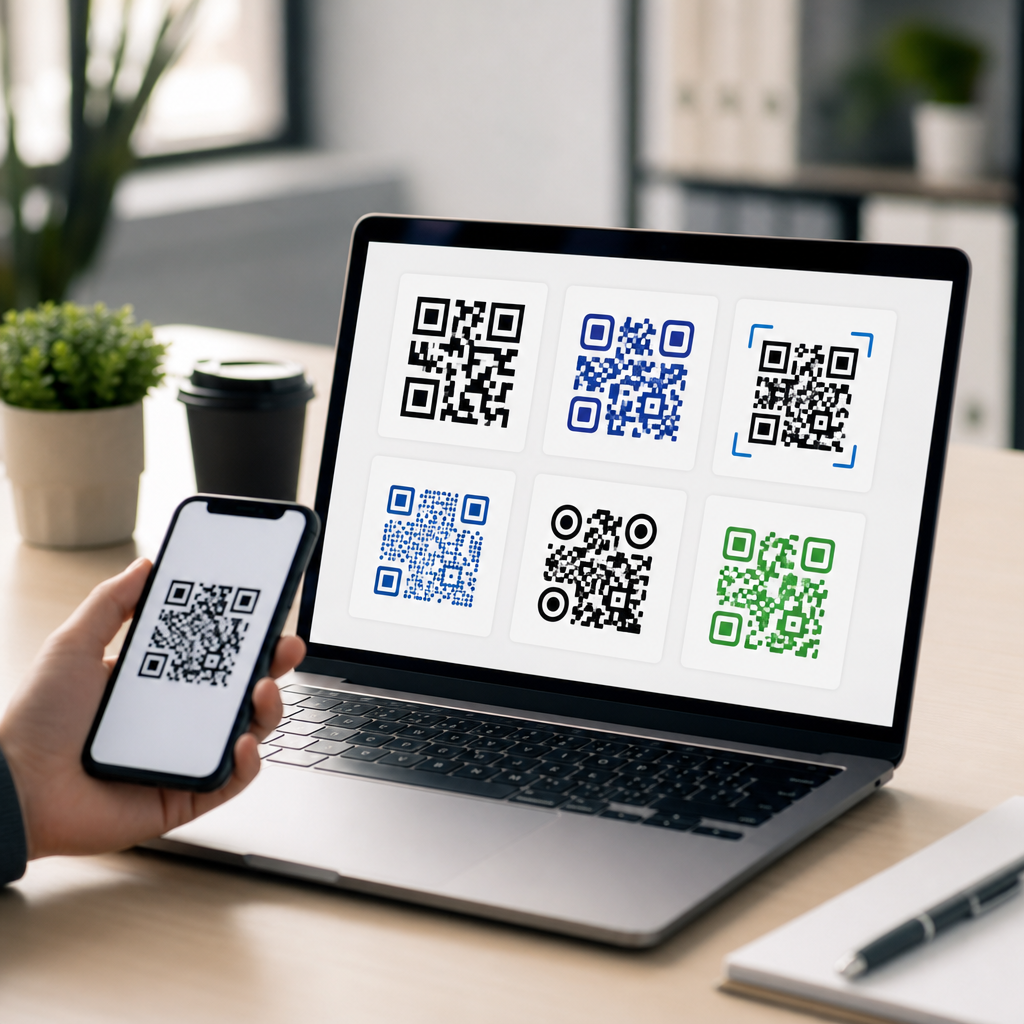
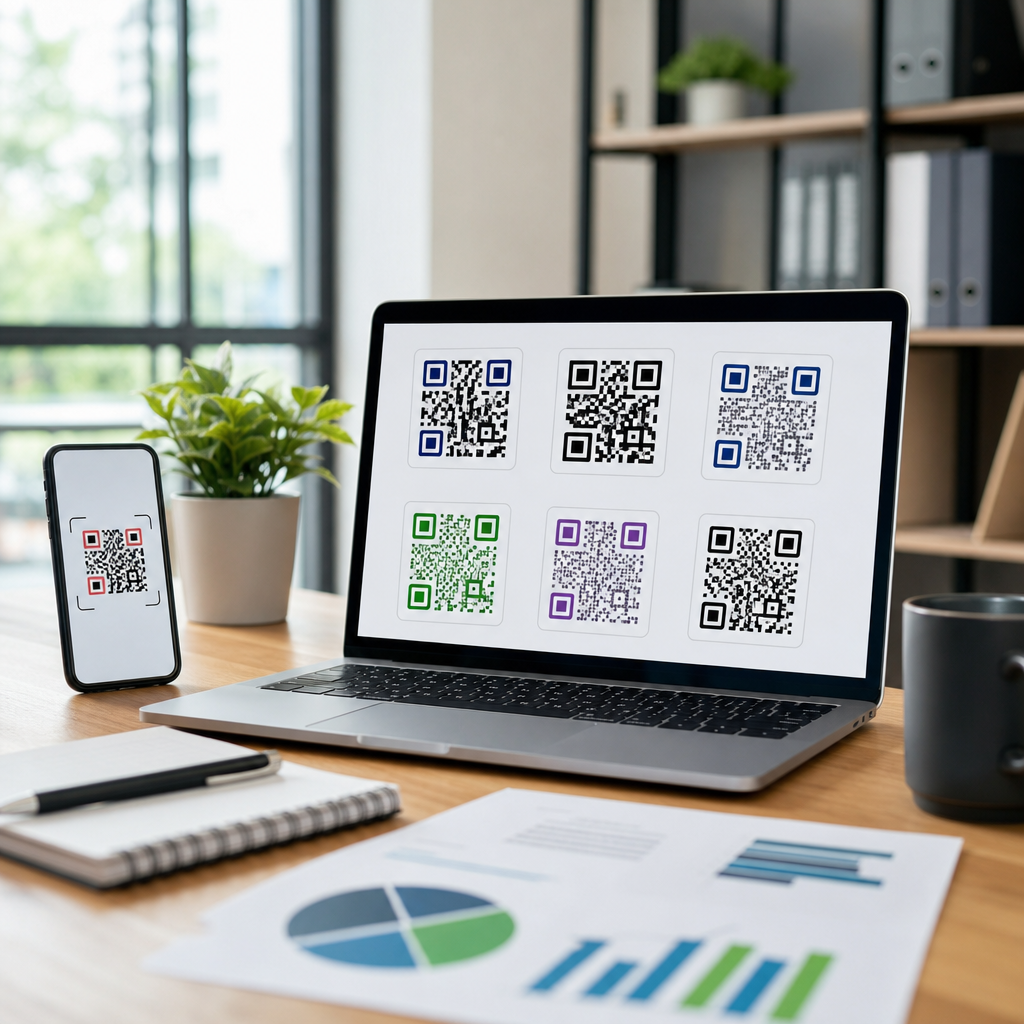
Customization can improve recognition, but excessive styling is one of the most common reasons codes fail. The safest approach is to keep strong contrast, maintain a quiet zone around the code, and use a standard square shape even if the generator offers rounded modules or artistic frames. Black on white remains the most dependable combination. Dark blue, dark green, or dark purple can also work if contrast is high. Avoid light pastel foregrounds, metallic gradients, or busy background images. Most scanning failures I have seen on event signage came from design teams treating the QR code like decorative art instead of a machine-readable asset.
If you add a logo in the center, use error correction wisely. QR codes support several error correction levels, commonly labeled L, M, Q, and H. Higher correction allows more damage or obstruction while remaining scannable, which is why branded codes often use Q or H. The tradeoff is denser patterns, which can become harder to scan at very small sizes. For mobile-first campaigns, I usually keep the logo modest, increase error correction moderately, and test across older devices, not just the newest flagship phones. Also ensure the call-to-action explains the benefit, such as “Scan to see the menu” or “Scan for setup instructions.” People scan more often when the value is explicit.
Testing, sizing, and publishing your QR code on mobile
Once the code is generated, test it before publishing. Scan it with the default camera app on iPhone and Android, then try at least one third-party app and one older device if possible. Check how quickly the code resolves, whether the browser shows the expected domain, and whether the page loads correctly in portrait orientation. For print, the minimum reliable size depends on scan distance, but a useful rule is to increase code size as viewing distance increases. A small business card code may work at around 0.8 inches square if printed sharply, while a poster viewed from several feet away needs a much larger code. Blur, glare, curved surfaces, and low contrast all reduce effective scan distance.
Placement matters as much as generation. Put the QR code where a person can comfortably stand, focus the camera, and scan without blocking traffic or bending awkwardly. Avoid glossy surfaces under harsh lighting. If the destination is a long-form page, use a shorter intermediate URL or dynamic redirect to reduce encoding complexity and improve management. Track performance when possible. Scan data can reveal whether one location, flyer version, or call-to-action outperforms another. That insight turns QR codes from simple utilities into measurable acquisition channels. To create a mobile QR code successfully, focus on three essentials: a clean URL, a reliable generator, and disciplined testing. Start with a static code for simple needs or a dynamic platform for campaigns, then scan every version before sharing it publicly. If you are building out a broader creating mobile QR codes strategy, use this page as your hub and apply the same process to app links, PDFs, contact cards, menus, and landing pages.
Frequently Asked Questions
How do I generate a QR code for a URL directly from my phone?
You can generate a QR code for a URL on mobile in a few simple ways. The most common method is to use a mobile browser and visit a trusted QR code generator website, paste in the full URL, and let the tool create the code instantly. Many of these services work well on both iPhone and Android, and some let you customize colors, frames, or a call-to-action before downloading the final image. Another option is to use a dedicated QR code app from your device’s app store, which can be convenient if you create codes often and want saved history or batch features.
On some phones and browsers, there are also built-in sharing tools that can create a QR code for the page you are currently viewing. This is especially useful when you want a fast, no-friction way to share a webpage, product page, event registration link, menu, or portfolio URL while you are away from a desktop. After generating the code, save it as an image file so you can add it to flyers, posters, packaging, handouts, signs, or social posts. Before you use it publicly, always test it with multiple phones to confirm it opens the correct page and loads quickly on mobile networks.
Do I need a special app to create or scan a QR code on mobile?
In most cases, no. Most modern smartphones can scan QR codes directly through the built-in camera app, so users usually do not need to download a separate scanner. This has made QR codes much more practical for marketing, classroom materials, event check-ins, restaurant menus, and in-person promotions because the barrier to entry is low. For creating a QR code, you also may not need a special app, since many browser-based tools work perfectly on mobile and allow you to generate a code in seconds.
That said, a dedicated app can still be helpful if you need advanced features. For example, some QR code apps let you manage multiple codes, edit design elements, create dynamic QR codes, track scans, export higher-resolution files, or organize campaigns for different print materials. If you only need a simple QR code for a single URL, a reputable mobile website is usually enough. If you are running repeated promotions or need analytics and branding controls, a more specialized app or service may be worth using.
What is the difference between a static QR code and a dynamic QR code for a URL?
A static QR code stores the final destination URL directly inside the code itself. Once it is created, the destination cannot be changed. This makes static codes a solid choice for permanent links that are unlikely to change, such as a homepage, a stable contact page, a public social profile, or a long-term informational resource. Static codes are often free to create, easy to use, and ideal when you want simplicity without ongoing management.
A dynamic QR code works differently. Instead of embedding the final destination page directly, it points to a short redirect URL controlled through a platform or dashboard. That means you can update the destination later without reprinting the QR code. This is extremely useful for marketers, small businesses, and event organizers who may need to swap landing pages, update campaign offers, change event details, or redirect traffic based on timing or location. Dynamic codes also often come with scan analytics, such as total scans, device type, time of scan, and approximate location. If flexibility and measurement matter, dynamic QR codes are usually the better choice. If permanence and simplicity matter most, static is often enough.
How can I make sure my mobile QR code works well when printed on flyers, posters, menus, or signs?
Good QR code performance depends on clarity, size, contrast, and placement. First, use a high-resolution image so the code remains sharp when printed. A blurry or compressed image can reduce scan reliability, especially on older phones or in low light. Second, make the code large enough for the viewing distance. A small code might work on a business card held in the hand, but a poster in a hallway or a sign in a storefront needs a larger code that can be scanned from farther away. Strong contrast is also critical, with dark code elements on a light background being the safest choice.
You should also leave enough white space around the QR code, often called the quiet zone, because scanners rely on that margin to detect the code properly. Avoid placing the code over busy backgrounds, glossy surfaces with glare, or folds and curves that distort the image. If you are adding branding, such as a logo or custom colors, keep the design readable and test it carefully. Most importantly, add a short instruction or call-to-action near the code, such as “Scan to view the menu,” “Scan to register,” or “Scan for pricing.” People are more likely to use a QR code when they know exactly what they will get. Finally, test the printed version with multiple devices, different camera apps, and realistic lighting conditions before distributing it at scale.
What are the best practices for choosing and sharing the right URL in a mobile QR code?
The best URL for a QR code is one that is mobile-friendly, fast-loading, and relevant to the user’s immediate context. If someone scans a code from a flyer, table tent, classroom poster, product package, or event banner, the destination page should match what the printed material promises. Sending users to a generic homepage often creates friction, while sending them to a dedicated landing page, registration form, menu, coupon, map, or contact page usually produces better results. If the link is long and includes tracking parameters, the QR code can still work, but it is wise to manage the destination cleanly through a trusted generator or a dynamic QR platform if flexibility is important.
It is also smart to think about trust and usability. Use secure URLs that begin with HTTPS, and make sure the page loads well on smartphones. If you are running a campaign, consider using a dedicated landing page so you can measure visits, conversions, and scan behavior more clearly. For businesses and marketers, this can make the difference between simply sharing a link and actually learning what placement or message performs best. If the QR code will stay in public for a long time, review the destination periodically to ensure the page is still live, accurate, and useful. A QR code is only as effective as the experience it leads to, so the URL behind it should be chosen with the same care as the design and placement of the code itself.