Scanning a QR code on an iPhone is usually as simple as opening the Camera app and pointing it at the code, but the best answer depends on your iPhone model, iOS version, and where the code appears. A QR code, short for Quick Response code, is a square barcode that stores links, contact details, app prompts, Wi-Fi credentials, payment requests, and other machine-readable data. Apple has built QR recognition directly into iPhone software for years, which means most users do not need a separate scanner app. This matters because QR codes now appear everywhere: restaurant menus, package tracking labels, classroom handouts, smart device setup cards, event tickets, banking prompts, and two-factor authentication screens. I have helped users troubleshoot iPhone QR scanning in retail stores, support queues, and device setup sessions, and the same issues appear repeatedly: the code will not scan, the notification does not open, the code is on the phone’s own screen, or the user wants to know whether the link is safe. This hub article answers those common mobile-specific questions in one place, then points you toward the next troubleshooting steps you should check on your iPhone.
On current iPhones, QR scanning works through the Camera app, the Control Center Code Scanner, and image recognition in Photos or screenshots. Older iPhones may need iOS updates, and managed work devices can have camera restrictions that change what is available. In plain terms, your iPhone reads the pattern, detects the embedded action, and offers a banner or highlighted link. If the QR code contains a website, tapping the banner opens Safari. If it contains contact information, the iPhone may suggest creating a new contact. If it contains Wi-Fi details, the phone can prompt you to join the network. Understanding these differences saves time and prevents unnecessary app downloads. As the hub for mobile-specific FAQs in a broader troubleshooting center, this guide explains the standard method, alternative methods, common problems, and safety checks, so you can scan QR codes confidently on any supported iPhone.
How to scan a QR code with the iPhone Camera app
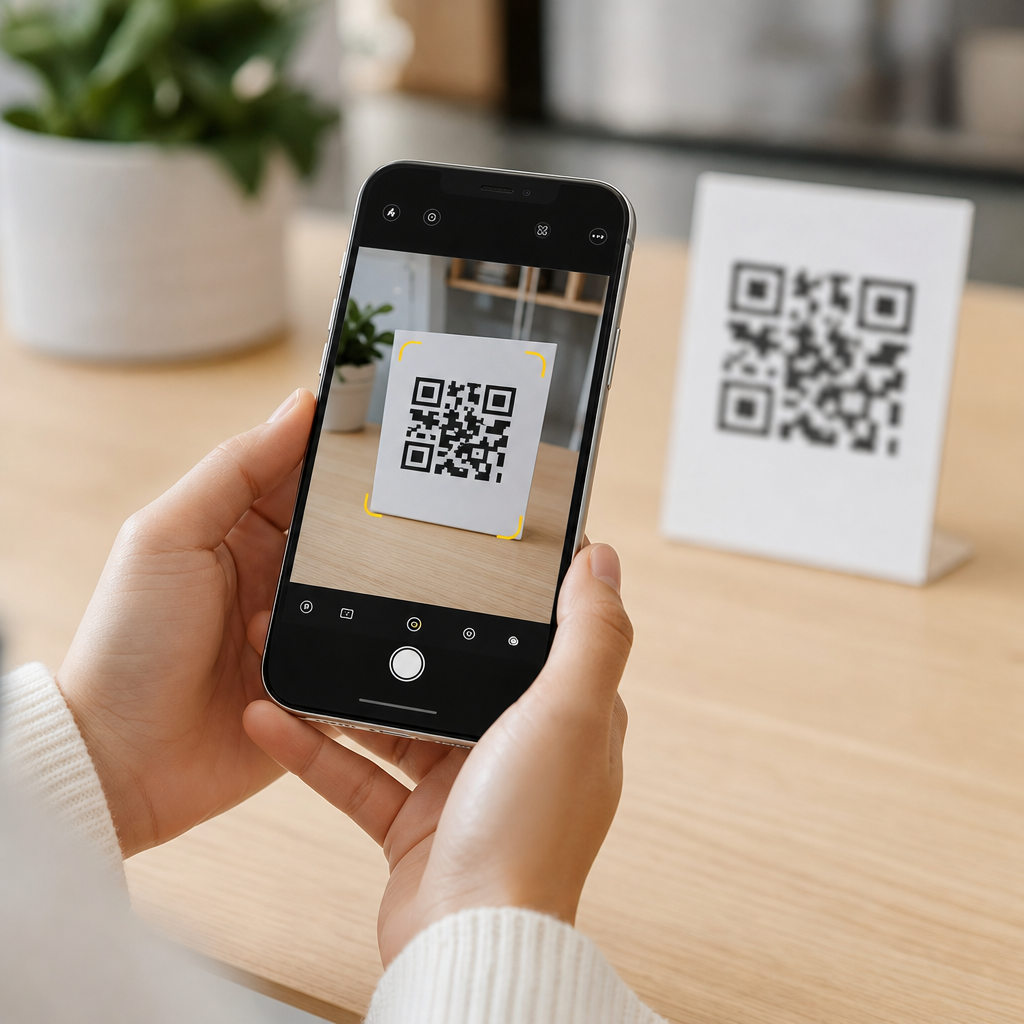
The default method is built into iOS and works on most iPhones running modern software. Open the Camera app from the Home Screen, Lock Screen, or Control Center. Point the rear camera at the QR code and hold the phone steady for a second or two. You do not need to press the shutter button. When the iPhone recognizes the code, it displays a notification banner near the top of the screen or a yellow-highlighted link in the camera viewfinder, depending on your iOS version. Tap that prompt to open the associated action.
For reliable results, fill most of the frame with the QR code without cutting off the corners. Good lighting matters because glare, shadows, or a glossy label can interrupt detection. I see this often with codes on laminated menus and shipping labels under overhead lights. Moving slightly closer helps, but if you get too close the camera may lose focus. On newer models with improved autofocus, detection is fast; on older devices, backing up a little often produces a sharper image. If the code is curved around a bottle or damaged by a tear, try changing the angle so the full square is visible.
If scanning does not work in Camera, first confirm the setting is enabled. Go to Settings, then Camera, and make sure “Scan QR Codes” is turned on. This switch is easy to miss after a restore, device handoff, or parental restrictions change. Also install the latest iOS version your device supports, because camera recognition and Live Text handling have improved over multiple releases. For users troubleshooting several related issues, this page pairs well with articles on camera permissions, iPhone update problems, and Control Center customization within the broader FAQs and Troubleshooting Hub.
When to use Code Scanner instead of Camera
Apple includes a dedicated Code Scanner in Control Center, and it is useful when you want a cleaner interface focused only on codes. Open Settings, tap Control Center, and add Code Scanner if it is not already included. Then swipe down from the top-right corner on Face ID models, or up from the bottom on older Home button models, and tap Code Scanner. Aim at the QR code and wait for the prompt. The scanner opens content immediately in a small in-app browser, which can be more convenient than switching back and forth between Camera and Safari.
In support practice, I recommend Code Scanner when users say the Camera app keeps focusing on the background or when they need to scan codes quickly at check-in desks, warehouses, or trade show entrances. It is also useful on shared devices because it reduces extra taps. There is a practical limitation, though: if Mobile Device Management policies disable camera use, both Camera and Code Scanner may be unavailable. That shows up most often on school-issued or corporate iPhones. In that case, the fix is administrative rather than technical, and the user needs the IT profile adjusted.
| Method | Best use case | What happens after scan | Common issue |
|---|---|---|---|
| Camera app | Everyday scanning from printed codes | Shows banner or highlighted link | QR setting disabled in Camera settings |
| Code Scanner | Fast dedicated scanning from Control Center | Opens result in compact built-in browser | Not added to Control Center |
| Photos or screenshot | Scanning a code saved as an image | Lets you tap detected link or action | Image too blurry or cropped |
How to scan a QR code that is on your iPhone screen
A common mobile-specific question is how to scan a QR code when the code is displayed on the same iPhone you are using. Since the rear camera cannot scan its own screen, you need to work from the image itself. If the QR code is in a photo, open the Photos app and tap the picture. On supported iOS versions, press and hold the QR code or tap the small detected-link icon that appears in the image. The iPhone should surface the embedded URL or action directly. This also works with screenshots, messages, emails, and images saved from Safari in many cases.
Another option is to share the image to another device, such as an iPad or Mac, and scan it there, but that is usually unnecessary on recent iPhones. If the code is in a PDF or inside an app that blocks text detection, take a screenshot first, open it in Photos, and test whether link detection appears. I have used this workaround frequently for airline apps, payment confirmations, and classroom portals that render QR codes inside secure views. It is simple and often faster than trying to print the code or email it elsewhere.
If no link appears, the image may be too low resolution. Crop tightly around the code, increase screen brightness, or request the sender’s original file instead of a compressed screenshot from a messaging app. Some chat platforms reduce image quality enough to break the code’s error correction margin. In practical terms, a clean original PNG or PDF scans far more reliably than a forwarded screenshot that has been resized multiple times.
Why your iPhone is not scanning a QR code
When an iPhone will not scan a QR code, the cause is usually one of five things: the QR feature is disabled, the image is blurry, lighting is poor, the code is damaged, or the code itself is invalid. Start with the basics. Clean the camera lens, remove any dirty case edge covering the lens, and hold the phone steady. If the prompt appears briefly and disappears, keep the code centered longer. If nothing happens at all, test with a known good code, such as one from a major retailer app or Apple support page, to separate a device problem from a bad code.
Software settings also matter. Screen Time restrictions can limit camera access. Low Power Mode does not usually block scanning, but an overheated phone or a heavily loaded background process can make the Camera app lag. Restarting the iPhone clears many temporary issues. If third-party camera apps are involved, switch back to Apple’s Camera app because some apps do not support code recognition. For persistent camera failures beyond QR codes, the problem may be autofocus hardware, which belongs in a camera troubleshooting article rather than a QR-specific fix.
There is also the possibility that the QR code directs to a service your phone can recognize but not complete without another app. For example, a payment QR may open a banking app requirement, or an authentication QR may need a compatible authenticator. In those cases, the scan worked, but the next action failed. Reading the prompt carefully helps distinguish recognition problems from follow-up app issues.
Is it safe to scan a QR code on iPhone?
Scanning a QR code on iPhone is generally safe, but tapping what the code opens is the real security decision. A QR code can hide a malicious URL just as easily as a legitimate one. Before opening a link, preview the domain in the notification if visible and look for familiar, correctly spelled web addresses. Be especially cautious with shortened links, fake parcel delivery notices, parking meter stickers placed over original labels, and login prompts that ask for credentials immediately. Apple’s iPhone security protections, including Safe Browsing-style warnings in Safari and app sandboxing, reduce risk, but they do not eliminate phishing.
In business settings, I advise users to treat QR codes the same way they treat email links. Verify the source, inspect the destination, and avoid entering passwords after scanning from an untrusted poster or flyer. For Wi-Fi QR codes in hotels or offices, confirm the network name before joining. For app downloads, prefer the official App Store listing rather than side-loaded prompts or web-install instructions. If a QR code unexpectedly starts a download, opens a payment request, or asks for profile installation, stop and verify with the organization directly.
The key takeaway for everyday iPhone users is simple: your phone can scan QR codes easily, whether through Camera, Code Scanner, or Photos, and most problems are solved by checking settings, lighting, image quality, and software updates. Use the Camera app first, switch to Code Scanner when you want a dedicated tool, and rely on Photos for QR codes already on your device. If scanning fails, test with a known working code and rule out restrictions or a damaged image before assuming the iPhone is at fault. Because this page serves as the mobile-specific hub in your FAQs and Troubleshooting Hub, it should be your starting point before moving to related guides on camera permissions, iOS updates, or app-specific login issues. Scan carefully, verify links before tapping, and keep your iPhone updated so QR features work reliably when you need them.
Frequently Asked Questions
How do I scan a QR code on an iPhone using the Camera app?
On most iPhones, the fastest way to scan a QR code is to open the built-in Camera app and point it at the code. Hold your iPhone steady so the entire QR code appears clearly on the screen. You do not usually need to press the shutter button or take a photo. If your iPhone recognizes the code, a notification banner or highlighted link should appear near the top of the screen or around the code itself. Tap that prompt to open the website, join the Wi-Fi network, save contact information, launch an app prompt, or complete whatever action the code contains.
This works on modern iPhones with Apple’s built-in QR recognition, which has been included in iOS for years. For best results, make sure the code is well lit, not blurry, and not too far away. If nothing happens, try moving the phone slightly closer or farther back so the camera can focus. In most cases, scanning is automatic and does not require downloading a separate QR scanner app.
Why won’t my iPhone scan a QR code?
If your iPhone is not scanning a QR code, the issue is usually related to focus, lighting, software settings, or the quality of the code itself. Start by checking that the Camera app is being used in normal Photo mode and that the QR code is fully visible on the screen. If the image is too dark, too reflective, damaged, or printed very small, your iPhone may not detect it right away. Clean the camera lens, increase the lighting, and hold the phone steady for a second or two.
Another possible reason is that QR code scanning may be turned off in your settings. Go to Settings > Camera and make sure Scan QR Codes is enabled. If the setting is already on, try closing and reopening the Camera app, updating iOS, or restarting the iPhone. Also remember that some QR codes are poorly generated or expired, especially if they lead to old websites, payment links, or login pages. In those cases, the phone may detect the code but the destination may no longer work properly.
Can I scan a QR code that appears on my iPhone screen?
Yes, but you cannot usually scan a QR code directly from the same live screen with the Camera app because the camera cannot point at itself. Instead, if the QR code is inside a photo, screenshot, email, website, or document on your iPhone, you can often interact with it directly. One common method is to take a screenshot of the code, open it in the Photos app, and then press and hold on the QR code or use text and image recognition features if supported by your iOS version. In many cases, iPhone will detect the embedded link and offer an action.
If the code appears on another app or webpage, you can also try saving the image and opening it in Photos. Newer iPhones and newer versions of iOS are better at recognizing links and code content inside saved images. If that does not work, another practical option is to display the code on a second device, such as a laptop, tablet, or another phone, and then scan it with your iPhone’s camera. This is often the easiest solution for login QR codes, Wi-Fi sharing prompts, and web links.
Do I need a QR code scanner app on iPhone?
In most cases, no. Apple has built QR code recognition directly into the iPhone, so the Camera app is usually all you need. There is also a built-in Code Scanner shortcut available on some iPhones through Control Center, which can provide a more direct scanning experience. To check for it, go to Settings > Control Center and see whether you can add Code Scanner. Once added, you can open it quickly without launching the full Camera app.
Third-party QR scanner apps are generally unnecessary unless you need extra features, such as scan history, batch scanning, advanced barcode support, custom business workflows, or built-in security filtering. For everyday use, the native iPhone tools are simpler and more secure because they are integrated into iOS. If you do choose a third-party app, download it only from a trusted source and review its permissions carefully, since many free scanner apps request more access than they actually need.
Is it safe to scan QR codes on an iPhone?
Scanning a QR code on an iPhone is generally safe, but the real risk comes from where the code leads. A QR code can open a website, trigger a payment screen, add a contact, connect to Wi-Fi, or prompt another action. Because the code itself is not human-readable, it is smart to be cautious before tapping the result. If a QR code appears in an unexpected place, looks tampered with, or comes from an unknown sender, pause and verify it first. For example, scammers sometimes place fake QR stickers over legitimate ones in public places.
Your iPhone helps by showing a prompt before taking you to the destination, which gives you a chance to review what is about to open. Before proceeding, look for signs that the link is legitimate, especially if it asks for passwords, payment details, or account information. Avoid scanning random codes sent in suspicious messages or posted in questionable locations. As a best practice, keep your iPhone updated, use Apple’s built-in tools when possible, and treat QR codes the same way you would treat any unfamiliar link on the internet.