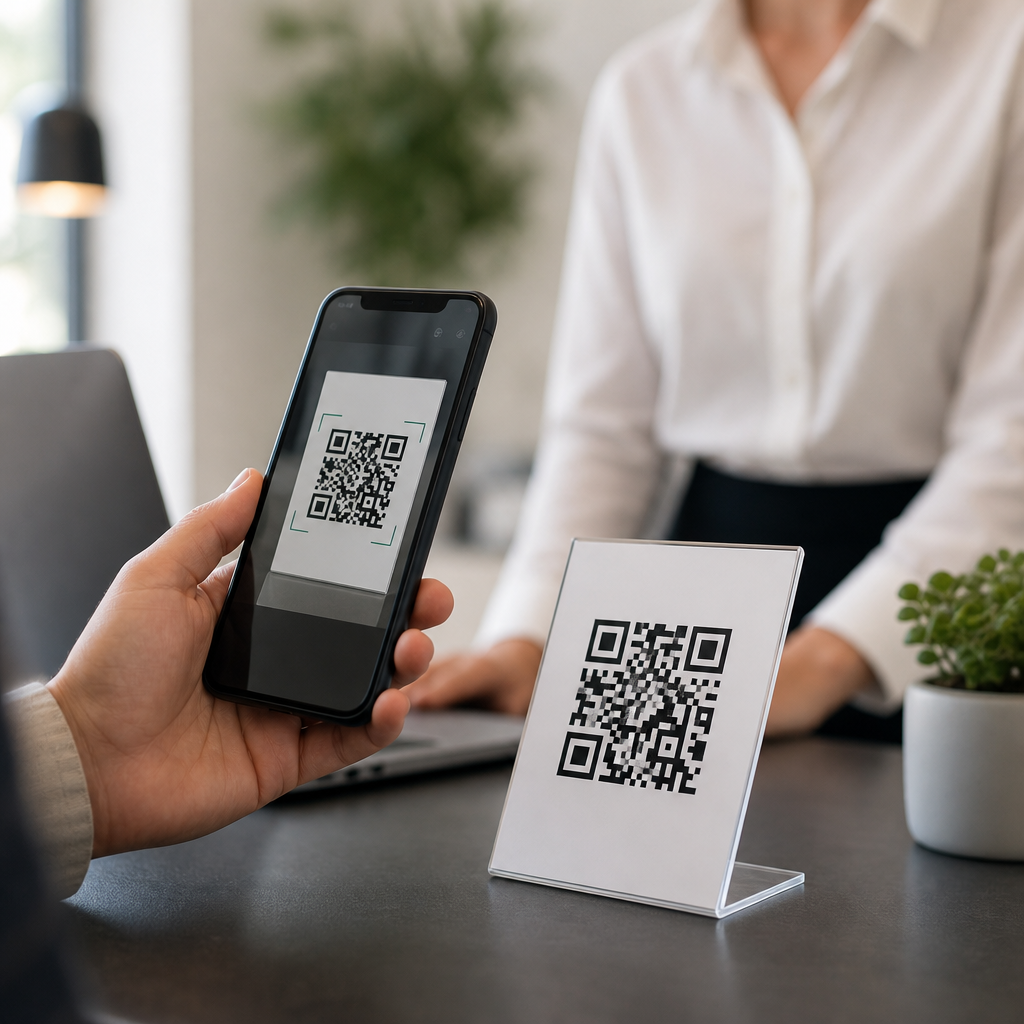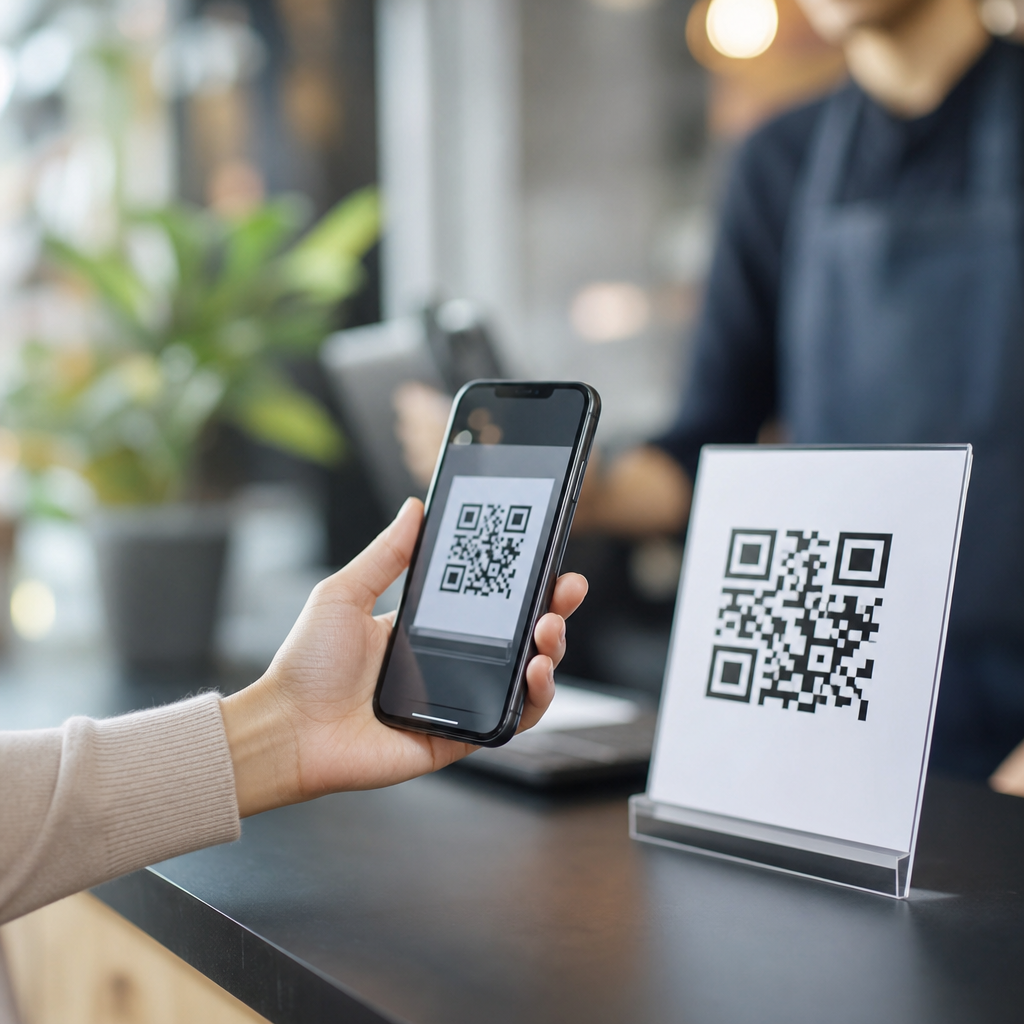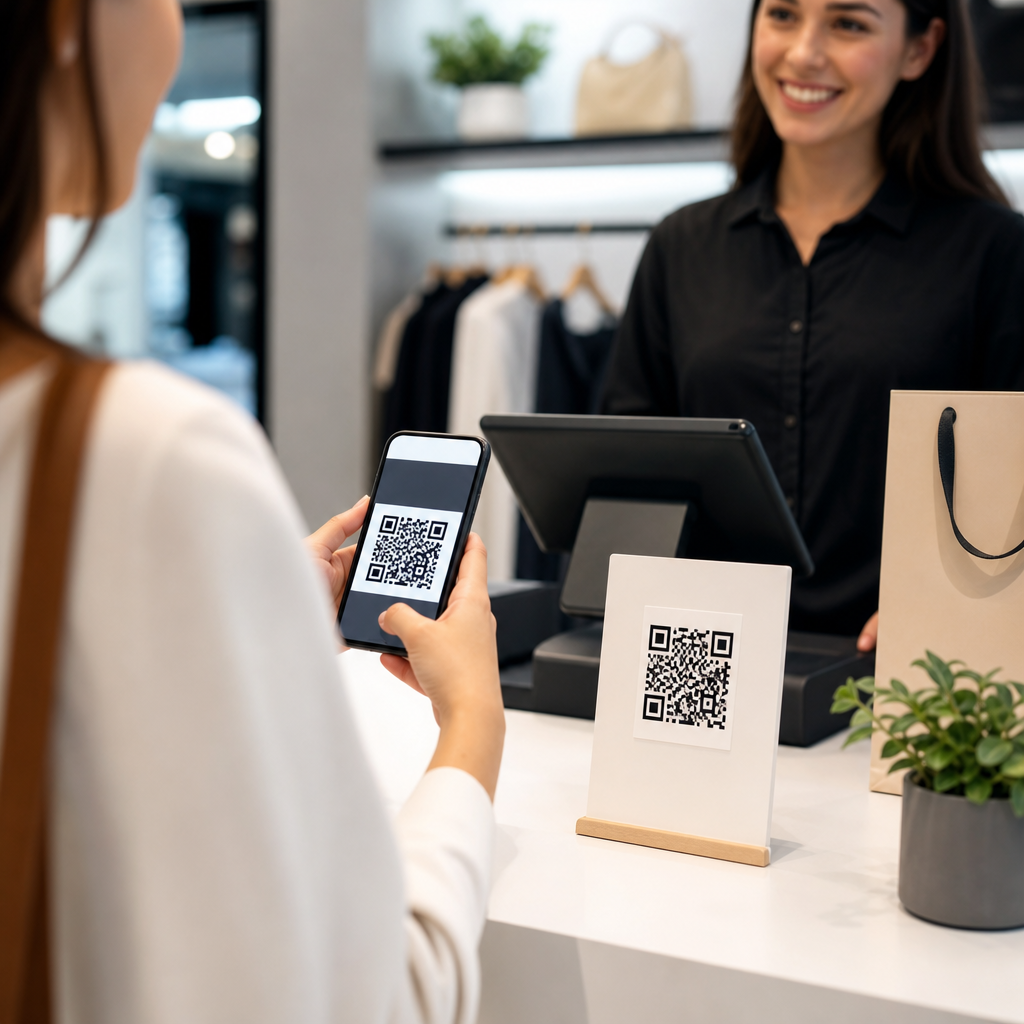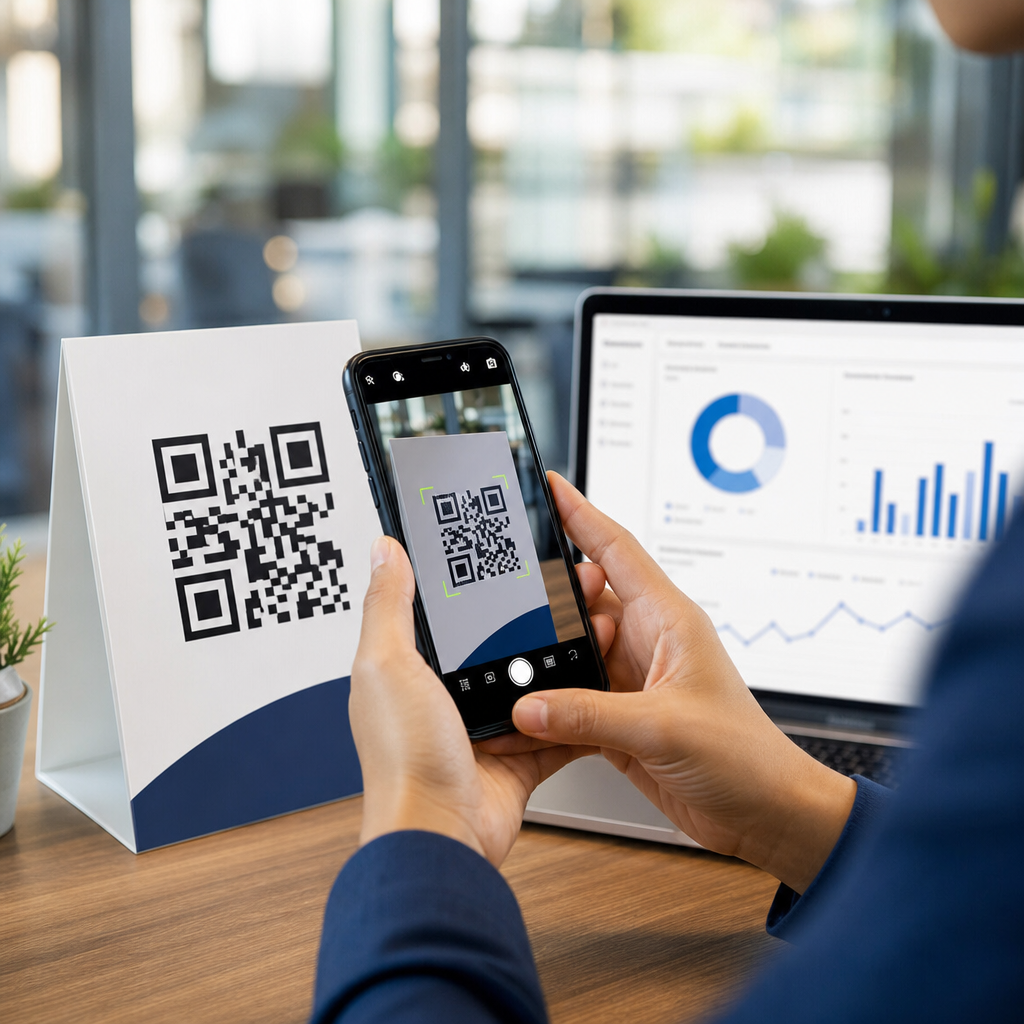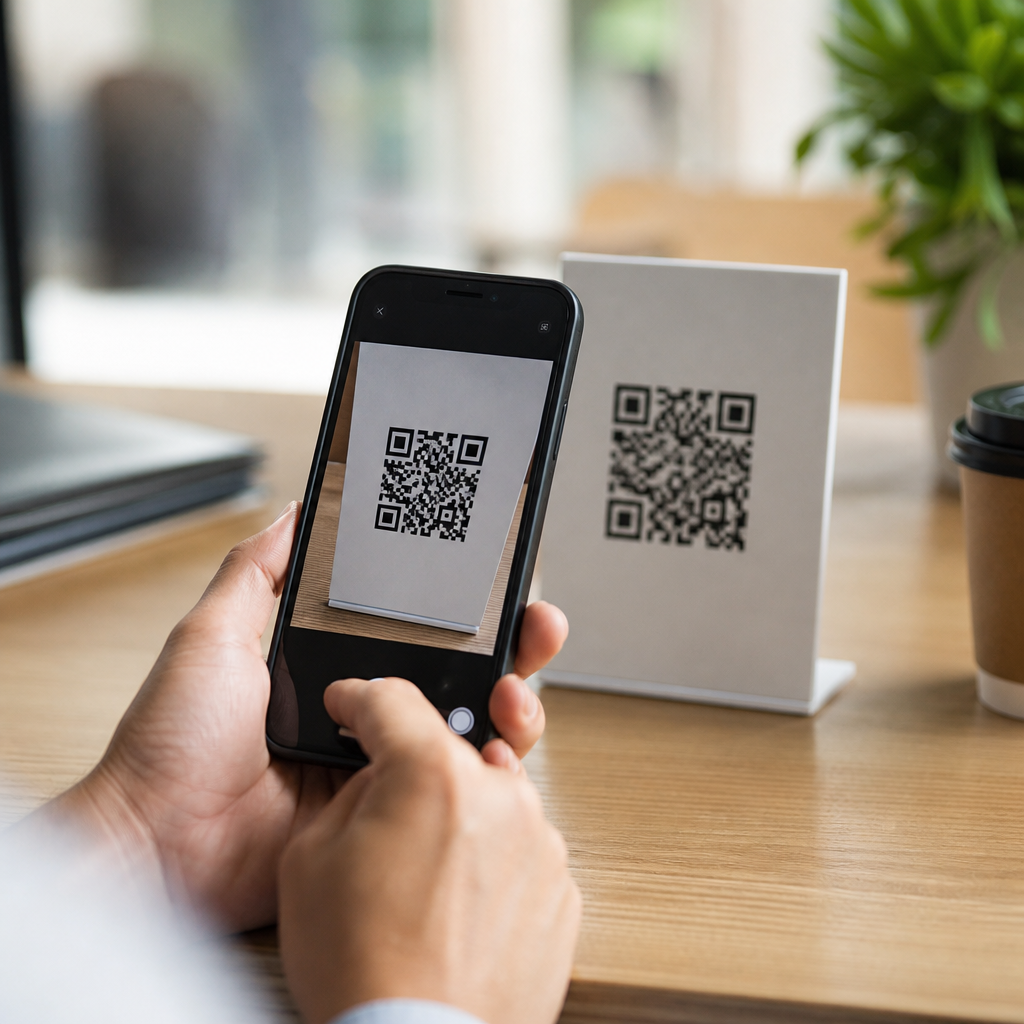
Do you need an app to scan QR codes? In most cases, no. Modern smartphones usually scan QR codes through the built-in camera, which means iPhone and Android users can open links, join Wi-Fi networks, save contact details, or launch payments without installing anything extra. A QR code, short for Quick Response code, is a two-dimensional barcode that stores data in a square pattern of black and white modules. It matters because QR codes now sit at the center of everyday mobile tasks, from restaurant menus and package tracking to device setup and account verification. I have tested QR behavior across iPhones, Samsung Galaxy devices, Pixel phones, budget Android handsets, and mobile browsers, and the pattern is consistent: the question is rarely whether a phone can scan a QR code, but whether the right camera setting, operating system version, or app permission is enabled. That distinction saves time, reduces unnecessary downloads, and lowers security risk. Many people still search for a dedicated QR scanner because older phones once required separate software, and some devices still do under limited conditions. This hub explains when the built-in scanner is enough, when a separate app may help, and how mobile-specific issues affect scanning success.
How QR scanning works on iPhone and Android
On iPhone, the native Camera app has supported QR detection for years, and current versions of iOS recognize codes automatically when the camera points at them steadily. A banner appears near the top of the screen, and tapping it opens the encoded action. Apple also includes a Code Scanner in Control Center, useful when the standard Camera app is busy with another task or when users want a dedicated scanning view. On Android, the experience depends on the manufacturer, camera app, and version of Android, but the default path is similar: open the camera, point it at the code, and wait for a prompt. Google Lens is deeply integrated into many Android phones, especially Pixel and recent Samsung models, so users may see a Lens icon or an on-screen suggestion rather than a plain camera notification.
The practical takeaway is simple. If your phone was released in the last several years, start with the built-in camera before downloading a QR scanner. That applies to common mobile-specific tasks such as pairing accessories, opening app download pages, confirming event tickets, or reading transit information. In support work, I have seen users install ad-heavy scanner apps only to discover their phone already handled QR codes natively. Built-in tools are faster, more private, and less likely to request excessive permissions.
When you might actually need a separate app
There are still situations where a separate app makes sense. Older devices may lack native QR recognition, especially on outdated Android versions or third-party camera apps. Some enterprise environments use rugged devices with restricted software, where a work-specific scanning app is required to tie scans into inventory, asset management, or field service systems. A dedicated app can also help when users need scan history, batch scanning, custom workflows, or support for many barcode formats such as Code 128, UPC, EAN, and Data Matrix in addition to QR codes.
Specialized use cases are another reason. Warehousing teams often need continuous scanning with export features. Retail staff may need a scanner that integrates with point-of-sale software. Accessibility tools can provide larger text, haptic confirmation, or stronger low-light enhancement than the standard camera. For ordinary consumers, though, a separate app is rarely necessary just to open a website or connect to Wi-Fi. If you do choose one, prefer reputable developers, review permissions carefully, and avoid apps that ask for contacts, microphone access, or broad file permissions without a clear reason.
Common mobile-specific FAQs and troubleshooting steps
Most QR scanning problems come down to camera access, software age, lighting, focus, or the code itself. If the phone will not scan, first confirm the camera can access the image clearly. Clean the lens, increase ambient light, and hold the phone six to twelve inches away so the code fills part of the frame without being too close. If no prompt appears, check settings. On iPhone, confirm camera scanning is enabled in Camera settings. On Android, look for QR scanning, smart suggestions, or Lens options inside the camera app. If the code is on your own screen, use a screenshot and open it in Photos or Google Photos, then use Live Text, Lens, or the share menu to detect the code.
Broken codes are common. A QR code with a crease, glare, low contrast, or cropped border may not decode. Printed codes need a quiet zone, the blank margin around the square. Without it, detection rates drop sharply. Internet access also matters, because many QR codes simply point to a URL; the scan may succeed even though the page fails to load. Security matters too. A QR code can hide a malicious link, so users should preview the destination before tapping when the phone offers that option.
| Problem | Likely cause | Best fix |
|---|---|---|
| No scan prompt appears | QR detection disabled or unsupported camera app | Enable scanning in settings or try Google Lens/Code Scanner |
| Code scans but nothing opens | No internet, expired link, or blocked app action | Test connection, retry later, or open with another browser |
| Phone cannot focus | Too close, dirty lens, poor light | Step back slightly, clean lens, increase lighting |
| QR code on the same phone screen | Camera cannot scan its own display | Use screenshot detection in Photos, Lens, or image search |
| Prompt looks suspicious | Potential phishing or malicious redirect | Preview URL, verify domain, and avoid entering credentials |
Security, privacy, and why built-in tools are usually safer
From a security standpoint, built-in QR scanning is usually the best choice because it relies on trusted system apps maintained by Apple, Google, or the phone manufacturer. Those tools generally limit data collection and receive regular updates through the operating system or core services. By contrast, low-quality third-party scanners have a long history of showing intrusive ads, pushing unnecessary notifications, or bundling tracking software. Security researchers and app store reviewers have repeatedly flagged scanner apps that offered little value beyond what the camera already did.
Users should still treat QR codes with the same caution they apply to email links. A code can open a fake banking page, trigger a malicious app download, or prefill a message to a premium number. Safer habits include checking the domain carefully, avoiding login pages reached from random printed codes, and using password managers that recognize legitimate sites. For business owners, this is also a design issue: branded QR destinations, short but readable URLs, and HTTPS pages build trust and reduce drop-off.
Best use cases for mobile QR scanning
QR codes are most effective when they remove friction from a mobile task. The strongest examples are Wi-Fi onboarding, app sign-ins, contactless payments, event check-in, product authentication, and quick access to help resources. Restaurants adopted QR menus at scale, but the more durable pattern has been utility, not novelty. A well-placed code on a router label saves users from typing a long password. A support sticker on a device can open the exact troubleshooting page for that model. In field operations, a QR code on equipment can link technicians to maintenance logs, inspection forms, and replacement part lists. Those are high-value interactions because the scan reduces errors and speeds action.
As a hub for mobile-specific FAQs, this topic also connects naturally to related guides on scanning from screenshots, fixing camera permission issues, reading damaged codes, scanning WhatsApp Web or account-login codes, and verifying whether a QR code is safe. Those supporting articles should go deeper into each scenario, but the main rule stays the same: use the simplest native method first, then escalate only if the phone or workflow truly demands more.
What to do before downloading any QR scanner app
Before installing a separate scanner, run a short checklist. Open the default camera. Try Google Lens or the equivalent built-in visual search tool. Check for a Code Scanner shortcut or QR toggle in settings. Update the operating system and camera app. Test the code in better light and from a different angle. If the code is digital, use a screenshot and scan it from Photos. If the code still fails and you know it works on other devices, then consider a dedicated app from a well-known publisher with clear privacy disclosures and strong recent reviews.
The main benefit is efficiency. Most people do not need another app, and avoiding one reduces clutter, permissions, and attack surface. Built-in scanners on current iPhone and Android devices handle the majority of everyday QR tasks reliably. When they do not, the problem is usually a setting, an old device, poor image quality, or an unsafe code rather than a missing app. Start with the camera you already have, use the troubleshooting steps in this hub, and follow the related mobile FAQ guides for specific scenarios. That approach solves the issue faster and keeps your phone safer.
Frequently Asked Questions
Do I need to download an app to scan a QR code?
In most cases, no, you do not need a separate app to scan a QR code. Most modern iPhones and Android phones include QR scanning directly in the built-in camera app, so you can simply open your camera, point it at the code, and tap the notification or link that appears on screen. This built-in feature is designed to make common actions fast and easy, whether you are opening a restaurant menu, joining a Wi-Fi network, saving contact information, checking in for an event, or starting a mobile payment. Because QR codes are now used for everyday tasks, phone makers have made scanning them a standard function rather than something that requires extra software.
That said, there are still a few exceptions. Older smartphones may not support QR scanning in the default camera, or the feature may be turned off in settings. In those situations, a QR scanner app can still be helpful. But for the vast majority of users today, especially on newer devices, the answer is simple: your phone likely already has everything you need.
How do I scan a QR code with an iPhone or Android phone?
On an iPhone, scanning a QR code is usually as easy as opening the Camera app and aiming it at the code for a second or two. Once the phone recognizes the QR code, a banner or prompt will appear at the top of the screen. Tapping that prompt will take you to the website, Wi-Fi setup, payment page, contact card, or other action stored in the code. If it does not work right away, make sure the code is clearly visible, well lit, and in focus. You can also check the camera settings to confirm that QR code scanning is enabled.
On Android, the process is very similar, although it can vary slightly by brand and version. Many Android phones scan QR codes directly through the default camera app, while some also support it through Google Lens. In practice, you open the camera, point it at the code, and wait for a link or action prompt to appear. If your camera does not recognize the code, look for a Lens icon or use the Google app. As long as the phone is relatively current, scanning a QR code is usually built in and requires only a few seconds.
Why were QR scanner apps popular before, and when might I still need one?
QR scanner apps became popular because earlier smartphones often did not have native QR recognition built into the camera. At that time, if you wanted to open a QR code, you typically had to install a third-party app that could read the square barcode and translate it into a website link, text, contact information, or another action. These apps filled a real need when operating systems had not yet made QR scanning a standard feature.
Today, scanner apps are far less necessary, but they can still be useful in certain situations. For example, some specialized apps offer a scan history, batch scanning, advanced security warnings, custom code generation, or support for older devices that lack built-in recognition. Businesses may also use dedicated scanning apps for inventory, ticketing, or internal workflows. For everyday consumers, though, downloading an app solely to scan a menu or open a link is usually unnecessary. In fact, avoiding extra apps can be the safer and simpler option, since not all third-party scanner apps are trustworthy or needed.
What kinds of information can a QR code open or store?
A QR code, which stands for Quick Response code, is a two-dimensional barcode that stores data in a square grid of black and white modules. That data can represent many different types of information, which is one reason QR codes have become so widely used. The most common use is to open a web page, but QR codes can also connect a phone to a Wi-Fi network, launch a payment screen, add a contact to your address book, start a text message, open a map location, download an app, or display plain text. In real-world settings, that means one quick scan can trigger an action that would otherwise require typing a long URL or entering details manually.
This flexibility is exactly why QR codes now appear everywhere from restaurant tables and product packaging to posters, business cards, parking meters, boarding passes, and medical forms. Instead of being limited to one purpose, they act as a fast bridge between physical spaces and digital actions. The code itself does not always show you what is inside at a glance, so it is smart to pay attention to the preview prompt your phone displays before tapping through.
Are QR codes safe to scan, or should I be cautious?
QR codes are generally safe, but you should use the same common-sense caution you would use with any link on the internet. A legitimate QR code can take you to a restaurant menu, secure payment portal, event page, or login screen, but a malicious one can also redirect you to a fake website designed to steal personal information. Because the code hides the destination until it is scanned, scammers sometimes place fraudulent QR stickers over real ones in public places or use fake codes in emails, posters, and printed materials.
The safest approach is to scan carefully and review the destination before tapping. Most phones will show a preview link or action first, giving you a chance to confirm that it looks legitimate. Be especially cautious if the code asks for payment, passwords, banking details, or sensitive account information. It is also wise to avoid downloading unnecessary scanner apps from unknown developers, since your built-in camera is usually enough. In short, QR codes are convenient and widely used, but they should be treated with the same awareness you bring to emails, links, and websites in general.