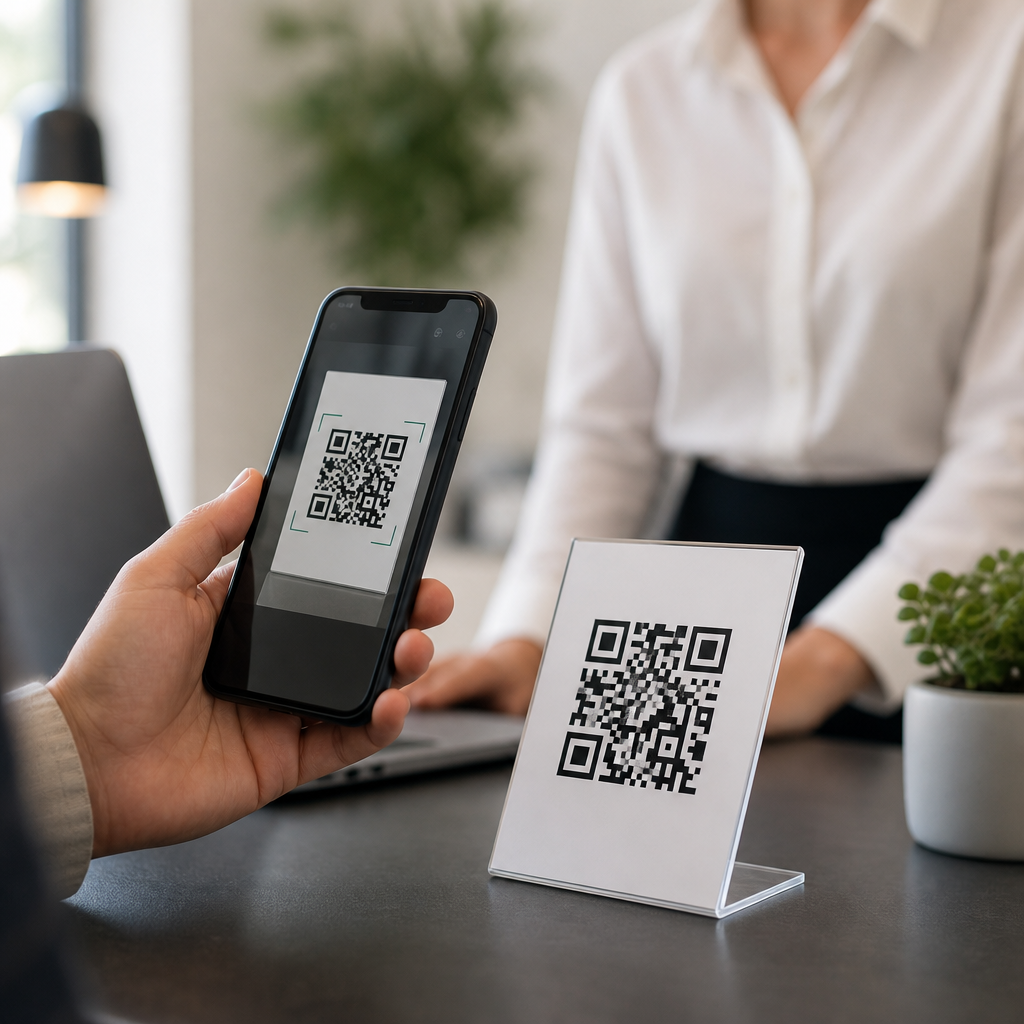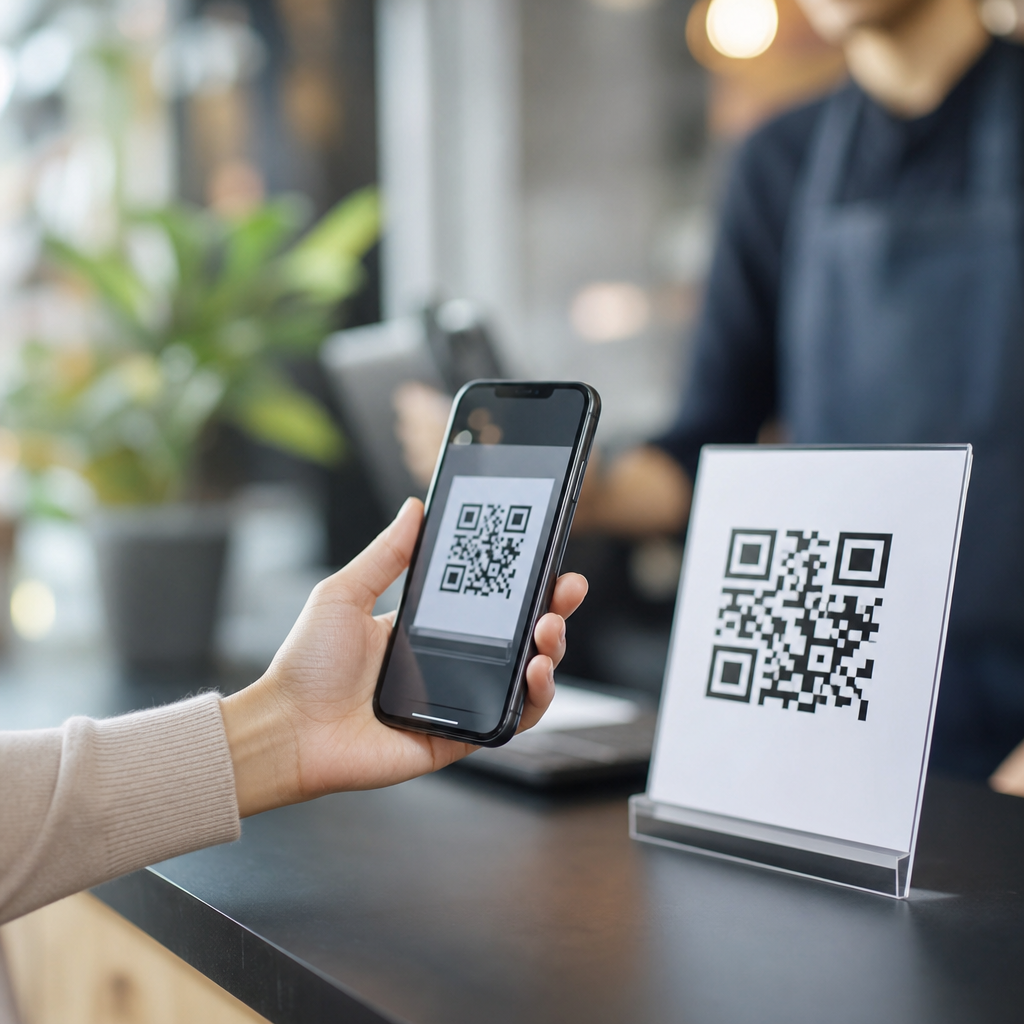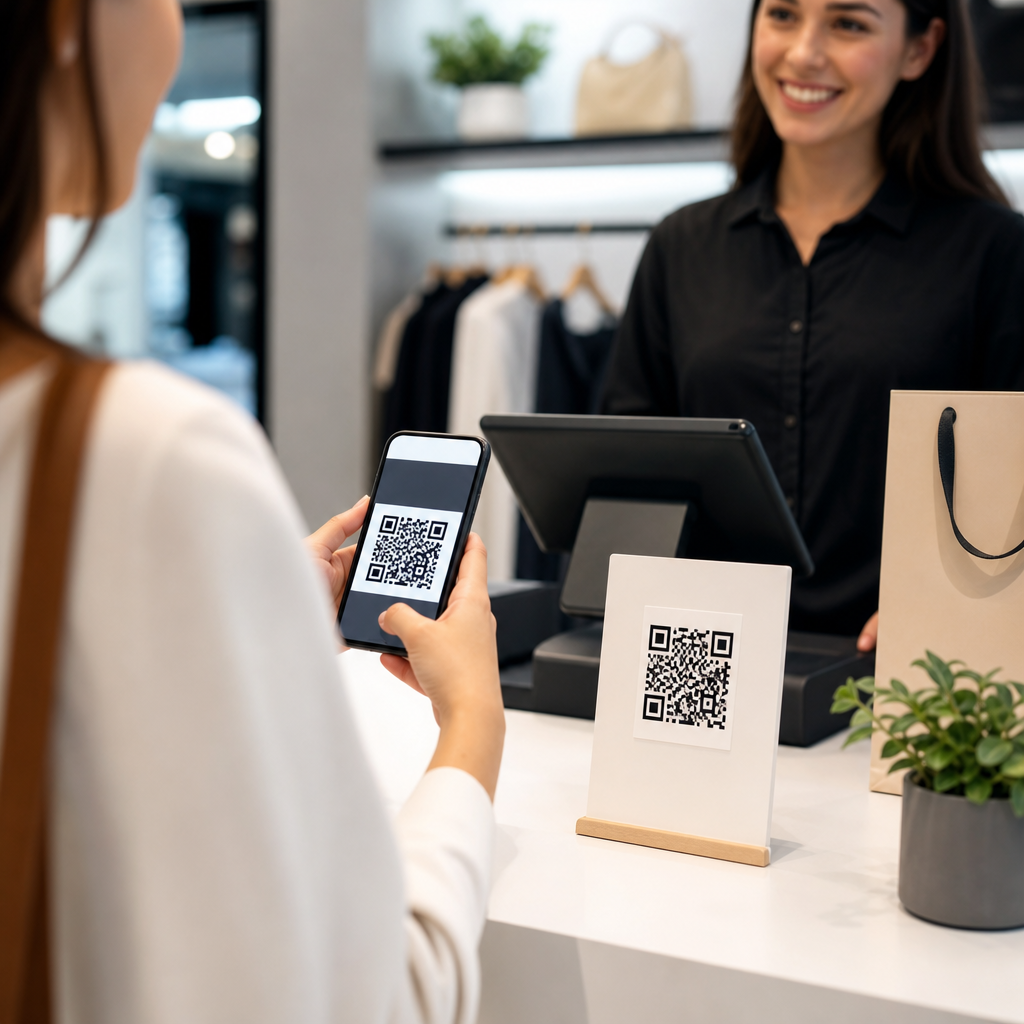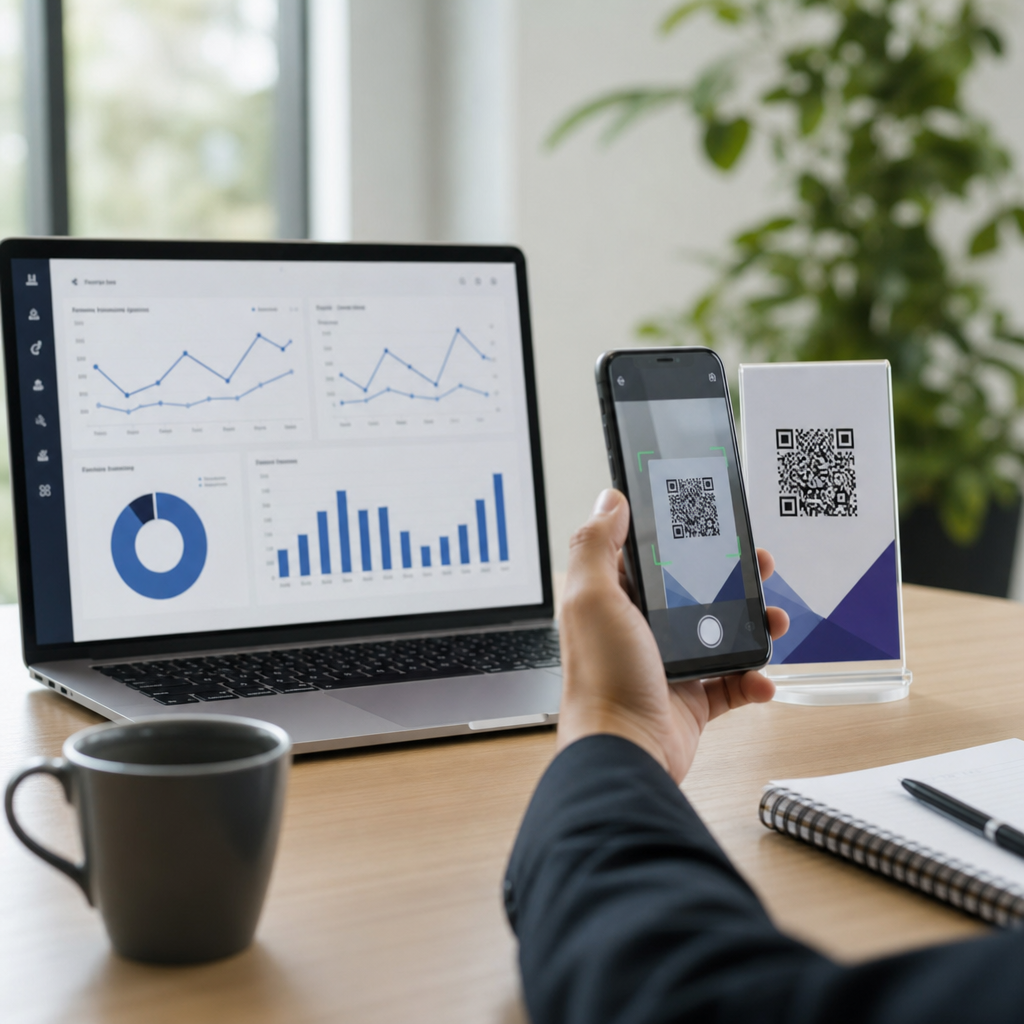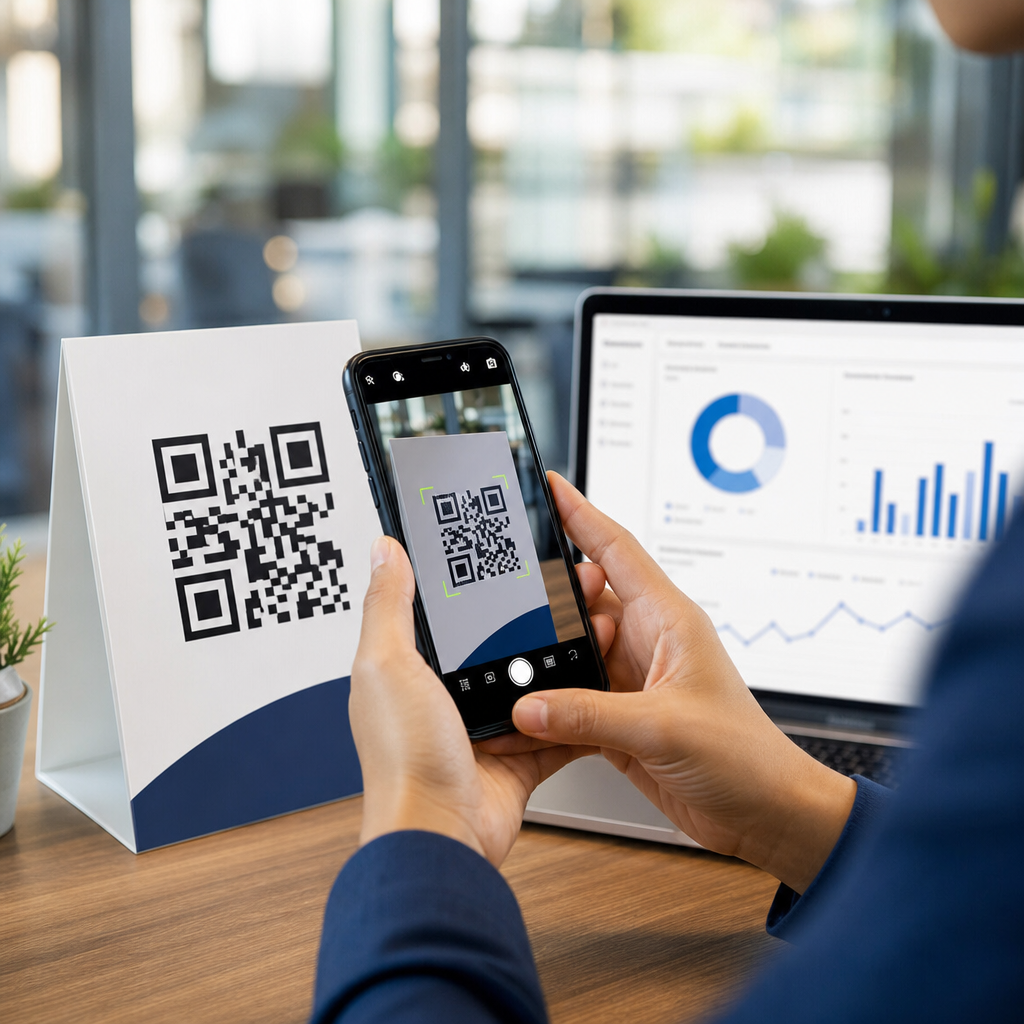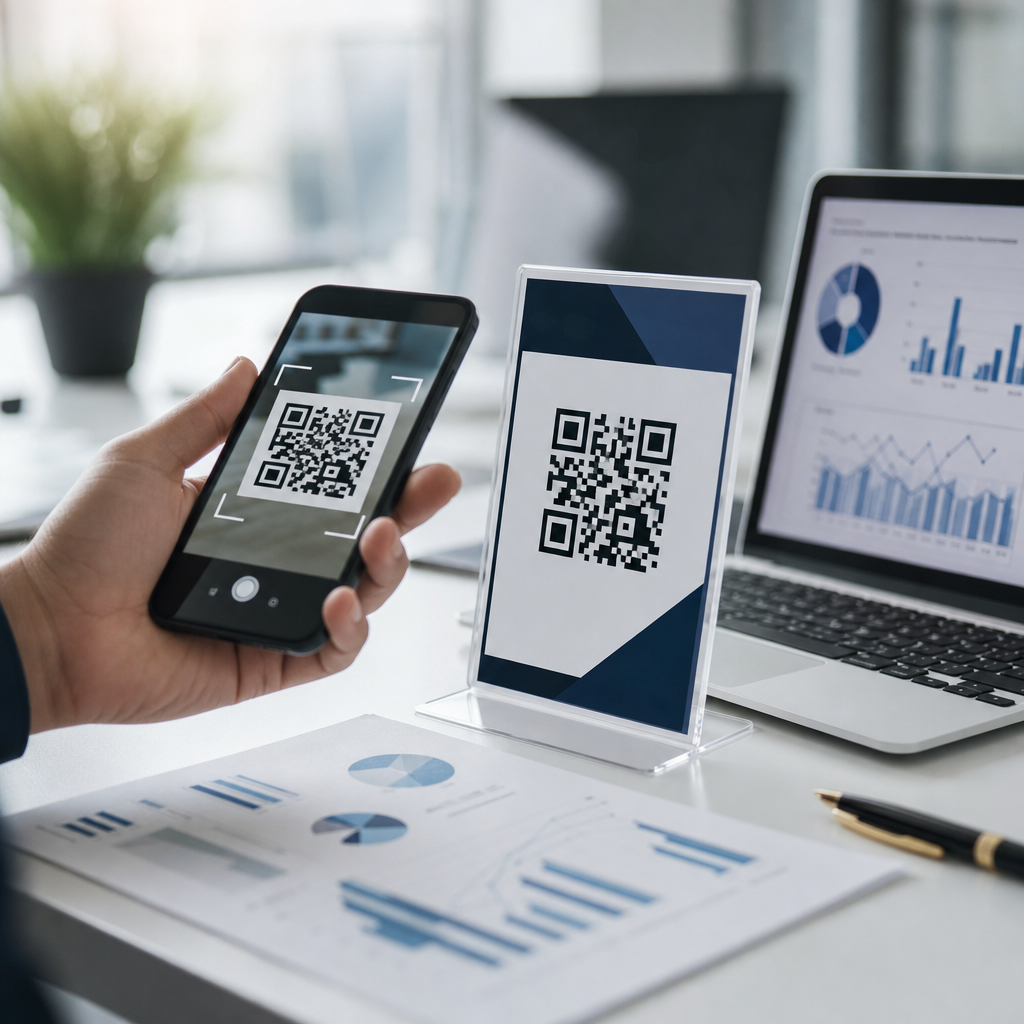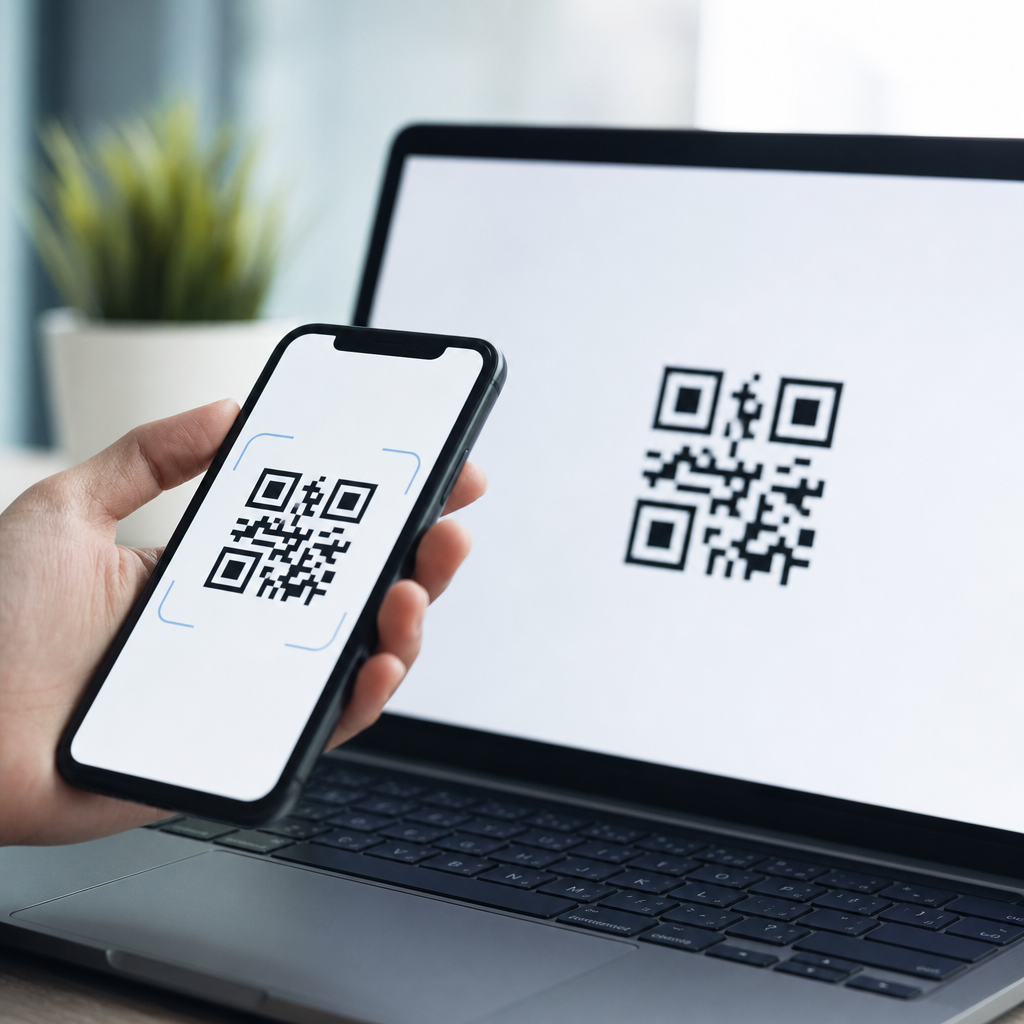
Can QR codes be read from screens? Yes, in most cases they can, and in daily work I have seen phone cameras scan codes reliably from laptops, tablets, kiosks, televisions, and even smartwatches when the image is sharp enough and displayed at a usable size. A QR code is a two-dimensional matrix barcode that stores data in square modules, then uses finder patterns, alignment patterns, and error correction to help a scanner decode the content quickly. Screen scanning matters because businesses now use digital menus, event check-ins, mobile payments, two-factor authentication, app downloads, and support workflows that rarely involve printed paper. When a code fails on a screen, the problem is usually not the code format itself. It is almost always a display, camera, distance, glare, contrast, or software issue. This technical FAQ hub explains when screen-based QR codes work, why they fail, how to troubleshoot common problems, and what standards and testing methods produce dependable results across devices.
How screen-based QR code scanning works
A QR code shown on a screen is still just a pattern of dark and light modules. The scanner does not care whether those modules are printed with ink or rendered in pixels. What matters is whether the camera sensor can capture a clean image with enough contrast for decoding software to separate the grid, detect the three finder squares, correct perspective distortion, and reconstruct the data. Most modern smartphones use built-in decoding libraries, while dedicated scanners often rely on engines from Zebra, Honeywell, Datalogic, or software kits such as ZXing and Dynamsoft. In practical testing, screen-based scans succeed when the displayed code has sufficient module size, a quiet zone around the symbol, and limited motion blur.
Brightness and resolution affect scanning more than many teams expect. A high-resolution phone screen can display extremely crisp module edges, but if automatic brightness is low or the display uses aggressive dimming, the code may look gray instead of black. OLED screens can also introduce pulse-width modulation flicker at lower brightness settings, which some camera systems handle poorly. Conversely, large TV screens may be bright enough but show moire patterns when viewed by another camera. I usually advise clients to think in terms of the camera seeing a clean binary pattern rather than the human eye seeing a nice graphic. If the camera can isolate distinct dark and light blocks, the QR code can be read from a screen.
Which devices can read QR codes from screens
Most current iPhone and Android devices can scan QR codes directly from another screen using the native camera app, Google Lens, or the built-in image recognition present in many manufacturer camera apps. They can also read a QR code displayed inside a saved screenshot, which is useful when a user receives a code by email but wants to open it on the same phone. Dedicated handheld scanners vary more. Some older laser scanners cannot read QR codes at all because they are built for one-dimensional barcodes only. Area-imaging scanners can usually read QR codes from screens, but the specification sheet often states this explicitly as “mobile phone screen” or “LCD screen” support. If that phrase is absent, testing is essential.
Different screens create different results. Phones and tablets generally scan well because pixel density is high. Laptop screens work well if the code is enlarged and glare is controlled. Public kiosks and point-of-sale terminals can be problematic when their protective glass causes reflections. Outdoor digital signage adds another variable because sunlight can wash out contrast. In ticketing and access control, I have seen turnstiles fail more often because users present cracked screens, privacy filters, or dimmed displays, not because the QR standard is incompatible with screens. Compatibility depends on both the reader and the display environment.
Why QR codes on screens sometimes fail
Failures usually come from seven technical causes: code size, low contrast, insufficient quiet zone, reflections, motion blur, camera focus limits, and poor encoding choices. Code size is the first check. If the modules are too small relative to the scanning distance, the camera cannot resolve the grid. Low contrast is next. Stylized designs, dark mode inversions, or brand colors that replace black and white often make decoding less reliable. The quiet zone, the blank margin around the code, must remain intact. Interfaces that place icons, borders, or text too close to the symbol reduce recognition. Reflections from glossy screens can obscure finder patterns. Motion blur appears when the user or device moves during capture, especially in dim environments that force longer exposure times.
Encoding choices matter too. A long URL creates a denser symbol with smaller modules, making screen display harder at the same physical size. Dynamic QR code platforms can help by using short redirect URLs rather than embedding long tracking parameters directly. Error correction is useful but often misunderstood. Higher levels such as Q or H improve damage tolerance, yet they also increase symbol density. For screens, I usually choose the lowest correction level that still supports the use case, then test it across real devices. ISO/IEC 18004 defines the QR Code symbology, but compliance alone does not guarantee screen readability. Deployment details decide the outcome.
Troubleshooting checklist for users and support teams
When a customer says a QR code will not scan from a screen, work through a structured checklist rather than guessing. Start with brightness, zoom, and distance. Increase the display brightness to maximum, enlarge the code until it occupies a comfortable portion of the screen, and move the camera slowly closer or farther away until focus locks. Clean the camera lens. Remove any blue-light or privacy filter overlays. If glare is present, tilt one device slightly rather than holding both perfectly parallel. If the code appears inside an app, rotate the screen or switch to landscape if that makes the symbol larger. On kiosks, disable animated backgrounds near the code because moving content confuses exposure and focus.
| Problem | Likely cause | Fix |
|---|---|---|
| Code visible but not scanning | Low contrast or glare | Raise brightness, reduce reflections, use black on white |
| Scanner hunts for focus | Code too small or too close | Enlarge code, increase distance slightly |
| Works on some phones only | Dense symbol or weak scanner app | Shorten payload, test with native camera and Lens |
| Fails at kiosk or gate | Cracked screen, privacy filter, dim display | Ask user to maximize brightness and remove filter if possible |
| Printed version works, screen version fails | Display artifacts or missing quiet zone | Add padding, avoid overlays, simplify design |
For support documentation, save example screenshots of good and bad implementations. I also recommend maintaining links to deeper troubleshooting articles inside the technical FAQ hub, such as guides on minimum QR code size, color contrast rules, dynamic versus static codes, scanner compatibility, and why codes fail in low light. Those related resources help users self-diagnose issues quickly and create strong internal linking signals across the troubleshooting section.
Best practices for creating QR codes that scan well on screens
Use dark modules on a light background, preserve the quiet zone, and avoid excessive styling. In production, I aim for a minimum displayed size of about 240 to 300 pixels square for general consumer use, then test larger sizes for longer payloads or greater scanning distances. Keep the payload short whenever possible. A short HTTPS URL is preferable to a long parameter-heavy link. Use vector source files for rendering in apps and websites so the symbol remains sharp on high-density screens. Never place a QR code over gradients, videos, or translucent overlays. If a logo must be embedded, keep it small and verify that finder patterns remain untouched.
Testing should mirror real use. Check iPhone and Android devices across at least two generations each. Test indoors and outdoors. Test with average users, not just staff who already know how to position a phone. For payment and ticketing flows, include edge cases such as cracked screens, reduced brightness, and low-end Android cameras. In web implementations, confirm that responsive layouts do not shrink the code below usable thresholds on small viewports. For apps, prevent screenshots or in-app scaling controls from clipping the quiet zone. These design details consistently determine whether users experience a one-second scan or a frustrating support issue.
Security, privacy, and operational considerations
Screen-readable QR codes are convenient, but they also introduce risk if links are not governed properly. Users cannot verify a destination at a glance, so organizations should use branded domains, HTTPS, and clear on-screen labels that explain what the code does before someone scans it. For login and authentication flows, time-limited tokens are safer than static credentials embedded in a code. For event tickets and boarding passes, rotating or one-time-use codes reduce replay abuse. Analytics can help operations teams spot unusual scan patterns, but tracking should respect privacy laws and platform consent requirements. Good governance matters as much as technical readability.
The main takeaway is simple: QR codes can be read from screens, and they work extremely well when they are designed, displayed, and tested for camera-based scanning rather than treated as decorative graphics. If you manage a technical FAQ hub, make this page your starting point, then connect readers to deeper articles on size, contrast, compatibility, security, and troubleshooting. Review your own on-screen codes this week, test them on real devices, and fix the small issues that block fast, reliable scans.
Frequently Asked Questions
Can QR codes be scanned directly from a phone, laptop, tablet, or TV screen?
Yes, in most real-world situations QR codes can be scanned directly from screens, and this is now a normal part of how people interact with digital content. Modern smartphone cameras and dedicated scanning apps are designed to read QR codes from phones, tablets, laptops, desktop monitors, kiosks, digital signs, and televisions, as long as the code is displayed clearly and at a practical size. The reason this works so well is that a QR code is not just a random pattern of squares. It includes structured features such as finder patterns in the corners, alignment patterns, and built-in error correction, all of which help the scanner identify and decode the symbol even if conditions are not perfect.
In daily use, screen-based scanning is often just as reliable as scanning a printed code. For example, customers routinely scan event tickets from their phones, employees scan onboarding links from presentation screens, and shoppers scan product pages from in-store displays. The key is not whether the QR code is on paper or on a screen, but whether the camera can capture enough visual detail. If the image is sharp, high-contrast, and large enough to be recognized by the scanning device, it will usually scan quickly and accurately.
What affects whether a QR code on a screen scans successfully?
Several practical factors determine how easily a QR code can be read from a screen. The most important are screen brightness, image sharpness, code size, viewing distance, contrast, and glare. If a code is displayed too small, blurred by scaling, washed out by low contrast, or obscured by reflections on the screen, the camera may struggle to lock onto the pattern. Brightness also matters. A screen that is too dim may not provide enough definition, while a screen that is extremely bright can sometimes create bloom or glare that interferes with the camera’s focus.
Resolution plays a major role as well. A high-resolution display can render the individual square modules of the QR code more cleanly, making it easier to decode. On the other hand, a low-quality display or a compressed screenshot can distort the edges and reduce scan reliability. Distance matters because the camera needs enough pixels to clearly capture the code. A QR code on a large TV might scan well from across a room, while the same code on a smartwatch may require the user to move much closer. In short, successful screen scanning depends on whether the code is presented in a way that preserves clarity and gives the camera a clean, stable image to interpret.
Why do some QR codes fail to scan from screens even when they look fine to the human eye?
A QR code can appear perfectly readable to a person and still be difficult for a camera to decode. Human vision is very good at interpreting shapes under imperfect conditions, but scanners rely on precise visual data. If the edges of the modules are softened by anti-aliasing, if the code has been stretched out of proportion, or if the display introduces moiré patterns or flicker, the scanner may not receive the clean contrast it needs. This is especially common when a code is copied into a design at the wrong size, resized carelessly, or exported in a low-quality image format.
There are also environmental and device-related reasons. Auto-focus may struggle if the screen is reflective or if the camera is too close to the display. Some older phones have less capable camera sensors or weaker QR detection software. Protective screen covers, cracked glass, heavy fingerprints, and low battery settings that dim the display can all reduce scan performance. Another issue is excessive visual customization. If a QR code uses inverted colors, low-contrast branding, or a logo that covers too much of the code, it may exceed the tolerance provided by error correction. So even when the code seems visually acceptable, small technical issues can make the difference between an instant scan and a failed attempt.
Are QR codes on screens as reliable as printed QR codes for business use?
In many cases, yes. QR codes displayed on screens are highly reliable for business use and are now widely used in marketing, payments, ticketing, customer support, training, authentication, and contactless interactions. Businesses use them on checkout terminals, digital menus, event displays, product packaging screens, self-service kiosks, and presentation slides because they are fast to update and easy to distribute. Unlike printed materials, a screen-based QR code can be changed instantly without reprinting signs or reissuing physical assets, which gives organizations more flexibility and control.
That said, reliability depends on thoughtful implementation. A printed QR code has the advantage of being physically stable, with no glare, brightness settings, or screen timeout issues. A screen-based code, however, can perform just as well when displayed correctly. Businesses should test the code across multiple devices, scanning apps, and real viewing conditions. They should also ensure the landing page loads properly on mobile devices, because the scan itself is only one part of the user experience. From an operational standpoint, screen-based QR codes are often an excellent choice because they combine strong scan performance with easy maintenance, dynamic content updates, and measurable analytics.
What are the best practices for making a QR code easy to scan from a screen?
The best approach is to prioritize clarity, size, and contrast. Use a high-quality QR code image, ideally generated in a format that preserves sharp edges, and avoid stretching or compressing it. Keep the code dark on a light background unless you have tested alternatives thoroughly. Make sure there is enough quiet zone, which is the blank margin around the code, because scanners depend on that space to distinguish the symbol from surrounding content. On screens, it is also wise to display the code at a size appropriate for the expected scanning distance. A code on a presentation screen should be much larger than one shown on a handheld device.
Practical usability details matter too. Increase screen brightness enough to make the code distinct without causing glare. Avoid placing the code over busy backgrounds, animations, or reflections. If the code appears on a kiosk or television, leave it on screen long enough for users to open their camera and scan comfortably. Test under realistic lighting conditions rather than only in ideal office settings. Finally, use a sensible destination URL and keep the encoded data efficient, since overly dense QR codes can become more difficult to scan when displayed at smaller sizes. When businesses follow these best practices, QR codes on screens are typically fast, convenient, and dependable for everyday use.