
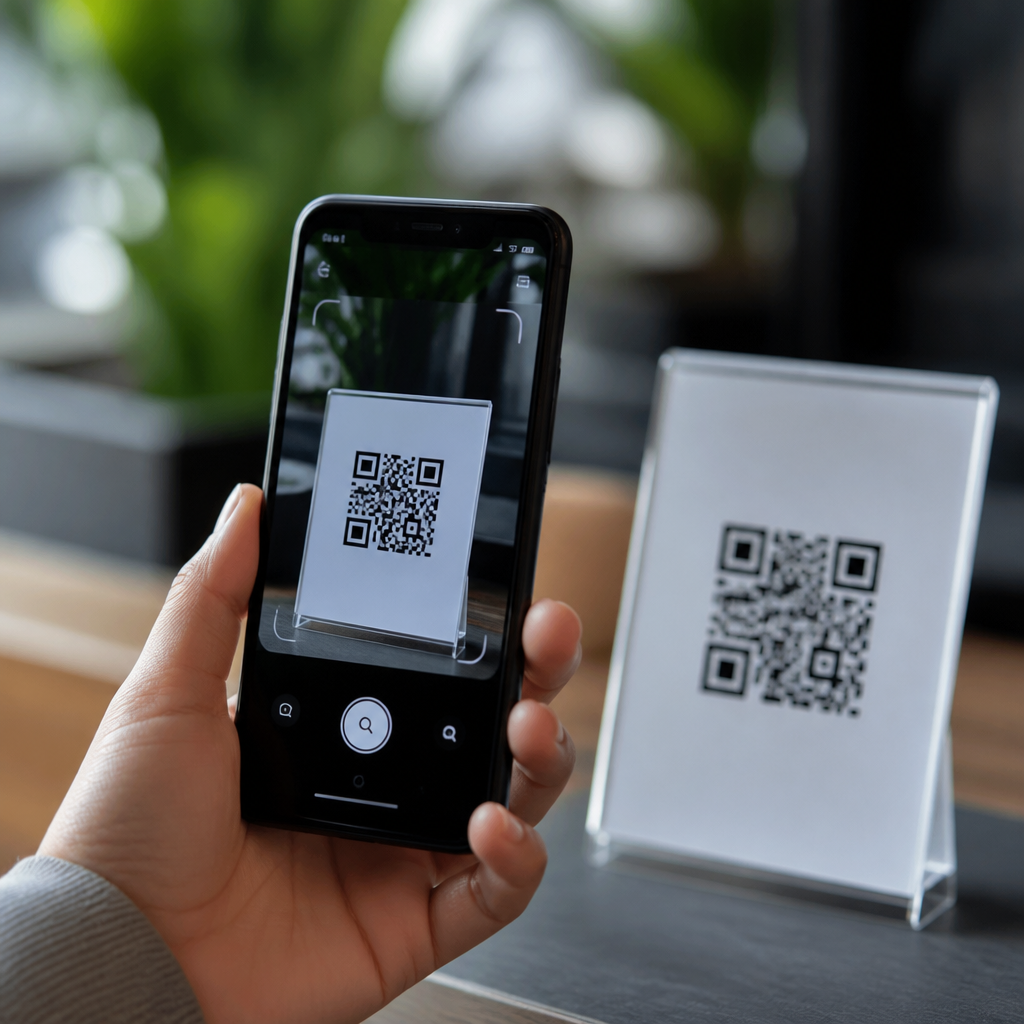
Google Lens is Google’s visual search and camera recognition system, built to identify objects, read text, translate signs, and interact with QR codes through a phone camera. In practical terms, it turns an image into searchable data. When people ask what Google Lens is and how it scans QR codes, they usually want a simple answer: it uses computer vision to detect the square code pattern, decodes the embedded information, and presents an action such as opening a website, joining Wi-Fi, or saving contact details. That sounds straightforward, but the experience depends heavily on camera integration, operating system support, app permissions, and the way each device maker implements Android or iOS features.
I have tested QR code workflows across Pixel phones, Samsung Galaxy devices, budget Android handsets, and iPhones, and the differences are real. On one device, Lens works directly in the default camera. On another, it appears only inside the Google app or Photos. Sometimes a code is recognized instantly; other times low light, aggressive beauty filters, or outdated software interfere. This matters because QR codes now sit at the center of payments, restaurant menus, logistics labels, multifactor authentication, product packaging, classroom materials, and event check-in systems. A hub article on mobile QR code scanning technology needs to explain not just what Google Lens does, but where it lives, how it behaves, and why support varies across operating systems and cameras.
Understanding key terms helps. Camera integration means QR recognition is built into the live camera interface rather than requiring a separate scanning app. OS support refers to whether Android or iOS provides the necessary APIs, permissions, and native hooks for Lens or QR detection to function consistently. Computer vision is the field that lets software analyze shapes, contrast, alignment markers, and text in an image. Decoding is the step where the visual pattern becomes usable data, usually a URL, plain text, vCard, geo link, calendar entry, or network credential. Once you understand those layers, Google Lens becomes easier to evaluate as both a user feature and a scanning technology.
What Google Lens does when it scans a QR code
Google Lens does not “read” a QR code the way a person reads letters. It first detects whether the camera frame contains a machine-readable symbol. A standard QR code includes three position markers in the corners, timing patterns, and encoded modules arranged on a square grid. Lens identifies those geometric anchors, corrects perspective distortion if the code is tilted, improves contrast, then runs a decoding routine to extract the payload. If the payload is a URL, Lens shows a tappable chip or preview. If it is Wi-Fi data, Android may offer a network join action. If it is text, a contact card, or an event string, the action changes accordingly.
That workflow benefits from error correction built into the QR standard, defined under ISO/IEC 18004. QR codes can remain readable even when partially obscured because they use Reed-Solomon error correction. In real use, this is why a code on a wrinkled poster or scratched product box may still scan. Lens adds another layer by using autofocus, exposure control, and frame analysis from the mobile camera stack. Better image stabilization and larger sensors improve scan reliability, especially indoors. On current flagship phones, recognition often happens in under a second. On older devices with weak autofocus or slow image signal processors, you may need steadier framing and stronger lighting.
Where Google Lens is available on Android and iPhone
On Android, Google Lens appears in several places depending on the manufacturer and software version. Pixel phones usually provide the most seamless implementation: Lens is available in the Google app, Google Photos, and often directly inside the camera app. Many Samsung phones include QR recognition in the Samsung Camera app and also support Google Lens through the Google app or a Lens shortcut. Motorola, OnePlus, Xiaomi, and other brands may expose Lens differently, especially if they customize the camera interface heavily. Devices running Android 9 and later generally handle Lens more consistently, but exact placement still varies by OEM skin, region, and carrier build.
On iPhone, Google Lens is not a system-level Apple feature, but it is readily available through Google’s apps. Users commonly access it in the Google app, Google Photos, or Chrome through image-based search tools. Apple also provides native QR scanning in the Camera app and Control Center code scanner, so an iPhone user may scan a QR code without ever opening Lens. That distinction matters. If the task is only scanning a QR code, iOS already handles it well. If the task includes identifying products, extracting text from an image, or combining visual search with QR recognition, Google Lens adds capabilities beyond Apple’s default camera scanner.
Camera integration and OS support differences that affect scanning
Camera integration is the biggest predictor of whether QR scanning feels effortless. When Lens or a native scanner is embedded in the camera viewfinder, users simply point and tap. When scanning lives in a separate app, adoption drops because the workflow has more friction. Android’s open ecosystem creates wider variation here. Google supplies Lens, but OEMs control camera apps, image processing pipelines, and interface decisions. Some brands prioritize their own scanner, some surface Lens as a mode, and some hide it behind extra taps. By contrast, Apple controls hardware and software tightly, so native QR detection behaves more uniformly across supported iPhone models.
Permissions also affect results. The camera permission is obvious, but internet access matters when Lens needs to fetch web previews, identify products, or process linked content. If Google app permissions are restricted, or battery optimization prevents background services from working smoothly, scans can seem inconsistent. Corporate mobile device management policies can block camera use entirely, which is common in regulated workplaces. In testing, I have also seen duplicate notification behavior when both a manufacturer’s native QR detector and Lens try to interpret the same code. That is not a decoding failure; it is a UI integration issue caused by overlapping services.
| Platform or setup | Typical QR scan path | Strengths | Common limitation |
|---|---|---|---|
| Pixel with recent Android | Camera app, Google app, Photos | Fast recognition, deep Google integration | Feature placement can change with updates |
| Samsung Galaxy | Samsung Camera plus Google app | Reliable native scanner, broad device support | Two scanning options may confuse users |
| Budget Android phone | Google app or OEM camera | Works without extra hardware | Slower autofocus and weaker low-light results |
| iPhone | Apple Camera, Control Center, Google app | Consistent native QR scanning | Lens is app-based, not systemwide |
Real-world use cases, limitations, and troubleshooting
Google Lens scanning is strongest when the code is well printed, high contrast, and shown at a reasonable size. A restaurant table tent, shipping label, museum placard, or login screen usually scans immediately. Dynamic QR codes used in marketing are especially common because they allow destination changes without reprinting the code. For operations teams, Lens is useful for inventory lookups and equipment labels because it can pair code detection with text extraction from the same frame. In education, students use it to open assignments, join classroom resources, or translate printed material around the code. The value is speed: one camera action can bridge physical and digital information.
Problems usually come from context rather than from QR technology itself. Glossy surfaces create glare that hides modules. Tiny codes on packaging may fall below the camera’s resolving power. Macro focus limitations on cheaper phones make close-range scans harder. Dark mode displays can lower contrast if a code is stylized poorly. Some branded QR codes remain technically valid but push design too far by rounding modules, embedding oversized logos, or using weak foreground-to-background contrast. Security is another limitation. Lens can decode a malicious link just as easily as a legitimate one, so users should inspect the destination preview before tapping, especially for payment pages or credential prompts.
If a code will not scan, the best fixes are practical. Increase ambient light, clean the camera lens, hold the phone farther back until autofocus locks, and avoid extreme viewing angles. On Android, update the Google app, Google Play services, and the camera app. On iPhone, confirm that the Google app is current if you are using Lens rather than Apple’s native scanner. If scanning still fails, take a photo and open it in Google Photos; Lens often decodes from a still image even when live view struggles. For publishers and businesses, test codes on multiple devices before launch. Camera integration and OS support are not abstract technicalities; they determine whether customers can actually complete the intended action.
Why Google Lens matters as a hub for mobile QR code scanning technology
Google Lens sits at the intersection of mobile cameras, operating systems, visual search, and QR code usability, which is why it anchors the broader topic of camera integration and OS support. It shows how scanning is no longer a standalone utility but part of a wider recognition layer built into everyday mobile behavior. For site owners, app teams, retailers, and IT managers, the lesson is clear: a QR campaign succeeds when the code is easy to scan across Android and iPhone, native camera apps and Google tools, flagship phones and low-cost devices. Design for the whole ecosystem, not a single handset.
The key takeaways are simple. Google Lens detects and decodes QR codes using computer vision, camera input, and device software support. Android offers the broadest variety of implementations, while iPhone provides more uniform native scanning with Lens available through Google apps. Camera quality, app placement, permissions, software updates, and QR design all influence success rates. If you manage QR code content, test broadly and keep payloads trustworthy. If you are choosing a scanning method, start with the native camera experience and use Lens when you need richer visual understanding. Explore the related articles in this mobile QR code scanning and technology hub to compare native scanners, browser-based tools, and device-specific workflows.
Frequently Asked Questions
What is Google Lens, and what does it actually do?
Google Lens is Google’s visual search and image recognition tool that uses your phone’s camera, computer vision, and machine learning to understand what it is looking at. Instead of typing a search query, you point your camera at something in the real world, and Google Lens analyzes the image to identify objects, landmarks, products, plants, animals, printed text, and more. It can also extract text from documents, translate signs in real time, copy information like phone numbers or addresses, and help you take action based on what it sees.
In simple terms, Google Lens turns a live camera view or photo into searchable, usable information. That is why it is often described as visual search. If you scan a business card, Lens can recognize contact details. If you point it at a menu in another language, it can translate it. If you aim it at a QR code, it can detect the code pattern, decode the data inside it, and immediately offer the relevant action, such as opening a web page, joining a Wi-Fi network, or saving contact information.
How does Google Lens scan and read QR codes?
Google Lens scans QR codes by using computer vision to recognize the unique square pattern that defines a QR code. When you point your camera at the code, Lens first identifies the code’s position in the image, including its orientation and boundaries. It looks for the distinctive corner markers and grid layout that separate a QR code from the background. Once the code is detected clearly enough, Lens processes the image, corrects for angle or lighting when possible, and reads the black-and-white modules that store the encoded data.
After detection, Google Lens decodes the information embedded in the QR code. That information could be a website URL, plain text, contact details, event information, app links, or Wi-Fi credentials. Lens then interprets the result and presents an action that matches the content. For example, if the code contains a website, it may show an option to open the link. If it contains Wi-Fi login details, it may offer to connect. If it contains contact data, it can suggest saving the information. The process usually feels instant, but behind the scenes it is combining image recognition, data decoding, and contextual action suggestions.
What kinds of QR code actions can Google Lens perform after scanning?
Google Lens can do more than simply display the raw contents of a QR code. Its main advantage is that it interprets the type of information stored in the code and turns it into a useful next step. If the QR code contains a URL, Lens can open the website in your browser. If it contains Wi-Fi network information, it may prompt your device to join the network. If it contains contact information such as a name, phone number, and email address, Lens can help you save that data to your contacts.
It can also handle other common QR code uses, such as showing plain text, launching supported app links, opening location-related information, or displaying event details that you may want to save. This action-oriented behavior is one reason QR scanning through Google Lens is so convenient. Rather than making you manually read or copy the code’s contents, Lens presents the result in a way that is fast and practical. The exact options can vary by phone model, operating system version, and the type of data inside the code, but the overall goal is the same: recognize the QR code and make the information immediately usable.
Do you need a separate QR scanner app if you already have Google Lens?
In many cases, no. If your phone already supports Google Lens through the Google app, your camera app, or built-in Android features, you often do not need a separate QR scanner app at all. Google Lens is designed to handle QR code recognition alongside its broader visual search capabilities, so one tool can cover several tasks at once. For most users, that means less app clutter and a more seamless experience, especially when QR scanning is only one of many things they want to do with their camera.
That said, availability depends on your device and software setup. On many Android phones, Google Lens is built directly into the camera or accessible through Google Photos and the Google app. On some devices, the standard camera app can scan QR codes natively without even opening Lens separately. If your device does not support these features well, a dedicated QR app could still be useful. But for the average user asking how Google Lens scans QR codes and whether it is enough on its own, the answer is usually yes: Google Lens can often replace a standalone scanner while also offering translation, text recognition, and visual search in the same tool.
Why might Google Lens have trouble scanning a QR code sometimes?
Google Lens usually works quickly, but scanning can fail if the QR code is difficult for the camera to capture or decode. Common problems include poor lighting, glare on glossy surfaces, low camera focus, motion blur, damaged codes, very small printed codes, or a steep viewing angle. If the code is partially blocked, wrinkled, stretched, or printed with weak contrast, Lens may struggle to identify the square pattern correctly. In those cases, the issue is often not the software itself but the quality of the image available to it.
To improve results, hold the phone steady, make sure the code is well lit, and keep the full QR code visible within the frame. Try moving closer or farther away until the image becomes sharp. If there is glare, change the angle slightly. If the code is on a screen, increasing screen brightness can help. If the code is damaged or the embedded data is invalid, even a perfect scan may not produce a usable result. Google Lens is highly capable, but like any QR recognition tool, it still depends on a readable image and properly encoded content to work reliably.





