
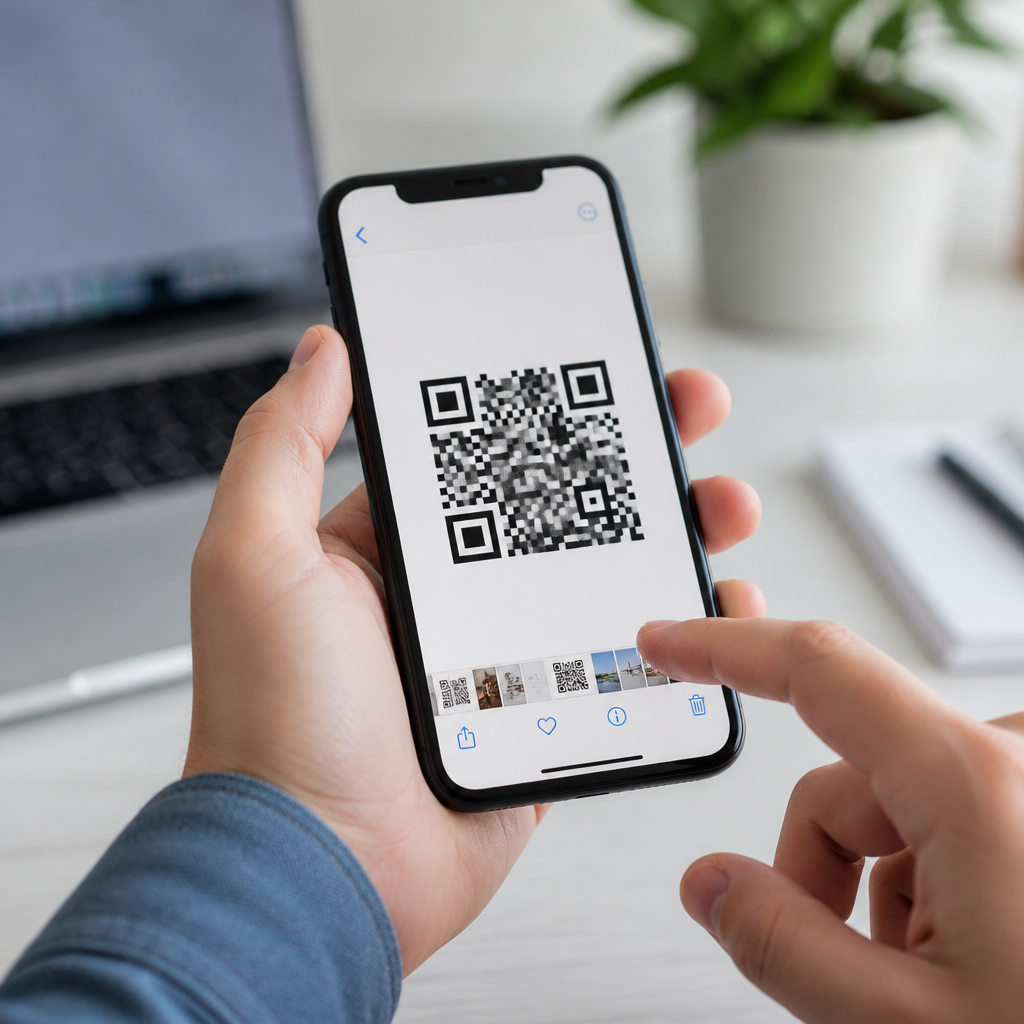
Scanning a QR code from a screenshot sounds simple, but many people still get stuck when the code is saved in Photos instead of sitting in front of a camera. A QR code, short for Quick Response code, is a two-dimensional barcode that stores data such as website URLs, payment links, Wi-Fi credentials, contact cards, app deep links, and authentication tokens. In day-to-day support work, I see the same problem repeatedly: someone receives a QR code in a text message, email, social post, or presentation slide, takes a screenshot, and then assumes they need a second phone to scan it. They usually do not. Modern phones can often detect and open QR codes directly from images, and when they cannot, there are reliable built-in workarounds and trusted apps.
This matters because QR codes now sit at the center of mobile tasks that people expect to complete quickly: restaurant menus, event tickets, package tracking, mobile payments, sign-ins, and device pairing. If you know how to scan QR codes from screenshots, you remove friction from those workflows and avoid unnecessary app installs. More broadly, this topic connects to the wider process of how to scan QR codes on mobile devices, including live camera scanning, saved-image scanning, in-app scanning, and troubleshooting unreadable codes. A good hub page should answer all of those questions clearly, because the best method depends on your device, operating system version, camera app, and where the QR image is stored.
The practical goal is straightforward: identify the code inside a saved image, decode its data safely, and open the result only if it is trustworthy. On iPhone, Apple integrates QR detection through Live Text and the Photos app on supported versions of iOS. On Android, Google Lens is the most common path, though Samsung Gallery, Google Photos, and some manufacturer camera apps also include native QR recognition. Third-party QR scanner apps exist, but they should be the fallback, not the default, because many ask for unnecessary permissions or overload the experience with ads. Understanding the native tools first is the fastest, safest way to scan QR codes from screenshots and from mobile devices generally.
How to scan QR codes from screenshots on iPhone and Android
If you want the shortest answer, open the screenshot in your photo app and look for the built-in QR detection prompt. On iPhone, open Photos, tap the screenshot, then press and hold the QR code or the detected link banner if iOS recognizes it. On many devices running iOS 15 and later, Live Text and visual detection can surface the code automatically. If the code points to a website, Safari opens it. If it contains contact details, Wi-Fi settings, or calendar information, iOS usually presents the relevant action. This is the cleanest method because it uses system-level parsing rather than a separate scanner.
On Android, the most dependable path is Google Lens. Open Google Photos or your Gallery app, select the screenshot, and tap the Lens icon. Lens analyzes the image, finds the QR code, and shows the decoded content with an action button. On Pixel phones, this flow is especially smooth because Lens is deeply integrated into Photos and Assistant features. Samsung users often get similar functionality through the Gallery app’s Bixby Vision or built-in scan prompt, though the exact label depends on the One UI version. If one gallery app does not detect the code, opening the same image in Google Photos often works immediately.
When users tell me “my phone won’t scan the screenshot,” the issue is usually one of three things: the code is too small in the image, the screenshot is cropped tightly with blurred edges, or the device software lacks current image-recognition support. In those cases, zooming in can help visually, but decoding engines usually need the whole code, including its quiet zone, the blank margin around the symbol. A better fix is to resave a cleaner screenshot or crop it so the full code is centered with some white space around it. Then run detection again through Photos or Lens. Native recognition succeeds far more often with a clean, high-contrast image.
Best built-in methods for mobile QR code scanning
Scanning QR codes on mobile devices is broader than screenshots alone. The main methods are live camera scanning, photo-library scanning, browser or app-based scanning, and image import into Lens-style recognition tools. Each has a place. Camera scanning is fastest for printed menus, posters, and packaging. Photo-library scanning is ideal for screenshots, saved tickets, and codes sent through messaging apps. In-app scanning matters for payments, account logins, and encrypted workflows, because some services require their own scanner to validate session context rather than just decode raw text.
For most users, the built-in camera app should be step one for live scanning. Apple added native QR recognition to the Camera app years ago, and Android manufacturers followed with similar support. Point the camera steadily, keep the code within the frame, and wait for the banner. Good lighting and minimal glare matter more than distance. Matte printed codes scan easily; glossy surfaces and phone screens at low brightness can create reflections that break detection. When scanning from another device’s display, increasing screen brightness and disabling blue-light filters often improves reliability because the contrast edges become clearer.
Saved-image scanning, however, is the more important skill for this hub topic because so many QR codes now arrive digitally. Email boarding passes, event confirmations, WhatsApp invitations, and app login prompts are common examples. I recommend users learn the native gallery workflow first, then a secondary workflow using Google Lens or Apple’s visual detection. That covers most scenarios without installing anything. Third-party apps remain useful for bulk decoding, scan history management, export features, or older phones, but they should be chosen carefully and only from reputable developers with transparent privacy policies.
| Method | Best use case | Main advantage | Common limitation |
|---|---|---|---|
| Camera app | Printed codes and codes on another screen | Fastest built-in option | Cannot scan a code visible on the same phone screen |
| Photos or Gallery detection | Screenshots and saved images | No extra app required | Depends on OS version and image quality |
| Google Lens | Android screenshots and mixed visual content | Strong recognition accuracy | May require Google Photos or Lens access |
| In-app scanner | Payments, logins, device pairing | Matches service-specific workflow | Usually limited to that app’s codes |
Common problems when a screenshot QR code will not scan
A screenshot QR code usually fails because of image quality, formatting, or content restrictions. Low resolution is the first culprit. QR codes use finder patterns in three corners and a grid of modules that must remain distinguishable. If compression smears those modules together, decoding fails. This is common when codes are reposted through social apps, inserted into slides, or enlarged from a tiny original. The practical fix is to get the original image or a higher-resolution source rather than repeatedly saving compressed copies.
Color and contrast also matter. Although black on white is standard, many branded QR codes use custom colors, logos, or gradient fills. Those can still work if contrast stays high and error correction is set appropriately, often level Q or H. In practice, heavily stylized codes are much less forgiving in screenshots. A code with a logo placed over the center may scan from print but fail after compression. If you generate QR codes for customers, test them in iPhone Photos, Google Lens, and at least one mid-range Android device before publishing.
Another issue is that not every QR code should be opened immediately. Some carry shortened URLs that hide the destination. Others trigger app actions, payment requests, or deep links into installed software. I advise users to preview the result first whenever the platform allows it. Look at the domain carefully, especially for banking, login, delivery, and account-recovery flows. Legitimate QR code use is widespread, but QR phishing, often called quishing, is now a standard social-engineering tactic noted by enterprise security teams and major email providers. Safe scanning means decoding the code and verifying intent before tapping through.
Security, privacy, and app choices
If your phone can scan QR codes from screenshots natively, that is usually the safest route. Built-in tools have fewer permission demands and integrate with system protections such as Safe Browsing, app-link verification, and privacy controls. By contrast, many free scanner apps request camera access, storage access, network permissions, and analytics tracking that go far beyond simple decoding. I have audited QR workflows for clients who discovered that a scanner app was collecting ad identifiers and transmitting usage events with no meaningful user benefit. There is rarely a reason to accept that tradeoff on a modern phone.
When a third-party tool is necessary, choose one with a clear publisher identity, recent updates, and a privacy policy that explains what data is processed locally versus remotely. QR decoding does not require uploading every image to a server. Local parsing is normal and preferable. For business use, mobile device management policies should also define whether users may scan sign-in or payment codes with personal apps. Authentication QR codes for services such as WhatsApp Web, Microsoft account pairing, or enterprise single sign-on can expose sessions if handled carelessly. Convenience should not override account security.
Accessibility deserves attention as well. Users with low vision may rely on screen readers, zoom, or voice commands when opening screenshot-based codes. iOS and Android continue to improve image-text interaction, but app consistency varies. If you publish QR codes, always provide a fallback text URL nearby. That supports accessibility, helps on older devices, and improves completion rates in situations where scanning is inconvenient. In practice, the most usable QR implementation is never QR-only.
How this hub helps you scan QR codes on mobile devices
The core lesson is simple: you do not need a second phone to scan a QR code from a screenshot. Start with your device’s native tools. On iPhone, use Photos and built-in detection. On Android, use Gallery if available, then Google Lens through Google Photos for the most reliable fallback. If a code does not scan, improve the image quality, keep the full border visible, and verify that your software is current. For live scanning, use the camera app with good lighting and a steady frame. For service-specific actions such as payments or account pairing, prefer the official app scanner.
As the hub page for mobile QR code scanning and technology, this guide gives you the framework that connects every related task: scanning printed codes, scanning codes on another screen, scanning saved screenshots, choosing a QR scanner app only when necessary, and avoiding unsafe links. The benefit is speed with fewer mistakes. When you understand which tool fits which scenario, QR codes become a practical shortcut instead of a technical annoyance. Use the steps here the next time a code lands in your Photos app, and build your mobile scanning workflow around the native features you already have.
Frequently Asked Questions
Can you scan a QR code directly from a screenshot instead of using another phone or camera?
Yes, in many cases you can scan a QR code directly from a screenshot without needing a second device. Modern smartphones and computers often include built-in tools that can detect QR codes inside saved images. If the QR code is in your Photos app, gallery, screenshots folder, or even inside a messaging app preview, your device may automatically recognize it and offer an action such as opening a website, joining a Wi-Fi network, saving a contact, or launching an app link. On iPhone, this can happen through Live Text or image recognition features in Photos. On Android, Google Photos, Google Lens, and some manufacturer gallery apps can detect QR codes from images. On desktop, browsers and image utilities may also help, though support varies.
The key point is that a QR code does not need to be physically in front of a camera to work. As long as the code is visible, sharp enough to read, and not cropped or distorted, software can analyze the screenshot the same way it would analyze a live camera view. This is especially useful when someone sends a QR code by text, email, social media, or chat, because you can usually save the image and open it locally. If your device does not recognize the code automatically, a QR scanner app or an image-based scanner tool can usually extract the information from the screenshot instead.
How do you scan a QR code from a screenshot on iPhone or Android?
On iPhone, the easiest method is usually to open the screenshot in the Photos app and look for a QR-related prompt, Live Text icon, or a detected link action. In many versions of iOS, you can press and hold on the QR code area or tap the small recognition icon that appears when the phone identifies text or code content in the image. If the QR code contains a web address, you may see an option to open it in Safari. If it contains contact details, Wi-Fi credentials, or another data type, you may see a context-specific action. If nothing appears immediately, zoom out so the full code is visible and make sure the screenshot is clear and not heavily edited.
On Android, a common approach is to open the screenshot in Google Photos and tap the Google Lens option. Lens can inspect the image and decode the QR code from the screenshot, even if the code was received earlier and is no longer on screen in a live view. Some Android phones also support this directly in the default gallery app, depending on the brand and software version. Samsung, Pixel, and other manufacturers may label the feature differently, but the idea is the same: open the image, run the built-in visual analysis tool, and then choose the detected result. If the built-in tools do not work, using a trusted QR scanner app with image import support is usually the next best option.
Why is my phone not recognizing the QR code in the screenshot?
There are several common reasons a phone may fail to recognize a QR code from a screenshot. The most frequent issue is image quality. If the screenshot is blurry, compressed, pixelated, too dark, too bright, or cropped too tightly, the scanner may not be able to detect the code’s square patterns correctly. QR readers work best when the full code is visible, the edges are not cut off, and there is some clean spacing around it. If the code came from a social media app, a low-resolution preview, or a forwarded image that was compressed multiple times, recognition can become unreliable.
Another issue is software support. Not every Photos app, gallery app, or device version includes image-based QR reading. Some users assume the camera app and the photo gallery use the same detection engine, but that is not always true. A phone might scan QR codes live through the camera but not from saved screenshots unless you use Google Lens, Live Text, or a third-party app. It is also possible the QR code itself is invalid, expired, or designed for a specialized app such as a payment service, login system, or two-factor authentication tool. In those cases, the code may technically scan, but the expected action may not work unless opened in the correct app or within a valid time window.
Is it safe to scan QR codes from screenshots sent by email, text, or social media?
It can be safe, but you should treat QR codes from screenshots the same way you would treat suspicious links. A QR code is simply a container for data, and that data can point to legitimate destinations or malicious ones. If someone sends you a QR code through email, text message, a social platform, or a messaging app, you should verify who sent it and why. Scammers often use QR codes to hide phishing links, fake payment pages, credential harvesting forms, and malware downloads, especially because the destination is not always obvious until after the code is decoded.
A good practice is to preview the result before tapping through, if your device allows it. Many scanners show the decoded URL or action first, giving you a chance to inspect it. Look closely at domain names, spelling, and any pressure tactics in the message that delivered the screenshot. Be especially careful with QR codes that claim to reset passwords, verify bank accounts, accept invoices, redeem prizes, or log you into workplace systems. If the QR code is for Wi-Fi, payment, or authentication, make sure it came from a trusted source and matches what you expected. The screenshot format itself is not the danger; the underlying content of the QR code is what matters.
What types of information can a QR code in a screenshot contain, and what happens after you scan it?
A QR code in a screenshot can contain many different types of data, and what happens next depends on that data. The most common use is a website URL, which opens in your browser after scanning. However, QR codes can also store payment links, Wi-Fi network names and passwords, contact cards, calendar events, app download links, location coordinates, SMS drafts, email addresses, phone numbers, product information, login tokens, and deep links that open specific screens inside mobile apps. In business and support environments, it is also common to see QR codes used for onboarding, event check-in, device pairing, and two-factor authentication setup.
After scanning, your phone or scanner app usually translates the code into a suggested action. For example, a Wi-Fi QR code may prompt you to join a network, a contact QR code may let you create a new contact entry, and an authentication QR code may need to be opened specifically inside an authenticator app. This is why the same screenshot can behave differently depending on what the code contains and which app is decoding it. If nothing obvious happens after a scan, it does not always mean the QR code failed. It may simply require the right app, a valid session, or a supported service to complete the action. Understanding that QR codes can carry much more than a simple URL helps explain why some screenshots scan instantly while others need a more specific workflow.





