
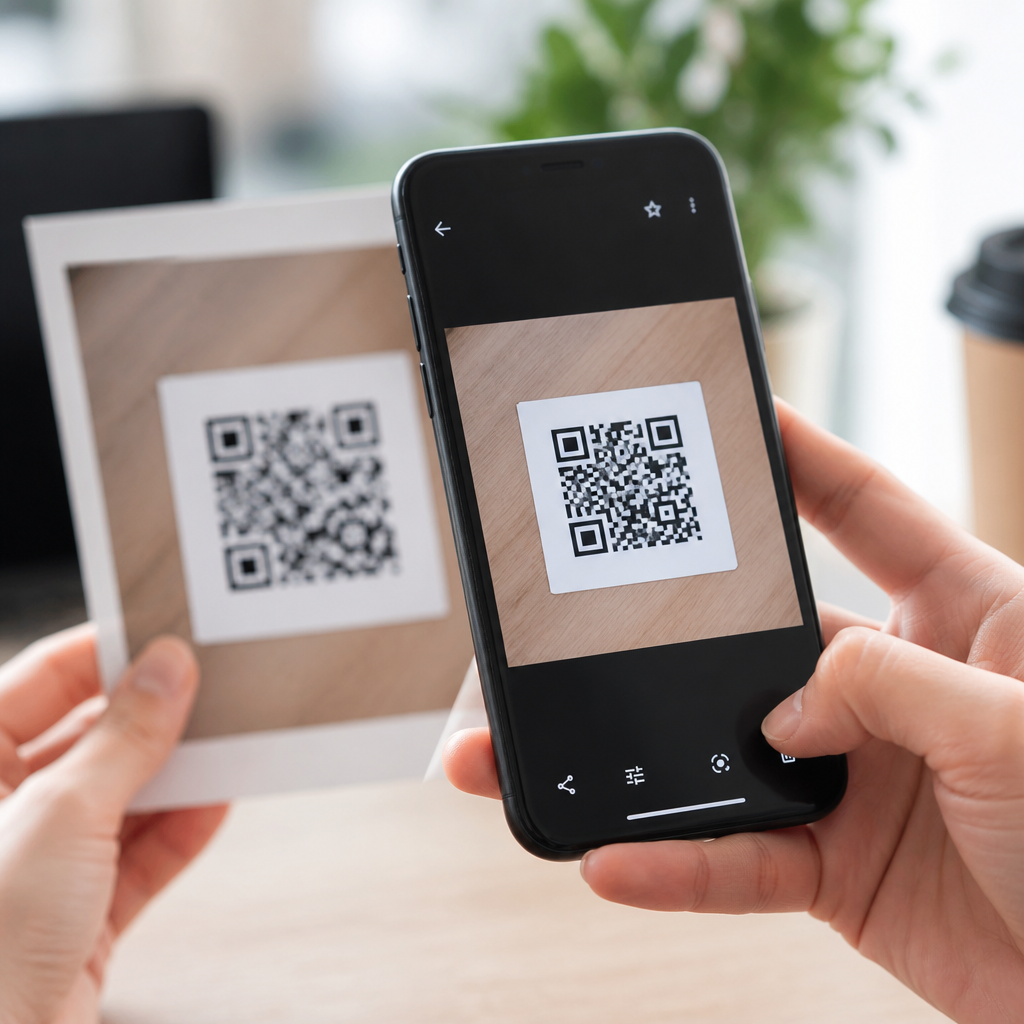
Scanning a QR code from an image on your phone is easier than many people expect, yet the exact method varies by device, operating system, and app. A QR code, short for Quick Response code, is a two-dimensional barcode that stores data such as website URLs, Wi-Fi credentials, payment links, event tickets, contact cards, and app deep links. When people ask how to scan QR codes from images on your phone, they usually mean one of two situations: reading a saved screenshot or photo already in the gallery, or detecting a code inside an image shared through messaging, email, or a browser. Both are common, and both matter because modern QR use extends far beyond posters and restaurant menus.
I have tested QR workflows across iPhone, Samsung Galaxy, Pixel, and Xiaomi devices, and the biggest source of confusion is not scanning with the camera app. It is scanning a QR code that is already on the phone. Native tools now handle this well, but not every phone exposes the feature in the same place. Apple uses Live Text and image recognition in Photos. Android support depends on Google Lens, the camera app, or the gallery app from the device maker. Understanding those differences saves time and reduces failed scans.
This topic matters because QR codes are now embedded in everyday mobile tasks. Banks use them for payments, airlines for boarding passes, retailers for loyalty programs, and workplaces for multi-factor authentication enrollment. A saved image may contain a login setup code, a recovery link, or a one-time event credential, so speed and accuracy are important. It also matters for accessibility: scanning from a saved image helps users who cannot easily align a camera with a printed code. The goal is simple: open the image, let your phone detect the QR pattern, verify the action, and open the destination safely.
How QR code scanning from images works on phones
Phones do not read a saved QR image the same way a laser barcode scanner reads printed bars. Instead, they use computer vision. The operating system or an app locates the three square finder patterns in the corners, corrects for perspective, enhances contrast, decodes the black and white modules, and then interprets the payload. The payload may be plain text, a URL, a vCard, an SMS template, a calendar event, or a standardized string such as Wi-Fi network credentials using the WIFI:T:WPA;S:Network;P:Password;; format.
In practice, successful decoding depends on image quality more than phone price. A sharp screenshot usually scans instantly. A blurry photo of a QR code on another screen may fail because of moiré patterns, glare, or aggressive image compression from messaging apps. I have seen WhatsApp forwards and social media uploads degrade enough detail to break detection, especially with dense dynamic QR codes that use small modules. Cropping tightly around the code, increasing brightness, or reopening the original image often solves the issue.
Security also matters. A phone can decode a QR code perfectly and still lead you somewhere unsafe. Before tapping, check the previewed domain, especially for payment pages, password resets, and app downloads. Legitimate services usually use recognizable domains and HTTPS. If the code opens a shortened link, treat it cautiously unless you trust the sender.
How to scan QR codes from images on iPhone
On iPhone, the easiest method is through the Photos app. Open the saved image or screenshot that contains the QR code. If the code is recognized, iOS will usually highlight it and show a small icon or contextual prompt. Tap and hold on the QR code area, or tap the detected link banner, and then choose the action, such as Open Link, Join Network, Add Contact, or Open in Safari. On newer iOS versions, this behavior is tied to Live Text and Visual Look Up style image analysis, so keeping iOS updated improves reliability.
If Photos does not detect the code immediately, try zooming in slightly, then tap the code again. Another dependable option is to open the image, use the share sheet, and send it to an app that supports QR recognition, such as Google Chrome with Lens features or Google Photos if installed. Screenshots work especially well because they preserve edges and contrast better than re-photographed displays.
For codes received in Messages, Mail, or Notes, you often do not need to save the image first. Open the image inline, long-press the QR code, and iOS will surface the relevant action. For a boarding pass, this may simply display usable ticket data; for a setup code, it may launch the correct app flow. If nothing appears, save the image to Photos and try again there, since Photos often applies stronger image analysis than an embedded preview.
How to scan QR codes from images on Android
Android methods vary more widely, but Google Lens is the most consistent answer. On a Pixel or many other Android phones, open Google Photos, select the image, and tap the Lens icon. Lens analyzes the picture and identifies the QR code, then shows the URL or action card. From there, you can open the link, copy the text, join a Wi-Fi network, or share the decoded result. This is the most reliable cross-device method because Lens is maintained directly by Google and integrated into Photos, Chrome, and the Google app.
Samsung phones often support QR reading inside the Gallery app or through Bixby Vision, in addition to Lens. Open the image in Gallery and look for options such as Scan QR code, Extract text, or Bixby Vision. On Xiaomi, Oppo, and OnePlus devices, gallery recognition may be built in, but naming differs by software skin. If the phone has Google Photos installed, using the Lens button usually bypasses brand-specific inconsistencies.
If the image is inside a messaging app like Telegram, WhatsApp, or Gmail, open the image full screen first. Some apps expose Lens directly from the share menu or overflow menu. If they do not, save the image locally and open it in Google Photos. That extra step sounds minor, but it avoids a frequent failure point: compressed in-app previews that are too low resolution for accurate decoding.
Best methods by source image and device
The fastest method depends on where the QR code image came from. In daily support work, I use a simple decision tree: native Photos for iPhone, Google Lens for Android, and file-saving only when direct recognition inside the source app fails. This keeps the process predictable.
| Situation | iPhone best method | Android best method |
|---|---|---|
| Screenshot in gallery | Open in Photos and long-press the code | Open in Google Photos and tap Lens |
| Image in Messages or Mail | Open image and long-press, then save if needed | Open image full screen, use Lens or save to Photos |
| QR code in browser image | Save image, then scan in Photos | Long-press image, open with Lens or save locally |
| Blurry photo of printed code | Crop tighter, increase brightness, rescan | Crop tighter in Photos, then run Lens again |
| Wi-Fi setup or contact code | Use Photos prompt and confirm action | Use Lens action card and verify details |
If you routinely work with QR codes, install at least one dependable fallback app. Google Photos is the best universal option on Android and is useful on iPhone as well. Browser-based scanners exist, but they are slower, less private, and unnecessary for most users.
Common problems and how to fix failed QR scans
The most common reason a QR code will not scan from an image is low image quality. Start by cropping out everything except the code, because background clutter can confuse detection. Next, improve visibility: raise brightness, avoid excessive zoom that introduces blur, and use the original file instead of a social media repost. If the QR code is stylized with colors, logos, or inverted contrast, recognition may fail in weaker scanners even when stronger ones like Lens succeed.
Another issue is unsupported content. Some codes trigger app-specific actions, such as authentication enrollment in Microsoft Authenticator, Google Authenticator, or a banking app. In those cases, a general scanner may decode the raw text but not complete the intended action. The fix is to use the target app’s built-in import or setup scanner if available. I encounter this often with TOTP setup images and proprietary payment flows.
Finally, be mindful of privacy. A QR code image can contain personal contact data, payment requests, device-pairing information, or login tokens. Avoid uploading sensitive codes to unknown websites for decoding. Native phone tools and reputable apps process this more safely, and they reduce the risk of leaking private data.
When to use built-in tools versus third-party apps
Built-in tools are best for most people because they are fast, free, and tightly integrated with the operating system. They also handle common actions cleanly, such as opening a URL, adding a contact, or joining Wi-Fi. Third-party QR scanner apps are only worth considering if you need history logs, batch scanning, export features, or enterprise workflows. Many standalone scanner apps add ads, collect unnecessary permissions, or duplicate features your phone already has.
For a hub topic like how to scan QR codes on mobile devices, the key takeaway is that saved-image scanning is now a standard phone capability, not a niche trick. Learn the native path on your device, keep one fallback method ready, and verify every destination before opening it. That approach is faster than trial and error and safer than relying on random scanner apps. If you want the smoothest experience, test the method on your own phone today with a screenshot, a message attachment, and a Wi-Fi code so you know exactly what works when you need it.
Frequently Asked Questions
How can I scan a QR code from a saved image or screenshot on my phone?
In most cases, scanning a QR code from a saved image is straightforward, but the exact steps depend on your phone and the apps available. On iPhone, you can usually open the image in the Photos app and use the built-in text and image recognition feature to detect the QR code. If the code is recognized, a link or action prompt will appear, allowing you to open the website, save a contact, join a Wi-Fi network, or complete another supported action. On many Android phones, the process often works through Google Photos, Google Lens, or the phone manufacturer’s Gallery app. You typically open the screenshot or photo, tap the Lens icon or a scan-related option, and let the phone analyze the image.
If your default gallery app does not detect the QR code automatically, you still have options. Google Lens is one of the most reliable tools for reading QR codes from existing images, and it is available on many Android devices and also through Google apps on iPhone. Some browser apps, payment apps, and camera apps also include image-based QR scanning. The key point is that you do not always need a second device or a printed code. As long as the image is clear and the QR code is fully visible, your phone can often read it directly from your photo library.
Why won’t my phone recognize a QR code in an image?
There are several common reasons a QR code in an image may not scan properly. The most frequent issue is image quality. If the screenshot is blurry, cropped too tightly, distorted, overexposed, or too dark, the scanning tool may not be able to identify the code pattern correctly. QR codes need enough contrast between the dark and light areas to be read accurately. If part of the code is cut off, covered by a watermark, or hidden by a notification bar in a screenshot, recognition may fail even if the code looks mostly visible to the eye.
Another possibility is that the app you are using does not support scanning QR codes from saved images, or it requires a specific tool such as Lens or a built-in “scan from photo” feature. Some phones only recognize QR codes through the camera app and not from the gallery. In other cases, the QR code itself may be outdated, broken, or linked to content that no longer exists. To improve results, try opening the image in a different app, zooming in slightly without cutting off the edges, increasing brightness, or retaking the screenshot from the original source if possible. If the code still does not work, it may be a problem with the QR code rather than your phone.
Can I scan a QR code from a photo without downloading a separate app?
Yes, many phones now support this without needing an additional app. On iPhones, built-in features in Photos and the camera system often handle QR code recognition automatically, especially on recent versions of iOS. On Android, a lot of devices support QR scanning through Google Lens, which may already be integrated into the camera, gallery, or Google Photos app. Samsung, Pixel, and other major brands often include native tools that can read QR codes from both live camera view and saved images.
That said, “without a separate app” can mean different things depending on what is already installed on your phone. Some Android devices rely on Google Photos or Lens as the default method, and while those apps may feel built in, they are technically separate services. In practical terms, though, many users already have them available. Before downloading anything new, check your Photos app, Gallery app, Camera app, or share menu for options like “Lens,” “Scan QR code,” or “Open link from image.” If your phone does not offer any of these, then a trusted QR scanner or image recognition app may be necessary.
Is it safe to scan QR codes from images on your phone?
Scanning a QR code from an image is generally safe in itself, but what matters most is where the code leads. A QR code can open a website, trigger a payment request, download an app, add calendar data, or launch another action. If the image came from an unknown source, such as a random text message, social media post, or suspicious email, you should be cautious before tapping the result. Cybercriminals sometimes use malicious QR codes to send people to fake login pages, phishing forms, or scam payment sites.
A good rule is to preview the destination before taking action. Many phones and scanning tools show the link or action type before opening it. Check that the website address looks legitimate, especially for banking, login, or payment pages. Avoid entering passwords or financial information unless you are certain the destination is authentic. It also helps to keep your phone updated, use trusted apps only, and avoid granting unnecessary permissions. In short, scanning the image is not usually the risk; blindly trusting the content behind the QR code is what can create problems.
What types of information can a QR code contain, and what happens after I scan it from an image?
QR codes can store a surprisingly wide range of information. The most common use is a website URL, but they can also contain Wi-Fi network credentials, phone numbers, email addresses, SMS prompts, event tickets, app links, digital business cards, payment requests, map locations, and calendar event details. Because QR codes are designed to trigger actions quickly, your phone usually interprets the content and offers the most relevant next step after scanning. For example, a web link may open in your browser, a contact card may give you the option to save a new contact, and Wi-Fi details may prompt you to join a network.
When you scan a QR code from an image on your phone, the experience is usually the same as scanning it through the camera in real time. The phone decodes the content and presents a tappable result. You remain in control of whether to proceed. This is especially useful when the QR code is embedded in a screenshot, emailed ticket, online receipt, or social media image that you already have saved. Understanding what the code is meant to do helps you decide whether the result makes sense. If the action seems unexpected, mismatched, or suspicious, it is best not to continue.





