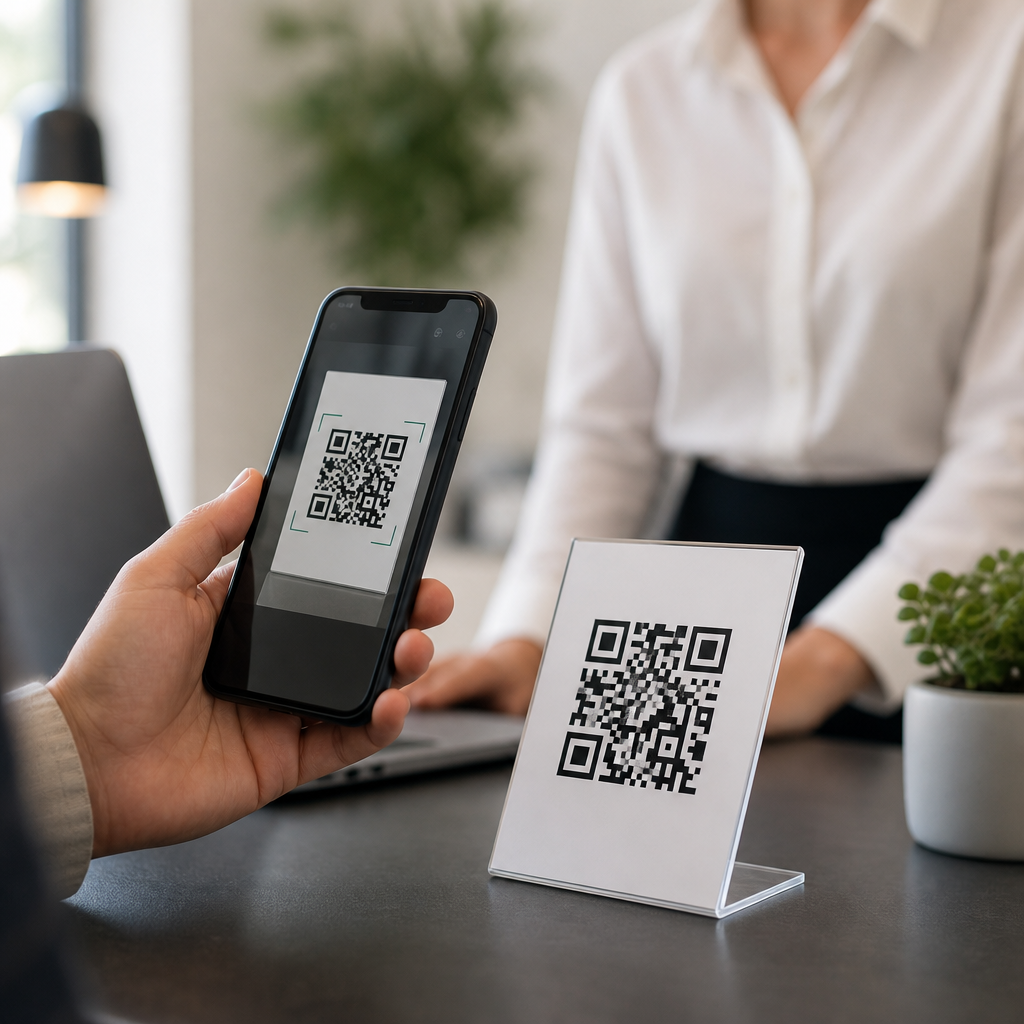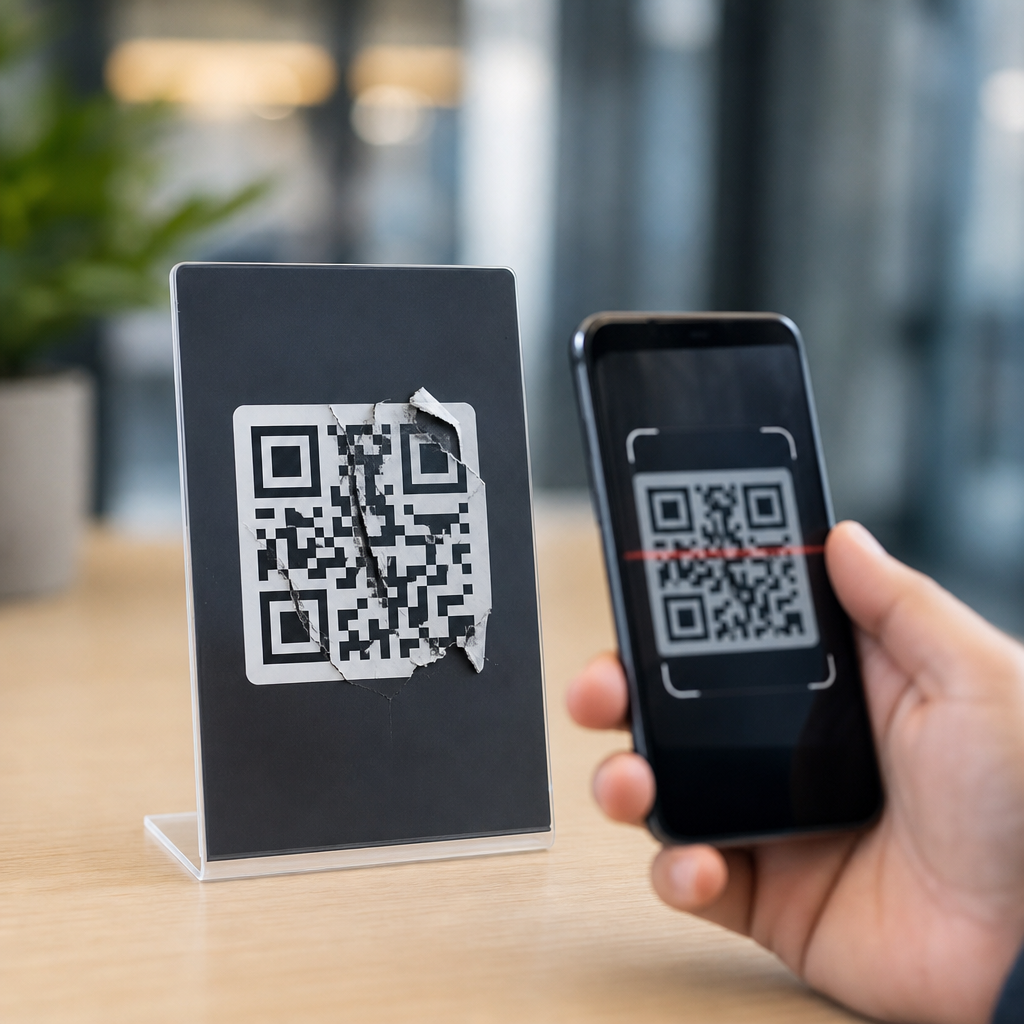
A broken QR code stops a customer, student, or patient at the exact moment they are ready to act. In practice, that means a missed payment, an abandoned menu, a failed event check-in, or a support call that did not need to happen. When people ask how to fix a broken QR code, they usually mean one of three things: the code will not scan, it scans inconsistently, or it scans but opens the wrong destination. Each problem has a different root cause, and the fix depends on whether the failure comes from the printed symbol, the encoded data, the landing page, or the scanning environment.
A QR code is a two-dimensional barcode made of modules, timing patterns, finder patterns, alignment patterns, and a quiet zone around the edges. A scanner reads contrast and geometry, then decodes the payload, which may be a URL, vCard, Wi-Fi credential, payment string, or plain text. Static codes store the final destination directly in the symbol. Dynamic codes point to a short redirect URL managed by a platform, which then sends the user onward. That distinction matters because a static code usually requires replacing the artwork to change its destination, while a dynamic code can often be repaired in the dashboard without reprinting the code itself.
I have helped teams diagnose QR failures on restaurant tables, shipping labels, museum signage, product packaging, and conference badges, and the pattern is consistent: most broken codes are not truly broken at first. They are weakened by poor contrast, oversized logos, cramped quiet zones, low print resolution, glossy surfaces, damaged redirects, expired domains, or mobile pages that load too slowly after the scan. Fixing a broken QR code matters because every extra second after a scan reduces completion rates. The best troubleshooting process checks the symbol, the destination, and the user journey in that order.
Start by identifying the exact failure mode
The fastest way to fix a broken QR code is to classify the problem before changing anything. Ask four direct questions. Does no device scan it at all? Do some devices scan it but others fail? Does it scan and open a dead page? Does it work close up but fail at normal distance? Those answers narrow the root cause immediately. Complete scan failure usually points to symbol design or print quality. Partial failure often indicates low contrast, insufficient quiet zone, glare, or a dense payload. Successful scans that lead nowhere usually indicate a bad redirect, changed URL structure, DNS issue, deleted page, or campaign setting error.
Run a controlled test on at least two iPhones and two Android phones using the native camera apps first, then a secondary scanner such as Google Lens. Test in bright and dim light, straight on and at a slight angle, from the intended user distance. If the code is printed, photograph it and zoom in to inspect edge sharpness and damage. If the code is digital, export the original asset and compare it to what was actually published in email, PDF, social media, or on-site signage. Compression in messaging apps and design tools frequently softens edges enough to reduce scan reliability. Document each result so you do not confuse a destination issue with a symbol issue.
Check the QR symbol for design and print defects
Most non-scanning QR codes fail because the symbol violates basic production rules. The quiet zone, which is the blank margin around the code, should be at least four modules wide on all sides. Remove decorative borders, background images, and nearby text that crowd this margin. Contrast should be strong, ideally black on white. Light gray, metallic ink, transparent overlays, and color combinations like red on black routinely fail because cameras need clean luminance differences. If a logo covers the center, reduce it. Error correction can help recover hidden modules, but it is not a license to obstruct the code aggressively.
Print size also matters. A practical rule is a minimum of about 2 by 2 centimeters for short URLs at close range, but larger placements should scale to scanning distance. For posters, window decals, and roadside signs, the code must be large enough to scan from where people naturally stand. Resolution should be generated in vector format such as SVG, EPS, or PDF whenever possible. Raster exports should remain high resolution, at least 300 DPI for print. Warped labels on bottles, curved packaging, wrinkled stickers, reflective lamination, and glass storefront glare all distort module boundaries. In those cases, reprint on matte stock, move the code to a flatter area, or add a white backing plate to restore contrast.
Verify the encoded data and redirect settings
If the symbol scans but the result is wrong, inspect the payload. For static codes, decode the content with a trusted reader and compare it character by character to the intended URL or string. A single missing slash, uppercase-sensitive path, tracking parameter typo, or malformed UTM tag can break the destination. For dynamic codes, log into the management platform and verify the target URL, campaign status, expiration settings, password gate, geolocation rules, and device-based redirects. I have seen teams think a QR code failed when the real issue was an expired trial account on the redirect service or a paused campaign in the dashboard.
Use standard diagnostics on the final destination. Check DNS propagation, HTTPS certificate validity, redirect chains, and HTTP status codes with tools such as Redirect Checker, Chrome DevTools, and Screaming Frog SEO Spider. A QR code that resolves through multiple hops may still scan, but users abandon if the page stalls. Keep the path short and stable. If the original landing page was removed during a website migration, restore a 301 redirect from the old path to the new page immediately. Broken links after redesigns are one of the most common technical FAQ issues because teams update navigation but forget offline QR assets already in the field.
Test mobile usability after the scan
A QR code is only fixed when the post-scan experience works on a phone. Many teams validate the symbol but ignore the destination, even though users experience both as one interaction. Open the landing page on current iOS and Android devices over cellular data, not just office Wi-Fi. Measure Core Web Vitals, especially Largest Contentful Paint and Interaction to Next Paint. Heavy pop-ups, consent banners that block the viewport, app interstitials, and oversized PDF menus create the impression that the code failed when the page is merely slow or unusable. For payment codes, verify that the cart, wallet handoff, and confirmation screen all function on mobile.
| Problem | Likely cause | Fastest fix |
|---|---|---|
| No phone can scan | Poor contrast, missing quiet zone, damaged print | Regenerate with black on white, restore margins, reprint |
| Only some phones scan | Dense payload, glare, small size, compression | Use dynamic short URL, enlarge code, export higher quality |
| Scans to error page | Bad URL, expired domain, broken redirect | Correct destination, renew domain, add 301 redirect |
| Scans but users drop off | Slow or non-mobile page | Improve page speed, simplify layout, test on cellular |
When possible, use a dynamic code that points to a lightweight mobile landing page rather than a desktop PDF or complex homepage. If you must link to a document, optimize file size and make sure it opens reliably in mobile browsers. Confirm analytics events fire correctly so you can distinguish scan volume from successful completions. Google Analytics 4, server logs, and QR platform dashboards together reveal whether the problem is low scan success or high post-scan abandonment. That distinction determines whether you need a new symbol or a better page.
Repair, replace, and future-proof your QR code program
Once you know the cause, choose the least disruptive repair. If the issue is destination-related and the code is dynamic, update the target in place and retest. If the issue is static data, poor artwork, or unreadable print, regenerate the code using a reputable generator that supports error correction, vector export, and clear size controls. Follow ISO/IEC 18004 conventions, preserve the quiet zone, and keep branding subtle. Before reprinting at scale, run a proof on the final material and test under real lighting conditions. A code that scans perfectly on a monitor may fail on textured cardboard or glossy acrylic.
For organizations managing many codes, treat QR assets like any other technical system. Maintain an inventory with owner, location, destination, creation date, format, and replacement history. Use a link management policy so landing pages are never deleted without redirects. Monitor domains and certificates before expiration. Add periodic field audits for signs, packaging, menus, and labels. If a code drives critical actions such as payments, access control, medication information, or customer support, build redundancy by printing a short fallback URL nearby. The benefit is simple: people can still reach the content even if the camera, surface, or network introduces friction.
The core takeaway is straightforward. Fixing a broken QR code starts with diagnosis, not redesign. First determine whether the failure is in the symbol, the encoded data, the redirect, or the mobile destination. Then apply the specific remedy: improve contrast and quiet zone, enlarge the code, regenerate at higher quality, correct the URL, restore redirects, or streamline the landing page. Teams that document standards and test in real conditions prevent most failures before launch. Review your live QR codes today, repair the weak ones, and put a simple maintenance process in place so the next scan works the first time.
Frequently Asked Questions
What does it usually mean when a QR code is “broken”?
A broken QR code usually falls into one of three categories: it will not scan at all, it scans only some of the time, or it scans successfully but sends people to the wrong place. That distinction matters because each issue has a different root cause and a different fix. If the code will not scan, the problem is often physical or visual, such as low contrast, poor print quality, glare, damage, a size that is too small, or a cluttered design that interferes with readability. If it scans inconsistently, the issue may be environmental, including lighting, viewing angle, distance, curved surfaces, low-resolution printing, or certain phone cameras struggling with the image. If it opens the wrong destination, the QR image itself may be fine, but the underlying link, redirect, or dynamic QR configuration is incorrect.
The fastest way to diagnose the problem is to test the code methodically. Scan it with multiple phones, using both iPhone and Android if possible. Test it in the same environment where real users encounter it, not just at your desk. Compare a printed version with the original digital file. Then check the destination URL directly in a browser to confirm whether the landing page still works. In many cases, the QR code is not truly “broken” as an image; the failure actually comes from the destination, from the print setup, or from a last-minute design change that made the code harder to read.
Why won’t my QR code scan, and how do I fix that?
If a QR code will not scan at all, start with the basics: contrast, size, clarity, and quiet space. A standard QR code should have strong contrast, ideally dark modules on a light background. Inverted colors, gradients, metallic finishes, transparent overlays, or decorative patterns often make scanning less reliable. The code also needs a clean margin around it, known as the quiet zone. If text, borders, images, or background graphics are too close to the edges, scanners may not detect the code properly. Another common problem is size. A code that looks fine on screen can become unreadable when printed too small, especially for posters, labels, table tents, and packaging viewed from different distances.
To fix it, go back to the original source file and verify that the QR code has not been stretched, compressed, blurred, or exported at low resolution. Recreate it if necessary using the correct URL and a reliable generator. Keep the design simple and avoid placing a logo so large that it blocks too much of the pattern. If the code is printed, inspect the final output for ink spread, fading, glare from glossy surfaces, or distortion on curved materials. If it appears on a screen, increase brightness and make sure it is large enough for another device to scan easily. Then test again with several phones and scanning apps. In many cases, a clean re-export or reprint at a larger size with better contrast solves the issue immediately.
Why does a QR code scan inconsistently on some phones but not others?
Inconsistent scanning usually means the QR code is technically valid but operating too close to the edge of readability. Some phones have stronger camera systems and better built-in QR detection than others, so a code that scans instantly on one device may fail on another. This happens when the code is too dense, too small, poorly lit, placed behind reflective material, wrapped around a curved surface, or printed at a quality that softens the edges of the modules. Environmental factors matter more than many people realize. A restaurant menu behind plastic, a poster near a window, or a label on a bottle can all create enough glare or distortion to make scanning unreliable.
The best fix is to improve the scanning conditions and reduce complexity. Increase the physical size of the code, simplify the design, and make sure there is a clear white border around it. If the destination URL is very long and creates a dense pattern, use a shorter URL or a dynamic QR code platform that produces a cleaner code. Avoid placing the code on folds, seams, glossy laminates, or heavily textured materials. For digital displays, ensure the image is sharp and not compressed by the platform displaying it. Most importantly, test on a range of real devices in the exact context where users will scan it. If several people need to tilt their phones, move closer, or try multiple times, the code needs redesigning even if it technically works.
What should I do if the QR code scans but opens the wrong page or shows an error?
If the QR code scans but takes users to the wrong destination, the first thing to check is the encoded content itself. The QR image may be functioning perfectly while the problem lies in the URL, redirect settings, expired destination, or dynamic QR dashboard configuration. Sometimes the wrong link was entered during creation. In other cases, the target page was moved, deleted, renamed, or redirected incorrectly after the QR code was already printed and distributed. A missing HTTPS prefix, broken tracking parameters, or copy-and-paste errors can also send people to a dead page or trigger security warnings.
To fix this, scan the code yourself and inspect the exact URL it opens. If it is a static QR code, you cannot change the destination without generating a new code. That means any printed or published versions may need to be replaced. If it is a dynamic QR code, log in to the service managing it and update the target link there. Then test again on different devices and networks to confirm the change has propagated properly. Also check that the landing page is mobile-friendly, loads quickly, and does not require actions that break the user journey, such as login gates, region restrictions, or blocked scripts. A QR code is only as effective as the destination it points to, so fixing the link path is just as important as fixing the image.
Can you repair an existing QR code, or do you need to create a new one?
That depends on what type of QR code you have and what exactly is broken. If the issue is with the printed presentation, such as low contrast, poor sizing, glare, or physical damage, you may be able to fix the problem by improving the print, changing placement, or replacing the material while keeping the same encoded destination. If the code is dynamic, you can usually update the destination without changing the visible QR image, which is ideal for signage, menus, patient forms, payment links, and event materials that are already in circulation. Dynamic codes are especially useful because they let you correct bad links, update campaigns, and track scan performance without forcing a complete reprint.
However, if the code is static and the destination itself is wrong, there is no true way to “repair” that existing image. You will need to generate a new QR code with the correct link and replace the old one wherever it appears. Likewise, if the original code was designed so aggressively that it is inherently hard to scan, starting fresh is often faster and more reliable than trying to salvage it. The safest approach is to rebuild the code using best practices, test it thoroughly in real-world conditions, and only then publish or print it. In other words, some broken QR codes can be corrected, but many are best treated as production assets that need to be replaced with a cleaner, properly tested version.