Scanning a QR code on Android is usually simple, but the exact method depends on your phone’s camera app, Android version, and whether the code is being viewed on paper, another screen, or the same device. A QR code is a two-dimensional barcode that stores information such as a website URL, Wi-Fi login, contact card, payment request, app link, or ticket. In daily support work, I have found that most scanning problems come from three issues: the camera app does not have code detection enabled, the user is trying to scan a code saved on the same phone, or the QR code itself is blurry, damaged, or poorly lit.
This matters because QR codes now sit at the center of routine mobile tasks. Android users scan them to join networks, sign in to services, pair devices, open restaurant menus, confirm banking actions, and verify accounts with passkeys or two-factor authentication. Newer Android phones often detect QR codes directly in the stock camera, while some brands place the feature under Google Lens, a quick settings tile, or a system scanner. Understanding these paths saves time, reduces security mistakes, and helps you troubleshoot common mobile-specific issues without installing unnecessary apps.
As a hub article for mobile-specific FAQs, this guide answers the core question directly, then points to the practical variations Android users run into most often. If you need the short answer, open your Camera app, point it at the QR code, wait for the banner or link preview, and tap it. If that does not work, use Google Lens, check camera permissions, improve lighting, clean the lens, and confirm the code is valid. Those steps solve the majority of Android QR scanning failures.
How to scan a QR code with the Android camera
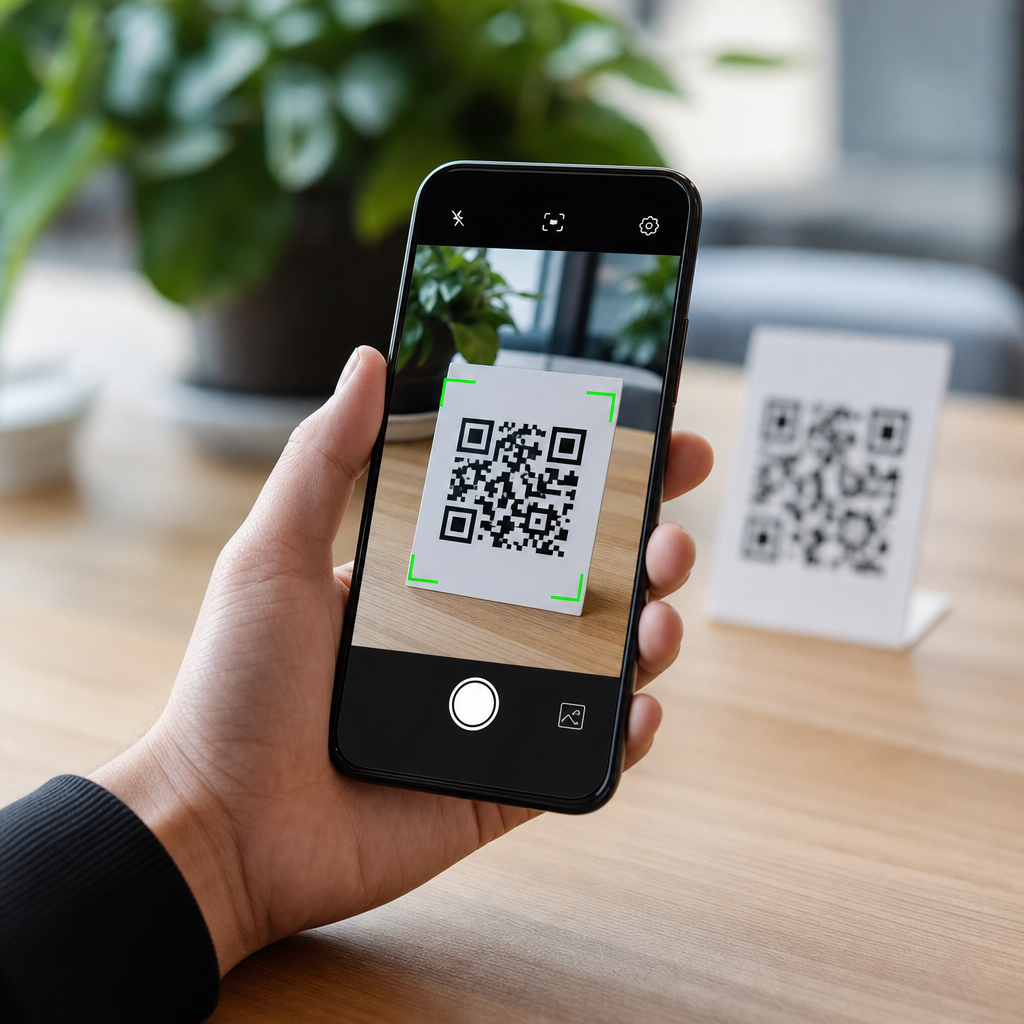
On most Android phones running recent software, the built-in Camera app can scan QR codes without any separate download. Samsung Galaxy phones, Google Pixel devices, Motorola phones, OnePlus models, and many Xiaomi handsets support this natively, although the setting name may vary. Open the Camera app, switch to the standard Photo mode, and hold the phone steady about six to ten inches from the code. Make sure the entire square fits inside the frame. When the phone recognizes it, you will see a banner, floating chip, or preview link. Tap that prompt to open the website, join the network, or launch the related action.
If nothing appears, look in camera settings for an option such as “Scan QR codes,” “Suggestions,” or “Google Lens suggestions.” On Samsung devices, the path is often Camera Settings, then Scan QR codes. On Pixel phones, QR detection usually works automatically through Camera or Lens integration. I recommend testing with a known safe code, such as a QR code that points to a major company homepage, because it quickly tells you whether the issue is your setup or the specific code. If your phone is older, using a third-party camera app instead of the default app may also block built-in scanning.
How to scan a QR code using Google Lens and other built-in tools
Google Lens is the most reliable fallback when the camera app does not detect a QR code. You can access Lens in several places on Android: inside the Google app, inside Google Photos, from the search bar widget on some launchers, or directly from the camera on supported phones. Open Lens, point it at the QR code, and wait for the result card. Lens reads standard URLs, Wi-Fi setup codes, text snippets, map locations, and some product barcodes. In my experience, Lens also handles low-contrast codes better than many stock camera apps because its recognition engine is more aggressive.
Some Android phones also include a quick settings scanner. Swipe down from the top of the screen and look for tiles labeled “Scan QR code,” “QR Scanner,” or “Code scanner.” Samsung’s One UI, for example, may expose a scanner tile in the notification shade. If it is missing, edit the quick settings panel and add it. This route is useful for users who want a direct scanner without opening the camera first. However, avoid random scanner apps unless your phone genuinely lacks a built-in option. Many third-party QR apps add ads, request excessive permissions, or redirect links through tracking pages.
How to scan a QR code that is on your Android phone screen
A common mobile-specific question is how to scan a QR code when the code is already on the same phone. Since the camera cannot point at its own display, you need to scan from an image. The easiest method is to take a screenshot of the QR code, then open that screenshot in Google Photos or your gallery app and use Lens or the built-in “Scan from image” option. Lens will read the code and display the action button. This is the standard fix for login codes, event tickets, payment requests, and setup screens sent by email or messaging apps.
If the QR code is inside a saved image rather than a screenshot, the process is the same. Open the image, tap Lens, and let Android analyze it. On some devices, long-pressing directly on an image in Chrome or Google Photos triggers recognition. This also works when someone sends a QR code through WhatsApp, Gmail, or Slack. For support teams, this distinction matters because users often report “my Android won’t scan the code,” when the real issue is that the code is on the same screen. The correct answer is not to install another scanner; it is to use image-based recognition.
Common Android QR scanning problems and fixes
When an Android phone will not scan a QR code, start with the basics. Clean the camera lens with a microfiber cloth, increase ambient light, and hold the phone steady. Move closer if the code is small, but not so close that the image loses focus. If the code is on a glossy poster or another phone screen, tilt slightly to reduce glare. Confirm that the camera has permission to access the device camera and that Google Lens has not been disabled. Restarting the phone can clear temporary camera service conflicts, especially after app updates.
Software version and app conflicts are the next likely causes. Install pending Android system updates, update the Camera app, Google app, and Google Photos through Google Play, and test again. If you use an enterprise device with a work profile, mobile device management policies may restrict camera or link opening behavior. I have also seen battery saver modes interfere with background recognition features on heavily customized Android builds. If a code opens but leads nowhere, the issue may be the code destination, not the scanner. Broken redirects, expired tickets, and malformed Wi-Fi strings are common.
| Problem | Likely cause | Best fix |
|---|---|---|
| No banner appears | QR detection disabled in Camera | Enable QR scanning or use Google Lens |
| Code will not focus | Too close, dirty lens, low light | Clean lens, add light, move back slightly |
| Code is on same phone | Camera cannot scan own screen | Use screenshot plus Google Lens in Photos |
| Link looks suspicious | Malicious or spoofed QR code | Do not open; verify source first |
| Nothing opens after tap | Expired code or broken destination | Test another code or contact the sender |
Security, privacy, and safe scanning habits
QR codes are convenient, but they can also hide risky destinations. Because the code itself is not human-readable, users may open phishing pages, fake payment screens, or malware download prompts without realizing it. On Android, always look for the preview banner before tapping. Reputable scanners and Google Lens usually show the domain or action first. If the URL is shortened, misspelled, or unrelated to the business in front of you, stop. This is especially important for codes placed on public posters, parking meters, restaurant tables, and package inserts, where sticker replacement scams are well documented.
Use extra caution with QR codes that ask for payments, wallet setup, app installation, or account login. A legitimate Wi-Fi QR code typically triggers a system prompt showing the network name, while a malicious one may just dump you onto a fake web portal. For authentication, prefer app-based verification flows you initiated yourself. Android also allows you to review app permissions, disable automatic downloads, and use Google Play Protect for another layer of defense. The practical rule is simple: scan freely, but only open destinations that match context and source.
Related mobile-specific FAQs this hub should answer next
Because this page serves as the hub for mobile-specific FAQs in a broader troubleshooting center, it should connect users to adjacent questions that commonly appear after QR scanning. The first is “Why won’t my Android camera focus?” because focus failures affect QR reading, document scanning, and video calls. The second is “How do I scan on Samsung, Pixel, or Motorola?” since vendor-specific steps differ. Other high-value follow-ups include “How do I scan a QR code from a screenshot?”, “Why does Google Lens not work?”, “How do I join Wi-Fi with a QR code?”, and “Is it safe to scan QR codes in public?”
It is also useful to support users dealing with accessibility and device limitations. Articles on enlarging on-screen codes, increasing display brightness for cross-device scanning, using screen readers with QR prompts, and troubleshooting managed work phones will cover edge cases that generic guides miss. If your site also includes internal resources on Android camera permissions, app cache clearing, or secure browsing practices, link those from this hub to strengthen navigation and help users solve the underlying issue, not just the symptom. A good mobile FAQ hub reduces repeat support requests by answering the next question before it is asked.
For most people, the answer to “How do I scan a QR code on Android?” is straightforward: open the Camera app, point it at the code, and tap the prompt. If that fails, Google Lens is the best fallback, especially for screenshots or codes stored on the same phone. The most common fixes are enabling QR detection, improving focus and lighting, updating key apps, and checking whether the code itself is valid. Those are the practical steps I use first because they solve the overwhelming majority of Android QR scanning issues quickly.
As a mobile-specific FAQ hub, this topic matters beyond one simple action. QR codes now connect Android users to Wi-Fi, tickets, payments, logins, support flows, and device setup, so knowing how to scan safely and troubleshoot confidently saves time and reduces risk. Keep this page as your starting point, then move to the related guides on screenshots, brand-specific instructions, camera focus problems, and safe public scanning so you can handle any Android QR code problem with confidence.
Frequently Asked Questions
How do I scan a QR code on an Android phone using the built-in camera?
On most Android phones, scanning a QR code is built right into the default Camera app. Open the Camera app and point it steadily at the QR code so the entire code is visible on screen. You usually do not need to press the shutter button. If your phone supports QR detection, a pop-up banner, link, or small notification should appear automatically. Tap that prompt to open the website, join a Wi-Fi network, view contact details, open a payment link, or perform whatever action is stored in the code.
If nothing happens, check a few common issues. First, make sure the image is clear and in focus. Good lighting helps, and you may need to move the phone slightly closer or farther away. Second, confirm that QR scanning is enabled in your camera settings. On some Android devices, there is a setting called “Scan QR codes,” “Google Lens suggestions,” or something similar that must be turned on. Third, remember that camera behavior varies by brand. Samsung, Google Pixel, Motorola, OnePlus, and other Android phones may all handle QR codes a little differently, so the option may appear in a different place in the app.
If your built-in camera still does not recognize the code, try opening Google Lens from the Camera app, the Google app, or the Photos app. Google Lens is available on many Android devices and is often the most reliable backup method. In general, if your Android phone is reasonably current, scanning a QR code should take only a few seconds once the right camera setting is enabled.
Why won’t my Android phone scan a QR code?
The most common reason an Android phone will not scan a QR code is that the camera app either does not support QR detection by default or the feature is turned off in settings. This is especially common on older phones, heavily customized camera apps, or devices running older versions of Android. Another frequent problem is image quality. If the code is blurry, too small, poorly lit, partly cut off, damaged, or shown at an awkward angle, the phone may not be able to read it.
Screen brightness and glare are also major factors when the QR code is displayed on another device. If the code is on a computer monitor, tablet, or another phone, glare, reflections, and low brightness can interfere with recognition. Increase the brightness on the screen showing the code and reduce reflections if possible. If the code is printed on paper, flatten the page and avoid shadows. If the code is very close to the camera, back up slightly so the phone can focus properly.
There is also the possibility that the QR code itself is invalid or expired. Some codes point to links that no longer work, event tickets that have expired, or temporary sign-in pages that are no longer active. If your phone sees the code but does not produce a useful result, the problem may be with the code rather than your device. When troubleshooting, a good test is to try scanning a known working QR code, such as one from a reputable website or a Wi-Fi setup card you know is current.
If all else fails, use Google Lens or a trusted QR scanner app from the Google Play Store. Also make sure your phone software and camera app are updated. In support situations, these steps solve the vast majority of Android QR scanning problems.
Can I scan a QR code that is on the same Android phone screen?
Yes, you can scan a QR code that appears on the same Android device, but you cannot do it directly with the camera while the code is on your own screen. Instead, you need to use an image-based method. The easiest approach is to take a screenshot of the QR code, then open that screenshot in Google Photos, the Gallery app, or the Photos app on your phone. From there, use Google Lens or the built-in “Scan QR code” option if your photo app provides one. The phone will analyze the image and extract the information from the code.
This is useful when the QR code is shown in an email, on a website, inside a messaging app, in a PDF, or in a social media post on the same device. In many Android apps, you can also press and hold on an image to see whether there is an option to open it with Lens. Some phones even detect QR codes directly from the recent apps screen or from screenshots automatically, but that depends on the manufacturer and Android version.
If the screenshot method does not work right away, crop the image so the QR code fills more of the frame, then try again. Make sure the screenshot is sharp and not blocked by overlays, app controls, or notifications. This method is often overlooked, but it is one of the simplest ways to scan a QR code on Android when the code is being displayed on the same phone.
Do all Android phones have a QR scanner, or do I need an app?
Not all Android phones handle QR scanning in exactly the same way, but most modern Android devices have some built-in way to scan QR codes. On newer phones, the Camera app often detects QR codes automatically. On others, Google Lens provides the scanning feature instead. So while your phone may not have a separate app labeled “QR Scanner,” it usually still has the ability built in through the camera system or Google services.
You are more likely to need a dedicated app if you have an older Android phone, a very basic model, or a device where the manufacturer’s camera app does not support QR recognition. Before downloading anything, check three places: your Camera app settings, the Google app for Google Lens, and your Photos or Gallery app for a Lens or scan option. In many cases, one of these already does the job without requiring extra software.
If you do decide to install a QR scanner app, choose carefully. Use a well-reviewed app from a trusted developer in the Google Play Store, and avoid apps that ask for unnecessary permissions. A QR scanner generally needs camera access, but it should not need access to your contacts, microphone, or unrelated personal data. For most people, the safest and easiest option is to use the built-in camera or Google Lens rather than a third-party scanner.
Is it safe to scan QR codes on Android?
Scanning QR codes on Android is generally safe, but you should treat unknown codes with the same caution you would use for links in emails or text messages. A QR code can open a legitimate website, connect you to Wi-Fi, launch a payment page, add a contact, or start an app download. However, it can also send you to a fake website designed to steal passwords, payment information, or other sensitive data. The risk is usually not in the act of scanning itself, but in what you do after the code is read.
Before tapping the result, look closely at the preview your phone shows. Check whether the web address appears legitimate and matches the business, event, or service you expect. Be careful with shortened links or unfamiliar domain names. If a scanned code asks you to sign in, enter payment details, install an app, or grant permissions, pause and verify that the destination is real. This is especially important for QR codes posted in public places, printed on flyers, or placed as stickers over existing codes.
For better security, keep Android updated, use Google Play Protect, and rely on your phone’s built-in scanner or Google Lens when possible. If a QR code opens a website, make sure the page uses a valid secure connection when appropriate, especially before entering login or payment information. In short, QR codes are convenient and usually safe, but smart habits matter. Scan confidently, but verify before you trust the result.