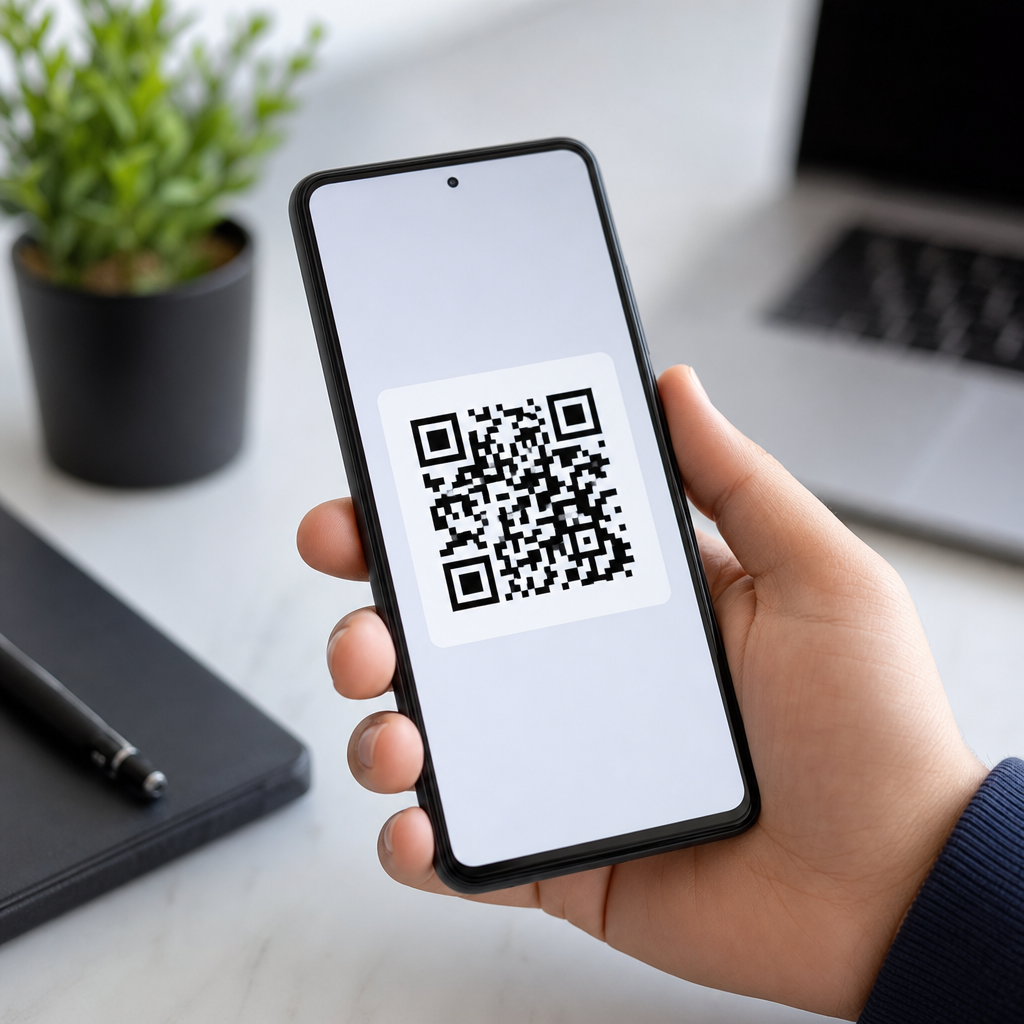
Creating a QR code on Android is straightforward once you know which type of code you need, which app or built-in tool to use, and how to test it before sharing. A QR code, short for Quick Response code, is a two-dimensional barcode that stores information such as a website URL, Wi-Fi credentials, contact details, payment data, or plain text. Android matters here because it is the most widely used mobile operating system, and many people now create QR codes directly from phones instead of desktops. I have set up QR codes for event check-ins, restaurant menus, product packaging, and support documents from Android devices, and the practical difference between a code that scans instantly and one that fails usually comes down to setup choices made at creation time.
This guide explains how to create a mobile QR code on Android, with Android-specific methods first and broader best practices throughout. It also serves as a hub for the wider topic of creating mobile QR codes, because the core decisions are the same whether you are building a code for a personal link, a business campaign, or a customer service workflow. The important terms are simple. A static QR code contains fixed information that cannot be edited after creation. A dynamic QR code points to a short redirect URL that can be changed later, which is useful for marketing, analytics, and correcting mistakes without reprinting the code. Error correction refers to how much damage a code can tolerate and still scan, and file format affects how sharp the code remains when shared or printed.
Choose the right QR code type on Android
The first step is deciding what the QR code should do. On Android, you can create codes for website links, PDFs, app download pages, business cards, Google Maps locations, payment requests, calendar events, and Wi-Fi access. If you want the fastest setup, a URL QR code is the easiest option because most Android QR tools accept a web address and generate a scannable code immediately. If you need people to join a network at a café, office, or home, use a Wi-Fi QR code with the SSID, password, and security type entered correctly. For lead generation, I usually recommend a dynamic URL QR code that sends users to a mobile-friendly landing page, because it gives you flexibility later.
Static versus dynamic matters more than many Android users expect. A static code is ideal for permanent information, such as a personal website or an unchanging portfolio page. It is free in many generator apps and does not rely on an external redirect service. A dynamic code is better for campaigns, product labels, flyers, or storefront signs because you can update the destination if the original page changes. In client work, the biggest avoidable mistake I see is printing a static QR code that points to a temporary page. Once distributed, that code is effectively locked. If there is any chance the destination could change, use a dynamic option from a reputable platform.
Built-in Android methods and trusted QR code apps
Many Android phones can create certain QR codes without installing a dedicated generator. Samsung devices, for example, may offer QR sharing through Samsung Internet, Samsung Wallet, or Wi-Fi sharing menus. In the Wi-Fi settings on some Android versions and manufacturer skins, you can open the current network details and tap Share to display a QR code for nearby guests. Google Chrome can also generate a QR code for the current webpage through the Share menu on many Android devices. This is useful for quickly turning a page into a mobile QR code, though it is limited compared with a dedicated app because it generally creates only a basic static URL code.
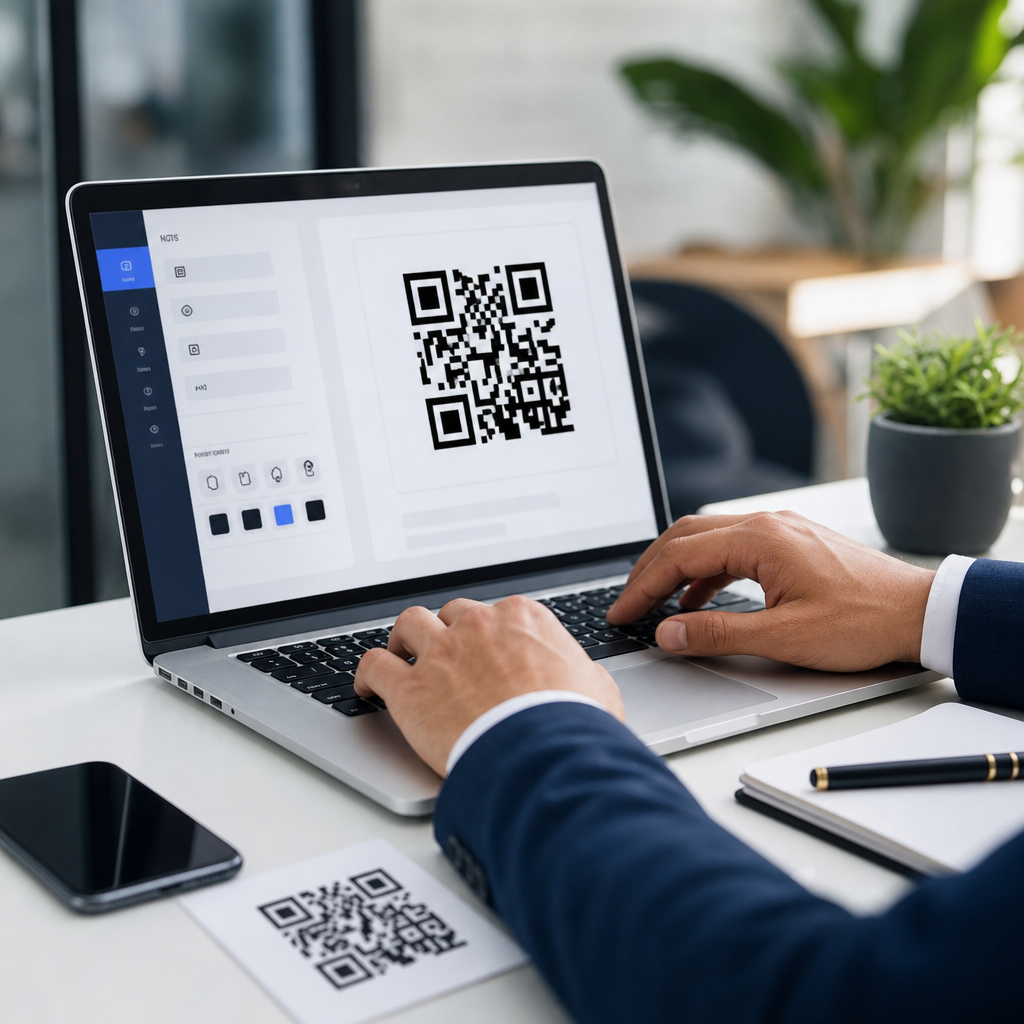
When built-in tools are not enough, use a reputable app or web generator that works well on Android. Trusted options often include QR Code Generator, QR TIGER, Bitly for link management, Canva for simple branded assets, and browser-based tools from established vendors with clear privacy policies. The best Android QR code generator should let you choose content type, export a PNG or SVG file, and avoid forcing a watermark onto the final image. If the tool supports dynamic codes, scan analytics, UTM parameters, or editable destinations, that is a strong sign it is designed for business use rather than novelty use. Avoid unknown apps that request unnecessary permissions, especially contacts, microphone, or broad storage access.
How to create a mobile QR code step by step
The practical process is consistent across Android phones. Open your chosen QR code app or mobile browser tool, select the content type, enter the destination or data, generate the code, customize only if needed, then test it with multiple devices. If you are creating a website QR code, copy the full HTTPS URL, not a shortened or incomplete version unless you intentionally want tracking through a short link. If you are creating a contact QR code, use the vCard option so scanners can save details directly into their address book. If you are creating a payment QR code, verify the account identifier carefully because one wrong character can send funds to the wrong destination.
| QR code use case | Best Android method | Why it works |
|---|---|---|
| Website or landing page | Chrome Share menu or dedicated generator | Fast to create and easy to distribute |
| Wi-Fi sharing | Android Wi-Fi settings Share option | Guests connect without typing passwords |
| Business card | Generator with vCard support | Contacts save directly to phones |
| Marketing campaign | Dynamic generator with analytics | Destination can be updated later |
| Printed signage | Generator exporting SVG or high-resolution PNG | Sharper output for large formats |
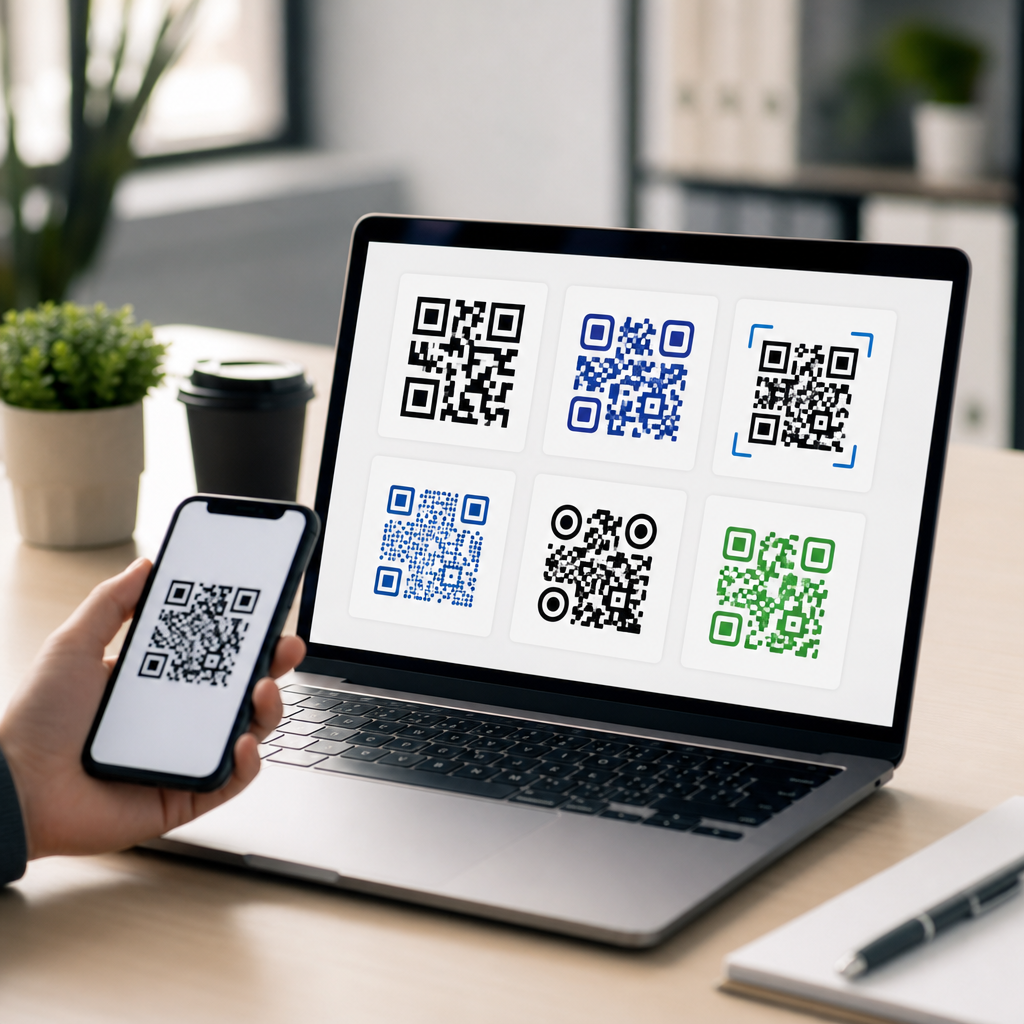
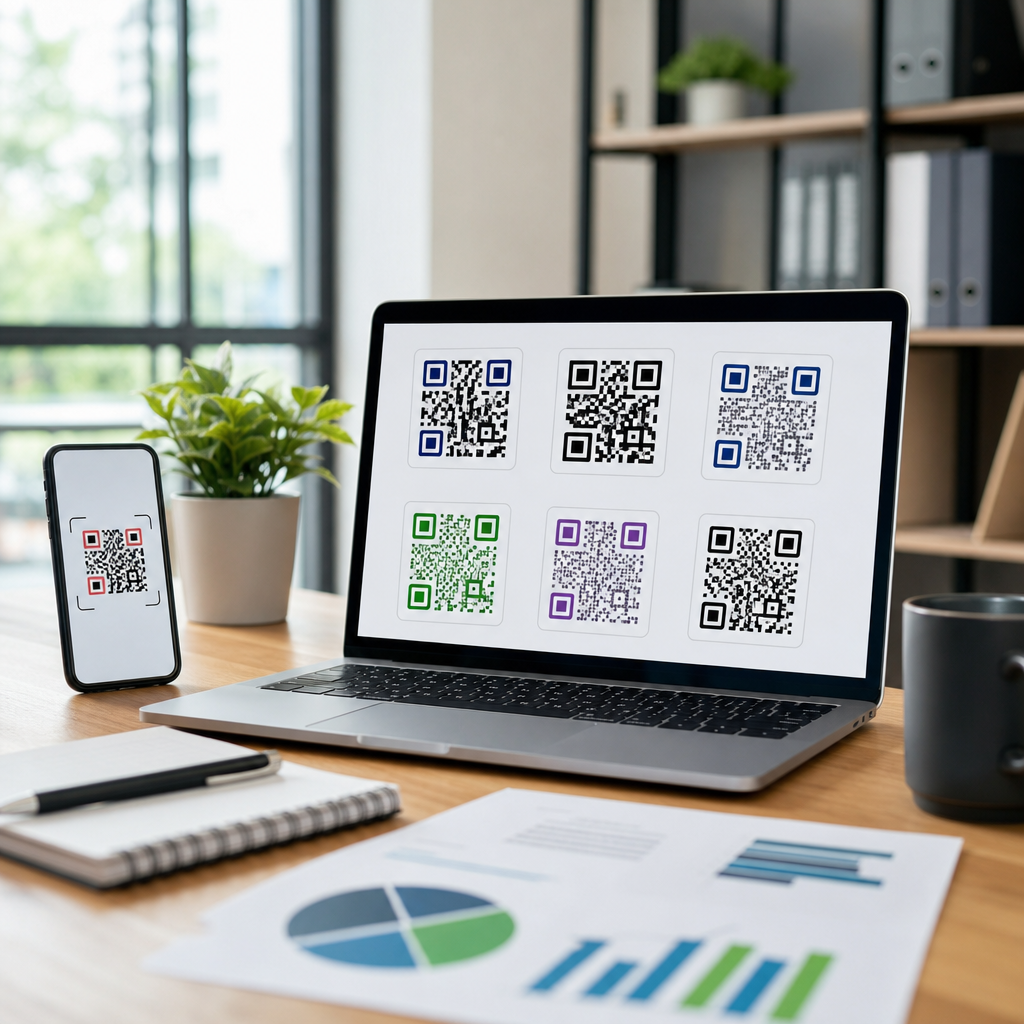
Customization should support scanning, not overpower it. Keep strong contrast, ideally black on white, and avoid cluttering the code with large logos or decorative backgrounds. Most good generators allow color changes and frame text such as “Scan to view menu” or “Scan for offer.” Those prompts often improve scan rates because users understand what will happen next. However, if you add branding, keep the quiet zone, the blank margin around the QR code, intact. Follow ISO/IEC 18004 principles in practice: preserve finder patterns, maintain contrast, and do not distort the matrix. Before you save the final file, choose the right format. PNG is fine for social sharing and standard print jobs; SVG is better for resizing without loss.
Testing, troubleshooting, and optimization on Android
Always test the QR code on more than one phone before publishing it. I usually scan with my own Android camera, a second Android device from another brand, and an iPhone, because camera software and autofocus behavior differ. Test in normal indoor light and at arm’s length, since that reflects real use. If the code opens a mobile page, verify that the page loads quickly, the key information appears above the fold, and no intrusive pop-up blocks the experience. A perfectly generated QR code can still fail commercially if the destination page is slow, broken, or difficult to use on mobile. PageSpeed Insights and Lighthouse are useful for checking that landing page performance.
If a QR code will not scan, the most common causes are low contrast, insufficient size, poor print quality, glare, over-designed colors, or incorrect data formatting. For print, a practical minimum is around 2 x 2 centimeters for close scanning, though larger is better as scanning distance increases. A poster in a shop window needs a much larger code than a business card. If you are using a dynamic platform and the redirect stops working, confirm the destination URL is still live and that the account plan has not expired. For campaign measurement, add UTM tags to the landing page URL so traffic appears clearly in Google Analytics 4. That turns a basic mobile QR code into a measurable acquisition channel.
Best practices for sharing Android QR codes across mobile channels
A QR code created on Android is only as useful as its distribution plan. For digital use, save the image to Google Photos or Files so you can insert it into email, messaging apps, social posts, PDFs, and presentations. For print, keep a master file at high resolution and store the original destination details in your notes or project folder. If this page is your starting point for creating mobile QR codes, the next logical tasks are choosing a QR code for a link, a Wi-Fi network, a contact card, a payment request, or a marketing landing page. Each use case has different formatting and testing requirements, but the Android workflow stays consistent: choose type, generate, test, publish, measure.
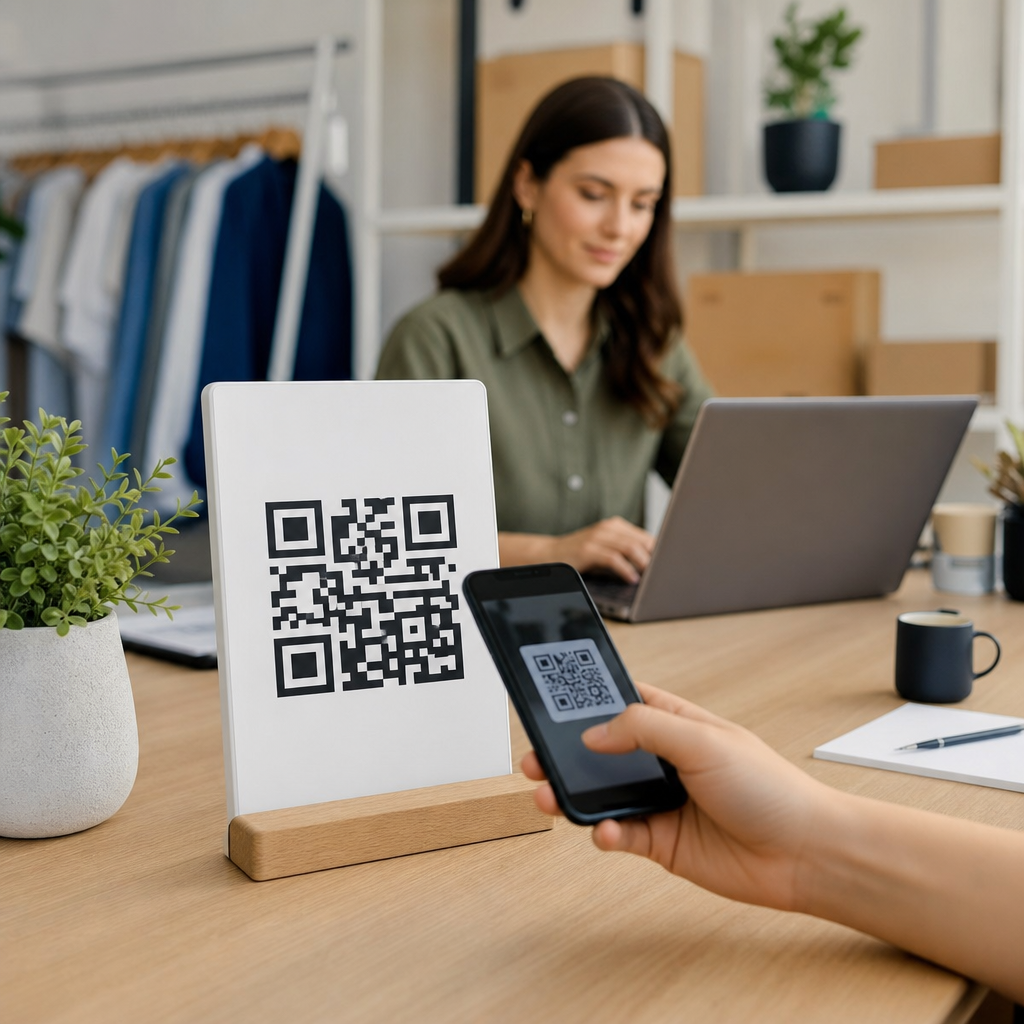
Accessibility and trust deserve attention. Place the code where users can comfortably scan it without bending, blocking a walkway, or standing in traffic. Add a short label near the code explaining the destination, such as “Open product guide” or “Join guest Wi-Fi.” That simple text increases confidence because people know what will happen before they scan. If the code goes to a download page, product registration form, or payment flow, use a branded domain rather than a random shortener whenever possible. People are far more likely to scan a code tied to a recognizable business name. On Android especially, where users often rely on the camera preview and quick browser handoff, that extra clarity improves completion rates.
Creating a QR code on Android is not just about generating an image; it is about choosing the correct code type, using a reliable tool, and making sure the final experience works on real phones. Static codes are best for permanent information, while dynamic codes are better for campaigns and any destination that may change. Android gives you multiple creation paths, from built-in sharing features in Chrome or Wi-Fi settings to full-featured generator apps that support branding, analytics, and editable links. The best results come from simple design, high contrast, correct sizing, and careful testing across devices before the code goes live.
As the hub for creating mobile QR codes, this guide gives you the framework to handle most Android use cases with confidence. Start with the purpose, match it to the right format, export a clean file, and test the code in the same conditions your audience will face. If you are creating QR codes for a business, document the destination URLs, campaign tags, and print sizes so future updates are easier. If you are creating one for personal use, keep it simple and avoid over-customization. Use this process the next time you need a QR code on Android, and you will end up with a code that scans quickly, looks professional, and actually delivers results.
Frequently Asked Questions
1. How do you create a QR code on Android?
Creating a QR code on Android usually starts with deciding what information you want the code to hold. A QR code can link to a website, open a Wi-Fi login, save contact details, display plain text, trigger a payment action, or point to other types of data. Once you know the content type, you can choose the easiest method on your phone. Many Android users create QR codes with a dedicated QR generator app from the Google Play Store, while others use built-in sharing tools from specific apps such as a browser, contacts app, Wi-Fi settings, or payment platform.
In most cases, the process is simple: open the app or tool, choose the type of QR code you want to make, enter the required information, and tap a button such as “Generate,” “Create,” or “Share as QR code.” For example, if you want to create a QR code for a website, you may paste the URL into a QR code generator app. If you want to share your Wi-Fi network, many Android phones let you open Wi-Fi settings, tap your connected network, and display a ready-made QR code that others can scan to join. Some Android browsers and sharing menus also provide a QR option for the page you are viewing.
After the QR code appears, save it as an image or take a screenshot if the app does not offer a direct save option. Before sending or printing it, test it with another phone or a QR scanner to confirm that it opens the correct content. That final check is important because even a small typo in a URL, phone number, or network password can make the code useless. In short, creating a QR code on Android is less about technical complexity and more about choosing the right tool and verifying the result before sharing it.
2. What types of QR codes can you make on an Android phone?
Android phones can be used to create several common types of QR codes, and the best choice depends on what you want people to do after scanning. The most popular type is a URL QR code, which sends users to a website, landing page, product listing, form, or social profile. These are widely used because they are easy to generate and simple for users to understand. Another highly practical option is a Wi-Fi QR code, which stores your network name, password, and security type so guests can join without typing credentials manually.
You can also create contact QR codes, often in vCard format, so someone can instantly save your name, phone number, email address, business details, and address to their device. Plain text QR codes are useful when you want to share a short message, code snippet, serial number, or instructions. Depending on the app you use, Android can also generate QR codes for SMS messages, email addresses, phone dialing actions, event details, map locations, and payment requests. Some business-oriented apps go even further and support app download links, menu links, digital business cards, and product information.
It is worth noting that not every Android tool supports every QR code type. Built-in Android features are often limited to specific tasks, such as sharing Wi-Fi credentials or certain links, while third-party generator apps offer broader customization. If your needs are basic, such as sharing a URL or Wi-Fi access, you may not need anything beyond what your phone already provides. If you need branding, analytics, editable destinations, or uncommon formats, a specialized QR code app or web service used through your Android browser is usually the better option.
3. Do Android phones have a built-in QR code generator, or do you need an app?
Some Android phones do include built-in ways to create certain QR codes, but there is no universal Android-wide generator for every use case. What you can do without installing anything often depends on your device manufacturer, Android version, and the apps already installed on your phone. For example, many Android devices let you generate a QR code for Wi-Fi sharing directly from network settings. Some apps, such as mobile browsers, contacts apps, or payment apps, may also include their own QR sharing features for links, profiles, or transactions.
That said, if you want full control over the content and appearance of the code, you will often need a third-party app or a trusted QR code generator website opened in your Android browser. Dedicated generator apps are useful because they usually support many formats in one place, such as website links, text, email, phone numbers, contact cards, and location data. They may also let you customize colors, add a logo, choose image size, and export the final code in a cleaner format than a screenshot.
The main advantage of built-in tools is convenience. They are fast, already available, and often well integrated with Android’s sharing menu. The advantage of a dedicated app is flexibility. If you only need to share your Wi-Fi or quickly turn a web page into a QR code, built-in options may be enough. If you need a professional-looking QR code for a flyer, poster, packaging, classroom handout, or business card, installing a reliable generator app is usually the smarter choice. Either way, always check app permissions and use well-reviewed tools from reputable developers, especially if you are encoding sensitive information.
4. How can you test a QR code on Android before sharing it?
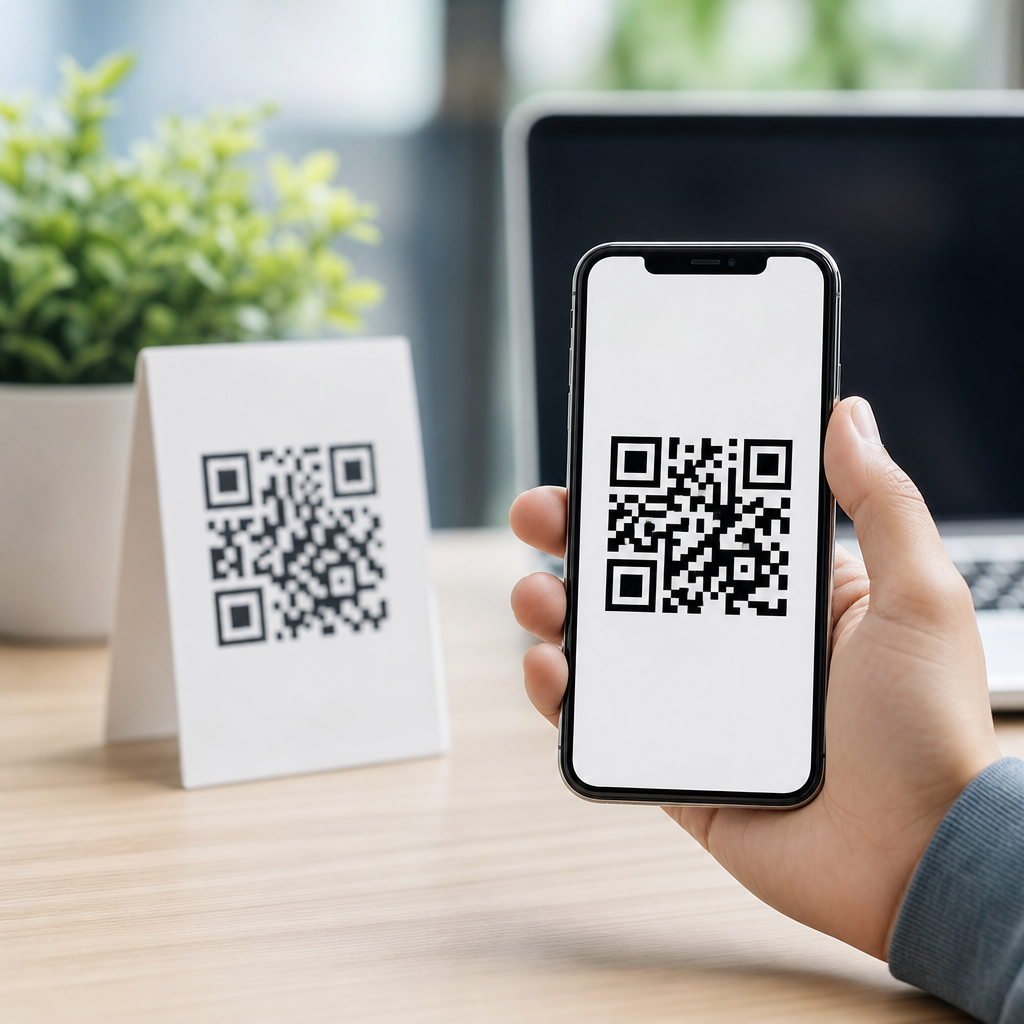
Testing a QR code before sharing it is one of the most important parts of the process, and it is often the step people skip. A QR code may look correct visually but still fail because the information inside it is incomplete, outdated, or incorrectly formatted. The safest method is to scan the code using a second device. If you created the code on your Android phone, open the saved image on that phone or another screen, then use a different smartphone to scan it with the camera app or a QR scanner. Confirm that the code opens the expected website, joins the correct Wi-Fi network, saves the right contact details, or displays the intended text.
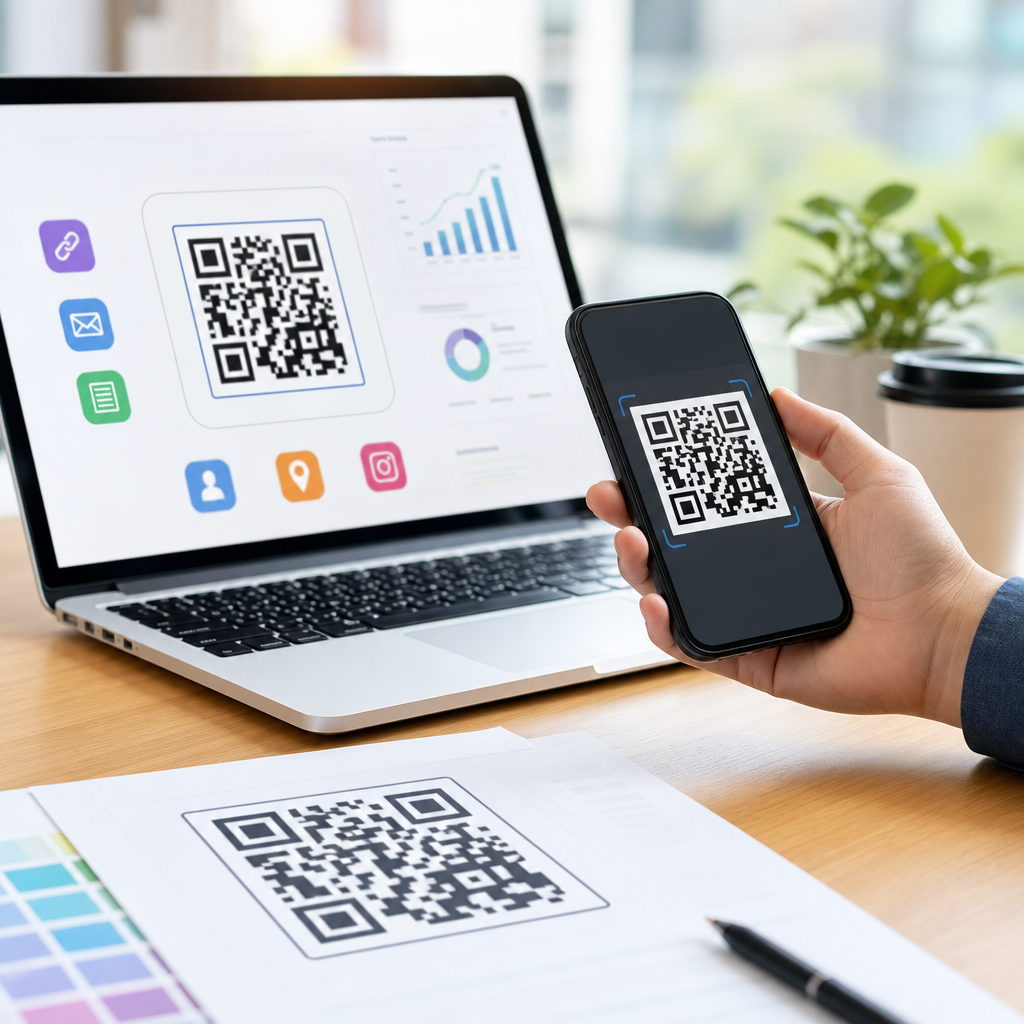
If you only have one Android device, testing is still possible, though it may take a little extra effort. You can display the QR code on another screen such as a laptop, tablet, or monitor and scan it with your phone. Some QR scanner apps also let you scan from images stored in your gallery, which can help verify the code without needing a second camera. When testing, do more than simply see whether the code scans. Make sure the destination behaves properly. A website should load fully, a phone number should be accurate, a Wi-Fi setup should use the correct password, and contact information should save in the expected format.
You should also test the final version that people will actually see. If you plan to print the QR code, print a sample first and scan it at the intended size and from realistic distances. If you changed colors or added a logo, confirm that the design still scans reliably. Good testing catches common problems such as low contrast, poor resolution, broken links, and accidental edits. In practical terms, a QR code is only successful if someone can scan it quickly and get the exact result you intended, so testing is not optional; it is essential.
5. What should you keep in mind when creating and sharing a QR code from Android?
When creating and sharing a QR code from Android, the first priority is accuracy. Double-check the data you enter, especially for website URLs, Wi-Fi passwords, phone numbers, payment details, and contact information. A single error can send users to the wrong page or prevent the code from working altogether. It is also smart to think about the purpose of the QR code before generating it. If the destination might change later, a dynamic QR solution from a specialized service may be better than a static code, because some platforms allow you to update the destination without replacing the printed code.
Design and readability matter as well. A clean black-and-white QR code is often the most reliable option, although branded colors can work if there is enough contrast between the foreground and background. Avoid making the code too small, blurry, or crowded with design elements. If you are saving the code from Android to share digitally, choose a clear image and avoid heavy compression. If you are printing it, make sure the resolution is high enough and that the code has enough white space around it, often called the quiet zone, so scanners can recognize it easily.
You should also think about trust and privacy. People are more likely to scan a QR code if they know where it leads, so provide context near the code whenever possible, such as “Scan to join Wi-Fi,” “Scan to visit our menu,” or “Scan to save contact details.” Do not encode sensitive personal data unless it is necessary, and be cautious with payment or login-related uses. Finally, always test on multiple devices if possible. Since Android users create and share QR codes in many different environments, from messaging apps to posters and product labels, a thoughtful approach to accuracy, usability, and security will make your QR code far more effective.