
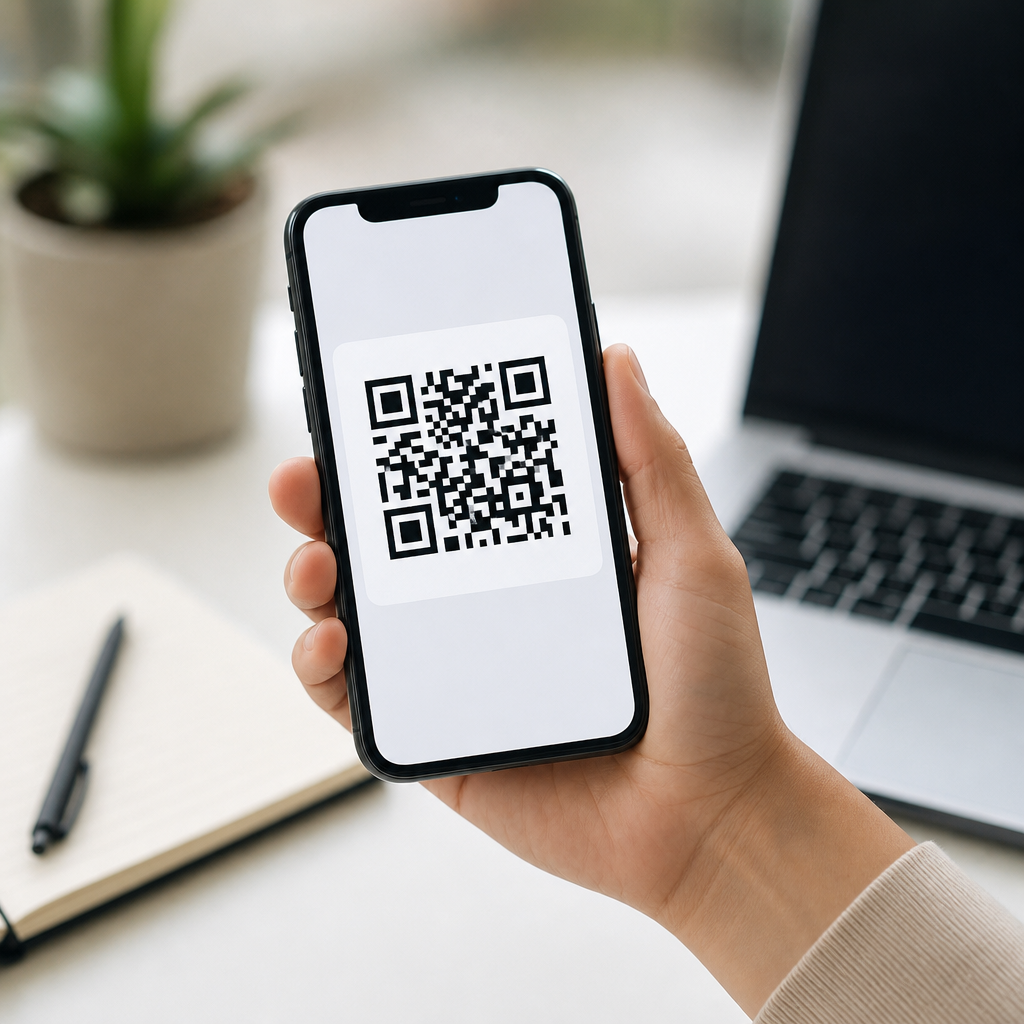
Creating a QR code on iPhone is straightforward once you know which method fits your goal, whether you want to share a website, Wi-Fi login, contact card, payment link, or app download. A QR code, short for Quick Response code, is a two-dimensional barcode that stores data in a square grid readable by phone cameras. For iPhone users, the topic matters because iOS makes both scanning and sharing digital information easy, yet it does not offer one single universal “create QR code” button for every use case. In practice, I have found that the best method depends on what you are encoding, how often the destination changes, and whether you need basic convenience or trackable, editable campaigns.
This article serves as a hub for creating mobile QR codes, with iPhone as the starting point and mobile sharing as the broader use case. “Create a mobile QR code” can mean several things: generating a code directly on an iPhone, making a code that works well when scanned by other phones, or building a code that points to mobile-friendly content such as a landing page, app store listing, digital business card, or SMS draft. Those distinctions matter. A static QR code locks data permanently into the image, while a dynamic QR code points to a short URL that can be edited later. Static is ideal for simple, permanent links. Dynamic is better for marketing, events, print campaigns, and situations where you want analytics, expiration controls, or destination updates without reprinting the code.
iPhone owners also need to think about usability. A QR code that technically works can still fail in the real world if the target page loads slowly on mobile, the contrast is weak, the print size is too small, or the code opens the wrong app behavior. Good mobile QR code creation combines the code itself with destination design, testing, and device compatibility. Apple Wallet passes, Apple Maps links, FaceTime links, vCard files, shortcut automations, and payment pages all behave differently after a scan. The goal is not just to generate a square image. The goal is to create a code that solves a specific mobile action with as few taps and as little friction as possible.
Built-in Ways to Create a QR Code on iPhone
The fastest built-in method on iPhone is the Shortcuts app. Apple does not provide a universal QR generator in Camera or Settings, but Shortcuts includes an action called “Generate QR Code” that can turn text, URLs, contact details, email addresses, phone numbers, and more into a scannable image. Open Shortcuts, tap the plus sign to create a new shortcut, search for “Generate QR Code,” then choose the content type you want to encode. After that, add a Quick Look action to preview the code or a Save to Photos action to keep it as an image. I recommend naming the shortcut clearly, such as “Create Website QR” or “Create Wi-Fi QR,” so it becomes reusable instead of a one-off task.
For sharing a webpage from Safari, there is also a convenient route many users overlook. Some websites and apps offer a share sheet option that can expose a QR-ready link workflow, especially through third-party browsers or installed utility apps. On native iPhone tools, however, Shortcuts remains the most flexible no-cost option. Contacts can also be shared in ways that generate machine-readable content, but if you need a true image-based QR code, you still usually end up using Shortcuts or a dedicated generator. This matters for posters, receipts, table tents, product packaging, and event signs where the visual code itself is the asset.
Apple’s App Clips use special codes that look different from standard QR codes, but those are designed for App Clip launches and require developer setup. For most users creating a mobile QR code on iPhone, App Clip codes are not the practical route. Instead, use standard QR for broad compatibility. Both iPhone and Android camera apps read standard QR codes well, and that cross-platform behavior is exactly what you want if the audience includes customers, guests, or colleagues using different devices.
When to Use an Online QR Code Generator Instead
If you need branding, analytics, editability, or campaign controls, an online QR code generator is usually the better choice than making a basic code inside Shortcuts. Services such as QR Code Generator, Bitly, Flowcode, Beaconstac, Uniqode, and Canva let you create QR codes on an iPhone through Safari without installing desktop software. In my experience, these tools are especially useful when the QR code will be printed, reused at scale, or connected to business goals like lead generation, app installs, menu access, or event check-in. They also make it easier to export PNG, SVG, or PDF files, which matters for print clarity and design workflows.
The major advantage of these platforms is dynamic routing. Instead of encoding the final destination directly, they encode a short redirect URL managed by the platform. If your restaurant menu link changes, your campaign landing page moves, or your app has a new App Store URL, you can update the destination without changing the printed code. Many platforms also report scan counts, device types, location patterns, and time-of-day performance. That data helps determine whether a poster in a storefront outperforms a flyer, or whether a product insert drives more mobile visits than an email footer.
Use caution, though. Free plans often add branding, limit scan volume, disable analytics after a trial, or stop dynamic codes if the subscription ends. Before publishing a QR code on signage or packaging, verify the long-term terms of the provider. A static code generated for free is often safer for permanent uses like a simple homepage or public profile. A dynamic code is worth paying for when you expect changes, want tracking, or need governance across multiple campaigns.
Best QR Code Types for Common Mobile Use Cases
Choosing the right QR code type prevents poor user experiences. A plain URL QR code is the default choice for most people, but other data formats are better for specific tasks. vCard QR codes can save contact information directly into a phone’s contacts app. Wi-Fi QR codes can pass network credentials for easier guest access, though support depends on device behavior and the exact format used. SMS QR codes can prefill a text message. Mail QR codes can open a draft email. App Store or deep-link QR codes can route users to an app listing or in-app destination. For payments, businesses often use provider-specific QR systems such as PayPal, Stripe payment links, or regional wallet standards.
| Use case | Best QR type | Why it works well on mobile |
|---|---|---|
| Website or landing page | URL | Universal support in iPhone and Android camera apps |
| Share contact details | vCard | Lets users save a contact without manual typing |
| Collect leads at an event | Dynamic URL | Allows destination changes and scan analytics |
| Guest internet access | Wi-Fi | Reduces password entry friction in person |
| Prompt a text inquiry | SMS | Opens the Messages app with prefilled content |
| Promote an app | App Store or smart link | Routes users to the correct mobile store experience |
As a rule, use the simplest format that completes the action. If all you need is a mobile webpage, a standard URL QR code is usually best. If you need post-launch flexibility, use dynamic URL routing. If you are building a broader creating mobile QR codes strategy, organize use cases by destination type, update frequency, and whether the code will live digitally, in print, or both.
How to Create a Mobile QR Code That Actually Performs
A successful mobile QR code is more than a generated image. First, make sure the destination is mobile optimized. That means responsive design, fast load times, readable text, and a clear next step above the fold. Google’s Core Web Vitals are relevant here because a QR scan often happens in a time-sensitive moment: on a sidewalk, in a store aisle, at a trade show booth, or while standing in line. If the page is slow or cluttered, the scan is wasted. I typically recommend linking to a dedicated mobile landing page rather than a generic homepage, especially for campaigns.
Second, design the code for reliable scanning. Keep strong contrast, ideally dark code on a light background. Do not invert colors unless you test extensively. Preserve the quiet zone, the blank margin around the code, because scanners rely on it to detect the symbol. For print, many professionals use at least 2 x 2 centimeters as a bare minimum, but larger is better when the scanning distance increases. A useful field rule is a scan distance ratio of roughly 10:1, meaning a code meant to be scanned from 20 inches away should be about 2 inches wide. Export vector formats such as SVG or PDF for print when possible to avoid blur.
Third, include context. People scan more often when they know what happens next. Instead of placing a naked QR code on a sign, add a short instruction like “Scan to view the lunch menu,” “Scan to save my contact card,” or “Scan to join Wi-Fi.” That microcopy sets expectations and improves conversion. In testing, descriptive calls to action consistently outperform unlabeled codes because users can judge relevance before opening their camera.
Testing, Security, and Maintenance on iPhone
Always test a QR code on multiple devices before sharing it publicly. On iPhone, test with the native Camera app and, if relevant, Chrome, Safari, and the built-in QR scanner in Control Center. Also test on at least one Android phone because camera interpretation and app handoff can differ. I check four things every time: scan speed, destination accuracy, page load quality, and the post-scan action. For example, a vCard file may download instead of opening cleanly depending on hosting, while an app link may open the browser instead of the store if the link format is weak.
Security matters because QR codes hide the destination until after a scan prompt appears. Use reputable generators, HTTPS links, and domains users recognize. Avoid URL shorteners that obscure your brand unless you are using a managed dynamic QR platform with clear redirects and monitoring. If the QR code appears in public, review it periodically to ensure the destination still works and has not been changed, removed, or redirected in error. Broken codes are common on menus, posters, and old packaging because nobody assigned ownership after launch.
Maintenance is where many mobile QR projects succeed or fail. Keep a simple inventory: what the code is for, where it is placed, whether it is static or dynamic, who owns updates, and when it was last tested. For businesses managing multiple assets, this inventory becomes the internal link map for the broader creating mobile QR codes program. It also prevents duplicate codes, outdated destinations, and inconsistent branding across locations or campaigns.
Conclusion
Creating a QR code on iPhone can be as simple as using the Shortcuts app or as advanced as managing dynamic campaigns through a specialized generator. The right choice depends on the destination, how often it changes, whether you need analytics, and where the code will appear. For quick personal sharing, built-in iPhone workflows are often enough. For printed materials, events, marketing, payments, or ongoing campaigns, dynamic tools provide stronger control and measurement.
The core principle is simple: match the QR format to the mobile action, send users to a fast mobile-friendly destination, and test the experience before launch. If you do that, your QR code becomes a practical bridge between the physical world and the phone in your audience’s hand. Start by creating one QR code for your most common task, test it on iPhone and Android, and build your broader mobile QR strategy from there.
Frequently Asked Questions
Can you create a QR code directly on an iPhone without downloading an app?
Yes, you can create certain types of QR codes on an iPhone without installing a separate app, but the exact method depends on what you want the code to do. iPhone does not include one universal built-in button that says “Create QR Code” for every possible use case. Instead, iOS supports QR creation in a few practical ways through Apple apps, Shortcuts, and some service-specific sharing tools. For example, you can generate a QR code for text, links, contact information, or other simple data using the Shortcuts app, which is preinstalled on many iPhones. You can also create a Wi-Fi sharing QR code or payment-related code through certain third-party services or apps that provide their own built-in generator.
If your goal is to share a website, the easiest route is often a browser-based QR generator opened in Safari. If your goal is to share contact details, the Shortcuts app can be a convenient option. For app downloads, businesses often use App Store links and convert them into QR codes through a web-based tool. In other words, the iPhone gives you several easy ways to make QR codes, but the best method depends on whether you are sharing a URL, Wi-Fi credentials, a digital business card, a payment link, or something else. For most everyday users, creating a QR code on iPhone is absolutely possible without a download, especially if they use Shortcuts or a trusted website.
How do you make a QR code on iPhone using the Shortcuts app?
Using the Shortcuts app is one of the simplest native ways to create a QR code on iPhone. Open the Shortcuts app, tap the plus sign to create a new shortcut, then choose to add an action. Search for an action related to QR code generation, typically something like “Generate QR Code.” Once selected, you will be prompted to define the type of content you want to encode, such as text, a web link, contact info, or another supported data type. After entering the information, you can add another action such as Quick Look, Save to Photos, or Share so the QR code can be previewed, stored, or sent to someone else.
This method is especially useful because it keeps the process inside Apple’s ecosystem and can be reused later. Once the shortcut is saved, you can run it again anytime to generate a new code with updated information. That makes it handy for repeat tasks like sharing a personal website, portfolio page, event registration link, or basic contact details. If you want to streamline the process even more, you can rename the shortcut clearly, place it on your Home Screen, or add it to the Share Sheet. For iPhone users who want a built-in, flexible, and reasonably private option, Shortcuts is often the most practical way to create a QR code without relying entirely on third-party apps.
What kinds of information can a QR code from an iPhone contain?
A QR code created on an iPhone can contain many different types of information, depending on the tool you use. Common examples include website URLs, plain text, phone numbers, email addresses, contact cards, calendar event details, Wi-Fi network credentials, payment links, and App Store download links. At its core, a QR code is simply a machine-readable way to package information into a square pattern that another phone can scan quickly. When someone points their iPhone camera at the code, iOS can usually recognize the data type and suggest an action, such as opening Safari, joining a Wi-Fi network, saving contact information, or launching a payment page.
This flexibility is exactly why QR codes are so useful for iPhone users. A small business owner might use one to send customers to an order page, a freelancer might use one on a business card to share portfolio details, and a homeowner might create one for guests to connect to Wi-Fi without typing a password. If you are promoting an app, you can convert the App Store URL into a QR code and place it on print materials or presentations. Just remember that the code itself does not “do” anything magical; it only stores the information you provide. The experience after scanning depends on the encoded data and the app or system action the receiving iPhone uses to handle it.
Do you need a QR code app on iPhone for Wi-Fi, payment links, or contact sharing?
Not always, but sometimes a dedicated app or web service is the easiest option. For contact sharing, you may be able to use the Shortcuts app or export details from your Contacts information into a format that can be turned into a QR code. For Wi-Fi sharing, many users turn to an online QR code generator because it lets them enter the network name, security type, and password in the correct structure without having to manually format the data. For payment links, the answer depends heavily on the payment platform. Services like PayPal, Venmo, Cash App, Stripe, or banking apps often provide their own shareable links or built-in QR features, which are usually more reliable than trying to create a generic code yourself.
The main question is convenience versus control. If you only need a one-time code for a website or a simple note, an app may be unnecessary. If you want branding options, dynamic QR codes, analytics, editable destinations, or specialized formats like Wi-Fi login and payment collection, a trusted app or professional generator can save time. On iPhone, many people prefer browser-based tools because they avoid cluttering the device with another app. Whichever route you choose, it is smart to test the QR code with the iPhone Camera app before sharing it broadly, especially when it contains important information like payment destinations or network credentials.
What should you check before sharing or printing a QR code made on iPhone?
Before you share or print a QR code created on your iPhone, verify that it scans correctly and leads to exactly the right destination. Start by opening the Camera app on your own iPhone or another phone and scanning the code. Confirm that the prompt matches your intention, whether that means opening a website, displaying contact information, joining a Wi-Fi network, or directing someone to an app download page. If it is a URL, make sure the page loads properly in Safari and that the address is accurate, secure, and not broken. If it is contact data, check spelling, phone number format, and email accuracy.
You should also consider image quality, size, and placement. A QR code that looks sharp on your screen may become harder to scan if it is printed too small, placed on a busy background, or compressed when sent through messaging apps. Keep enough white space around the code, avoid distorting its square shape, and use high contrast for best results. If the code is going on flyers, packaging, menus, or signage, test it at the real-world size and distance people will use. For business or public-facing use, it is also wise to think about where the code sends people and how mobile-friendly that destination is. A QR code is only effective if the experience after scanning is quick, accurate, and easy on an iPhone.