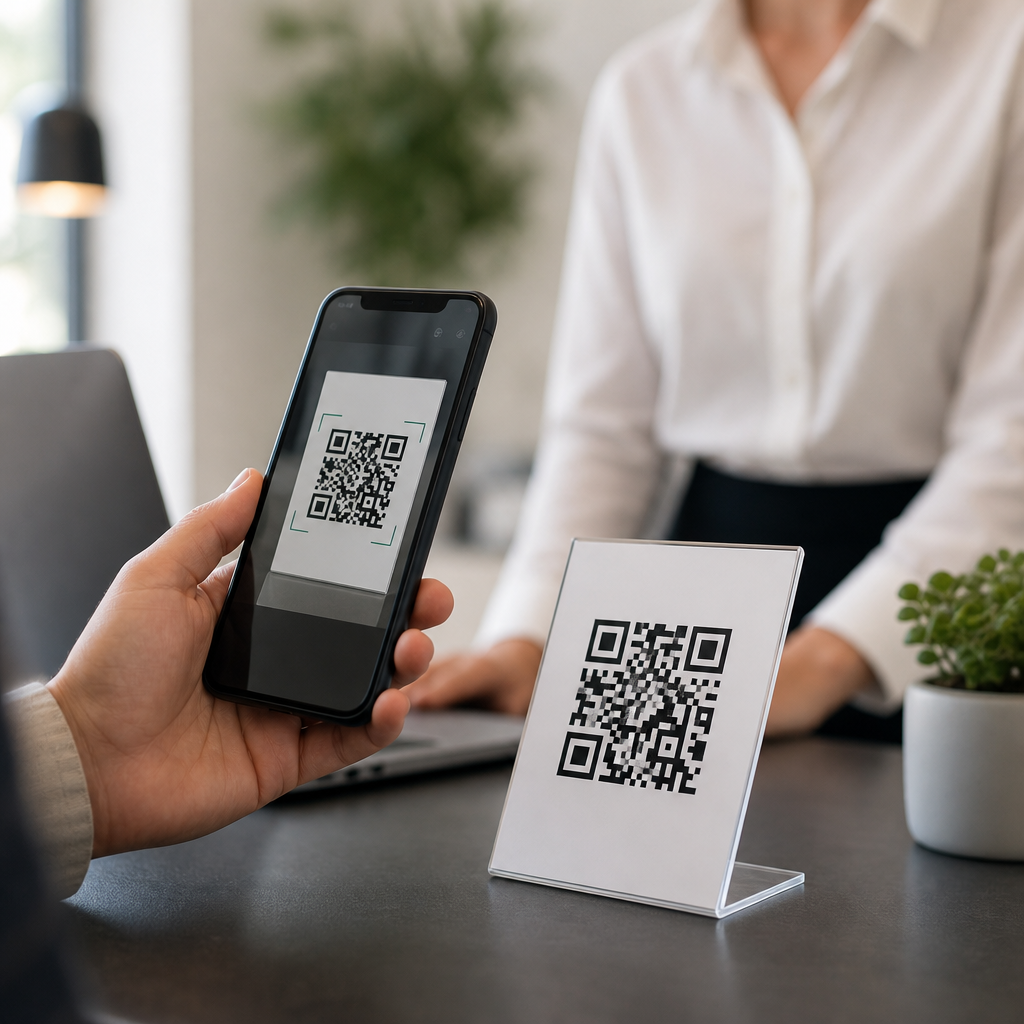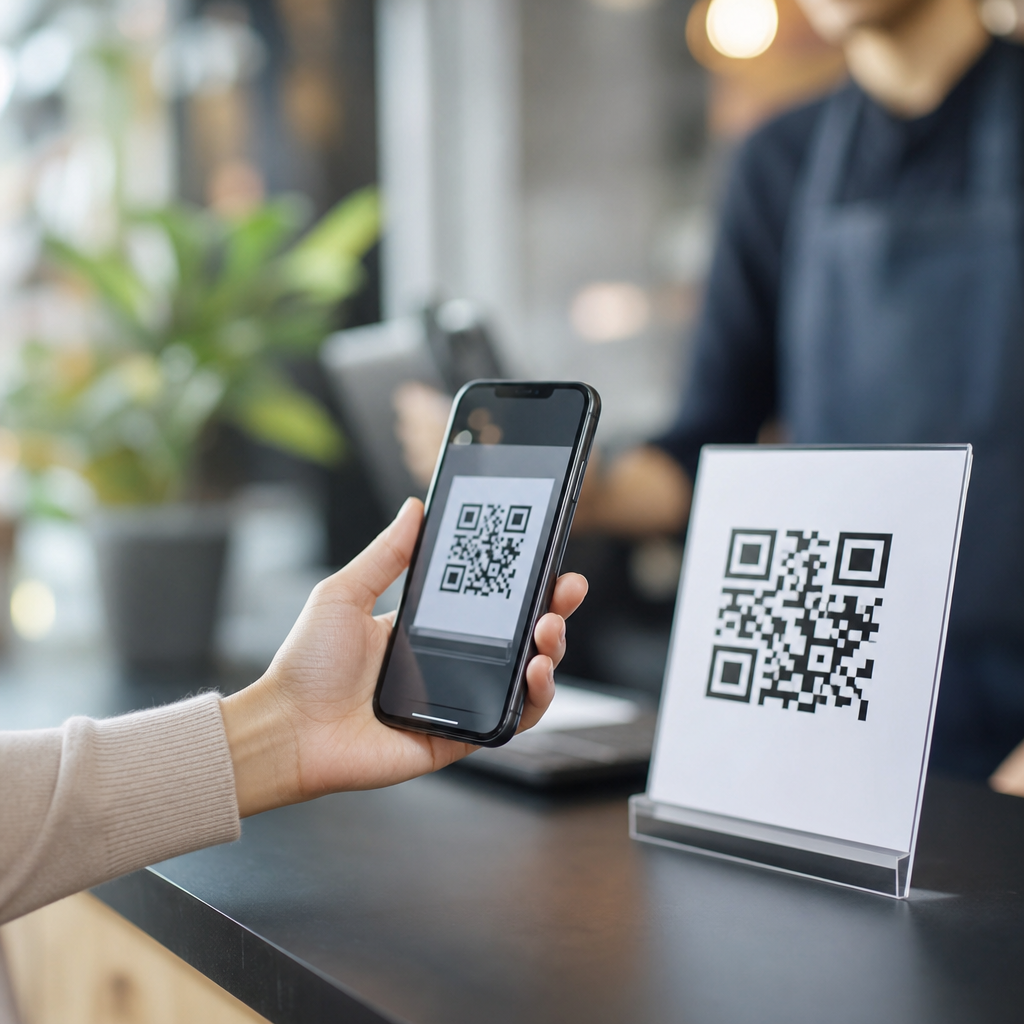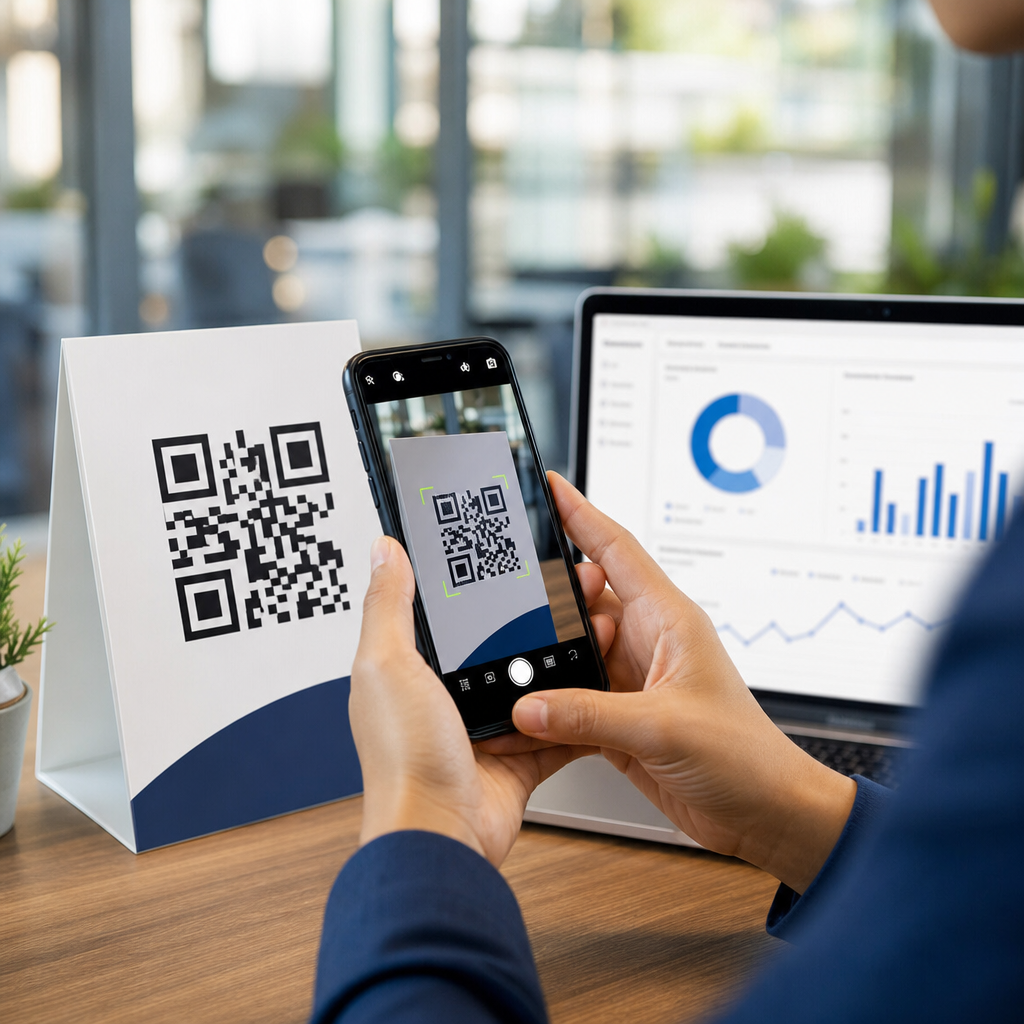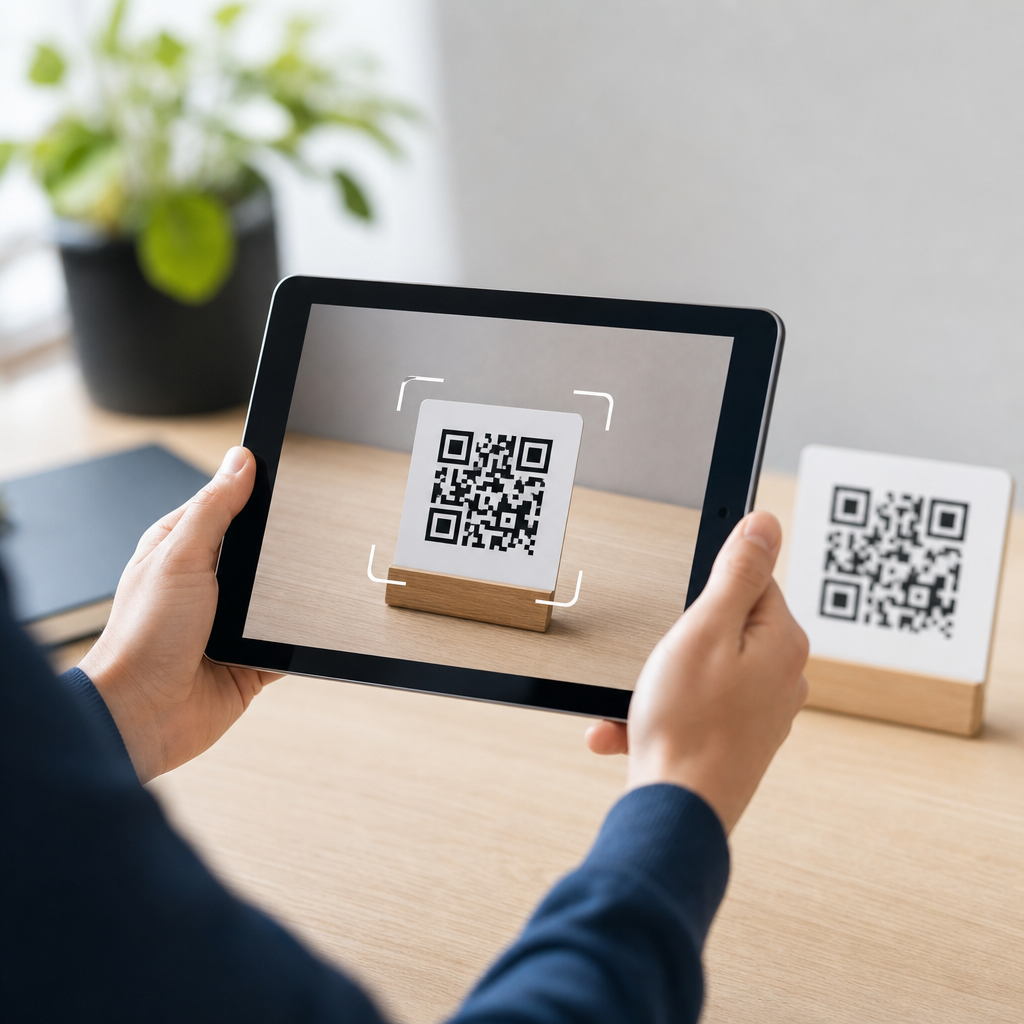
Scanning a QR code on a tablet is usually simple, but the exact method depends on your device, camera app, operating system, and whether the code is printed, displayed on another screen, or saved as an image. A QR code, short for Quick Response code, is a square matrix barcode that stores data such as website links, Wi-Fi credentials, payment requests, app downloads, contact details, or login tokens. In day-to-day support work, I have found that most tablet scanning problems come from three issues: people are unsure which app to use, the camera lacks permission or autofocus, or the code is being scanned from the same device screen. This matters because tablets are often shared devices in schools, warehouses, retail counters, clinics, and family homes, where reliable scanning saves time and reduces setup errors. For anyone visiting a FAQs and Troubleshooting Hub, the practical question is not only how to scan a QR code on a tablet, but also how to do it safely, what to do if it fails, and which related mobile-specific problems are worth checking next.
On most modern tablets, the fastest answer is this: open the Camera app, point it at the QR code, hold steady for one to three seconds, then tap the banner or prompt that appears. On iPad models running recent versions of iPadOS, QR detection is built into the native Camera app and works from the rear camera without extra software. Many Android tablets from Samsung, Lenovo, Google, and other brands also support QR recognition directly in the Camera app, though some manufacturers place the feature under Bixby Vision, Google Lens, or a camera setting labeled Scan QR Codes. If your tablet does not recognize the code automatically, install a reputable scanner such as Google Lens, enable camera permissions, and test with a clear code from a trusted source. That direct workflow resolves the majority of cases.
Because this page serves as a hub for mobile-specific FAQs, it also helps to define the adjacent issues users commonly face. People often need to scan a QR code from a screenshot, from a website open on the same tablet, or in low light. Others want to know why a QR code opens the wrong app, whether a tablet without cellular service can still scan codes, or why school-managed devices block camera access. Those are not edge cases; they are routine support scenarios. Understanding the core scanning process first makes every related troubleshooting article easier to follow, whether the next step involves camera permissions, browser prompts, app links, or security warnings.
How to Scan a QR Code on iPad and Android Tablets
If you are using an iPad, open Camera and aim the rear lens at the code from about six to ten inches away. Keep the code fully inside the frame and wait for the notification banner near the top of the screen. Tap the banner to open the link, join the Wi-Fi network, or complete the action. If nothing appears, go to Settings, then Camera, and confirm that code scanning is enabled. On some managed devices, Screen Time restrictions or mobile device management policies can disable camera functions entirely, so the issue may be administrative rather than technical.
On Android tablets, the steps vary slightly by brand. Samsung Galaxy Tab devices often recognize codes in the Camera app or through Quick Settings and Bixby Vision. Pixel Tablet users can rely on Google Lens, either embedded in the camera experience or available through the Google app. Lenovo and other Android tablets may require Lens if the default camera app lacks native recognition. In practice, I advise users to test the Camera app first, then Google Lens second, because Lens is broadly supported and handles both live scanning and saved images well.
| Tablet type | Fastest method | Where to check if it fails |
|---|---|---|
| iPad | Camera app | Settings > Camera, permissions, device restrictions |
| Samsung tablet | Camera app or Bixby Vision | Camera settings, QR toggle, permissions |
| Pixel Tablet | Google Lens | Google app permissions, camera access |
| Lenovo or other Android tablet | Camera app or Google Lens | Play Store updates, camera support, permissions |
If the QR code is on another device, such as a laptop screen or checkout terminal, increase screen brightness on that device and avoid reflections. If the code is printed, flatten the page and improve lighting. Most scanners need clear contrast, visible finder squares in three corners, and enough focus to distinguish the small modules inside the pattern. A damaged or stylized code may still scan if error correction is high, but heavily branded designs fail more often than standard black-and-white codes.
How to Scan a QR Code Stored on the Same Tablet
A common question in mobile troubleshooting is how to scan a QR code that is already on the tablet screen. You cannot point the same camera at the same screen, so you need image-based recognition. On iPad, save the image to Photos, then press and hold the QR code if the system detects an actionable link; in some cases, Live Text-style recognition or Safari image actions will surface the link. On Android, open the image in Google Photos and tap the Lens icon. Lens reads URLs, Wi-Fi setup codes, event details, and contact cards directly from screenshots or downloaded images.
This same method works for emailed onboarding codes, app login pair codes, and classroom handouts saved as PDFs. If the code sits inside a PDF, take a screenshot first or open the PDF in an app that supports image sharing to Lens. In support environments, this is one of the most valuable workarounds because many people assume a second device is required when it usually is not. For related help, users often move next to articles covering screenshots not saving, Photos permissions, or Google Lens not appearing after an app update.
Why a Tablet Will Not Scan a QR Code
When scanning fails, start with the basics in a fixed order. First, clean the camera lens. Fingerprints, dust, and case edges regularly interfere with focus. Second, check lighting; the code should be bright but not washed out by glare. Third, move the tablet slightly closer or farther away until the camera locks focus. Fourth, verify camera permission for the app you are using. Fifth, update the operating system and camera-related apps. These steps solve most failures without deeper intervention.
There are also device-specific causes. Budget tablets may have lower-resolution cameras that struggle with small codes. Older operating systems may lack built-in recognition. Enterprise or school tablets may block camera access through Microsoft Intune, Jamf, or Google Admin policies. Some banking and authentication apps display one-time QR codes that expire in seconds, so a delayed scan can look like a camera problem when it is really a timing issue. If one code fails but others scan, the issue is probably the code itself, not the tablet.
Network state matters after the scan, not during image recognition. A tablet can usually detect the code offline, but opening a website, redeeming a coupon, or completing app-based verification may require internet access. Wi-Fi QR codes are a special case: the scan can trigger a network join flow, but success still depends on password accuracy and router compatibility. WPA2 and WPA3 networks generally work when the code is formatted correctly, while captive portals in hotels or campuses may still require a browser sign-in after scanning.
Security and Best Practices for QR Code Scanning
QR codes are convenient, but they are also a delivery method for malicious links, fake payment pages, and app sideload prompts. The safe rule is straightforward: scan only from trusted businesses, schools, coworkers, published documentation, or clearly labeled physical materials. Before tapping, read the preview prompt carefully. If the domain looks misspelled, uses a suspicious subdomain, or redirects through an unfamiliar shortener, stop. On managed business tablets, I recommend opening links only in approved browsers with web filtering enabled.
Be especially cautious with QR codes for payments and account logins. Fraud cases often involve a sticker placed over a legitimate restaurant menu code or parking meter code. For Wi-Fi sharing, confirm the network name before joining. For authentication, use official apps such as Microsoft Authenticator, Google Authenticator, or vendor-provided sign-in tools rather than generic scanners requesting excessive permissions. A good scanner app needs camera access; it does not need your contacts, microphone, or full storage library unless a specific feature justifies it.
Related Mobile-Specific FAQs This Hub Should Answer Next
As a sub-pillar hub, this page should connect users to the broader mobile troubleshooting path. The most useful follow-up topics are: why the camera app is missing or disabled, how to grant camera permission on iPad or Android, how to scan from a screenshot, why Google Lens is not showing, why a QR code opens the wrong app, how to scan a Wi-Fi QR code, how to use a tablet camera in low light, and what to do when enterprise management blocks scanning. In analytics reviews, these related questions cluster together because they come from the same task flow: a user is trying to complete setup, sign-in, payment, or pairing on a mobile device and gets stuck at the scan step.
The key takeaway is that most tablets can scan QR codes quickly with the built-in camera or Google Lens, and the fix for failures is usually straightforward: confirm permissions, improve focus and lighting, or use image-based scanning for screenshots. Once you know whether the code is physical, on another screen, or saved on the same tablet, the right method becomes obvious. Use trusted sources, inspect link prompts before opening them, and keep your tablet updated for the best results. If you are building or organizing a mobile help center, link this hub to your camera, permissions, screenshot, and Wi-Fi troubleshooting guides so users can move from the core QR code question to the exact fix they need.
Frequently Asked Questions
How do I scan a QR code on a tablet?
In most cases, you can scan a QR code on a tablet by opening the built-in camera app and pointing the rear camera at the code. Hold the tablet steady, make sure the full QR code is visible on the screen, and give the camera a moment to focus. If your tablet supports native QR scanning, a notification, banner, or pop-up link should appear automatically. Tap that prompt to open the website, join a Wi-Fi network, download an app, save contact information, or complete whatever action the QR code contains.
The exact steps depend on the tablet’s operating system and camera software. On many iPads and Android tablets, QR code recognition is built directly into the camera app, but some devices require you to enable QR scanning in camera settings first. If the regular camera app does not recognize the code, check for a dedicated scanning mode such as “Lens,” “Scan,” or “QR.” Some tablets also support QR reading through apps like Google Lens, a browser, a manufacturer camera app, or a third-party scanner. If nothing happens when you point the camera at the code, the issue is usually related to camera permissions, unsupported software, poor focus, or low lighting rather than the QR code itself.
Why won’t my tablet scan a QR code?
Most QR scanning failures on tablets come from three common problems: the camera cannot clearly see the code, the device does not have QR recognition enabled, or the code itself is difficult to read. Start with visibility. Make sure the room is bright enough, the camera lens is clean, and the QR code is not too close or too far from the tablet. If you move the tablet slightly back and let the camera focus, scanning often starts working immediately. Also check that the entire square code, including its edges, is visible and not cut off by the camera frame.
Next, confirm that your tablet actually supports QR scanning through the app you are using. Some older tablets or stripped-down camera apps can take photos but do not decode QR codes automatically. In that case, using Google Lens, a manufacturer scan tool, or a reputable QR scanner app may solve the problem. It is also worth checking whether the code is blurry, damaged, printed too small, displayed on a cracked screen, or distorted by glare. If the QR code opens a link but then fails after you tap it, the problem may not be scanning at all—it could be a broken website, network issue, expired login token, or invalid code destination. Testing with a different QR code can help you tell whether the problem is with the tablet or with the specific code you are trying to use.
Can I scan a QR code that is already saved as an image on my tablet?
Yes, in many cases you can scan a QR code from an image that is already saved on your tablet, but you usually need a tool that can read codes from photos rather than the live camera view. On many Android tablets, Google Photos or Google Lens can do this. Open the saved image, look for the Lens icon, and let the app analyze the picture. If it detects a QR code, it should display the embedded content such as a link, text, location, contact card, or network information. Some tablet manufacturers also include this ability in the gallery app or file viewer.
On iPads and some other tablets, you may need to open the image in Photos and use built-in text or visual detection features if available, or use a trusted QR scanning app that supports image import. This is especially useful when someone emails you a QR code, sends it in a chat, or when you take a screenshot of a code from a website. Keep in mind that the image must be clear and large enough for the software to decode it. If the code is cropped, low-resolution, compressed, or partially covered, the tablet may fail to read it. In support situations, I often recommend zooming in on the image or using a cleaner original file if the first scan attempt does not work.
How do I scan a QR code that is showing on the same tablet screen?
You cannot normally use the tablet’s camera to scan a QR code that is displayed on that same tablet screen, because the camera cannot point at the screen it is currently using. Instead, you need to use an image-based method. If the QR code is on a web page, in an email, inside an app, or in a screenshot, save the image or take a screenshot of it. Then open that image in a gallery app, photo app, or scanning tool that supports reading QR codes from saved images. Google Lens, Google Photos, some browser tools, and certain third-party scanner apps can do this very well.
If your tablet does not have that feature, another simple option is to display the code on the tablet and scan it using a different device such as a phone. This is common when logging into apps, pairing devices, or confirming account access. If the QR code is meant for secure login or payment, be careful about which app you use to read it and avoid uploading sensitive codes to unknown websites or untrusted scanning apps. The safest approach is to use built-in tools from your tablet’s operating system or reputable apps from established developers.
Do I need a special app to scan QR codes on a tablet, and is it safe?
Not always. Many modern tablets can scan QR codes without installing anything extra because the feature is already built into the camera app, operating system, or a companion tool like Google Lens. Before downloading a separate app, try the built-in camera first, then check your camera settings, photo app, or search tools. This is usually the easiest and safest route because native scanning features are integrated with the system and are less likely to contain misleading ads, unnecessary permissions, or privacy risks.
If you do need a separate app, choose one carefully. Use a reputable developer, review the app’s ratings and update history, and be cautious if a simple QR scanner asks for unrelated permissions such as contacts, microphone, or extensive storage access. QR codes themselves are not automatically dangerous, but they can lead you to harmful websites, fake login pages, fraudulent payment requests, or unwanted downloads. Before tapping a scanned result, read the preview if your tablet shows one, verify the website address, and make sure the code came from a trusted source. In practice, safe QR scanning is less about the act of scanning and more about checking where the code is trying to send you before you proceed.