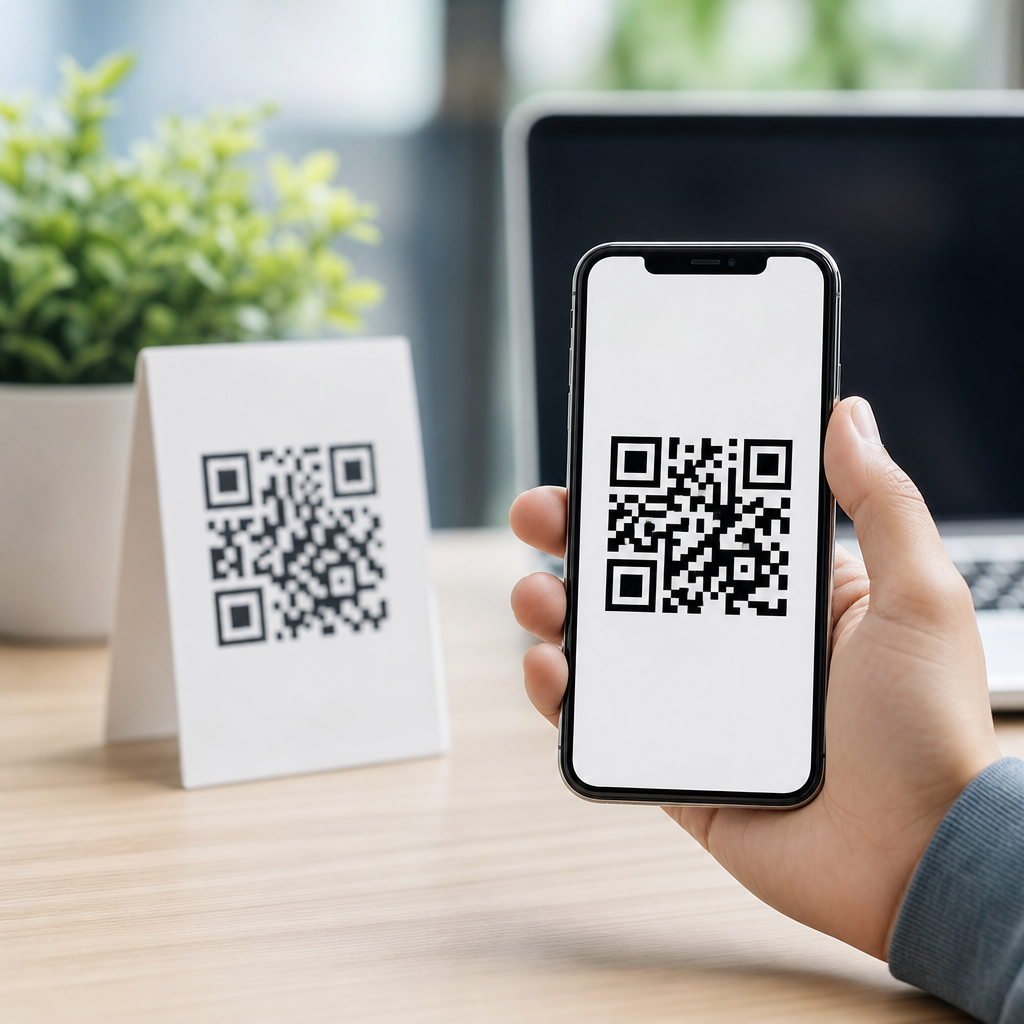
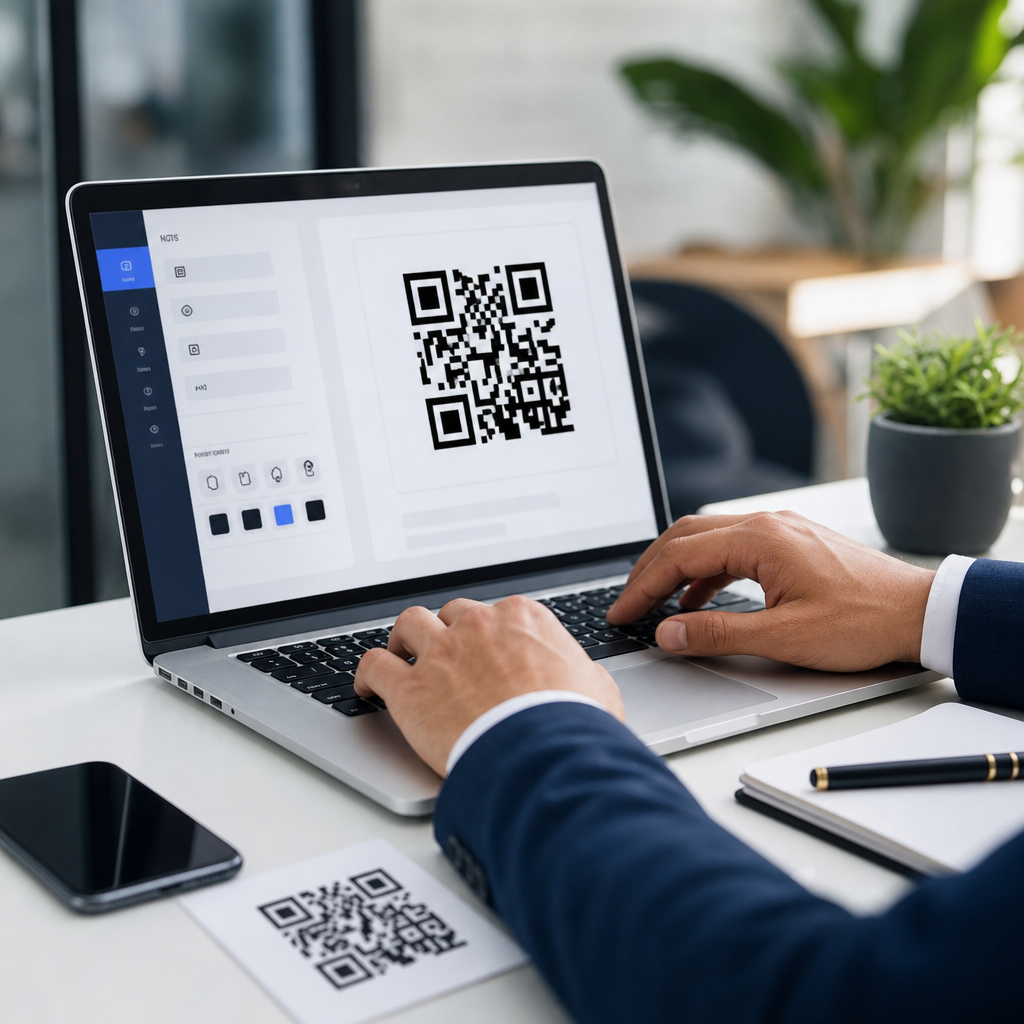
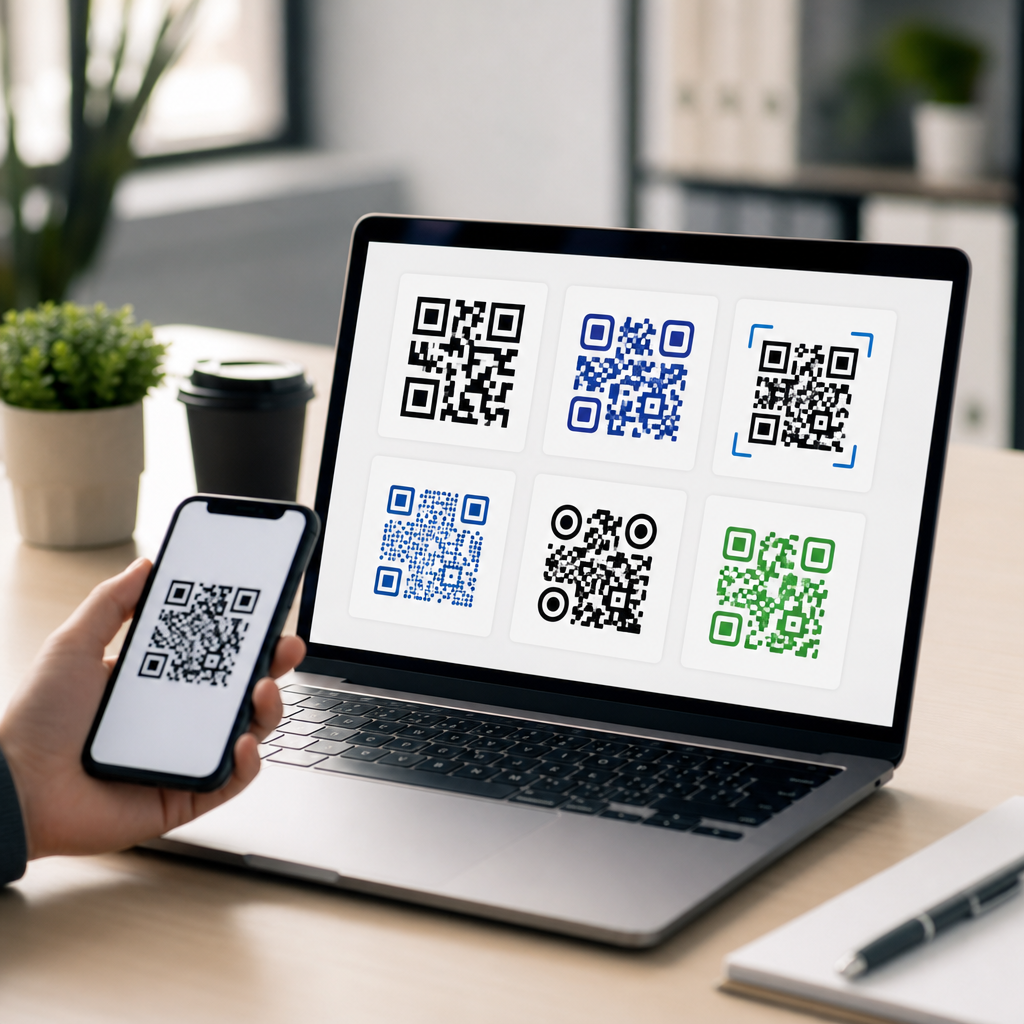
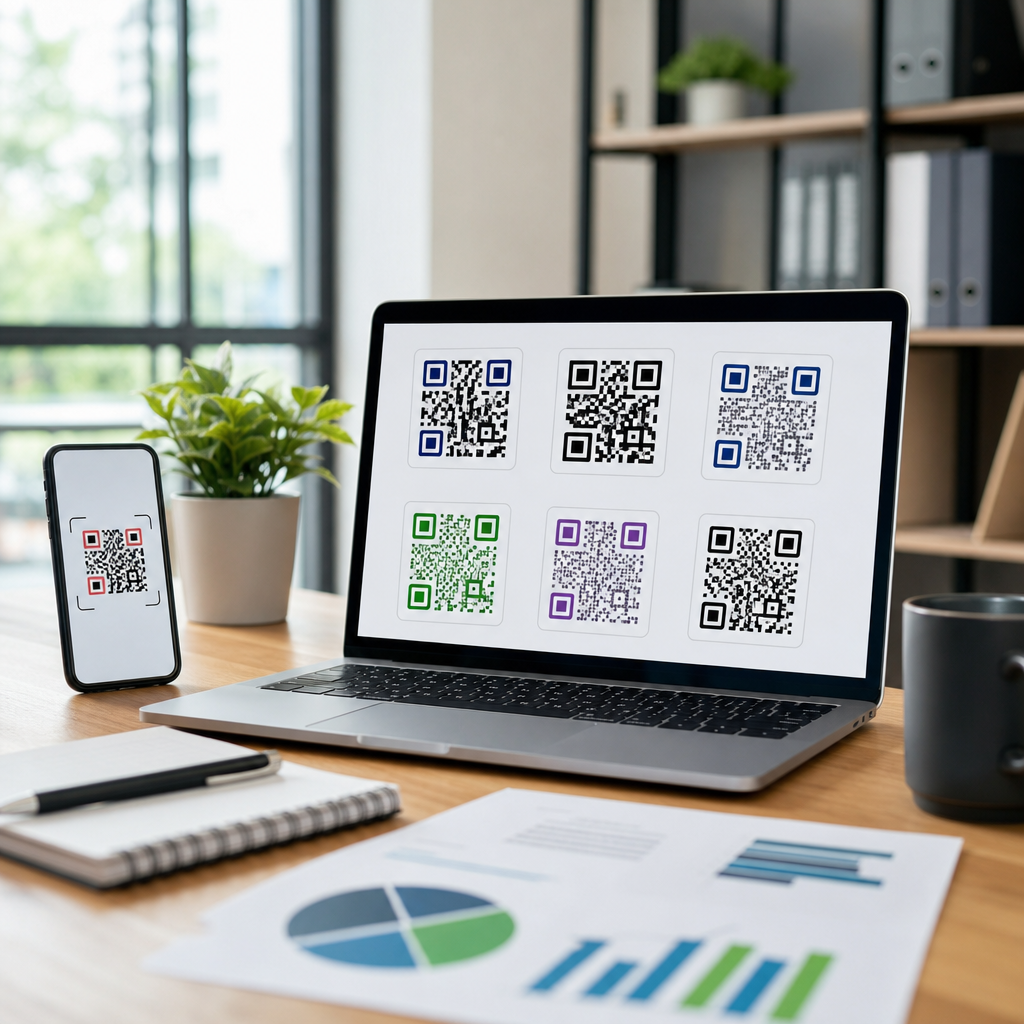
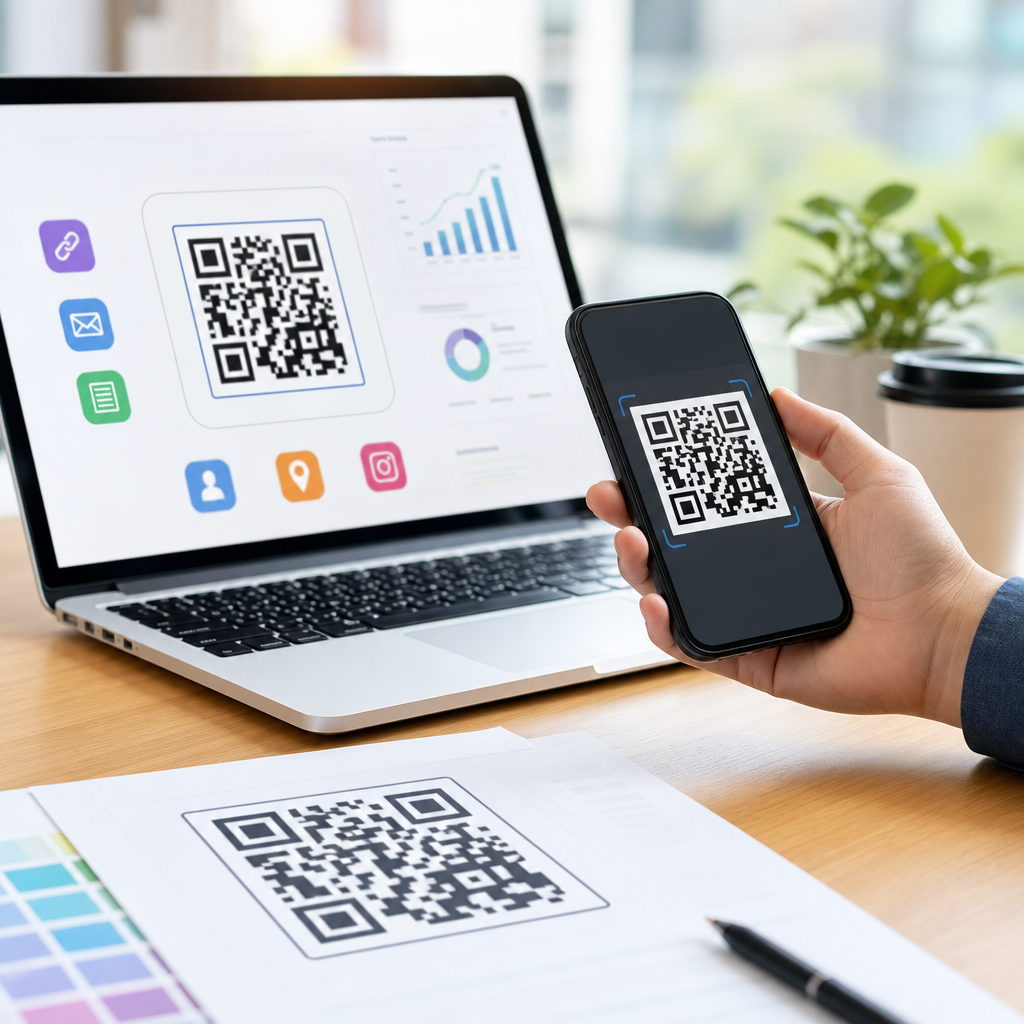
Choosing the best QR code format for printing starts with one practical truth: a scannable code depends as much on the file type you export as the design you create. In print production, “format” usually means the file type used to save the QR code, such as SVG, EPS, PDF, PNG, or JPEG. Each format handles resolution, scalability, color, compression, and editability differently. Those differences directly affect whether a phone can read the code on a business card, product label, poster, menu, flyer, or billboard. I have prepared QR codes for offset print, thermal labels, packaging sleeves, and trade show graphics, and the file choice is one of the first decisions that prevents expensive reprints.
The reason this matters is simple: printed QR codes are unforgiving. A web image that looks sharp on a screen can fail when enlarged, downsampled, or compressed for press. A code that scans perfectly from a PDF proof may become unreliable after ink gain, low contrast, or poor raster export. For most print applications, the goal is to preserve the square modules, quiet zone, and contrast ratio with as little distortion as possible. That is why understanding QR code formats and file types is essential for anyone creating mobile QR codes for real-world use. If you want one default answer, vector formats are usually best for printing, while high-resolution raster files are acceptable for limited use cases.
This hub explains the core QR code file types, when to use each one, what printers and designers expect, and how to choose a format based on print method and output size. It also connects the broader topic of QR code formats and file types into a single practical framework. By the end, you will know which format is best for printing, which formats to avoid, and how to hand off files cleanly to a designer, print shop, or packaging vendor without losing scan reliability.
Why vector formats are usually the best QR code format for printing
The best QR code format for printing is usually a vector file, most commonly SVG, EPS, or print-ready PDF. A vector QR code is built from mathematically defined paths instead of pixels. That means it can scale from a tiny coupon code to a storefront window decal without becoming blurry. In production, this matters because scan performance depends on crisp module edges. If the edges soften, merge, or distort, cameras have a harder time detecting the finder patterns and timing patterns that make a QR code readable.
SVG is often the most flexible option for everyday design workflows. It stays sharp at any size, is widely supported by modern design software, and is easy to place in Adobe Illustrator, Figma, Inkscape, and many web-to-print tools. EPS remains common in traditional print shops because it has long been a reliable exchange format for vector artwork. PDF is ideal when the QR code is already placed into a finished layout and needs to travel with fonts, bleeds, and other production elements. In my experience, if a printer asks for “vector artwork,” sending an outlined SVG or EPS usually resolves the issue fastest.
Vector files also reduce the risk of accidental quality loss. Designers often resize assets repeatedly during layout. A vector code survives that process. A raster code can become resampled, anti-aliased, or exported at the wrong resolution. For packaging and signage, where the same QR code may appear in several sizes across dielines, cartons, and point-of-sale pieces, vector originals save time and maintain consistency.
When PNG works well and when raster formats create problems
PNG is the best raster format for most QR code printing situations where vector is unavailable. Unlike JPEG, PNG uses lossless compression, so it preserves sharp edges better and avoids compression artifacts around the modules. That makes PNG suitable for flyers, office printouts, inserts, and many digital-to-print workflows. If you must use PNG, export at the final print size or larger and keep the effective resolution high. For small print pieces, 300 pixels per inch is the minimum baseline, though 600 pixels per inch is safer for compact codes or low-quality substrates.
JPEG is usually the wrong choice for a QR code intended for print. JPEG compression introduces blocky artifacts and soft transitions, exactly the kinds of distortions that reduce scan reliability. It may look acceptable to the eye while degrading machine readability. I have seen teams pull a QR code from a slide deck or website banner as a JPEG, place it into packaging art, and then discover scan failures only after physical proofs arrived. The issue was not the QR data; it was the lossy file type.
TIFF can work in production environments that demand high-resolution raster assets, especially in publishing or archival workflows, but it is heavier than PNG and usually unnecessary unless a vendor specifically requests it. GIF is outdated for print and limited in color handling. For a simple rule, choose SVG first, PNG second, and avoid JPEG unless there is no alternative and the image quality is exceptionally controlled.
How print method, size, and material affect your format choice
The right QR code format depends on how the piece will be printed and where it will be scanned. Offset printing can reproduce fine detail well, so vector files are ideal and high-resolution PNGs can still perform adequately. Digital printing varies by press and substrate, which means toner spread, registration drift, and surface sheen can affect scan performance. Thermal transfer and direct thermal label printers are less forgiving; they often benefit from simplified, high-contrast QR codes exported as clean vector art or device-appropriate monochrome raster files. On corrugated packaging, absorbent stock can cause dot gain, so preserving generous module size matters more than adding visual styling.
Physical size also changes the equation. A QR code on a business card may be only 0.75 to 1 inch wide, leaving little room for error. In that case, vector is strongly preferred because every edge needs to remain crisp. A poster viewed from a few feet away can tolerate a larger code and may still scan if printed from a high-resolution PNG. For billboards, the code must be physically large enough for the scanning distance, and vector files simplify that scaling. Material matters too: glossy laminates can create glare, textured paper can break up fine edges, and flexible films can warp the code when applied.
| Format | Type | Best use for printing | Main limitation |
|---|---|---|---|
| SVG | Vector | Packaging, signage, cards, labels, general print design | Some legacy print workflows need conversion |
| EPS | Vector | Commercial printers, Illustrator-based production | Less convenient for web-first teams |
| Vector/container | Final artwork handoff and print-ready layouts | Can hide rasterized elements if exported poorly | |
| PNG | Raster | Short-run print, office printouts, simple placements | Quality drops when enlarged or resampled |
| JPEG | Raster | Only as a last resort | Lossy compression reduces scan reliability |
Best practices for creating print-ready QR code files
The best QR code format for printing will still fail if the file is prepared carelessly. Start with enough quiet zone, the empty margin around the code that allows scanners to isolate it from surrounding graphics. The standard recommendation is four modules on all sides, and I treat that as the minimum, not the target. Maintain strong contrast, ideally black on white or another dark-on-light combination. Reverse codes can work, but they need careful testing. Avoid placing QR codes over patterns, photos, metallic inks, or transparent areas unless you have confirmed scan reliability on the final substrate.
Use the lowest error correction level that meets the design need, unless a logo or shape modification requires more redundancy. Higher error correction can make a code denser, which is not always helpful for small print. Keep the encoded URL short where possible, especially with static QR codes, because shorter data strings often produce simpler symbols. Dynamic QR codes can help by encoding a shorter redirect URL while allowing destination changes later. Before release, test with multiple devices, including older Android phones and recent iPhones, under realistic lighting conditions.
In production, I recommend these handoff standards: provide the original vector file, a print-ready PDF with the code placed at size, and a high-resolution PNG fallback. Outline any text if the code is embedded in a branded call-to-action lockup. Confirm that no prepress step rasterized the vector unexpectedly. Ask for a hard proof when the code appears on small packaging, textured stock, or reflective material. Most QR code failures are preventable when file type, print method, and proofing are considered together.
How this hub fits the broader topic of QR code formats and file types
This page serves as the hub for QR code formats and file types within the larger creating mobile QR codes topic. The central takeaway is direct: for print, use vector whenever possible; for raster, use PNG at high resolution; avoid JPEG for critical applications. Around that core decision are several related questions that deserve their own deeper guides: SVG versus PNG for QR codes, EPS versus PDF in commercial print, the best QR code size for business cards, how resolution affects scan distance, which file types work for Cricut and cutting machines, and how dynamic QR codes influence symbol density and print reliability.
A complete QR workflow also includes version control, destination testing, analytics, and brand consistency. The file type is just one variable, but it is the variable that often determines whether the rest of the strategy survives contact with the physical world. If you are building a library of reusable assets, store the master QR code as SVG or EPS, name files by campaign and destination, and keep a proofed PNG derivative for quick placement. That simple system prevents teams from recycling low-quality screenshots or compressed exports months later.
If you are choosing the best QR code format for printing today, start with SVG. If your printer prefers EPS or PDF, provide that too. If your workflow only accepts raster, export a PNG at the final size with generous resolution and test it on the actual material before approving the run. Treat print as a technical environment, not just a design surface, and your QR codes will scan faster, fail less, and support better mobile experiences. Review your current QR assets, replace weak file types, and standardize your print-ready format now.
Frequently Asked Questions
What is the best QR code file format for printing?
For most print applications, vector formats such as SVG, EPS, and PDF are the best choices because they can scale to any size without losing sharpness. A QR code works by preserving clean, high-contrast edges in its square modules, and vector files keep those edges crisp whether the code is printed on a small business card or enlarged for a poster, storefront sign, or trade show display. That makes them far more reliable than raster formats when you need flexibility during layout and production.
Among those options, SVG is often the most practical for modern design workflows because it is lightweight, scalable, and easy to place in many digital and print design programs. EPS is still common in professional print environments, especially when working with legacy workflows or certain packaging and signage vendors. PDF is also a strong choice because it preserves vector quality while fitting smoothly into proofing and print-ready production processes. If your printer, designer, or software supports vector files, they are generally the safest and most professional route.
Raster formats like PNG and JPEG can still work, but they require more care. PNG is usually the better raster option because it uses lossless compression and preserves hard edges better than JPEG. JPEG should typically be avoided for printed QR codes because its compression introduces artifacts and blurring around the modules, which can reduce scan accuracy. If you must use a raster file, it needs to be exported at a sufficiently high resolution for the final print size and should never be stretched larger after export.
Is SVG or PNG better for a printed QR code?
SVG is usually better for printed QR codes because it is a vector format, which means the code can be resized indefinitely without becoming blurry or pixelated. That matters in print because the same QR code may be used across multiple materials, such as flyers, brochures, product packaging, and large-format signage. With SVG, the edges of the QR code stay mathematically precise, helping maintain the contrast and shape that scanners rely on for accurate reading.
PNG is still a valid option in many situations, especially if you are placing the QR code into software that does not handle vector files well or if you are exporting a final asset for a fixed print size. Because PNG uses lossless compression, it maintains detail better than JPEG and is less likely to introduce visual distortions. However, a PNG has a fixed resolution. If it is created too small and then enlarged in a layout program, it can lose clarity and become harder to scan once printed.
In practical terms, choose SVG when you want maximum flexibility, easy scaling, and the strongest long-term print quality. Choose PNG only when you know the exact final dimensions and can export it at high enough resolution for that size. If there is any chance the code will need to be resized later or used across different print pieces, SVG is the smarter and more dependable format.
Why is JPEG not recommended for QR code printing?
JPEG is generally not recommended for QR code printing because it uses lossy compression, which removes image data to reduce file size. That compression may be acceptable for photographs, but it is a poor fit for QR codes because QR codes depend on sharp, clearly defined square modules and clean transitions between dark and light areas. Even small compression artifacts can soften edges, introduce noise, and distort the pattern enough to make scanning less reliable, particularly at smaller print sizes.
The risk increases when a JPEG QR code is edited, resized, saved multiple times, or placed into compressed production workflows. Each step can degrade quality further. What looks acceptable on a screen may print with slightly fuzzy edges or muddy contrast, and that can be enough to affect real-world scanning performance. This is especially problematic on business cards, labels, receipts, or any application where the QR code is physically small and every detail matters.
If a raster format is necessary, PNG is the better alternative because it preserves the image without lossy compression. But in a professional print setting, vector formats remain the preferred solution. Avoiding JPEG is less about strict rules and more about reducing preventable scanning problems. When the purpose of the QR code is functionality, not just appearance, using a format that protects edge clarity is the safer decision.
What resolution should a QR code be if I print it as PNG?
If you are printing a QR code as a PNG, the right resolution depends on the final printed size, but a good general standard is at least 300 DPI at the exact dimensions it will appear in print. For example, if the QR code will print at 2 inches by 2 inches, the exported PNG should be at least 600 by 600 pixels. For higher-demand applications, especially where the code may be scanned from farther away or printed on textured materials, using a larger pixel dimension can provide additional safety.
It is important to understand that DPI alone does not guarantee quality unless the pixel dimensions match the final output size. A small PNG labeled as 300 DPI can still print poorly if it does not contain enough actual pixel data. The safest approach is to determine the final printed dimensions first, then export the QR code specifically for that size or larger. Once exported, avoid enlarging it inside your layout software, because scaling up a raster image reduces its effective resolution and can soften the crisp module edges.
In many cases, designers choose to overspecify raster QR code resolution to create a margin of safety. For example, exporting a code at 1000 pixels or more on each side may help when printing medium-size marketing materials. Still, if your workflow allows it, a vector file is better because it removes resolution concerns entirely. PNG can work well, but only when the file is prepared intentionally for the final print use.
Besides file format, what else affects whether a printed QR code scans well?
File format is only one part of QR code print performance. Size is a major factor. A QR code that is too small for its data density or viewing distance can become difficult to scan, even if the file itself is technically high quality. The more information encoded in the QR code, the more complex the pattern becomes, and that complexity often requires a larger printed size. A code for a simple URL can be smaller than a code storing more data or using a high error correction level.
Contrast is equally important. The safest setup is a dark code on a light background, typically black on white. Decorative color choices, gradients, low-contrast combinations, or busy background images can all reduce scan reliability. The quiet zone, which is the blank margin around the QR code, must also be preserved. If text, borders, graphics, or design elements crowd too close to the code, scanners may have trouble identifying it properly.
Print conditions matter as well. Glossy finishes, reflective surfaces, textured paper, poor ink spread control, and low-quality reproduction can all affect readability. Placement also matters in real-world use. A code on curved packaging, folded labels, or uneven materials may be harder to scan than one on a flat surface. The most reliable process is to generate the QR code in a print-friendly format, place it at an appropriate size, maintain strong contrast and clear spacing, and then test the final printed piece with multiple phones under normal lighting conditions before full production.