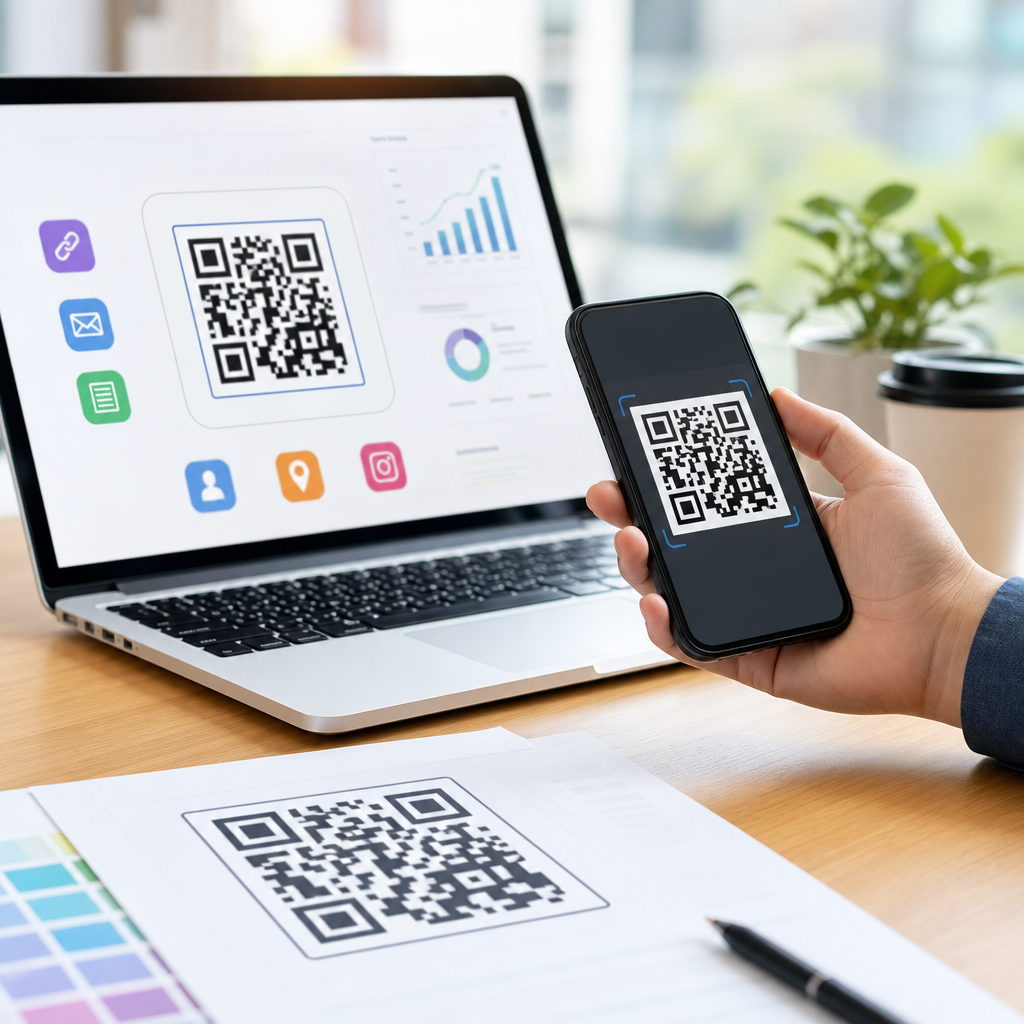
Choosing the right QR code file format matters more than most teams expect, because the format determines print quality, editing flexibility, page speed, and how reliably a code scans across mobile devices. In practical terms, a QR code file format is the way the code is stored and exported, such as PNG, SVG, or EPS. Each format handles edges, scaling, color, transparency, and software compatibility differently. I have seen the consequences firsthand: a marketing team exports a low-resolution PNG for a trade show banner, the printer enlarges it, the modules blur, and scan rates collapse on the event floor. The opposite also happens. A designer sends an EPS to a social media manager who cannot open it, so the team screenshots it, re-uploads it, and accidentally breaks the quiet zone. Understanding QR code formats and file types prevents these avoidable failures.
This topic sits at the center of creating mobile QR codes because the destination may be mobile, but the code itself appears everywhere: product packaging, app onboarding screens, restaurant menus, posters, email signatures, PDFs, and paid ads. A file that performs well in one context can be the wrong choice in another. PNG is usually best for digital use because it is widely supported and preserves sharp contrast. SVG is ideal when you need infinite scaling and easy editing in modern design tools. EPS remains useful in legacy print workflows and professional prepress environments, especially when vendors request vector artwork. The core decision is simple: choose raster formats like PNG for fixed-size digital placements, and choose vector formats like SVG or EPS when the code may be resized or professionally printed. Once teams understand that distinction, they make fewer production mistakes and get more dependable scans.
What QR code file formats mean and why the distinction matters
QR code file types fall into two categories: raster and vector. Raster files, including PNG and JPG, store an image as a grid of pixels. That means the file has a fixed resolution. If you enlarge it beyond its intended size, edges soften and square modules can become slightly rounded or anti-aliased, which reduces scan reliability. Vector files, including SVG, EPS, and PDF, store shapes mathematically. Because the modules are defined as paths instead of pixels, the artwork scales without losing sharpness. For QR codes, that difference is not cosmetic. Scanners depend on clear, high-contrast module boundaries, consistent finder patterns, and a preserved quiet zone around the code.
Another important distinction is editing behavior. In my own production work, PNG is the handoff format when a code is final and placement size is known. SVG is the working format when a brand team may need to adjust color, add a logo, or resize for multiple placements. EPS is often the format a commercial printer or packaging vendor asks for because older RIP systems and Adobe Illustrator-based workflows still handle EPS predictably. These choices affect not only image quality but also turnaround time. When teams pick the wrong format, revisions multiply: files need conversion, transparency behaves unexpectedly, and printers flag technical issues during preflight. A good hub page on QR code formats should make one point clear: choose the format based on output environment, not personal preference.
PNG for QR codes: best uses, strengths, and limitations
PNG is the most common QR code format for websites, apps, slide decks, email campaigns, and social graphics. It uses lossless compression, so unlike JPG, it does not introduce the blocky artifacts that can damage scan performance. For a mobile landing page QR code placed in a blog sidebar, a properly exported PNG is usually the right choice. It loads quickly, works in every browser, and can include transparency if the code needs to sit on a colored background block. Most QR generators default to PNG because it is dependable for general digital publishing.
That said, PNG has real limits. Resolution must be chosen at export, and many teams choose too small a size. A 300 by 300 pixel PNG may work on a web page, but it is not suitable for a flyer that might later be enlarged for retail signage. I regularly advise teams to create a master vector file even if the immediate need is digital, then export PNG versions for each placement. For mobile QR codes on screens, use enough pixel density to keep edges crisp on high-resolution displays. If the code will appear in print, calculate physical size and target at least 300 PPI at final dimensions. PNG is also less convenient for future edits. Changing stroke shapes, recoloring individual elements, or aligning a logo is far easier in SVG than in a flattened raster image.
SVG for QR codes: scalability, editability, and modern workflow advantages
SVG is the most versatile QR code file format for teams that need one source file for many outputs. Because SVG is vector-based, it scales cleanly from a small business card placement to a large storefront window decal without losing edge definition. That single property makes it a strong default for designers, marketers, and product teams managing omnichannel assets. In Figma, Adobe Illustrator, Sketch, and most modern browsers, SVG files remain easy to place, inspect, and adapt. If a brand update changes dark navy modules to pure black for contrast compliance, an SVG can be updated in seconds.
SVG also works well in responsive digital environments. A QR code embedded as SVG on a webpage can stay sharp on standard and Retina screens alike. File sizes are often efficient for simple black-and-white codes because the image is described as paths rather than dense pixel data. In my experience, SVG is the safest recommendation when a team anticipates reuse across print and digital but does not know final dimensions yet. The main caution is implementation discipline. Some content management systems, email builders, and ad platforms restrict SVG uploads for security or compatibility reasons. When that happens, export a placement-specific PNG from the SVG master. Also remember that over-stylizing a QR code in SVG does not make it better. Rounded modules, gradients, and decorative frames can work, but only if testing confirms the code still scans under realistic lighting and camera conditions.
EPS for QR codes: where it still fits in professional print production
EPS is older than SVG, but it remains relevant in commercial print, packaging, signage, and vendor handoff workflows. An EPS file stores vector information in a format that many prepress systems, RIPs, and print shops have supported for decades. If you are producing QR codes for offset printing on labels, corrugated packaging, or point-of-sale displays, an EPS may still be the requested deliverable. I encounter this most often with large-format printers and packaging suppliers that standardize around Adobe Illustrator and legacy proofing pipelines.
The benefit of EPS is predictable print scaling and clean path output. The drawback is convenience. EPS is less web-friendly than SVG, typically larger or less flexible in modern browser contexts, and not the format a non-designer will want for quick use in office documents. Transparency handling can also be more limited depending on the workflow. For that reason, EPS is rarely the only file a team should keep. The practical approach is to maintain a vector master, then store EPS for print vendors and SVG for modern editing and digital deployment. If your printer asks for EPS, provide it, but also confirm color mode, minimum size, and whether the code should remain 100 percent black for maximum contrast. Print reliability depends on more than format alone.
PNG vs SVG vs EPS: which QR code format should you choose?
The best QR code file type depends on output, editing needs, and production workflow. Use this quick comparison as a decision guide.
| Format | Type | Best for | Main advantage | Main limitation |
|---|---|---|---|---|
| PNG | Raster | Web pages, apps, slide decks, email, social posts | Universal support and lossless quality | Cannot scale up without quality loss |
| SVG | Vector | Reusable brand assets, responsive web, mixed print and digital | Scales infinitely and edits easily | Some platforms block or limit SVG uploads |
| EPS | Vector | Commercial print, signage, packaging, vendor handoff | Strong compatibility in legacy print workflows | Less convenient for everyday digital use |
If you need a direct answer, here it is. For most digital QR code use, choose PNG. For the best all-purpose master file, choose SVG. For professional printing when a vendor specifically requests it, choose EPS. This hierarchy prevents most format problems. It also supports better internal linking and asset governance inside a content team: one vector source, multiple exports, clear naming conventions, and fewer accidental screenshots or conversions.
Other QR code file types, scanning reliability, and format selection rules
Although this article focuses on PNG vs SVG vs EPS, a complete hub on QR code formats should mention adjacent file types. PDF is another vector-friendly option and is often accepted by printers, though it functions more like a document container than a simple image asset. JPG should generally be avoided for QR codes because lossy compression can create artifacts around module edges. WebP can work for digital, but support and workflow familiarity are less universal than PNG. TIFF appears in print environments, yet for QR codes it is usually unnecessary when vector formats are available.
Format choice does not override core scanning rules. Keep high contrast between foreground and background. Preserve the quiet zone, typically four modules wide, around the code. Avoid tiny print sizes; many practitioners use at least 0.8 by 0.8 inches as a baseline, then increase size with scan distance. Test on both iPhone and Android camera apps before release. If adding a logo, rely on error correction carefully and verify performance after compression, upload, and print proofing. The strongest workflow is straightforward: generate the QR code in vector, archive the SVG, export PNGs for fixed digital placements, create EPS only when a printer or vendor needs it, and test every final asset in the real environment where people will scan it. That approach protects quality, saves redesign time, and improves mobile response rates. Review your current QR code library, replace low-resolution legacy files, and standardize format selection before the next campaign launches.
Frequently Asked Questions
What is the difference between PNG, SVG, and EPS for QR codes?
The main difference comes down to how each file type stores the QR code image and how well it holds up across different use cases. PNG is a raster format, which means it is made of pixels. That makes it simple, widely supported, and easy to use for websites, email graphics, social posts, and basic digital marketing assets. The limitation is that PNG files have a fixed resolution. If you scale them up too far, the sharp square modules in the QR code can become blurry or jagged, which can reduce scan reliability and make the code look unprofessional in print.
SVG and EPS are vector formats. Instead of storing the QR code as pixels, they store it as paths and shapes. That means the code can be resized much more freely without losing edge sharpness. SVG is especially useful for web and modern design workflows because it stays crisp at any size, can often be edited in browser-friendly or design software, and is typically well suited for responsive layouts. EPS is also vector-based, but it is traditionally used in professional print environments and older publishing workflows. Many commercial printers and prepress teams still accept EPS because it integrates well with established production systems.
In practical terms, PNG is usually best for straightforward digital use, SVG is ideal when you want flexibility and scalable quality, and EPS is often chosen for print production where the printer or designer specifically requests it. The right choice depends on where the QR code will appear, how large it needs to be, whether it may need editing later, and what software or print vendor will handle the final file.
Which QR code format is best for print quality?
For print quality, vector formats usually win. SVG and EPS are generally the safest options when you need a QR code to appear in brochures, flyers, packaging, posters, signage, business cards, or large-format displays. Because they are vector-based, they preserve crisp edges no matter how much you scale them. That matters with QR codes because scanners rely on clear contrast and clean module boundaries. Soft edges, pixelation, or distortion can make scanning slower or less reliable, especially when the code is printed at a larger size or viewed under imperfect lighting conditions.
PNG can still work for print, but only when it is exported at a high enough resolution for the final physical size. This is where teams often run into trouble. A code that looks acceptable on a laptop screen may print poorly if it was exported too small and then enlarged inside a layout tool. Once a raster QR code is stretched, the loss of sharpness becomes visible, and the code may become harder for smartphones to read. That is why low-resolution PNGs are one of the most common causes of print QR code problems.
If you want the most dependable print workflow, start with SVG or EPS whenever possible. If your printer, designer, or publication requests one specifically, follow that requirement. If you must use PNG for print, make sure it is generated at the exact output size or larger, with sufficient resolution and strong contrast. Also test-scan a printed proof before approving a production run. Print quality is not just about appearance; it directly affects whether the QR code performs in the real world.
Is SVG better than PNG for QR codes on websites?
In many cases, yes, SVG is better than PNG for website QR codes, but it depends on the implementation. SVG offers a major advantage in scalability. Since it is vector-based, the QR code stays sharp on high-resolution screens, responsive layouts, and different device sizes. That can be especially helpful on modern websites where assets need to look clean across desktops, tablets, and phones. SVG files can also be lightweight for simple graphics like QR codes, which may help with page performance when handled properly.
PNG still has advantages, mainly around compatibility and simplicity. It is universally supported, easy to export, and straightforward to place in content management systems, landing pages, and email templates. If a team wants a dependable, no-fuss option for a fixed-size QR code on a page, PNG can be perfectly acceptable. The key is making sure the exported dimensions are large enough to remain crisp on the screen sizes where users will scan the code. A poorly sized PNG can appear fuzzy, especially on retina or other high-density displays.
SVG becomes the stronger choice when you want future-proof flexibility, clean scaling, and easier design adaptation. However, teams should still test the final rendering and scanning experience. A technically correct format does not guarantee success if the code is styled too aggressively, placed over a distracting background, or displayed too small. So while SVG is often the better web format from a quality and flexibility standpoint, the best answer is the one that balances site performance, implementation ease, visual clarity, and reliable scan behavior.
When should I use EPS instead of SVG for a QR code?
You should use EPS instead of SVG when your workflow is centered on professional print production and the people handling the final files specifically prefer or require EPS. This often happens with commercial printers, packaging vendors, large-format signage providers, legacy publishing systems, or design teams using print-oriented software setups that have long relied on EPS as a standard. In those environments, EPS can fit more smoothly into prepress processes, color management workflows, and established file handoff procedures.
From a quality perspective, both EPS and SVG can preserve the sharp vector edges that QR codes need. The difference is usually less about scan performance and more about compatibility. SVG is excellent in modern design and web contexts, but not every print workflow treats SVG equally well. Some vendors may flatten, reinterpret, or mishandle SVG files depending on the software chain involved. EPS can be the safer choice when you want to reduce surprises in a traditional print pipeline and work with a format the printer knows well.
That said, EPS is not usually the most convenient option for web use or for lightweight digital publishing. It is more specialized, and it may be less friendly in browser-based or collaborative digital environments. A practical rule is this: use SVG for flexible, modern, cross-channel design work unless a print vendor asks for EPS. If the printer says EPS is preferred, that request should carry real weight, because using the format they handle best can prevent costly production errors and ensure the QR code prints exactly as intended.
How do I choose the right QR code file format for my project?
The best way to choose is to start with the end use, not the file extension. Ask where the QR code will appear, how large it needs to be, whether it may be resized later, who needs to edit it, and what software or vendor will receive it. If the code is going on a website, app landing page, digital brochure, presentation, or email asset, PNG may be fine for fixed-size use, while SVG is often better if you want sharp scaling and future flexibility. If the code is headed for print, packaging, trade show displays, or any environment where size and output quality matter, vector formats like SVG or EPS are usually the stronger choice.
You should also think about editing and brand customization. If your team may need to adjust color, integrate the code into multiple layouts, or resize it for different placements, vector files are much more forgiving. They make it easier for designers to adapt the asset without introducing quality loss. PNG is more limiting because once it is exported, it is locked to a pixel grid. That can be perfectly fine for simple deployment, but less ideal for ongoing production work.
Finally, always validate the QR code in realistic conditions. No matter which format you choose, test it at actual size, on the real background, and on the intended medium. Scan it with multiple phones and under normal lighting. The most important outcome is not whether the file is PNG, SVG, or EPS in theory, but whether the final QR code is sharp, readable, fast to load, easy to manage, and consistently scannable for users. That is the standard that should guide every format decision.