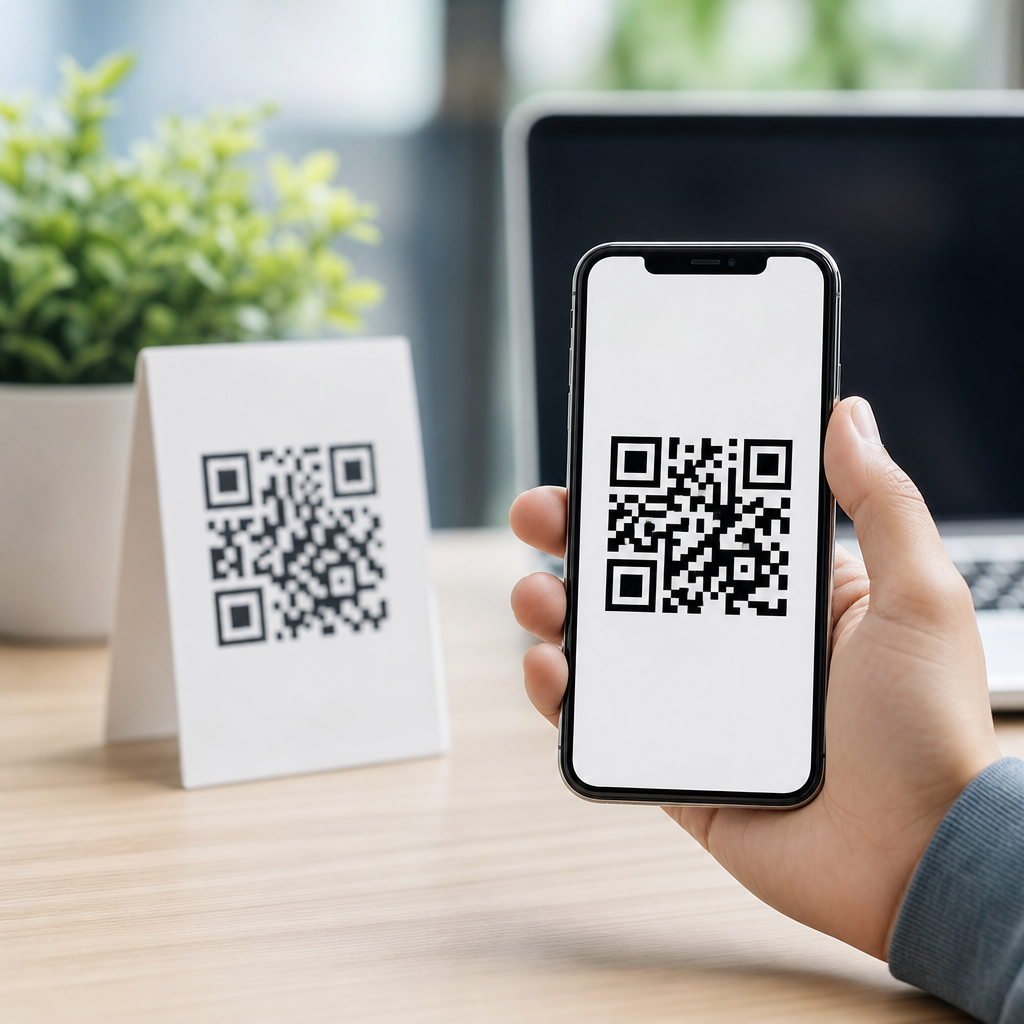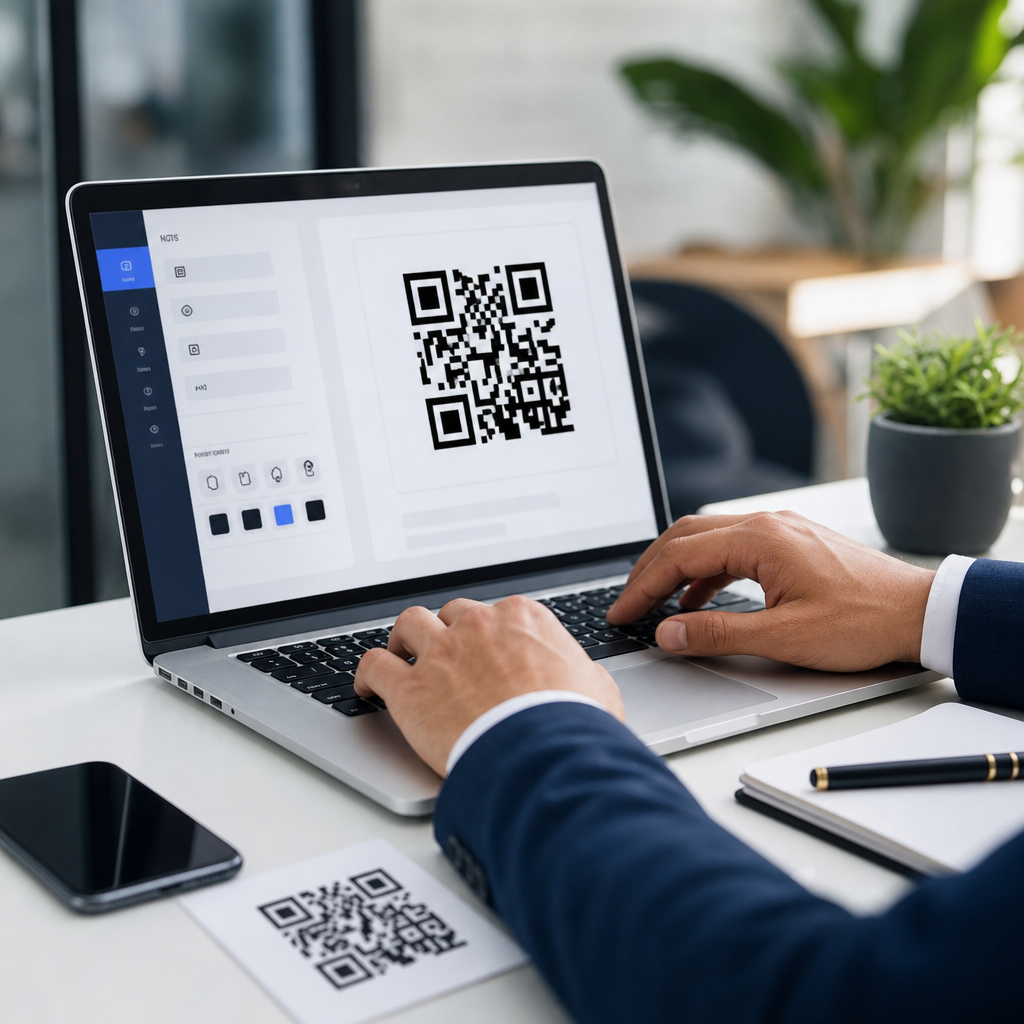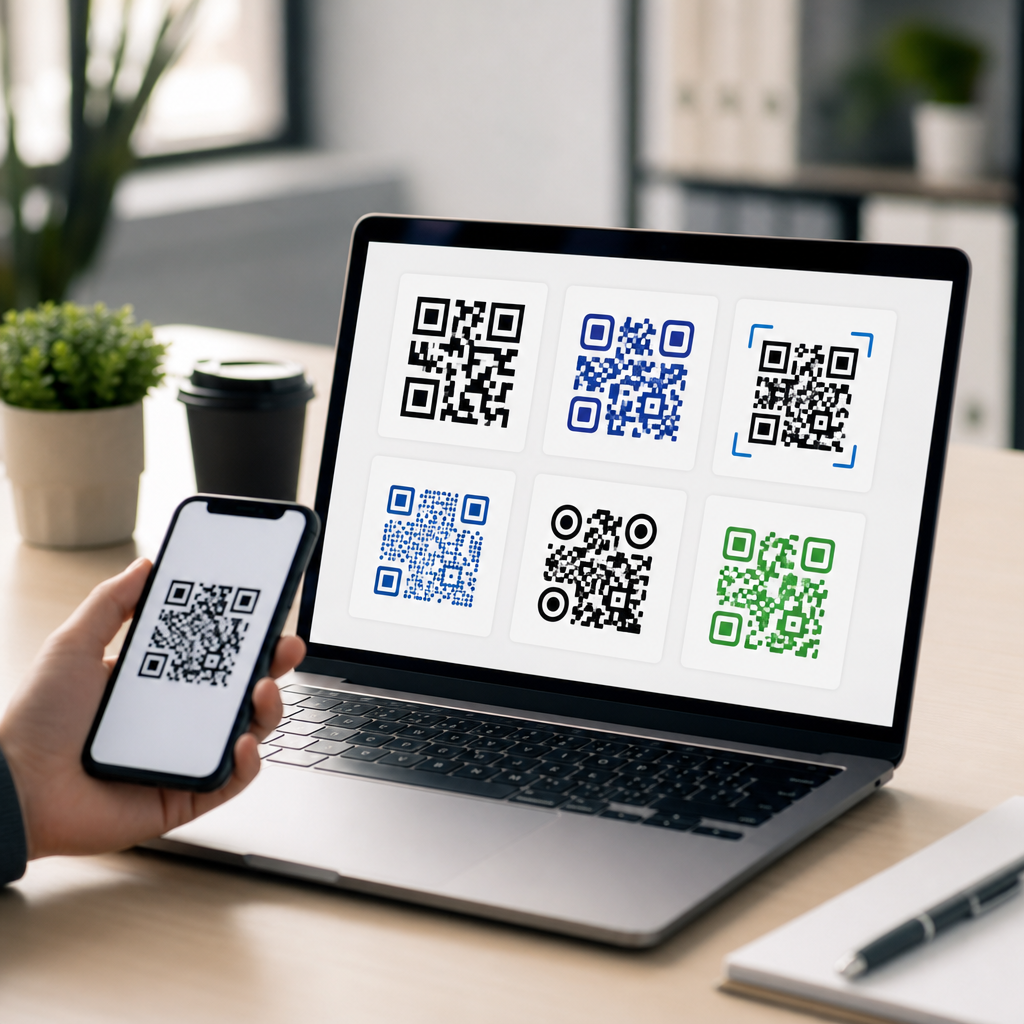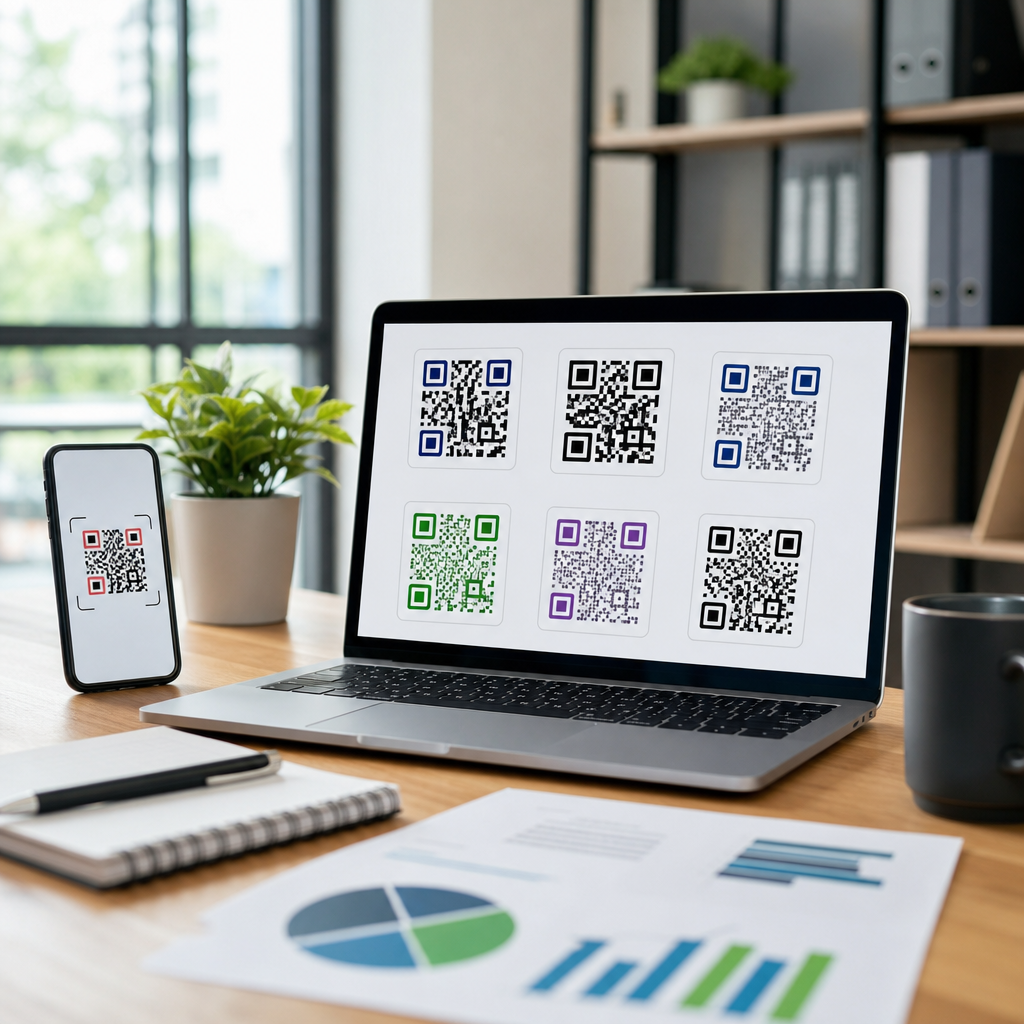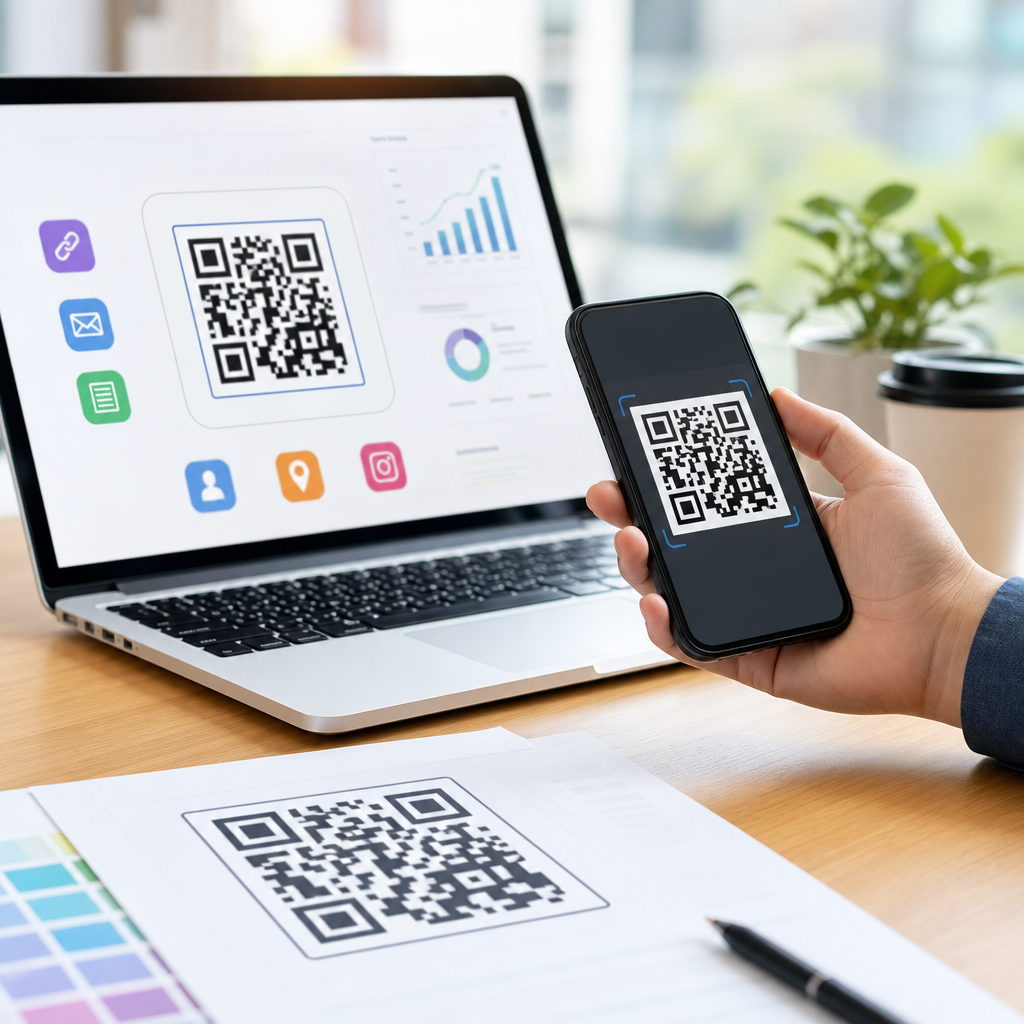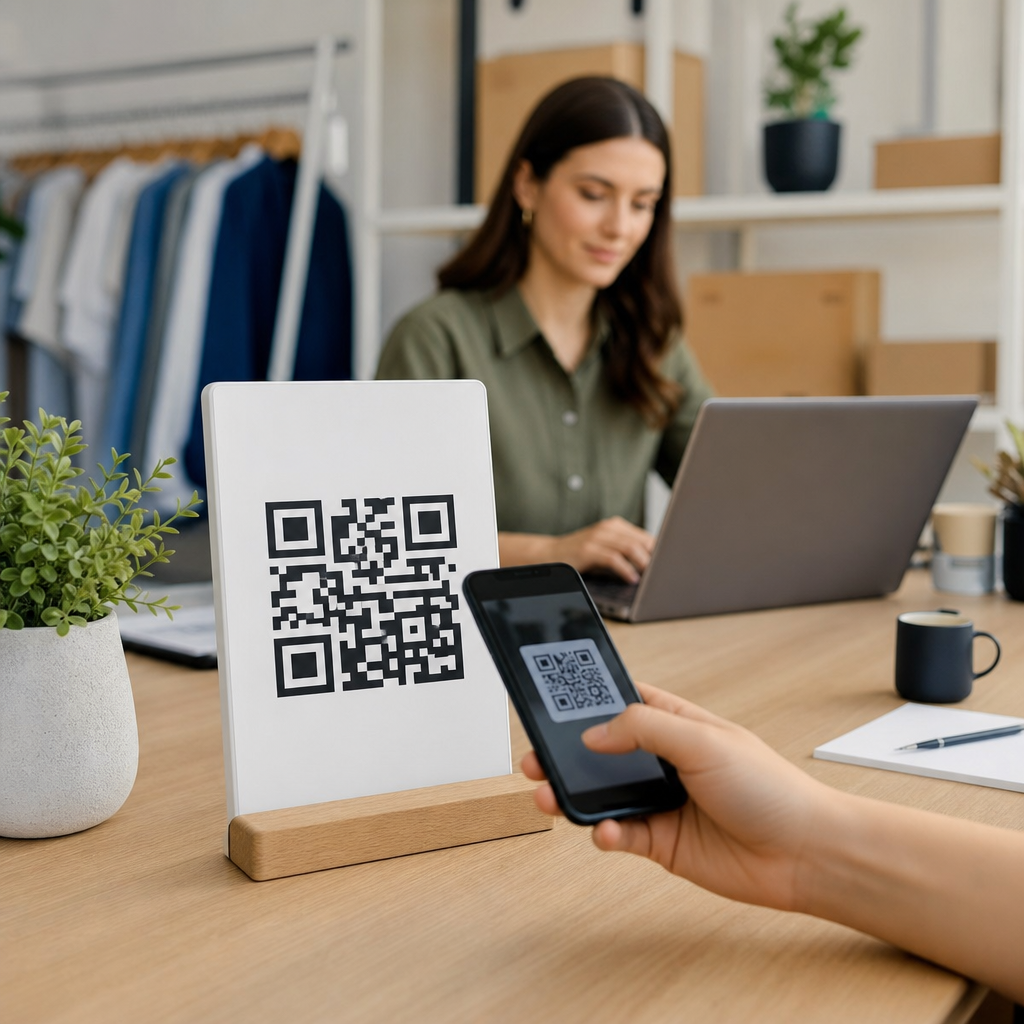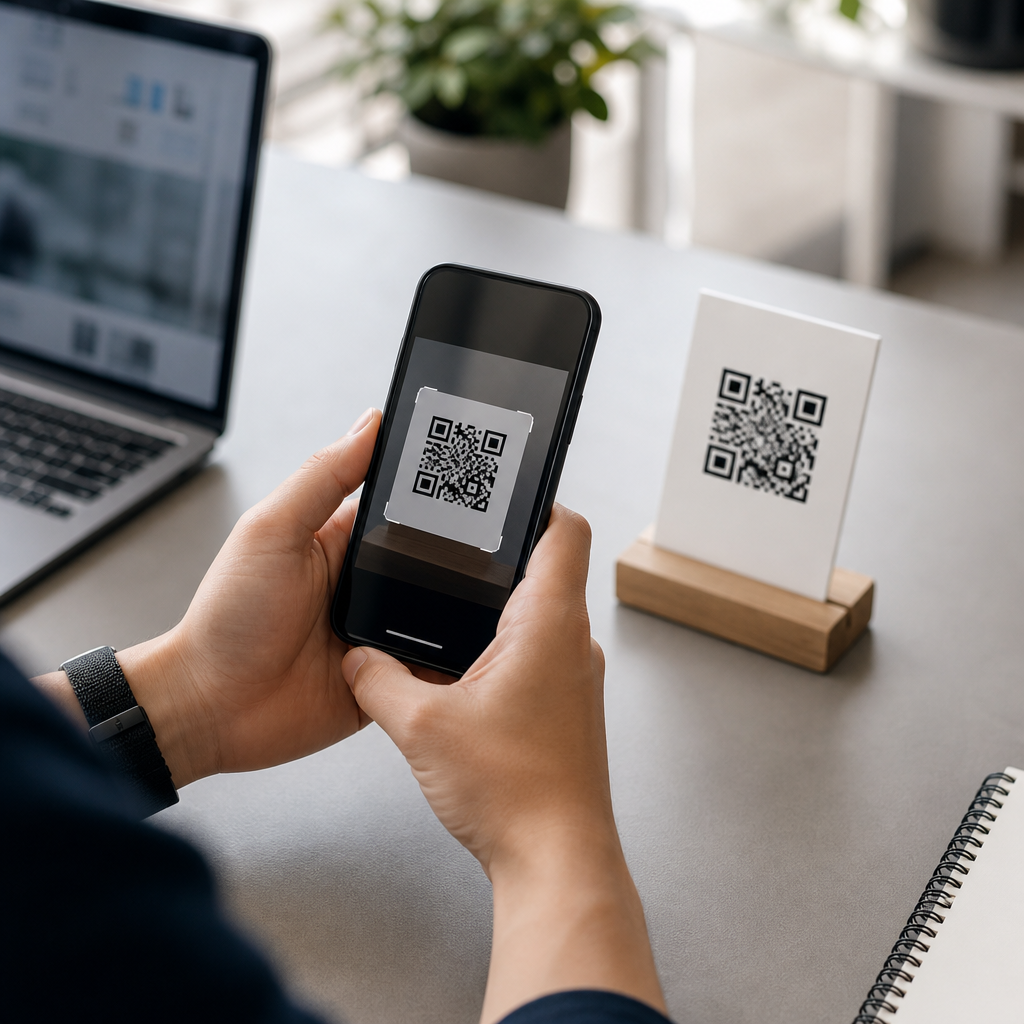
Creating a mobile QR code is easy; publishing one that works reliably across devices, lighting conditions, print sizes, and destinations requires careful testing before anyone scans it. In practice, “mobile QR code” usually means a QR code intended to be scanned by a smartphone and linked to a mobile-friendly action such as a webpage, app download, vCard, menu, payment flow, PDF, map location, or SMS prompt. Testing matters because the code itself is only one part of the user journey: camera recognition, error correction, URL behavior, page speed, redirects, and on-screen readability all affect whether the scan succeeds. I have seen campaigns fail not because the QR image was damaged, but because the landing page loaded slowly, the app link broke on Android, or the print size was too small for a dim restaurant. This article explains how to create a mobile QR code correctly, how to test it before publishing, and what checkpoints should become standard in any mobile QR code workflow.
Start with the right QR code type and destination
The first testing decision happens before you generate anything: choose the correct content type and destination. A static QR code stores the final data directly in the pattern, such as a plain URL, phone number, or text string. A dynamic QR code points to a short redirect URL managed by a platform, allowing you to update the destination later, track scans, and fix mistakes without reprinting. For most business use cases, dynamic QR codes are safer because they support analytics, UTM parameters, device targeting, and link changes after launch.
The destination must be mobile-appropriate. If the QR code opens a webpage, verify responsive design, readable font sizes, compressed images, accessible buttons, and HTTPS. If it opens an app, use a deferred deep linking or app store routing solution that handles iOS and Android correctly. If it triggers a vCard, Wi-Fi credential, or payment link, confirm the payload format complies with widely supported standards. Platforms such as Bitly, QR Code Generator, Beaconstac, and Flowcode simplify generation, but they do not guarantee a good scan experience by themselves. The rule is simple: test the destination first, then test the QR code that points to it.
Create the QR code with scannability in mind
How do you create a mobile QR code that scans well? Use a high-contrast design, enough quiet zone, and an error correction level appropriate to the environment. Dark modules on a light background remain the most reliable option. The quiet zone, the blank margin around the symbol, should be at least four modules wide; trimming it is one of the most common causes of failed scans. Error correction levels range from L, M, Q, to H. Higher levels add redundancy and help when a code may be partially obscured by wear, folds, or a logo, but they also increase complexity and density.
Avoid crowding too much data into the symbol. The more characters you encode directly, the denser the pattern becomes, and the harder it is to scan quickly at small sizes. This is another reason dynamic QR codes outperform static ones for campaigns: the short redirect URL keeps the symbol simpler. Export in vector format such as SVG or EPS for print, and use a high-resolution PNG only for digital placements that do not need scaling. If you add a logo, keep it modest, preserve the finder patterns, and never alter the code so heavily that readability depends on a single scanner app. When I review client artwork, I always check the final exported asset, not just the preview inside the generator, because export settings and designer edits often introduce the real problems.
Build a testing checklist before publishing
Testing a QR code before publishing means checking the full scan path from camera detection to task completion. A useful checklist covers device compatibility, operating systems, camera apps, network conditions, print or screen placement, redirect behavior, and landing page performance. Test with both iPhone and Android, including at least one older device with a weaker camera. Use the native camera app first because that is what most users rely on. Then test with a secondary QR scanning app to catch edge cases.
You should also test environmental variables. Scan under bright indoor light, dim light, daylight glare, and from realistic distances. A QR code on packaging behaves differently from a code on a billboard or smartphone screen. For printed materials, verify the minimum physical size. A practical starting guideline is about 2 x 2 centimeters for close-range use, but larger is often necessary depending on viewing distance. For digital placements, check whether screen brightness, pixel density, and motion interfere with recognition. Testing must include the full conversion step after the scan. A code that opens the correct page but drops UTM parameters, triggers a 404 after a redirect, or loads in six seconds on cellular data is not ready for publication.
Run cross-device and cross-context scan tests
Real-world QR code performance depends on context more than many teams expect. Test on iOS Safari, Android Chrome, and any in-app browsers likely to open from social or email applications. If the destination uses JavaScript-heavy page builders, compare load behavior on Wi-Fi, 5G, and a throttled 3G or 4G connection in Chrome DevTools. Google’s Core Web Vitals are relevant here because a scan often happens in a moment of intent; if Largest Contentful Paint is slow or buttons shift during load, users abandon quickly.
Print and display context matter just as much. Matte packaging scans better than glossy labels under overhead lighting. Curved bottles can distort the symbol, especially when the quiet zone wraps around the edge. Restaurant table tents may sit in low light, while trade show signage must scan from farther away and at wider angles. For on-screen QR codes, avoid placing the symbol over animation or low-contrast brand colors. I recommend testing each expected use case with actual materials: print a draft, place it where it will live, and ask someone unfamiliar with the project to scan it. Fresh eyes reveal friction that internal teams miss.
| Testing area | What to verify | Common failure | Preferred fix |
|---|---|---|---|
| Symbol design | High contrast, quiet zone, readable density | Logo too large or background too dark | Reduce styling and restore margin |
| Device coverage | iPhone, Android, older cameras | Only tested on one flagship phone | Use a mixed-device test set |
| Destination URL | HTTPS, no 404s, mobile layout | Broken redirect or desktop-only page | Fix link path and responsive design |
| Network performance | Loads well on cellular | Heavy page takes too long | Compress assets and reduce scripts |
| Placement | Distance, glare, curvature, lighting | Code too small for environment | Increase size and improve contrast |
Validate links, analytics, and post-scan behavior
A mobile QR code should do more than scan; it should route accurately, measure activity correctly, and complete the intended action with minimal friction. If you use a dynamic platform, test the redirect chain with tools such as Redirect Checker, Chrome DevTools Network, or Screaming Frog in list mode. Look for unnecessary hops, mixed-content warnings, or redirects that strip query strings. If campaign measurement matters, append UTM parameters and confirm they appear in Google Analytics 4, Adobe Analytics, or your chosen reporting platform. For app links, test fallback behavior when the app is not installed.
Security and trust also influence scan completion. Users hesitate when a short link looks suspicious or when the browser displays certificate warnings. Use branded short domains when possible, maintain HTTPS, and avoid excessive redirect chains. If the destination requests form input, validate field usability on mobile keyboards and autofill. If it opens a PDF, check file size and in-browser rendering. If it initiates a call, text, or payment, confirm the action prompt is clear and reversible. In audits I have run, analytics misconfiguration is almost as common as scanning errors, which means teams may think a QR code is underperforming when the tracking is simply broken.
Common mistakes that break mobile QR codes
The most frequent mistakes are predictable and preventable. Designers invert colors without enough contrast, place codes over busy images, or shrink them to fit a layout. Marketers send scans to homepages instead of task-specific landing pages, forcing extra taps. Teams print static QR codes before finalizing the URL, then discover a typo or discontinued page. Another common problem is using too many redirects, including social app wrappers and regional routing tools, until one environment fails silently.
There are also content-level mistakes. A “how to create a mobile QR code” workflow should always include destination alignment: a menu QR should open the menu immediately, a contact QR should add a valid vCard, and an app QR should detect device type intelligently. Avoid asking users to pinch-zoom, hunt for a button, or repeat information that the QR context already implies. Accessibility matters too. Pair the code with a short instruction and a visible fallback URL so users know what will happen and can still reach the content if scanning fails. These small details consistently improve completion rates.
Publish only after a controlled prelaunch review
Before publication, run a final sign-off process that combines technical checks and human validation. Confirm the destination is final, mobile-friendly, indexed or intentionally noindexed as appropriate, and not blocked by robots rules that interfere with previews. Store the master vector file, final URL, campaign tags, and placement specs in one document so reprints do not introduce inconsistencies. If the QR code will appear across packaging, posters, email, and social graphics, approve each variation separately because resizing and export settings can change readability.
The key takeaway is straightforward: creating a mobile QR code is not finished when the image generates; it is finished when real people can scan it quickly and complete the intended action without confusion. Choose the right code type, keep the symbol simple, test across devices and environments, validate redirects and analytics, and review the final asset in its real placement. That process prevents costly reprints, lost conversions, and damaged trust. If you are building under the Creating Mobile QR Codes topic, use this article as your central checklist, then apply the same testing discipline to every related QR workflow before you publish.
Frequently Asked Questions
1. What should I check first when testing a QR code before publishing it?
The first step is to confirm that the QR code resolves to the exact destination you intended and that the full user journey works on a smartphone from start to finish. That means you should scan the code with multiple mobile devices, not just your own phone, and verify that it opens the correct webpage, app store listing, PDF, payment page, menu, form, map location, vCard, or SMS prompt. It is not enough for the code to simply scan. The landing experience must also be mobile-friendly, fast-loading, secure, and usable on different screen sizes and operating systems.
Next, inspect the QR code itself for common issues that reduce scan reliability. Make sure the code is high resolution, has strong contrast, includes an adequate quiet zone around the edges, and is not stretched, distorted, overly compressed, or partially covered by a logo or design element. If you are printing it, confirm that the physical size is large enough for the expected scanning distance. If you are using a dynamic QR code, test the redirect behavior and tracking setup as well. In short, the first checkpoint is simple: the code must scan quickly, open the correct destination, and deliver a smooth mobile experience under real-world conditions.
2. How many devices and scanning conditions should I use to properly test a mobile QR code?
As a practical baseline, test your QR code on both iPhone and Android devices, using more than one model if possible. Different smartphones have different camera quality, autofocus performance, QR detection behavior, screen brightness, browser handling, and security prompts. A code that scans instantly on a newer flagship phone may fail or struggle on an older device, especially in low light or at smaller print sizes. You should also test with both the native camera app and at least one alternative scanning method, since some users rely on built-in QR recognition while others use third-party apps or social platforms with scanning features.
Environmental testing is just as important. Scan the code in bright light, moderate indoor light, and dimmer conditions to see how quickly the camera locks onto it. Try different angles, distances, and hand positions. If the QR code will appear on print materials, test the actual printed version rather than relying only on a digital file. If it will appear on screens, test it on different display sizes and brightness levels, including situations where glare or reflections may interfere. The goal is not perfection in every edge case, but confidence that typical users can scan the code easily in normal conditions without frustration.
3. What are the most common reasons a QR code scans poorly or fails after it is published?
Most QR code failures come down to design, size, contrast, placement, or destination issues. A code may be technically valid but still hard to scan if it is too small, blurry, low contrast, missing proper margin space, printed on a reflective surface, wrapped around a curved object, or placed where lighting is poor. Decorative customization is another common problem. Adding logos, changing module shapes too aggressively, using busy backgrounds, or choosing colors with weak contrast can all reduce readability. Even a well-designed code can fail if it is compressed during export, resized incorrectly, or damaged in production.
The destination experience creates a second layer of failure that many publishers overlook. If the linked page is broken, slow, blocked by geolocation rules, not mobile-optimized, or filled with pop-ups, the QR code may technically work while still producing a bad user experience. Dynamic QR codes can also break if redirect settings are misconfigured or the service account expires. For app downloads, make sure the links route users to the correct platform. For files such as PDFs or menus, verify that they open quickly on mobile networks. Successful QR performance depends on both scanability and destination quality, so both must be tested before launch.
4. How can I test whether a QR code will work well in print at different sizes and placements?
Print testing should always use a real-world proof, because what looks sharp on a monitor may behave very differently once printed. Start by printing the QR code at the exact size you plan to use, then scan it from a realistic distance. A code on a business card, product label, tabletop display, poster, flyer, menu board, or storefront sign will each be scanned from different distances, so the physical dimensions must match the context. If users need to stand farther away, the code must be larger. Also verify that the print process preserves crisp edges and sufficient contrast, especially if the material is textured, glossy, transparent, metallic, or dark.
Placement matters just as much as size. Avoid folding lines, seams, bottle curves, package edges, and areas likely to be obscured by glare, shadows, or handling. Give the QR code breathing room so the camera can detect it cleanly. If there are other visual elements nearby, make sure they do not interfere with the quiet zone. Test the code after it is applied to the final surface, not just on a flat proof sheet. For example, a QR code may scan well before being wrapped onto a cup or bottle but perform poorly after the surface bends. Good print testing simulates the exact environment in which the audience will actually scan.
5. Should I test only the QR code image, or the entire user journey after the scan?
You should always test the entire journey, because a successful scan is only the beginning of the interaction. From the user’s perspective, the QR code is working only if the phone recognizes it quickly, opens the expected destination, and allows the intended action to be completed without friction. That means checking page speed, mobile responsiveness, readability, button placement, form usability, map accuracy, payment flow completion, download behavior, and any privacy or app permission prompts that appear. If the scan leads to a dead end, confusing page, or broken action, the QR code has effectively failed.
This end-to-end approach is especially important for marketing campaigns, menus, lead forms, app installs, coupons, digital business cards, and payment experiences. Review analytics, redirects, UTM parameters, and conversion tracking to confirm that measurement works correctly after publication. If your QR code points to a dynamic destination, test edits and fallback behavior before launch. If access depends on location, language, device type, or app installation state, validate those scenarios as well. The best QR code testing process treats the scan as the start of a mobile journey, not the finish line, and ensures every step works reliably for real users.