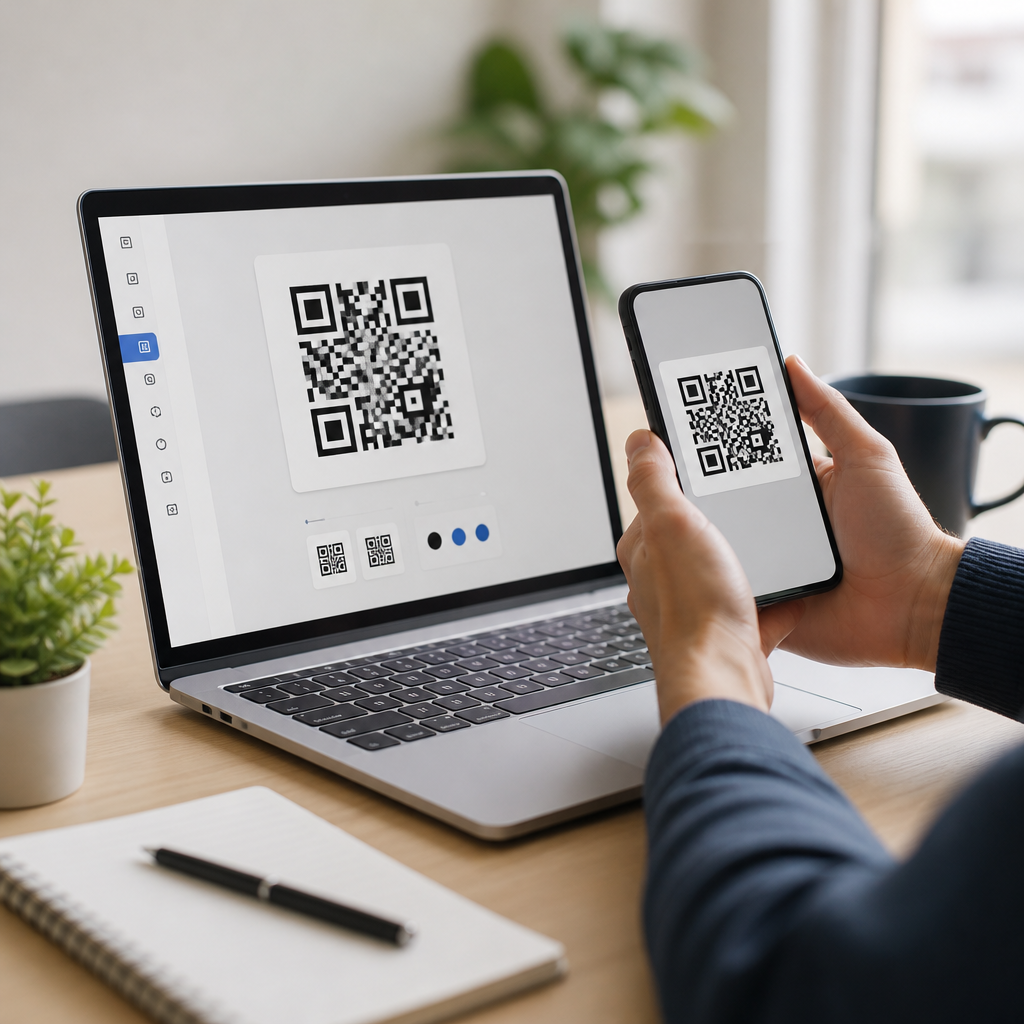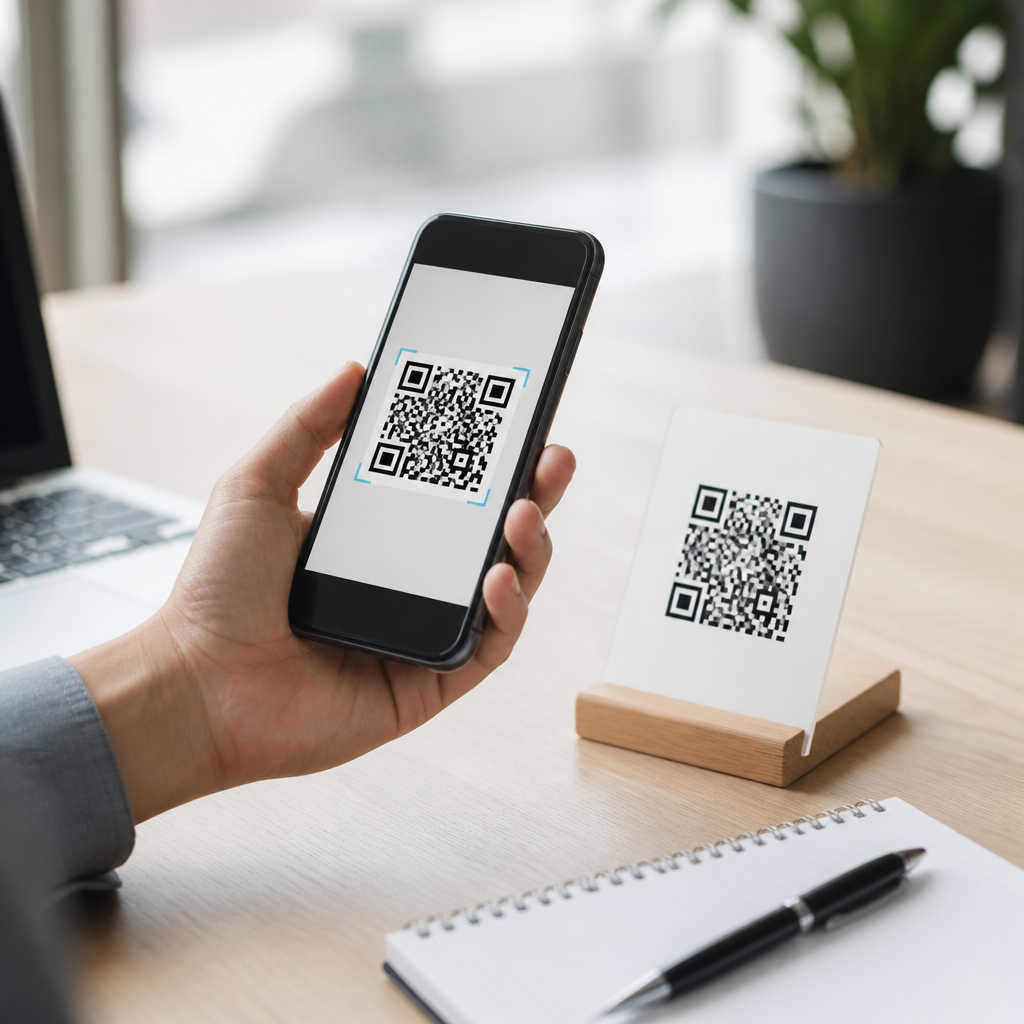

A QR code for a PDF lets someone scan with a phone camera and open, download, or save a document instantly, turning a static file into a fast, trackable, mobile-friendly resource for marketing, education, operations, and customer support.
I have created QR-driven document workflows for product manuals, restaurant menus, training packets, event handouts, and field-service forms, and the pattern is consistent: when access is immediate, completion rates rise and friction drops. That is why learning how to create a QR code for a PDF matters. A PDF, or Portable Document Format, preserves layout across devices. A QR code, or Quick Response code, stores encoded data that a scanner can interpret within seconds. Combined, they bridge print and digital channels without requiring users to type a long URL, search for a file, or request an attachment by email.
This topic sits at the center of practical tutorials and how-to guides because it serves beginners who need a simple share method, intermediate users who want branding and analytics, and advanced teams implementing governed document distribution at scale. A teacher can place a QR code on a classroom wall linking to a worksheet. A contractor can print one on equipment labels to surface safety instructions. A software company can include one in packaging that opens setup documentation. In each case, the technical task is straightforward, but the quality of execution determines whether the code is reliable, secure, and easy to maintain over time.
There are two main ways to make a QR code for a PDF. The first is a direct file QR code generated through a service that hosts the PDF and creates a scannable destination. The second is a URL QR code that points to a PDF already stored online, such as on Google Drive, Dropbox, OneDrive, a website media library, or a document management system. The first approach is often faster for nontechnical users. The second offers more control if you already manage your own hosting, redirects, and permissions. Understanding that distinction early prevents a common mistake: generating a code for a local file path on your computer, which works only for you and fails for everyone else.
Good implementation also requires attention to file size, permissions, redirect behavior, contrast, error correction, print dimensions, and scan testing under real conditions. A beautifully branded QR code is worthless if the PDF takes too long to load over cellular data or if the document requires login when the audience expects public access. This guide covers the entire process, from beginner tutorials to advanced implementations, so you can publish PDF QR codes that work in the real world, not just in a generator preview.
Table of Contents
1. Beginner tutorials: the fastest way to create a QR code for a PDF
2. Intermediate guides: branding, analytics, and document control
3. Advanced implementations: security, automation, and scale
4. Common mistakes and troubleshooting
5. Best practices for print, mobile, and long-term maintenance
Beginner tutorials: the fastest way to create a QR code for a PDF
If you are starting from zero, the simplest method is to upload your PDF to a trusted platform, copy the public link, and generate a QR code from that link. This works because the QR code does not usually contain the full file itself; it contains a destination that opens the file. In practice, that destination is most often an HTTPS URL. You can use a dedicated QR code generator, a design platform such as Canva, a browser extension, or built-in tools in some document-sharing platforms.
Step one is preparing the PDF. Keep the file name descriptive and clean, such as employee-handbook-2026.pdf or spring-menu.pdf. Compress large files when possible. I generally aim for under 5 MB for public-facing mobile use, because slower networks make larger files frustrating. If the PDF includes high-resolution images, use Adobe Acrobat compression, Smallpdf, or Preview on macOS to reduce file size without making text blurry. Before publishing, confirm that the document opens correctly on a phone and that the first page communicates purpose immediately.
Step two is hosting the file online. For beginners, Google Drive, Dropbox, OneDrive, or your website’s media library are practical options. The key requirement is a public or appropriately shared link. In Google Drive, uploading the file is not enough; you must change access settings so viewers with the link can open it if your use case requires public access. On Dropbox, make sure you copy the share link rather than a private internal location. On a website, use a full HTTPS URL and test it in a private browser window before creating the QR code. If the link fails there, the QR code will fail too.
Step three is generating the QR code. Paste the PDF URL into a generator such as QR Code Monkey, Adobe Express, Bitly, Beaconstac, Flowcode, QR TIGER, or a similar reputable service. Download the code as PNG for quick digital use or SVG for professional printing and scaling. If your chosen service offers “static” and “dynamic” options, know the difference. A static QR code permanently points to the exact URL embedded at creation. A dynamic QR code points first to a managed short link that can later redirect somewhere else, which is useful when documents change.
Step four is testing. Scan with both iPhone and Android cameras, plus at least one third-party scanner app. Test on Wi-Fi and mobile data. Print a sample at intended size and distance. For a flyer, I usually test at 1 by 1 inch minimum, though more complex or branded codes often need larger dimensions. If the PDF opens inside a browser tab, verify readability without requiring zoom on every paragraph. If download behavior matters, check whether the link opens inline or forces a download, because different hosting methods handle content disposition differently.
For beginners, the fastest reliable workflow is straightforward: compress the PDF, upload it to a trusted host, create a public link, generate a QR code, and test on real devices. That five-step sequence solves most simple sharing needs and avoids the most common failure points.
Intermediate guides: branding, analytics, and document control
Once the basic process works, the next level is improving user experience and managing performance. Intermediate users usually care about three things: the QR code should look professional, scans should be measurable, and the document should remain easy to update. This is where dynamic QR codes and redirect-based workflows become valuable. Instead of encoding the final PDF URL directly, you encode a managed URL that can be changed later. If you update a pricing sheet, policy manual, or event program, the printed code remains usable while the destination changes behind the scenes.
Branding should improve recognition without hurting scan reliability. In client projects, I keep a high-contrast dark foreground on a light background, preserve the quiet zone around the code, and avoid excessive decorative shapes. Adding a logo in the center can work if the generator supports adequate error correction, usually level Q or H, but too much customization reduces readability. Brand colors are acceptable when contrast remains strong. A navy code on white is usually fine. A pastel code on beige often fails under poor lighting. Good design serves function first.
Analytics matter because a QR code is often part of a larger campaign or process. Dynamic QR platforms typically record scan counts, timestamps, rough location data, device type, and repeat activity. Marketers use this for brochure attribution. Schools use it to track resource engagement. Operations teams use it to confirm whether field staff accessed the latest instructions. If you prefer to use your own analytics stack, create a short redirect on your domain and measure visits with Google Analytics 4, server logs, or campaign parameters before sending users to the PDF. This also gives you ownership independent of any third-party QR platform.
Document control becomes critical when PDFs contain changing information. A static QR code printed on 10,000 product inserts is risky if the linked manual might be revised later. A safer setup is a stable landing page or redirect that always points to the current file version. In regulated environments, I recommend version labels inside the PDF itself, a revision date on page one, and a canonical redirect URL such as example.com/manual that routes to the latest approved release. That creates audit clarity while preserving a simple scan experience.
| Option | Best for | Main advantage | Main limitation |
|---|---|---|---|
| Static QR code | Permanent public PDFs | No ongoing platform dependency | Cannot change destination after printing |
| Dynamic QR code | Documents updated over time | Edit destination and collect scan analytics | Usually requires paid service or managed link |
| QR to landing page | Multiple files or context around the PDF | Add instructions, language choice, and tracking | One extra tap before reaching document |
| QR to cloud storage link | Quick internal or small-team sharing | Fast setup with familiar tools | Sharing permissions often cause access issues |
Intermediate workflows also benefit from thoughtful file governance. Name documents predictably, archive superseded versions, and define who can replace a live PDF. If several departments publish their own QR codes without standards, users eventually scan outdated or duplicate materials. I have seen this happen in healthcare training, where hallway posters linked to three different policy revisions depending on which team printed them. A simple publishing checklist prevents that chaos.
Advanced implementations: security, automation, and scale
Advanced implementations go beyond making a code that scans. They address access control, privacy, lifecycle management, automation, and enterprise reliability. If the PDF contains sensitive but shareable information, avoid exposing raw storage links. Instead, route the QR code to a controlled endpoint on your domain. That endpoint can apply authentication, token validation, expiry rules, geofencing, or role-based access before delivering the file. This is especially relevant for internal SOPs, patient-adjacent materials, contractor documentation, and paid content.
Security begins with understanding that a QR code is simply a delivery mechanism. The real control lives at the destination. Public PDFs should be intentionally public, not accidentally public because a cloud-share setting was left open. Private PDFs should use signed URLs, authenticated portals, or document platforms with audited permissions. HTTPS is nonnegotiable. If the code sends users through a redirect, keep the redirect domain trustworthy and branded, because people are increasingly cautious about unknown short links. A recognizable domain improves both confidence and click-through behavior after scan.
Automation is the next major step. Many organizations generate large volumes of PDF QR codes for invoices, onboarding packets, product documentation, certificates, or localized instructions. This can be scripted using APIs from QR code platforms, storage providers, or your own application. A typical workflow looks like this: generate the PDF server-side, store it in a structured bucket or document repository, create a short canonical URL, call a QR generation API, and place the returned image into the print template or email. When I have built this pattern, the biggest gains came from standardized naming conventions and redirect layers, not from the QR image generation itself.
At scale, metadata matters. Each code should map to an owner, purpose, source file, publication date, destination URL, and retirement status. Without this, operations teams lose track of which codes are in circulation. Mature programs keep a registry, often in a CMS, DAM, or simple database, so they can answer practical questions quickly: Which codes point to deprecated safety sheets? Which printed assets still route to old campaign PDFs? Which regions need localized versions in Spanish or French? Governance is what makes scale sustainable.
Advanced teams also use landing pages instead of direct PDFs when they need adaptation. A landing page can detect device language, offer multiple file formats, present accessibility notes, or track consent before download. It can also provide fallback content when a PDF is not ideal on mobile. For example, a 40-page installation manual may be better introduced by a concise mobile summary with sections, then linked as a downloadable full PDF. This approach usually improves completion because users can orient themselves before opening a dense document.
Accessibility should be part of advanced implementation, not an afterthought. The QR code itself must be placed where users can physically scan it, but the PDF also needs accessible structure: selectable text, meaningful headings, tagged reading order, alt text for key images, sufficient contrast, and searchable content. A scanned image PDF is a weak destination because screen readers struggle with it and phone users cannot search within it. Use OCR in Adobe Acrobat or another document tool if your source began as a scan. Accessible documents are easier for everyone to use, and they reduce support burden.
For enterprise printing, choose vector output such as SVG, EPS, or PDF when possible, especially for packaging, signage, or large-format materials. Raster PNG files can work, but low-resolution exports become soft at press size and reduce scan reliability. Maintain adequate quiet zone around the code, avoid glossy placements with glare, and never put codes across folds, seams, or curved bottle surfaces without physical testing. Real-world surfaces change outcomes more than generator settings do.
Common mistakes and troubleshooting
The most common mistake is linking to a file that is not actually accessible to the intended audience. If a scanner reaches a login prompt, permission error, or expired share link, the QR code has failed regardless of how well it was designed. Always test in an incognito or private window and on a device that is not signed into your own account. Another frequent problem is oversized PDFs. A 25 MB product catalog may open eventually on office Wi-Fi, but a customer scanning from a store aisle may abandon it before page one appears.
Design errors also cause unnecessary failures. Low contrast, cramped placement, insufficient quiet zone, and excessive logo overlays make scanning inconsistent. So do tiny print sizes. If a code will be scanned from more than a few feet away, increase its physical dimensions accordingly. There is no universal perfect size, but a practical rule is to match size to distance and test at the exact environment where it will be used. Warehouse signage, table tents, magazines, and shipping labels all behave differently.
Redirect chains deserve attention. If your QR code points to a shortened URL, which then routes to a campaign tracker, which then redirects to a cloud preview page that finally opens the PDF, mobile loading slows down and failure points multiply. Keep the path efficient. One managed redirect is fine. Four is sloppy. Also verify whether your host serves the correct MIME type, because some odd hosting setups can trigger browser warnings or forced downloads when inline viewing would be better.
If scans are happening but engagement is low, the issue may be content rather than technology. Users often need context before opening a PDF. Add a callout near the code such as “Scan for the installation guide,” “Open the current menu,” or “Download the warranty PDF.” Clear instruction improves scan rate because people know exactly what they will get. This is particularly important in public spaces where attention is limited and users are evaluating trust instantly.
Best practices for print, mobile, and long-term maintenance
The strongest PDF QR code strategies treat creation as publishing, not as a one-time design task. Start with a clean, mobile-conscious PDF. Host it on a stable HTTPS destination you control or trust. Use static codes only when the file will not need updating. Use dynamic routing when changes are likely. Test on multiple devices, in realistic lighting, at actual print size, and without your own account privileges. If the code supports an operational process, assign an owner and review it on a schedule just as you would any other customer-facing asset.
For printed materials, maintain strong contrast, preserve white space around the symbol, and export at production quality. For digital placements, avoid shrinking the code too far on screens or embedding it in cluttered layouts. For analytics, prefer first-party measurement or reputable managed platforms. For compliance-sensitive use cases, document versioning and permissions are as important as scannability. And for user experience, remember that a QR code should reduce effort, not add another layer of confusion.
Creating a QR code for a PDF is simple at the beginner level, powerful at the intermediate level, and transformative at the advanced level when combined with governance, analytics, security, and automation. The core benefit is immediate access: one scan connects a physical object or printed page to the exact document a user needs. Build that connection carefully, and it becomes a durable channel for communication, training, service, and sales. Choose one live PDF, create a test code today, and evaluate the full experience from scan to read to action.
Frequently Asked Questions
How do you create a QR code for a PDF?
To create a QR code for a PDF, the most reliable method is to first upload the PDF to a location that can be accessed online, then generate a QR code that points to that file URL. In practice, that means you take your PDF document, host it on your website, cloud storage platform, document-sharing system, or a QR code generator that includes file hosting, and copy the direct link. Once you have that link, paste it into a QR code generator and create the code. After that, customize the design if needed, download the QR code in a high-resolution format, and test it on multiple phones before using it in print or digital campaigns.
This process matters because a QR code does not actually contain the full PDF file itself in most normal use cases. Instead, it contains the destination link that opens the PDF when someone scans it. That is why hosting and accessibility are so important. If the file is moved, deleted, renamed, or protected behind a login, the QR code may stop working for the intended audience. For the smoothest user experience, make sure the PDF opens quickly on mobile devices, has a reasonable file size, and is easy to read without requiring extra apps or complicated permissions.
Should you use a static or dynamic QR code for a PDF?
In most professional situations, a dynamic QR code is the better choice for a PDF because it gives you flexibility after the code has been printed or published. With a dynamic code, the QR image stays the same, but you can change the destination file later. For example, if you update a restaurant menu, revise a product manual, replace a training packet, or issue a corrected event handout, you can point the same QR code to the new PDF without reprinting posters, labels, packaging, or flyers. That alone can save time, money, and operational effort.
Dynamic QR codes also usually provide scan analytics, which is valuable if you want to measure engagement. You can often track how many scans occurred, when they happened, where they came from geographically, and what devices were used. That makes dynamic codes especially useful in marketing, customer support, field operations, and education, where knowing whether people actually access the document can shape future decisions. Static QR codes can still work well for permanent documents that will never change, but they are much less forgiving. If the linked PDF location changes later, the static code cannot be edited and may become useless.
What is the best way to make sure a PDF QR code works well on mobile devices?
The best way to make a PDF QR code work well on mobile is to optimize both the document and the scan experience. Start by making sure the PDF is mobile-friendly. Use readable font sizes, clean formatting, and file compression that keeps quality high without making the document unnecessarily large. A PDF that takes too long to load can cause users to abandon it, especially on weaker connections. If the document is long, consider adding bookmarks, a clear table of contents, or shorter sections so people can navigate it easily on a phone screen.
Next, focus on the QR code itself. Use a high-quality image, maintain enough contrast between the code and the background, and avoid printing it too small. A code that looks stylish but scans poorly defeats the purpose. Test it with both iPhone and Android cameras, in good and moderate lighting, and at the actual size it will be used. If the QR code appears on posters, menus, packaging, manuals, training sheets, or service forms, verify that people can scan it from a practical distance. Also, consider adding a short call to action near the code, such as “Scan to view the PDF manual” or “Scan to download the training packet,” so users know exactly what to expect before they scan.
Can you track scans and measure performance for a QR code linked to a PDF?
Yes, if you use a dynamic QR code platform or a redirect-based tracking system, you can track how people interact with a PDF QR code and measure performance in meaningful ways. Common metrics include total scans, unique scans, time of day, location, device type, and sometimes repeat engagement. This is one of the biggest advantages of using QR codes in document workflows. Instead of simply handing out printed materials and hoping they are used, you can see whether product manuals are being opened, whether event attendees are downloading handouts, whether restaurant customers are viewing menus, or whether field teams are accessing the latest forms in real conditions.
Tracking is especially valuable because it helps you improve both content and delivery. If one placement gets strong scan activity and another gets very little, you can adjust signage, messaging, or positioning. If a PDF receives many scans but short viewing times, that may suggest the document is too large, hard to navigate, or not meeting user expectations. If completion rates rise after replacing printed packets with instant mobile access, that confirms the workflow is reducing friction. In other words, scan data turns a QR code from a simple convenience into a measurable operational and marketing tool.
Where can a PDF QR code be used most effectively?
A PDF QR code is most effective anywhere people need fast, low-friction access to a document without typing a web address, searching through email, or handling paper copies. That includes product manuals, installation guides, warranty documents, restaurant menus, training packets, onboarding materials, classroom resources, event agendas, exhibitor handouts, maintenance checklists, inspection forms, safety procedures, and customer support instructions. In each case, the strength of the QR code is immediacy. A person scans once and gets the document right on their phone, ready to open, save, or download.
This is why PDF QR codes perform so well in marketing, education, operations, and support. In marketing, they can connect brochures, direct mail, packaging, and displays to deeper information. In education, they can simplify distribution of worksheets, syllabi, and reading materials. In operations, they can keep teams aligned on the latest version of forms and procedures. In customer support, they can reduce service friction by placing troubleshooting guides or setup documents exactly where customers need them. The pattern is consistent across industries: when document access is immediate and mobile-friendly, more people actually use the information, and completion rates tend to improve because the path to action is shorter and simpler.