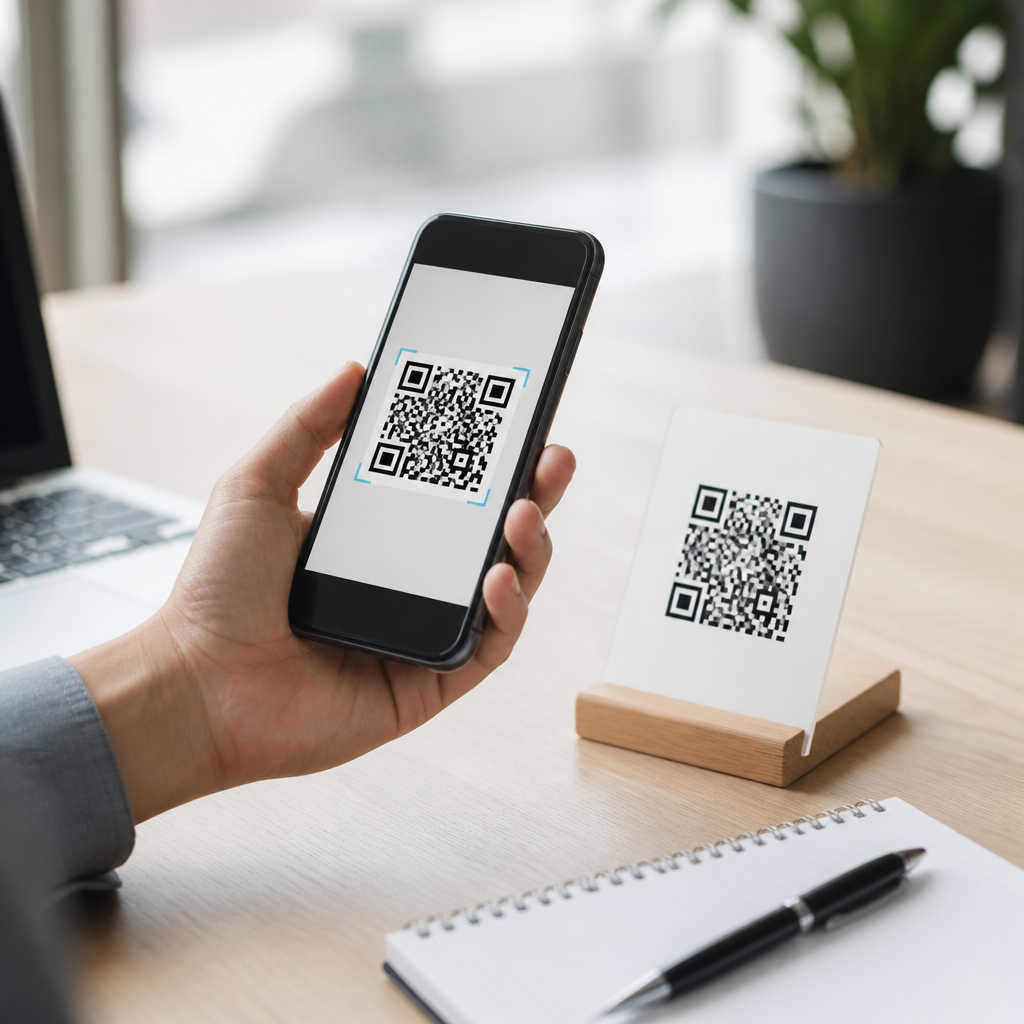
Creating a QR code for contact information is one of the simplest ways to make networking faster, reduce typing errors, and help people save your details directly into their phones. A QR code is a scannable square barcode that stores data such as a name, phone number, email address, company, website, and address. For contact sharing, the most useful format is vCard, a standard digital business card structure supported by iPhone, Android, and most contact apps. I have implemented these codes on printed badges, storefront signs, trade show booths, invoices, and email signatures, and the same rule always applies: the easier you make it for someone to save your contact details, the more likely they are to follow through. That matters for freelancers, sales teams, consultants, clinics, real estate agents, and local businesses that depend on quick lead capture.
Beginners often assume a QR code is just a link, but contact QR codes can do more than open a webpage. A well-built code can prompt a phone to create a new contact entry with fields already filled in. That removes friction at the exact moment someone is interested. It also improves accuracy because users are not retyping long email addresses or international phone numbers. If your goal is to help readers learn beginner tutorials in one place, this guide works as a hub because it explains the full process, the tools, the common mistakes, and the practical choices between simple and advanced setups. By the end, you will know how to create a QR code for contact information, test it properly, choose the right format, and use it effectively across print and digital channels.
Choose the Right Contact Format Before You Generate the Code
The first decision is the data format. If you want someone to save your details directly into contacts, use vCard. A vCard can store full name, organization, title, phone numbers, email addresses, website, physical address, and notes. Most QR code generators label this option as “vCard,” “business card,” or “contact card.” The alternative is a plain text code or a URL to a contact page. Those options work, but they create more steps for the user. In live campaigns I have run, vCard consistently outperformed plain text because the phone recognized the structure and offered a direct save action.
A static QR code contains the contact data directly in the code. It is free in many tools and works permanently, but you cannot edit the details after printing. A dynamic QR code points to a short URL that redirects to hosted content. Dynamic codes are useful when staff, phone numbers, or landing pages change, because you can update the destination without reprinting the code. The tradeoff is that most dynamic platforms require an account or paid plan. For a beginner tutorial, the practical rule is simple: use a static vCard if your details are stable and you want a fast, low-cost setup; use a dynamic code if the information may change or if you need scan analytics.
Gather the Contact Details You Actually Want People to Save
Before opening any generator, decide which fields belong in the contact record. At minimum, include your full name and one primary method of contact, usually a mobile number or email address. For professionals, I recommend adding company name, job title, website, and a location if in-person meetings matter. If you serve customers locally, including an address or service area helps. If your audience may contact you through messaging apps, be careful: not every contact app will store app-specific handles cleanly, so keep the core fields standard first.
Keep the record concise. A contact card overloaded with five phone numbers, three emails, and several URLs creates confusion. The best practice is one primary mobile number, one direct email, one website, and one business address. If you need to present broader information, use a landing page link instead. Also standardize the formatting. Include country codes in phone numbers, spell your company name consistently, and use your canonical website URL. I have seen small errors, like missing “+1” or a typo in an email domain, break otherwise strong QR campaigns because users assume the code is accurate and never verify every character.
Use a Reliable QR Code Generator and Follow the Build Steps
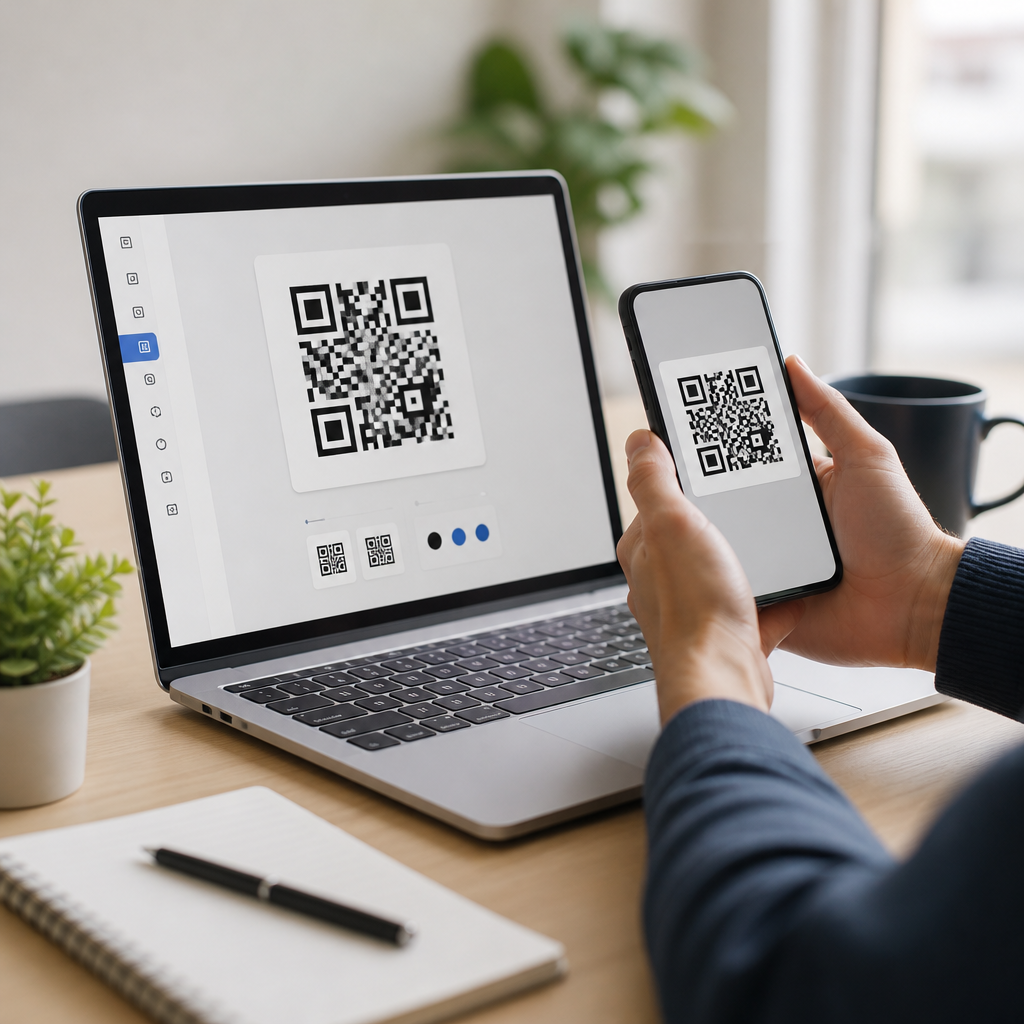
To create the code, use a reputable generator such as QR Code Generator, QRCode Monkey, Flowcode, Beaconstac, Bitly, or Canva’s QR tool if you are already designing within Canva. Most tools follow the same workflow: choose the contact or vCard type, enter the fields, generate the code, customize the appearance if needed, then export. For beginners, the easiest path is to leave most design settings at their defaults. The priority is scan reliability, not visual novelty.
Follow these steps in order. First, select the vCard or contact card option. Second, enter your name, company, title, mobile number, email, website, and address. Third, preview the data carefully and fix any formatting issues. Fourth, generate the QR code. Fifth, export it as SVG for print or PNG for basic digital use; PDF is also good for press-ready documents. Sixth, save the original project file or account link so you can retrieve it later. When I prepare files for print vendors, I prefer SVG because vector formats stay sharp at any size and reproduce better on signage, brochures, and business cards.
| Option | Best Use | Main Advantage | Main Limitation |
|---|---|---|---|
| Static vCard QR code | Business cards, flyers, badges | Simple and often free | Cannot edit after printing |
| Dynamic contact QR code | Campaigns, teams, changing details | Editable and trackable | Usually needs a paid platform |
| URL QR code to contact page | Profiles with many links | Flexible and expandable | Adds an extra tap before saving |
Design the QR Code So It Scans in Real-World Conditions
QR design matters because a code that looks stylish but fails under normal lighting is useless. Start with strong contrast: dark modules on a light background scan best. Black on white remains the safest choice. Avoid reversing the scheme unless you test thoroughly. Maintain a quiet zone, the blank space around the code, because scanners use that margin to distinguish the symbol from surrounding design elements. Most standards-based generators add this automatically, but problems occur when people crop too tightly in design software.
Size is equally important. For print, a common minimum is around 2 x 2 centimeters for close scanning, but I recommend larger when possible, especially on posters or packaging. A practical rule used by print teams is viewing distance divided by ten for a starting size estimate. If people will scan from five feet away, make the code roughly six inches wide and test in the real environment. Add a short call-to-action near the code, such as “Scan to save contact,” because users respond better when they know exactly what will happen. Logos can work in the center if the generator preserves enough error correction, but keep them modest. Over-customization is one of the top beginner mistakes.
Test Across Devices, Camera Apps, and Use Cases
Never publish a QR code without testing it on multiple phones. At minimum, check current iPhone and Android devices using the native camera app. Then test with both Wi-Fi and mobile data if the code depends on an online destination. For a vCard QR code, confirm that the scan opens the contact preview and that each field maps correctly. Sometimes a title may appear in the wrong line, an address may collapse into notes, or a special character may render poorly if the generator exports malformed data.
Run real-world tests, not just desktop previews. Print the code at actual size. Scan it under office lighting, daylight, and from the intended distance. If it will appear on glossy material, test for glare. If it will be placed on a moving surface such as a vehicle or retractable banner, consider how fast a person can realistically frame and scan it. I have rejected codes that worked perfectly on a monitor but failed on matte-laminate cards because the design team reduced the size too aggressively. Testing should also include accessibility considerations: place the code where users can reach it comfortably and pair it with readable fallback contact text.
Decide Where to Use the Contact QR Code for Maximum Response
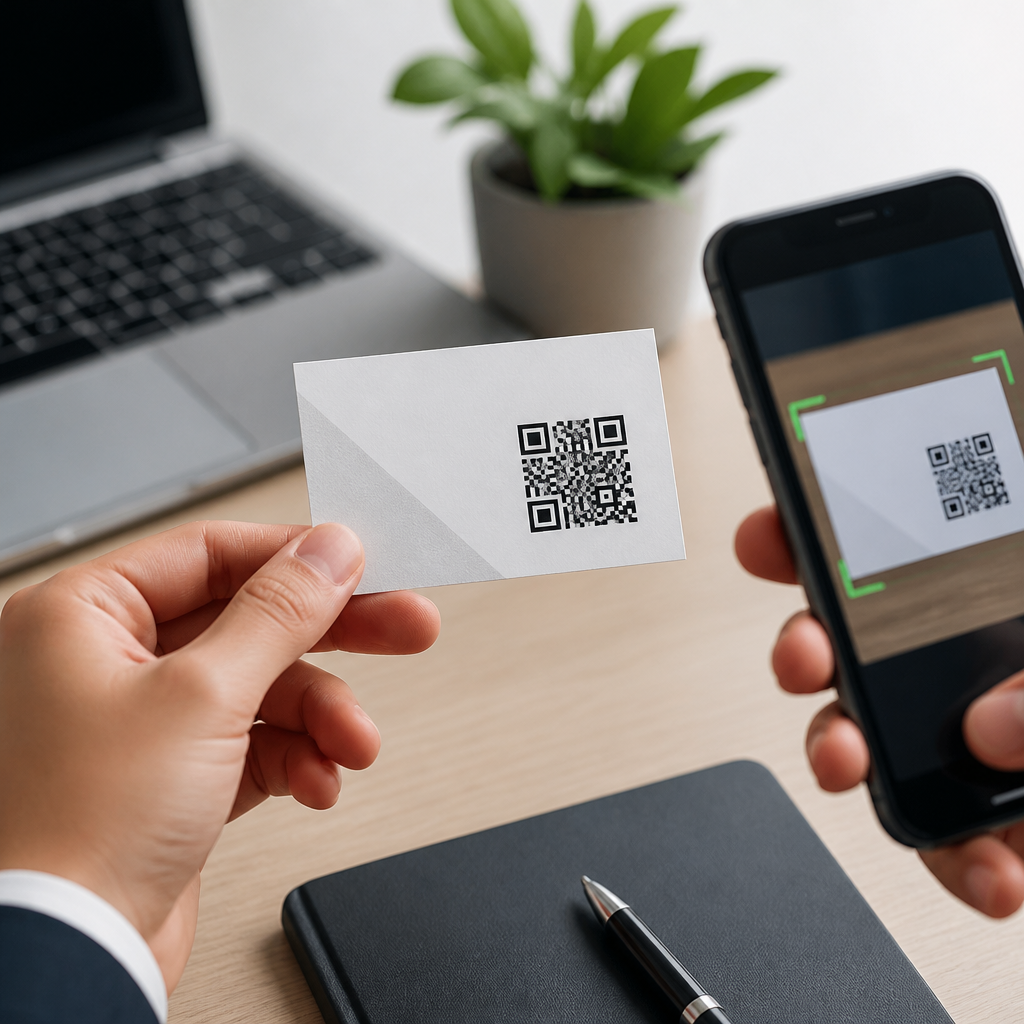
The best placement depends on intent. For one-to-one networking, business cards, conference badges, and email signatures are the most direct uses. For local businesses, front doors, reception desks, menus, brochures, service vans, and countertop displays work well. For sales teams, proposal covers, presentation decks, and leave-behind sheets reduce the chance that a prospect loses contact details after a meeting. In clinics or professional offices, intake packets and waiting room signage can help patients save the right number before they need follow-up.
Digital placements also matter. A QR code can be shown on webinar slides, social media graphics, LinkedIn banners, or booth screens at events. Still, remember the context: on a phone screen, users cannot easily scan a QR code displayed on that same phone without a second device, so a clickable contact link should accompany it. This is why strong beginner tutorials teach both channel fit and fallback options. A contact QR code is not a universal replacement for typed information; it is a shortcut that works best when scanning is natural, immediate, and convenient.
Avoid Common Mistakes and Maintain the Code Over Time
The most common errors are simple: using the wrong format, making the code too small, lowering contrast, skipping testing, and printing stale details. Another frequent issue is relying on a free dynamic platform that later disables the redirect or adds branding. If continuity matters, choose a provider with a clear pricing model and export documentation. For static codes, archive the original data and artwork so you can regenerate quickly when details change.
Security and privacy deserve attention too. Only include information you are comfortable sharing publicly, because anyone can scan the code. For personal use, a dedicated business number or email may be wiser than a private one. If your contact page collects data, comply with privacy laws and use secure pages. The long-term benefit of creating a QR code for contact information is efficiency: fewer missed connections, fewer data-entry errors, and faster follow-up after interest is highest. Start with a clean vCard, generate the code in a trusted tool, test it on real devices, and place it where people can act on it immediately. If you manage a broader tutorials library, link this hub to step-by-step guides on business cards, digital signatures, and print design so beginners can keep building practical skills.
Frequently Asked Questions
What is the best format to use when creating a QR code for contact information?
The best format for a contact information QR code is usually vCard. A vCard is a standardized digital contact file designed specifically for storing personal and business details in a way that phones and contact apps can understand instantly. Instead of just showing plain text after a scan, a vCard QR code can prompt the user to save a complete contact entry directly into their address book. That means your name, phone number, email address, company name, job title, website, physical address, and even notes can be packaged into one scannable code.
This matters because the goal of a contact QR code is not simply to display your details, but to make saving them fast and error-free. If you only encode a phone number, email address, or block of text, the person scanning may still need to copy information manually. That adds friction and increases the chance of typos. A vCard format removes those steps and creates a smoother experience on both iPhone and Android devices, as well as in many default camera apps and third-party QR scanners.
For most networking, sales, events, business cards, packaging, and service-based businesses, vCard is the most practical and professional choice. It is widely supported, easy to generate, and specifically built for contact sharing. If your main objective is helping people save your information directly into their phones with as little effort as possible, vCard is the standard you should use.
What contact details should I include in a contact information QR code?
You should include the details that are most useful to the person scanning, while keeping the contact record clear and relevant. In most cases, that means your full name, primary phone number, email address, company name, job title, and website. If location matters for your business, you can also add your street address or office address. Some people include social media profiles, but those should only be added if they are truly important for business communication or customer engagement.
A good rule is to prioritize information that helps someone contact you immediately or understand who you are professionally. For example, a real estate agent may want to include a mobile number, email, brokerage name, and website. A local store owner may want to add a business phone number, website, and physical address. A consultant or freelancer might include a name, title, email, calendar link, and portfolio website. The best QR code is not the one with the most data, but the one that gives the right data for the specific use case.
It is also smart to think about how the saved contact will appear in someone’s phone. If the record is cluttered with unnecessary fields, it becomes less useful. Keep the information accurate, up to date, and focused on how you want people to reach you. In professional settings, consistency matters too. Make sure your company name, phone formatting, and website URL match your branding elsewhere. A clean, complete contact card makes a stronger impression and increases the chance that the person will actually use the saved information later.
How do I create a QR code that lets people save my contact directly to their phone?
To create a QR code that saves your contact directly into a phone, start by choosing a QR code generator that supports vCard or contact card data. Enter your information into the designated fields rather than pasting everything as plain text. Typically, those fields include first name, last name, company, title, phone number, email, website, and address. Once the information is entered, the tool generates a QR code that stores the contact in a structured format compatible with most modern smartphones.
After generating the code, test it on multiple devices before you publish it. Scan it with an iPhone and an Android phone if possible, and confirm that the result offers a clear option to create or save a new contact. Review each field carefully to make sure names are in the correct places, phone numbers are labeled properly, email addresses are accurate, and links open as expected. Testing is important because even a small formatting issue can affect how the contact appears when imported.
Once everything works correctly, download the QR code in a high-quality format suitable for where it will be used. PNG is usually fine for digital use, while SVG or print-ready files are better for business cards, flyers, signs, packaging, or event materials. Be sure the code remains large enough to scan easily and has sufficient contrast, usually dark code on a light background. If you are placing it in print, leave enough white space around it so phone cameras can detect it quickly. A properly built and tested vCard QR code can make contact sharing nearly effortless.
Will a contact QR code work on both iPhone and Android devices?
In most cases, yes. A properly generated vCard QR code will work on both iPhone and Android devices, as long as the phone has a QR-capable camera or a QR scanner app. Most current smartphones support QR scanning directly through the default camera app, which makes the process very simple for users. When scanned, the device typically recognizes the code as contact data and offers an option to add the information to the user’s contacts.
That said, compatibility depends on how the QR code is structured and how well it follows the vCard standard. If the code is generated using a reputable tool and the fields are formatted correctly, support is generally strong across major platforms. Problems usually happen when people use plain text instead of vCard, use unsupported custom formatting, or overload the code with unnecessary or malformed data. This is why testing on multiple devices is a best practice before printing or sharing the code widely.
It is also worth understanding that the exact user experience may vary slightly by device. One phone may show a preview with an “Add Contact” button, while another may open the contact information in a different layout first. Those differences are normal. The important thing is that the essential details transfer correctly and the contact can be saved without manual retyping. If your goal is broad compatibility, stick with standard vCard formatting, avoid gimmicky customization that affects scannability, and always run real-world scan tests before distribution.
Where should I use a QR code for contact information, and what are the best practices?
Contact QR codes are especially useful anywhere you want to make networking or customer communication faster. Common placements include business cards, email signatures, trade show booths, brochures, product packaging, storefront signage, invoices, presentation slides, appointment cards, and service vehicles. They are also effective on event badges, restaurant counters, reception desks, and printed leave-behinds. In each case, the benefit is the same: instead of asking someone to type in your name, phone number, or email manually, you let them scan once and save your details immediately.
For best results, think carefully about placement, size, and context. The QR code should be easy to see, easy to reach with a phone camera, and large enough to scan without frustration. On printed materials, maintain strong contrast and avoid busy backgrounds. Leave a quiet zone, or empty margin, around the code so scanners can detect its edges. If you add a logo or branded styling, make sure it does not interfere with readability. A visually attractive QR code is helpful, but reliability matters more than decoration.
You should also give people a reason to scan. A small call to action such as “Scan to save my contact” or “Add our details to your phone” removes ambiguity and improves engagement. Finally, keep the underlying contact information current. If your phone number, email address, title, or website changes, update the QR code if you are using a static version, or update the destination data if you are using a dynamic platform that supports editing. A contact QR code is one of the simplest tools you can use to reduce typing errors, speed up introductions, and make it easier for people to reach you later, but it works best when it is intentional, tested, and kept up to date.