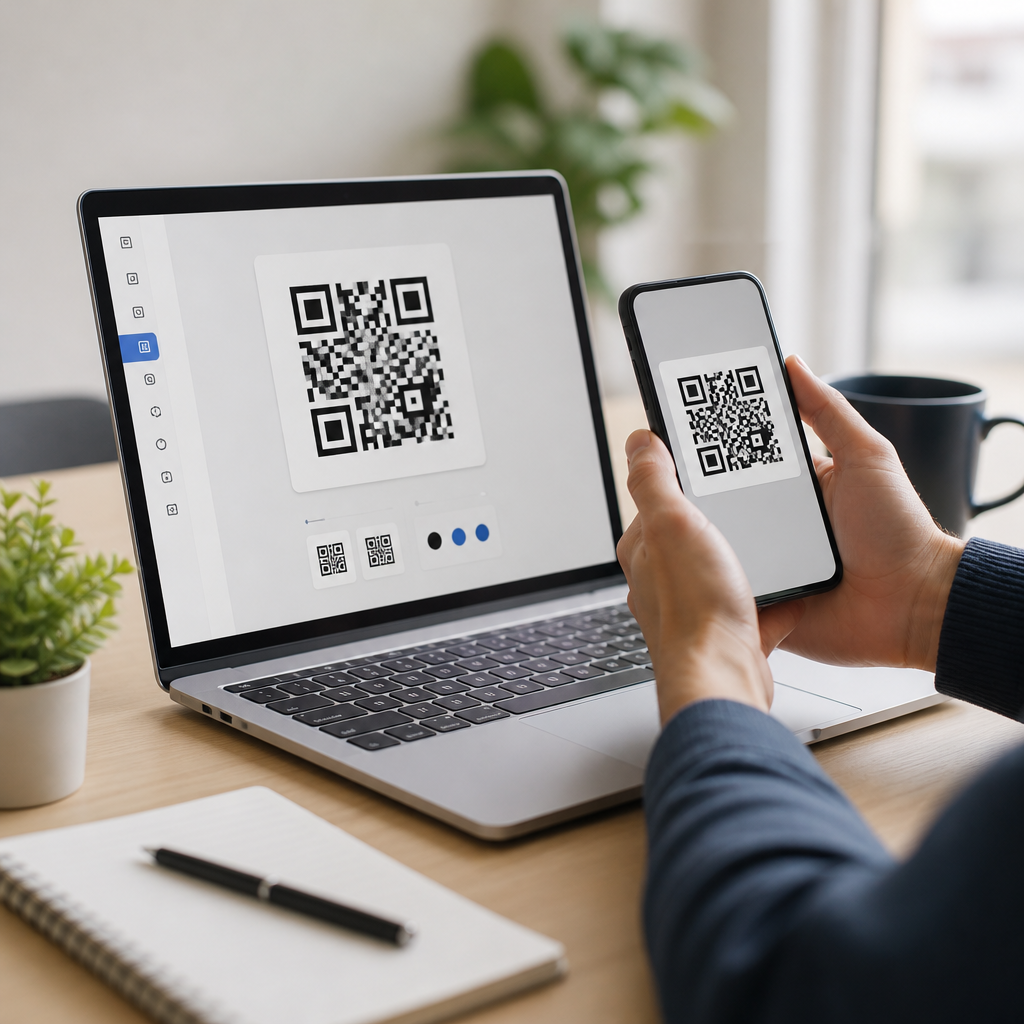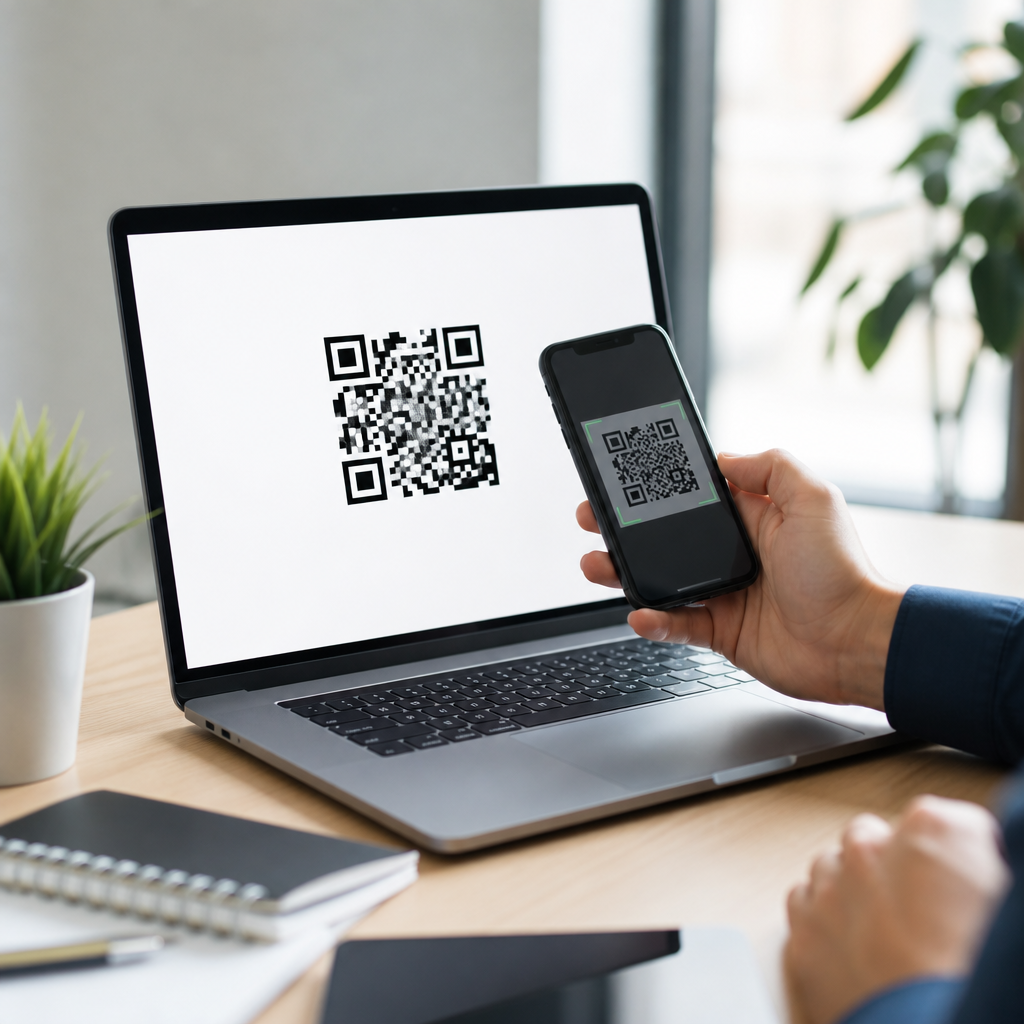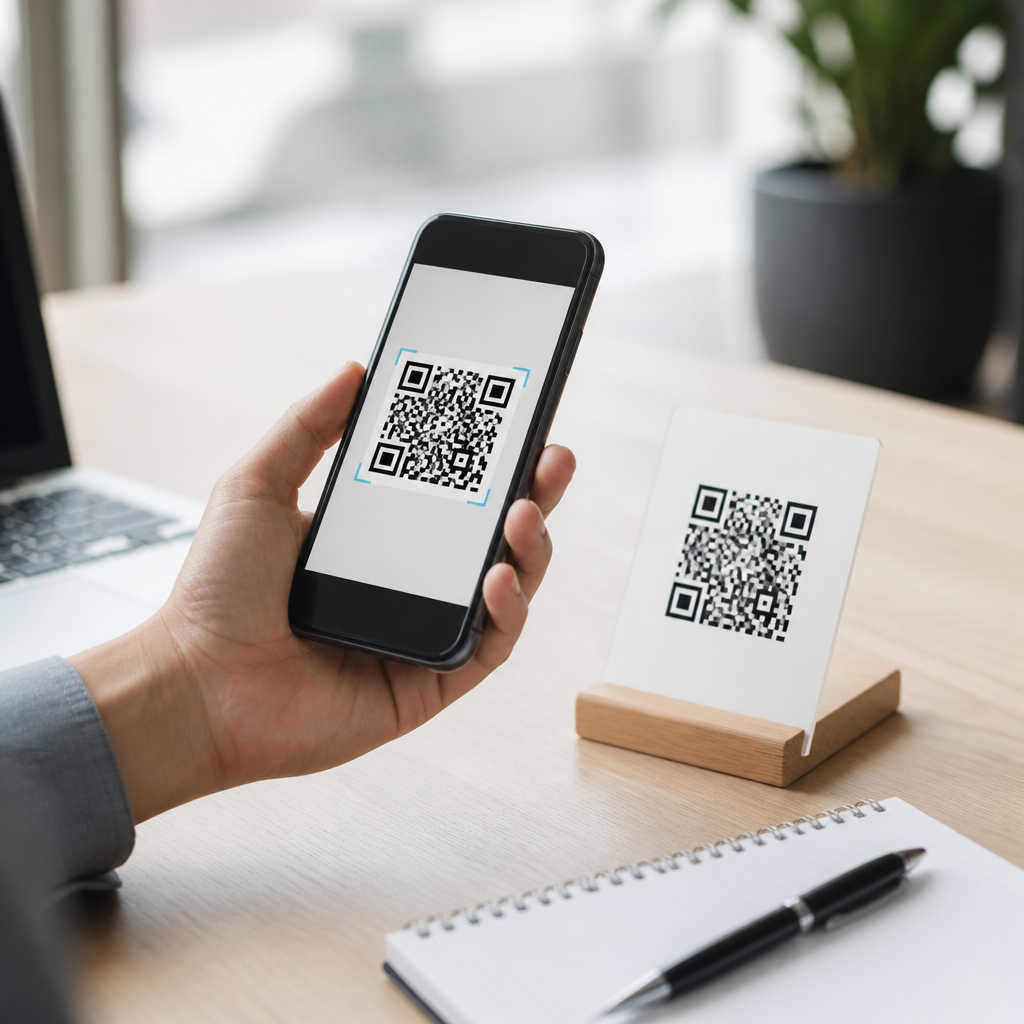
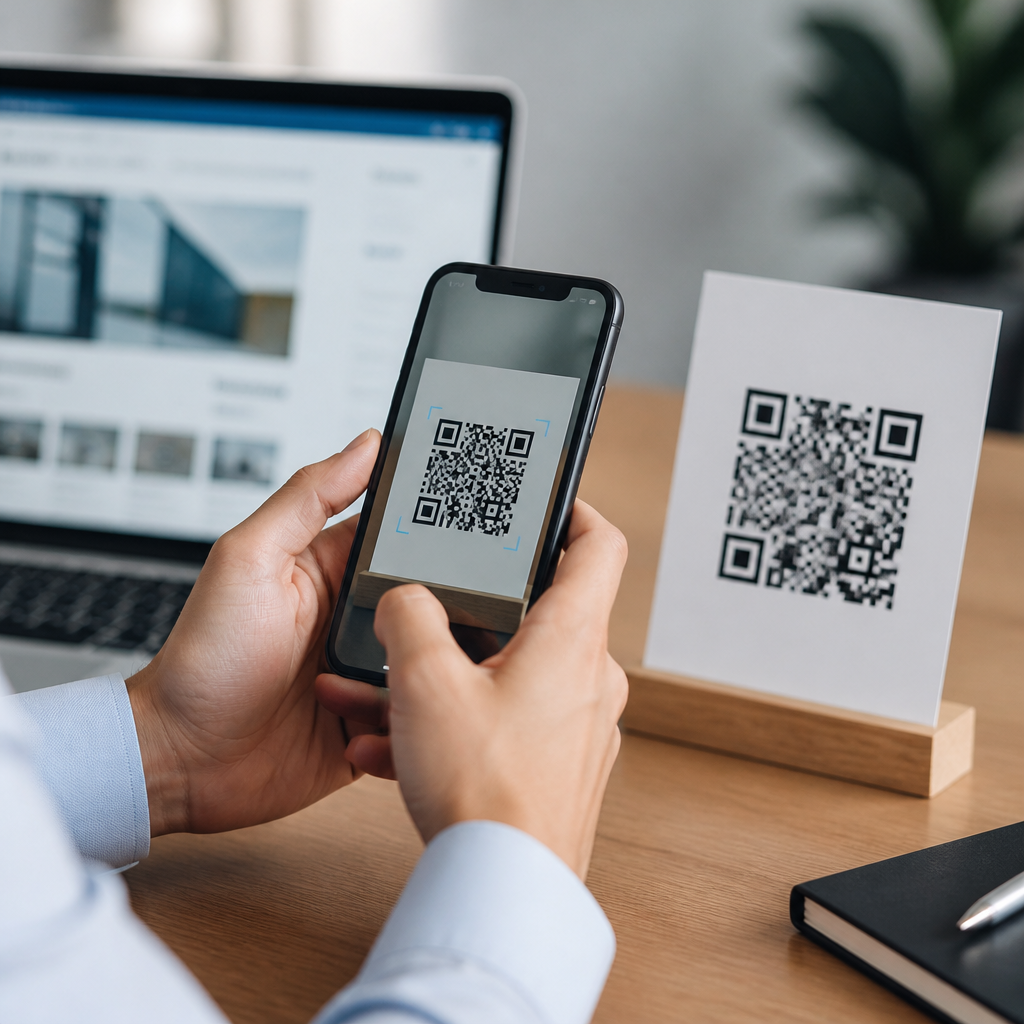
A QR code can fail for reasons that are easy to miss, which is why testing a QR code before using it is not optional if you care about scans, conversions, and customer trust. A QR code, short for Quick Response code, is a two dimensional barcode that stores data such as a website URL, vCard, Wi-Fi credential, PDF link, payment address, or app deep link. When someone points a phone camera or scanner app at it, the device decodes the pattern and opens the destination. That seems simple, but in practice I have seen codes break because of poor contrast, bad redirects, oversized logos, low error correction choices, unreliable landing pages, and printing mistakes that were invisible on screen.
For beginners, the goal is straightforward: confirm that the code scans quickly, resolves to the right destination, works on multiple devices, and remains usable in the exact place it will appear. This article is the central beginner tutorial for QR code testing. It explains what to check before publishing a code on flyers, menus, packaging, business cards, storefront signs, emails, or social posts. It also clarifies common terms. Scanability means how easily a device can read the code. Quiet zone means the blank margin around the code. Error correction is the built in redundancy that helps a code remain readable if part of it is damaged or covered. Static codes store data directly and cannot be edited after creation, while dynamic codes usually point through a short URL that can be updated and tracked.
Testing matters because QR codes sit at the point where the physical world meets the web. If that handoff fails, the user blames the brand, not the code. In campaigns I have audited, even a small issue like glossy print glare or a mobile page that loads too slowly can cut scan completion rates sharply. Good testing prevents wasted print runs, failed event check-ins, broken restaurant menus, and support tickets from confused customers. It also creates a repeatable process your team can use across future projects. If you are new to QR codes, start here, then use the linked beginner tutorials in your site structure for deeper guides on size, placement, design, analytics, and troubleshooting.
Start with the destination, not the pattern
The first test should focus on where the code sends people, because a perfectly scannable QR code is still a failure if the destination is wrong or weak. Open the target URL manually on your phone and desktop. Confirm that it uses HTTPS, loads quickly on cellular data, and does not trigger browser warnings. If the destination is a landing page, test the page title, headline, form, payment flow, and thank-you page. If it is a PDF, verify the file opens on both iPhone and Android without forcing a huge download. If it launches Wi-Fi setup, map directions, or a payment app, make sure the action works for ordinary users without hidden prerequisites.
I always test redirects separately. Many dynamic QR platforms route traffic through a short link before the final page, and each redirect adds latency and another point of failure. Use tools such as Redirect Checker, Chrome DevTools, or your platform’s built in preview to confirm the redirect chain is short and accurate. Watch for broken UTM parameters, accidental 302 temporary redirects that should be 301 or direct links, and app deep links that fail back to the wrong page. Beginners often test only with office Wi-Fi, but real users scan under weaker network conditions, so load the destination over mobile data as well.
Check QR code design rules that affect scanability
Most scanning issues begin with avoidable design mistakes. A QR code needs high contrast, a clean quiet zone, sharp edges, and enough physical size for the expected scanning distance. Black on white remains the safest option. Light gray on pastel, metallic inks, transparent backgrounds, and inverted colors often reduce reliability. If you add a logo, keep it modest and leave the three finder patterns untouched. Use a reputable generator that follows ISO/IEC 18004 standards and lets you choose error correction deliberately instead of guessing. For printed pieces, export vector files such as SVG, EPS, or PDF whenever possible so the pattern stays crisp at any size.
Size matters more than many beginners expect. A practical rule is that the scanning distance should be about ten times the code width. A 2 centimeter code is comfortable at roughly 20 centimeters, while a code on a poster viewed from two meters should be around 20 centimeters wide. That is not a legal standard, but it is a dependable field guideline. Also preserve the quiet zone, ideally four modules wide on all sides. When teams crop the margin to fit a layout, cameras struggle to distinguish the code from nearby text, borders, or background images.
Run a basic cross-device test matrix
Before publishing, scan the code with more than one device, more than one operating system, and more than one scanning method. At minimum, test an iPhone using the native camera, an Android phone using the native camera, and a third-party scanner app because camera behavior varies across models and software versions. If the audience includes older devices, test at least one midrange Android phone with a less capable camera. I also recommend testing under bright light, low indoor light, and slight glare because real users rarely scan in ideal conditions.
| Test area | What to verify | Example |
|---|---|---|
| Device compatibility | Scans on iPhone and Android native cameras | iPhone opens Safari prompt; Android opens Chrome prompt |
| Distance and angle | Code reads without perfect alignment | Poster scan works from arm’s length and slight side angle |
| Lighting | Readable in daylight and indoor light | Menu code still scans under restaurant pendant lighting |
| Network conditions | Destination loads on mobile data | Landing page opens on 4G with no timeout |
| Destination behavior | Page, file, or app action works correctly | PDF opens; payment link pre-fills exact amount |
Document the results instead of relying on memory. A simple spreadsheet with device model, OS version, camera app, scan speed, destination result, and notes will expose patterns quickly. If one device fails consistently, inspect the code image for low contrast or overstyled modules. If all devices scan but the page underperforms, the issue is likely the destination rather than the QR code itself. This habit turns beginner testing into a repeatable quality assurance process.
Test in the final context of use
A code that works on your monitor may fail once printed, mounted, laminated, embroidered, or placed behind glass. That is why the most important beginner tutorial is contextual testing. Print a physical proof at actual size and place it where the finished code will live. Then test from the real viewing distance and angle. For a tabletop menu, scan while standing and sitting. For packaging, test on curved surfaces because wrapping a code around a bottle can distort the modules. For storefront windows, test daytime reflections, nighttime reflections, and weather affected visibility.
Materials change outcomes. Gloss coatings create glare. Uncoated paper can soften edges if ink spreads. Fabric textures and corrugation can break tiny modules. Digital displays introduce another variable: pixel density and moiré patterns. A code that looks sharp in a design tool may blur on a low resolution screen at small sizes. If the code appears in email, preview it in major clients and dark mode. If it appears in social media graphics, upload a draft and confirm the platform’s compression does not degrade readability.
Validate tracking, analytics, and privacy implications
Many teams use dynamic QR codes because they want scan analytics, but the tracking setup itself needs testing. Confirm that campaign parameters persist through redirects and appear correctly in analytics platforms such as Google Analytics 4, Adobe Analytics, or Matomo. Scan the code, complete the desired action, and verify that sessions, events, and conversions are attributed as expected. If your platform offers unique scan counts, location reporting, or device breakdowns, compare a few controlled scans against the dashboard to make sure the numbers update accurately.
Privacy and compliance matter too. If the code sends users to a form, payment page, or gated content, check consent banners, cookie behavior, and data collection disclosures. A QR code placed in public often reaches first-time visitors, so trust signals must appear immediately. Avoid sending users to a raw tracking URL that looks suspicious. Branded short domains perform better because people can recognize them before tapping through. If your organization works in healthcare, education, or finance, involve compliance reviewers early, since the destination content may be more sensitive than the code itself.
Troubleshoot common failures before launch
When a QR code fails, the fix is usually straightforward if you isolate the problem. Slow scanning often points to low contrast, insufficient quiet zone, or a code that is physically too small. Intermittent scanning can indicate glare, motion blur, curved placement, or a destination that sometimes times out. If the scan opens the wrong page, inspect redirects, cached links, and generator settings. If a stylized code works in one app but not another, simplify the design. Rounded modules, gradients, and heavy logo overlays are attractive, but reliability should win.
Beginners should also distinguish between static and dynamic risks. With static codes, the data is embedded permanently, so one typo can force a full reprint. With dynamic codes, the pattern usually remains the same, but the redirect service becomes mission critical. Check the provider’s uptime history, link editing controls, password policies, and export options before relying on it for signage or packaging with a long lifespan. Keep a backup destination ready and archive the final artwork, live URL, and test log together so future updates do not become guesswork.
Testing a QR code before using it comes down to a disciplined checklist: verify the destination, confirm strong design fundamentals, test across devices, test in the real environment, and validate analytics and compliance. Beginners often assume a quick scan on one phone is enough, but dependable QR performance requires broader checks. The reward is practical and immediate: fewer failed scans, better user experience, stronger campaign results, and less wasted spend on reprints or emergency fixes.
As the hub for beginner QR code tutorials, this guide gives you the baseline process every other how-to should build on. Use it before you print a menu, launch a flyer, post a sign, or send a mailer. Start with a small proof, document each test, and fix weaknesses before the code reaches customers. If you make testing a standard step, your QR codes will work the first time people need them most.
Frequently Asked Questions
Why is it so important to test a QR code before printing or publishing it?
Testing a QR code before using it helps you catch failures that are not obvious by just looking at the design. A QR code may appear sharp, correctly placed, and professionally branded, yet still lead to the wrong URL, open a broken landing page, fail on certain phones, or scan too slowly to be useful in real-world conditions. Because QR codes are often used to drive conversions, payments, downloads, registrations, and in-store actions, even a small issue can create friction, reduce response rates, and damage trust. If a customer scans once and gets an error, many will not try again.
Testing also confirms that the entire user journey works, not just the scan itself. A successful scan should take someone to the intended destination quickly, over common mobile connections, with a page that loads properly on mobile devices. In practice, the QR code, the destination link, the page experience, and the call to action all need to work together. That is why testing should be viewed as a quality control step, not an extra task. It protects your campaign performance, prevents wasted printing costs, and helps ensure that every scan has the best chance of turning into a useful action.
What exactly should I test when checking a QR code?
A complete QR code test should cover more than whether your phone can read it once at your desk. Start by confirming the encoded content is correct. If the code points to a URL, verify the exact destination, including HTTPS, any UTM parameters, redirects, and the final landing page. If the code contains a vCard, Wi-Fi credential, payment address, PDF, app link, or SMS action, test that the data is accurate and that the device interprets it the way you expect. Small errors such as one wrong character, a missing slash, or a bad redirect can break the experience completely.
Next, test scan reliability under realistic conditions. Scan the QR code from different distances, angles, and lighting environments. Try it on multiple devices if possible, including both iPhone and Android, and use both native camera apps and common QR scanner apps. If the code will be printed, test it at the actual print size and on the actual material if available, because glossy finishes, curved surfaces, low contrast, or poor print quality can affect scan speed. You should also test any customization choices, such as logos, colors, frames, or inverted color schemes, because design changes can reduce readability if pushed too far.
Finally, test the post-scan experience. Make sure the page loads fast, is mobile-friendly, and presents the intended offer or information clearly. If the code is meant for a poster, flyer, product package, menu, sign, or direct mail piece, think about where and how people will scan it. A technically valid QR code can still fail if the placement is awkward, the internet connection is weak, or the landing page is hard to use on a phone. The best testing process checks the code, the device behavior, and the destination experience together.
How can I test a QR code properly across different phones and scanning conditions?
The best approach is to simulate real use as closely as possible. Begin with at least one iPhone and one Android phone, because different camera systems and software can produce slightly different results. Test with the built-in camera app first, since that is how many people will scan. Then, if your audience may use third-party scanning apps, test with a few common ones as well. Make sure the phone can detect the code quickly without requiring users to reposition the device repeatedly. If scanning feels slow or inconsistent on multiple devices, that is a sign you may need to improve size, contrast, quiet zone spacing, or destination complexity.
Environmental testing matters too. Try scanning in bright light, low light, and typical indoor lighting. Test on screens and on printed samples if your code will appear in both digital and physical formats. If the code will be placed on packaging, windows, tables, banners, or outdoor signage, check it from the likely scanning distance and angle. A code that works perfectly on a computer monitor at close range may struggle when printed small on textured material or mounted where glare interferes with readability.
It is also smart to test network conditions. A scanner may decode the code instantly, but if the destination depends on redirects, large files, or a slow mobile page, users may still have a poor experience. Try scanning on Wi-Fi and mobile data. If the content opens an app, payment flow, file, or form, complete the process all the way through. Proper testing means asking not only, “Does it scan?” but also, “Does it work quickly and smoothly for the average person in the place where they will actually use it?”
What are the most common reasons a QR code fails even when it looks fine?
One of the most common causes is incorrect encoded data. The code may point to a mistyped URL, a broken redirect, an expired page, or content that was moved after the code was created. Another major issue is poor mobile experience. Users may successfully scan the code but land on a page that loads slowly, is not secure, is blocked by a browser warning, or is difficult to use on a phone. In those cases, the QR code itself is not the only problem; the full experience is failing.
Design and production issues are also very common. QR codes need enough contrast between foreground and background, and they need a clear quiet zone around the edges so scanners can detect them properly. If a logo is too large, the colors are too light, the code is stretched, or the image resolution is poor, scan reliability can drop. Printing can introduce additional problems such as blur, ink spread, glare, creases, curved placement, or a code that is simply too small for the intended scanning distance. Even decorative choices that look attractive in a mockup can make a QR code harder to read in practice.
Context and placement can cause failure as well. A code might be mounted too high, placed where people cannot physically get close enough to scan, or shown in an area with weak lighting or poor cellular service. Sometimes the issue is timing: a dynamic code may have been edited incorrectly, a campaign may have expired, or the linked asset may have been removed. This is why testing should not stop after the first successful scan. A QR code can look perfect and still fail because of content errors, design decisions, printing limitations, environmental conditions, or destination problems.
Should I use a static or dynamic QR code, and does that affect testing?
Both static and dynamic QR codes should be tested carefully, but they differ in how flexible they are after creation. A static QR code contains the final data directly in the code. That means if you encode the wrong URL or need to update the destination later, you usually need to generate a new code and replace it everywhere it appears. Static codes can be useful for permanent information that is unlikely to change, but they leave little room for error. Because of that, pre-launch testing is especially important. You need to confirm the exact content, the scan behavior, and the final destination before the code is printed or distributed.
A dynamic QR code usually points to a short redirect URL managed through a platform, allowing you to change the final destination later without changing the printed code. This can be extremely helpful for campaigns, product packaging, restaurant menus, event materials, and marketing assets where destinations may need updates. Dynamic codes often also provide analytics such as scan counts, device type, time, and location data. However, they still need testing. You should verify the redirect works correctly, loads quickly, and does not introduce delays or tracking issues. You also need to make sure the QR management platform is reliable and that the code remains active for as long as you need it.
In practical terms, dynamic codes reduce the risk of a permanent mistake, but they do not eliminate the need to test. You still need to scan on multiple devices, confirm the intended destination, and review the full mobile experience. A good rule is this: static codes demand careful accuracy before launch, while dynamic codes demand both pre-launch testing and ongoing monitoring after launch. In either case, testing is what turns a QR code from a simple graphic into a dependable tool for customer engagement and conversions.