
Learning how to make a QR code for free is one of the simplest ways to connect printed materials, product packaging, storefront displays, and digital content without expensive software or technical skills. A QR code, short for Quick Response code, is a two-dimensional barcode that stores information such as a website URL, Wi-Fi login, contact card, payment link, PDF, or app download page. When someone scans it with a smartphone camera, the encoded action opens instantly. I have created QR codes for retail signs, event check-ins, restaurant menus, and internal training documents, and the same pattern appears every time: when the code is easy to scan, clearly labeled, and tied to a useful destination, engagement rises.
For beginners, the challenge is rarely generating the image. The real questions are which free QR code generator to use, what type of code to choose, how to test it, and how to avoid mistakes that make a code unusable. Free tools can produce excellent results, but they vary in file formats, customization options, analytics, and whether the code is static or dynamic. That distinction matters because a static QR code stores the destination directly and cannot be edited later, while a dynamic QR code points to a short redirect URL that can be changed after printing, often as part of a paid plan.
This beginner hub explains the full process in plain language, from choosing content and generating the code to printing, testing, and tracking performance. It also helps you understand when a fully free option is enough and when limitations become a problem. If you need a QR code for a flyer, business card, classroom handout, poster, or social media graphic, the steps below will help you create one confidently and correctly the first time.
Choose the right QR code type before you generate anything
The first step in making a QR code for free is deciding what the code should do. Most beginners need a website URL QR code, which sends users to a landing page, form, menu, portfolio, or product page. Other common types include vCard codes for saving contact information, plain text codes for short instructions, email codes that prefill an address and subject line, SMS codes, phone call codes, and Wi-Fi codes that let visitors join a network without typing the password.
In practice, URL codes are the most flexible because you can update the destination page itself even if the code is static. For example, a bakery can print one code on table tents that points to its menu page. The printed code never changes, but seasonal items can be updated on the website. By contrast, if you encode a PDF directly and later replace the brochure, the original code still leads to the old file unless you used a dynamic service. For most beginners, a static URL code is the best free starting point because it is reliable, cost-effective, and widely supported.
You should also think about scan context. A code on a business card usually works best for a contact card or portfolio link. A code on packaging may be better for setup instructions, warranty registration, or a product authenticity page. A code in a classroom can direct students to assignments or a shared drive folder. Matching the code type to the user’s immediate need is what turns a generic square into a useful tool.
Use a reputable free QR code generator and know what “free” includes
Many websites let you create a QR code in seconds, but not all free QR code generators are equal. Reliable options commonly used by beginners and small businesses include QRCode Monkey, QRStuff, Canva’s QR generator, Adobe Express, and the built-in generators available in some marketing platforms. Google Chrome can also create a basic QR code for the page you are currently viewing, which is useful for quick personal sharing but limited for branded campaigns.
When evaluating a tool, check four things. First, confirm whether the code is static or dynamic. If a service offers a free trial for dynamic QR codes, the code may stop working or show limitations once the trial ends. Second, inspect export formats. PNG works for digital use, while SVG or EPS is better for professional printing because vector files scale without losing sharpness. Third, look for customization controls such as color, eye shape, frame text, and logo upload, but use them carefully because excessive styling can hurt scan performance. Fourth, verify whether the tool adds watermarks, branding, or mandatory redirect pages.
I usually advise beginners to start with a straightforward generator that exports PNG and SVG, allows medium error correction, and does not require an account for static codes. That setup covers most flyers, menus, posters, and handouts without hidden complexity.
Follow the step-by-step process to create a free QR code that scans reliably
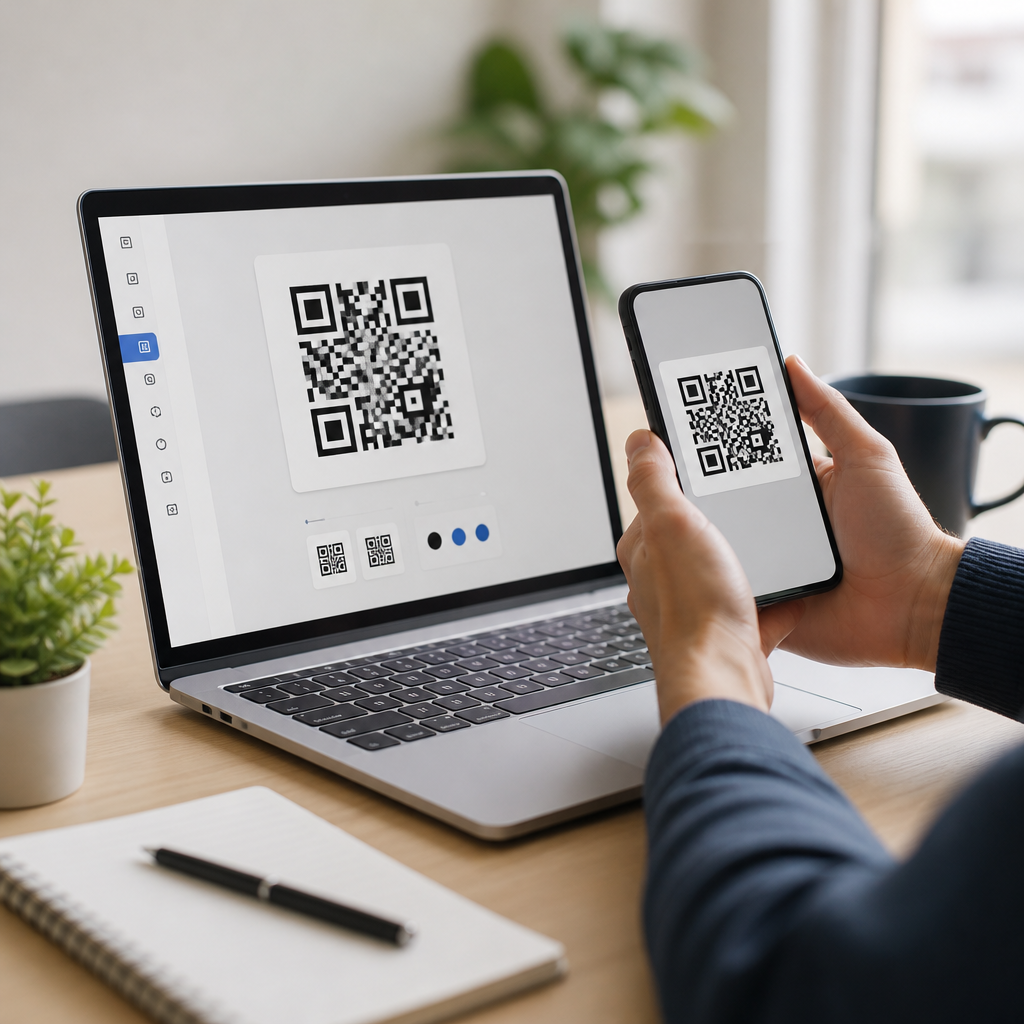
Once you have your content and tool, the creation process is simple. Open the generator, choose the code type, and paste in the destination. If it is a URL, use the final version of the link and test that page first. Shorter URLs often create less dense codes, which can improve scannability, although modern phones can read dense patterns when print quality is good. Select static if you want a completely free QR code with no ongoing dependency on the platform.
Next, set the design. Black on white remains the safest option because it provides strong contrast. Dark blue, dark green, or dark brown on a light background can also work, but low-contrast combinations such as yellow on white or pastel on gray often fail under poor lighting. Most generators allow error correction levels labeled L, M, Q, and H. Higher levels tolerate more damage or logo coverage, but they also make the pattern denser. For general use, level M or Q is a practical choice.
| Step | What to do | Why it matters |
|---|---|---|
| 1 | Choose URL, Wi-Fi, contact, or another code type | Prevents mismatched user expectations |
| 2 | Paste the final destination and confirm it loads correctly | A broken link makes the QR code useless |
| 3 | Use dark foreground and light background | Improves scan success across devices |
| 4 | Export PNG for screens or SVG for print | Preserves image quality in the final format |
| 5 | Test on multiple phones before publishing | Catches sizing, contrast, and destination problems |
Finally, download the file, place it in your design, and maintain a quiet zone, which is the blank margin around the code. Without that clear border, scanners may struggle to detect the code edges. I have seen well-designed posters fail because the QR code was pushed against decorative elements with no surrounding space.
Test size, placement, and destination before printing or publishing
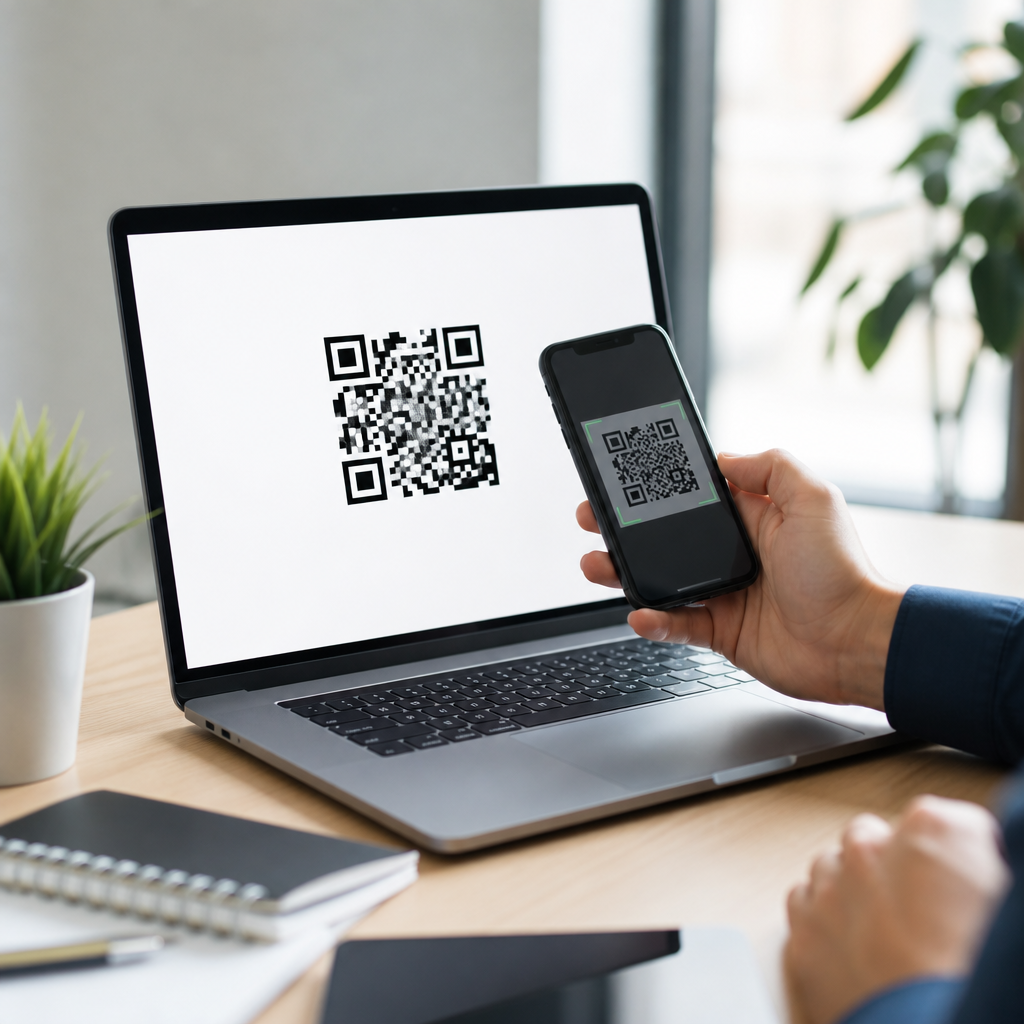
Testing is where good QR codes separate themselves from frustrating ones. Scan the code with both iPhone and Android devices, using the native camera app first because that is how most people will interact with it. Test under realistic conditions: from arm’s length on a poster, from a tabletop for menus, or from a phone screen if the code will be shared digitally. If the code opens a website, check load speed, mobile responsiveness, and whether the destination matches the promise near the code.
Size matters more than many beginners expect. A common rule is that the scanning distance should be about ten times the code’s width. A 2 centimeter code works at roughly 20 centimeters away, while a poster viewed from 2 meters should use a code around 20 centimeters wide. This is a guideline rather than a law, but it helps prevent tiny codes on large signage. Print resolution also matters. For professional print, 300 DPI is the safe baseline for raster files such as PNG.
Placement should support natural behavior. Put the code where users pause long enough to scan it, not where they are moving quickly. A restaurant menu code belongs near the point of decision; an event registration code belongs near the entrance queue with a clear instruction such as “Scan to check in.” Always add a short call to action so people know what they will get after scanning.
Avoid the common beginner mistakes that break free QR codes
The most common error is linking to the wrong destination or changing a page slug after printing a static code. Other frequent problems include insufficient contrast, tiny size, cluttered backgrounds, overdesigned modules, and logo overlays that cover too much data. Beginners also forget that some social media app links behave differently for users who are logged out, on desktop-only pages, or inside in-app browsers. If you send traffic to Instagram, TikTok, or a cloud document, test the exact user path on mobile.
Another avoidable mistake is using a free dynamic QR code trial for something permanent, such as packaging or signage. If the service later restricts access, your printed materials may stop functioning. For long-term projects, either use a trusted paid platform with clear terms or create a static code that points to a page you control on your own domain. That approach gives you stability and lets you update content behind the scenes.
Security and trust also matter. People hesitate to scan codes with no context because malicious QR codes exist. Label the destination clearly, use your recognizable brand, and send users to secure HTTPS pages. If you are collecting personal data through a form, make sure the page explains what information is being gathered and why.
Track results and build a beginner-friendly QR code workflow
Free QR codes can still support useful measurement if you plan ahead. The simplest method is to add UTM parameters to the destination URL so visits appear clearly in Google Analytics 4, Matomo, or another analytics platform. For example, a bookstore can use one code on window posters and another on bookmarks, each with different campaign tags. That makes it possible to see which placement drives more traffic, sign-ups, or purchases.
As your projects grow, create a repeatable workflow: define the goal, choose the destination, generate the code, test on multiple devices, save the master file, and document where it is used. Store exported files in a shared folder with naming conventions such as “spring-sale-poster-qr-v1.” This small habit prevents confusion later when teammates need to update artwork or verify a link. For a beginner tutorials hub, that is the central lesson: making a QR code for free is easy, but making one that performs well requires deliberate setup, testing, and maintenance.
Use this guide as your starting point for every beginner QR project. Choose the right code type, rely on reputable free tools, keep the design simple, and test before launch. When you follow those basics, free QR codes can work as well as expensive alternatives for many everyday needs. Pick one use case today, create your code, scan it on two phones, and publish with confidence.
Frequently Asked Questions
How can I make a QR code for free?
Making a QR code for free is usually very straightforward. In most cases, you simply choose a free QR code generator, select the type of content you want to share, and enter the information you want the code to open. That could be a website URL, a PDF, a phone number, a contact card, a Wi-Fi password, a payment link, or even an app download page. Once the information is entered, the generator creates the QR code instantly, and you can typically download it as a PNG, SVG, or PDF for use online or in print.
If your goal is simplicity, start with a basic static QR code. A static code stores the information directly inside the code itself, which means it is often free to create and does not require a subscription. This is a great option for flyers, business cards, posters, menus, packaging, and labels where the destination is unlikely to change. If you are linking to a website, be sure the URL is correct before downloading the code, because a static QR code usually cannot be edited later.
Before you publish it, test the QR code on multiple smartphones to confirm it scans quickly and opens the correct destination. It is also smart to use a short, clean URL when possible, maintain strong contrast between the code and background, and leave enough white space around the code so scanners can detect it easily. Those small details make a big difference in whether your free QR code works reliably in real-world situations.
What information can a free QR code contain?
A free QR code can hold many different types of information, which is one reason QR codes are so useful for both personal and business use. The most common use is linking to a website, but QR codes can also store plain text, email addresses, phone numbers, SMS prompts, calendar events, Google Maps locations, vCards for contact details, and Wi-Fi network credentials. Some free generators also allow QR codes for PDFs, image galleries, social media profiles, or payment pages, depending on the platform.
The right format depends on what you want people to do after scanning. If you want to send people to your homepage, a URL QR code is the obvious choice. If you want customers to save your details instantly, a vCard QR code can be much more useful than a plain website link. For restaurants, event organizers, retail shops, and service providers, QR codes can reduce friction by opening exactly the right action without requiring users to type anything manually.
It is worth noting that some advanced content types may appear free at first but actually rely on dynamic QR code features, which can come with limits or later fees. For example, a QR code tied to editable content, analytics dashboards, or password-protected landing pages may be part of a paid plan. If you want a truly free option with no ongoing cost, static QR codes that point directly to fixed information are usually the safest choice.
Are free QR codes permanent, or do they expire?
Whether a free QR code expires depends on the type of QR code you create and the platform you use to generate it. A static QR code is generally permanent because the destination data is encoded directly into the image. As long as the linked website, file, or action still exists, the QR code should continue to work. This makes static QR codes ideal if you want a free, long-term solution without worrying about renewals, subscriptions, or account access.
Dynamic QR codes work differently. Instead of storing the final destination directly in the code, they redirect through a service that can update the destination later. That flexibility is useful if you want to change the link, track scans, or run campaigns, but it also means the QR code depends on the provider’s platform. Some free dynamic QR codes expire after a trial period, stop working if an account becomes inactive, or display limitations unless you upgrade to a paid plan.
If permanence matters, always check the generator’s terms before downloading your code. Look for clear wording about whether the code is static or dynamic, whether there are scan limits, and whether the provider reserves the right to disable free links. For long-lasting uses like product packaging, window signage, printed brochures, or business cards, a non-expiring static QR code is usually the most dependable free choice.
What is the difference between a static and dynamic QR code?
The main difference is flexibility. A static QR code contains fixed information that cannot be changed after it is created. If it links to a webpage, phone number, or document, that exact information is permanently built into the code. Static QR codes are commonly free and work well for situations where the destination will stay the same. They are simple, reliable, and especially practical for users who want a no-cost option without extra tools.
A dynamic QR code, on the other hand, points to a short redirect link managed by a QR code platform. Because of that setup, you can usually change the final destination later without changing the printed code itself. Dynamic codes often include features like scan tracking, location data, device analytics, time-based redirects, and campaign management. These features are useful for marketers, event planners, and businesses running promotions or testing multiple landing pages.
For anyone learning how to make a QR code for free, static codes are usually the best starting point. They are easier to understand, genuinely free in many cases, and ideal for stable content. Dynamic codes can be valuable if you need editing and analytics, but it is important to understand that those features are often tied to paid plans. Choosing between the two comes down to whether you need permanence and simplicity or flexibility and tracking.
What are the best practices for making sure a free QR code scans correctly?
To make sure a free QR code scans correctly, start with the basics: use a high-quality download, keep the design clean, and test it before sharing it publicly. Black-on-white remains the most reliable color combination because it provides strong contrast. Avoid placing the code over busy patterns, dark backgrounds, or images that interfere with readability. Also leave a margin of empty space around the QR code, often called the quiet zone, so phone cameras can recognize its boundaries.
Size matters too. A QR code that looks fine on a computer screen may become difficult to scan if printed too small on a label, card, or flyer. As a rule, the farther away people will scan it from, the larger it should be. For example, a code on product packaging can be relatively small, but one on a storefront window or trade show banner should be much larger. If you are using it in print, export it in a format that stays sharp, such as SVG or high-resolution PNG.
Finally, test the QR code in real conditions, not just on your desktop. Scan it with different phones, from different angles, and under normal lighting. Make sure the destination page loads quickly and is mobile-friendly, since most scans happen on smartphones. If the link is too long, cluttered, or slow, the user experience suffers even if the code itself works. A successful QR code is not just one that scans, but one that opens the right content instantly and makes the next step easy for the user.